A store starts with fifty products neatly sorted into a few collections. Navigation is simple. Customers find what they need. Then the catalog grows—two hundred products, then five hundred, then a thousand. The old category structure starts to creak. Collections that once held a dozen items now hold eighty. Shoppers scroll, then leave. The navigation that worked at the beginning no longer works now.
This is the most common navigation problem for growing stores, and it usually goes unnoticed until revenue plateaus. The store keeps adding products, but conversion stays flat or even drops, because customers can’t find what they’re looking for fast enough. Organizing large catalog navigation is not about making prettier menus—it’s about structuring your product space so that every product is reachable in two or three deliberate clicks, not ten hopeful scrolls.
- Category structure should match how customers think, not how you organize your warehouse.
- Hierarchy depth matters less than clarity at each level.
- Filters and subcategories solve different problems—use both deliberately.
- Collection page design becomes more important as collection size grows.
- Category names shape expectations and click-through rates more than most store owners realize.
Why large catalogs break navigation that used to work
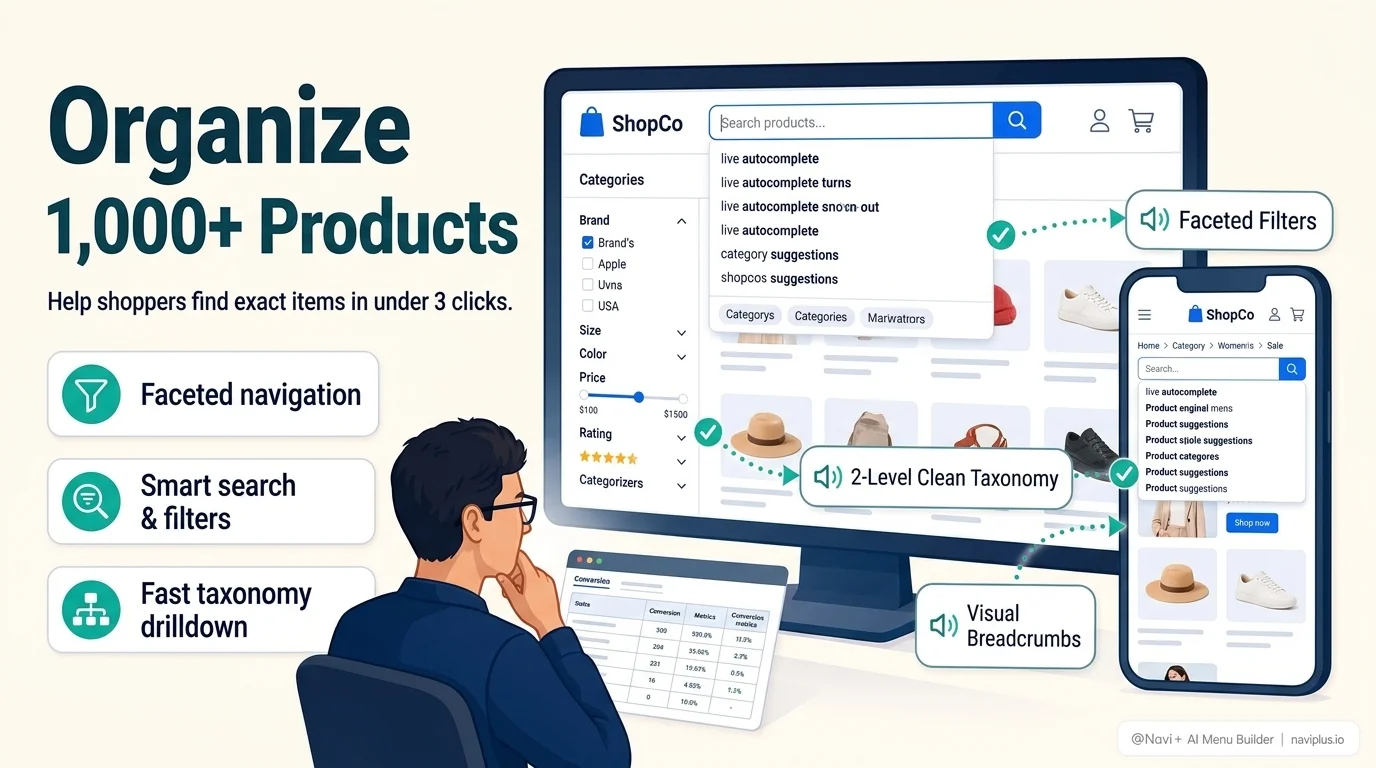
When your store had thirty products, a flat menu worked fine. Customers could see everything in one dropdown. But as the catalog scales, that same structure fails in predictable ways.
The first symptom is collection bloat. A “Women’s Tops” collection that started with twelve shirts now holds seventy. Customers land on the page, scroll halfway, then bounce. Baymard Institute research shows that when a category contains more than about 50 products without effective filtering or subcategorization, users begin to experience choice paralysis—the cognitive load of comparing too many similar items makes decision-making harder, not easier.
The second symptom is hidden inventory. You add a new product line, but customers never discover it because it’s buried three levels deep in a menu structure you built two years ago. Good products go unseen simply because the navigation hasn’t kept pace with the catalog.
The third symptom is performance degradation. Large menus with hundreds of links slow page load. Google’s Core Web Vitals thresholds—LCP under 2.5 seconds, INP under 200ms, CLS under 0.1—become harder to hit when your navigation loads slowly or causes layout shifts as it renders.
Fixing this requires rethinking the category structure from the ground up, not patching it with more dropdowns.
The psychology of category naming: what labels actually do
Most store owners name categories based on internal logic—how products are grouped in their supplier’s catalog, or what makes sense to the team. But customers don’t think in those terms. They think in jobs to be done, occasions, problems to solve.
A hardware store might organize internally by supplier or product type: “Fasteners,” “Adhesives,” “Hand Tools.” But a customer arrives thinking, “I need to hang a heavy mirror” or “I’m fixing a wobbly chair.” Category names that match customer intent—”Wall Mounting,” “Furniture Repair”—get clicked more often than taxonomically correct labels that mean nothing to someone in a hurry.
Nielsen Norman Group research on information architecture shows that category labels affect both findability and confidence. When users see a category name that matches their mental model, they click faster and feel more certain they’ll find what they need. When the label is ambiguous or uses internal jargon, users hesitate, second-guess, or skip it entirely.
This matters more as the catalog grows, because larger stores have more categories competing for attention. The difference between “Accessories” and “Phone Cases & Chargers” might not matter in a ten-product store, but in a five-hundred-product store, specificity wins.
Deep-diveRead the full guide → The psychology of category naming: why label wording changes click rates
Flat vs deep navigation: how many levels you actually need
A common instinct when the catalog grows is to add more hierarchy. Two levels become three, then four. But deeper isn’t always better.
Flat navigation—everything reachable in one or two clicks—works when you have up to about 50–100 products. Beyond that, a purely flat structure forces too many top-level categories into the menu, overwhelming users with choice.
Deep navigation—three or four levels of subcategories—works when you have hundreds or thousands of products, but only if each level is clearly labeled and the structure matches how customers browse. Amazon, for example, uses four-level hierarchies in many departments: Electronics > Computers & Accessories > Components > Internal Components. Each step narrows logically.
The mistake most stores make is adding depth without clarity. They nest categories based on back-end convenience, not customer logic. A category tree that makes sense to the inventory manager often confuses the shopper.
The rule of thumb: for stores with 100–500 products, two to three levels usually suffice. For stores with 500–2,000 products, three levels. Beyond that, three to four levels with strong filtering. The key is that each level should have 5–10 options, not 3 and not 30. Too few options and the level feels pointless; too many and users can’t scan them.
Deep-diveRead the full guide → Flat vs deep navigation: how many levels your menu actually needs
Collection pages that guide instead of overwhelm
Once a collection reaches fifty or more products, the page itself becomes navigation. How products are sorted, what filters appear, how much information each product card shows—all of these affect whether customers find what they need or give up.
The most common mistake is defaulting to “Featured” or “Best Selling” sorting with no explanation. Customers land on a page, see products in an order they don’t understand, and scroll hoping to stumble onto the right one. Better: default to a sort order that matches customer intent for that category. In a “New Arrivals” collection, sort by newest. In a “Sale” collection, sort by discount percentage. In an evergreen category like “Running Shoes,” default to popularity or rating.
The second mistake is offering too many filters too soon. A row of fifteen filter dropdowns at the top of the page is as paralyzing as no filters at all. Progressive disclosure works better: show three to five primary filters (size, price, brand for clothing; capacity, brand, price for electronics), and tuck secondary filters behind a “More Filters” button.
The third mistake is not guiding the customer toward the next step. Large collections benefit from visual hierarchy—highlighting a few curated picks at the top, then showing the full grid below. This pattern, common on large fashion sites, lets customers either take the guided path or ignore it and browse freely.
Deep-diveRead the full guide → Collection pages that guide instead of overwhelm
Filters vs subcategories: when to use which
As the catalog grows, you face a recurring decision: should this be a subcategory or a filter?
For example, you sell shoes. Should “Running Shoes” be a subcategory under “Shoes,” or should you have one “Shoes” collection with a “Type” filter that includes “Running”?
The decision framework is straightforward:
Use a subcategory when:
- The segment is large enough to deserve its own landing page (typically 20+ products).
- Customers think of it as a distinct category and search for it directly (“men’s running shoes,” not “men’s shoes filtered by running”).
- You want to write specific content, images, or SEO metadata for that segment.
- It represents a meaningful branch in your product taxonomy.
Use a filter when:
- The segment is smaller or more fluid (seasonal collections, promotional tags).
- Customers want to combine it with other attributes (“blue running shoes under $100”).
- It’s an attribute that applies across multiple categories (color, size, price, material).
- You want customers to narrow down within a broader category rather than committing to a branch.
In practice, large stores use both. A fashion store might have “Women’s Shoes” as a top-level category, “Sneakers” and “Boots” as subcategories, and then filters for size, color, and price within each. The structure guides; the filters refine.
The most important rule: don’t duplicate. If “Running Shoes” is a subcategory, don’t also offer a “Running” filter that does the same thing. Redundant navigation confuses customers and dilutes your internal link equity for SEO.
Deep-diveRead the full guide → Filters vs subcategories: when to use which
Testing and iteration: how to know if your structure works
You don’t need to guess whether your category structure works—Shopify Analytics and Google Analytics show you directly.
Three metrics matter most:
-
Category click-through rate. In Shopify, check Online Store > Navigation. Look at how often each menu item is clicked relative to how often it’s shown. If a category gets impressions but no clicks, the name is unclear or the category isn’t interesting. If it gets clicks but high bounce rates, the landing page doesn’t match expectations.
-
Collection bounce rate. If customers land on a collection and leave without clicking a product, the page either has too many choices or the wrong products. Compare collections of similar size—if one has a bounce rate 20% higher, investigate.
-
Search behavior. Open your site search logs. If customers search for terms that should be obvious category names, your navigation is failing. If they search for “waterproof jackets” and you have a “Waterproof” subcategory under “Jackets,” they should find it in the menu, not need to search.
Run these checks quarterly as your catalog grows. Category structure that worked at 200 products often breaks at 500.
One practical tool: heat mapping. Services like Hotjar or Microsoft Clarity show where users actually click on your navigation. If a menu item you think is important gets ignored, rename it or move it. If users hover over a category but don’t click through, the submenu might not be clear enough.
Where to start
If your catalog has already outgrown your navigation, the fix feels overwhelming. Here’s the smallest useful starting point:
-
Audit your ten largest collections. If any collection has more than 50 products and no subcategories or effective filters, that’s your first target.
-
Check your site search logs for the past 30 days. The top ten searches reveal what customers want but can’t find in your navigation. Turn those into category names or prominent filters.
-
Look at mobile navigation separately. On a phone, a deep hierarchy is harder to navigate than on desktop. If your mobile menu requires four taps to reach a product, simplify it or add a bottom Tab Bar with shortcuts to your top categories.
Tools like Navi+ make this process easier by letting you configure desktop and mobile navigation independently, test changes without editing theme code, and build multi-level Mega Menus that stay fast. When you’re restructuring navigation for a large catalog, the ability to iterate quickly—without a developer—makes the difference between a structure you test and refine versus one you build once and leave alone because changing it is too much work.
Start smallAudit your ten largest collections and check your site search logs—those two steps surface 80% of navigation problems.
Large catalog navigation isn’t something you set up once. It evolves as your store grows. The goal isn’t perfection—it’s a structure clear enough that customers find what they need in two or three clicks, without thinking about the navigation at all.
Frequently Asked Questions
When should I use subcategories versus product filters?
Use subcategories for mutually exclusive product types (e.g., Boots vs Sneakers). Use faceted filters for overlapping attributes (e.g., Size, Color, Price, Material). This keeps your menu clean while providing granular browsing power on collection pages.
How many top-level items should a large catalog mega menu have?
Stick to 5 to 7 top-level navigation items. Group sub-collections into multi-column Mega Menu panels with clear headers and featured visual banners rather than creating 15 top-level links.
Will a mega menu with hundreds of subcategories slow down page speed?
Traditional theme mega menus inject hundreds of HTML DOM nodes directly into initial HTML, bloating DOM size. Navi+ pre-compiles menu layouts and delivers them via CDN edge cache, maintaining high Core Web Vitals scores.
Transform your Shopify navigation with Navi+
Build visual mega menus, mobile tab bars, and floating contact buttons in under 5 minutes.
Esplora gli argomenti
Questa guida rimanda ad articoli mirati — approfondisci ogni tema.