Sarah opens a clothing store on her laptop. She tabs to the navigation—but no visible indicator shows which element is focused. She presses Enter on what she thinks is “Women’s Clothing.” Nothing happens. The dropdown only opens on hover. She can’t hover because she uses a keyboard to navigate, not a mouse. She leaves.
Sarah is one of the roughly 1 billion people worldwide—about 15% of the global population—who have some form of disability. Some are blind and rely on screen readers. Some have motor impairments and use keyboard-only navigation or voice control. Some have low vision and can’t read low-contrast text. Many of them shop online because it’s easier than navigating a physical store—until the website’s navigation blocks them.
Inaccessible navigation doesn’t just fail disabled shoppers. It fails everyone in situational contexts: someone using their phone in bright sunlight can’t see pale gray links. A person holding a baby can’t swipe through a complex mobile menu. An older shopper with declining eyesight struggles with small text and thin focus outlines. Accessibility improvements make navigation better for all of these people.
- 15% of people have disabilities that affect how they navigate websites—keyboard users, screen reader users, people with motor impairments or low vision.
- WCAG 2.1 Level AA is the legal standard for web accessibility in most jurisdictions, including the U.S. (ADA), the EU, and Canada—and it applies to navigation.
- Accessible navigation requires semantic HTML, keyboard operability, visible focus indicators, ARIA labels, and sufficient color contrast.
- Accessibility lawsuits targeting ecommerce sites have risen sharply since 2018—navigation is one of the most common complaint areas.
WCAG compliance: what the law actually requires
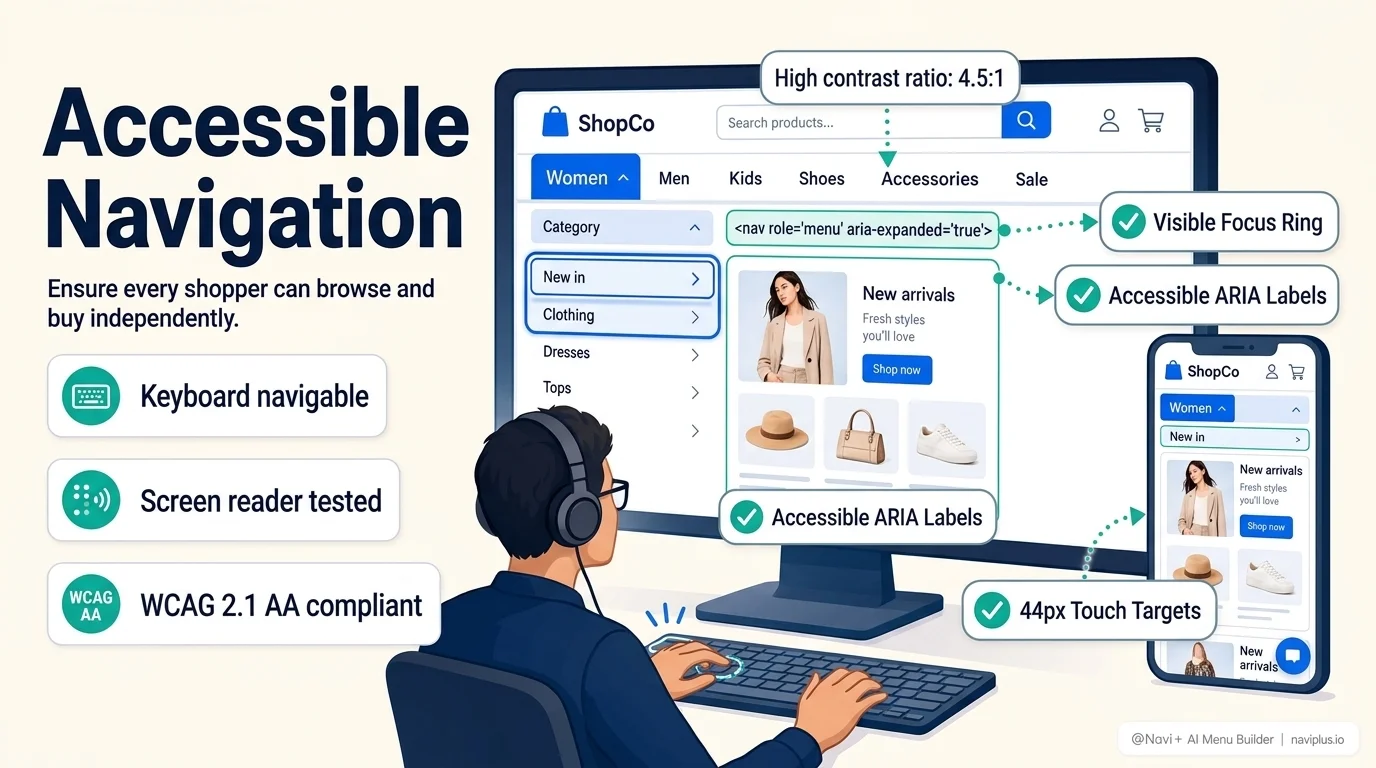
WCAG (Web Content Accessibility Guidelines) is the international standard that defines how to make web content accessible. Most legal frameworks—the ADA in the United States, the European Accessibility Act in the EU, the Accessibility for Ontarians with Disabilities Act in Canada—reference WCAG 2.1 Level AA as the benchmark.
For navigation specifically, the relevant WCAG criteria include:
Keyboard accessible (2.1.1): Every interactive element must be operable with a keyboard. A mega menu that opens only on mouse hover violates this. A dropdown that requires a click but doesn’t respond to Enter or Space violates this. Tab, Enter, Space, Escape, and arrow keys must provide complete access to all navigation functionality.
Focus visible (2.4.7): When a user tabs to a link or button, a visible indicator must show which element is focused. Many Shopify themes strip the default browser focus outline for aesthetic reasons. Without a replacement, keyboard users are navigating blind.
Link purpose (2.4.4): The text of a link must describe its destination. “Click here” and “Read more” fail this criterion when used without surrounding context. Menu links like “Women’s Dresses” and “New Arrivals” pass because they describe where the link goes.
Color contrast (1.4.3): Text must have a contrast ratio of at least 4.5:1 against its background (3:1 for large text). Pale gray navigation links on white backgrounds—a common design choice—often fail this threshold.
The legal side is not theoretical. ADA lawsuits over website accessibility have surged, averaging over 4,000 federal filings per year in the U.S. since 2021. Domino’s Pizza, Winn-Dixie, and hundreds of ecommerce businesses have faced lawsuits specifically citing inaccessible navigation. The courts have consistently held that websites are “places of public accommodation” under the ADA, and WCAG 2.1 AA is the standard courts apply.
Compliance isn’t just about avoiding lawsuits. It’s about not excluding 15% of your potential customers from the first interaction they have with your store—the navigation menu.
Deep-diveRead the full guide → WCAG compliance for ecommerce menus: what the law actually requires
Screen readers: how blind shoppers experience your menu
A screen reader converts visual content into speech or Braille output. When a screen reader user arrives at your store, they don’t see the layout. They hear the page announced element by element in the order it appears in the HTML source.
For navigation, the screen reader looks for semantic structure. A <nav> element announces as “navigation region.” A list of links (<ul>/<li>/<a>) announces as “list, 5 items” followed by each link’s text. A button with aria-expanded="false" announces as “collapsed, button”—telling the user there’s a submenu they can open. These labels and structures are the only way the screen reader user understands what they’re interacting with.
When navigation is built with <div> elements styled to look like links, with JavaScript click handlers instead of proper <a> tags, the screen reader can’t identify them as navigation. When dropdown buttons lack aria-expanded, the user doesn’t know submenus exist. When multiple <nav> regions have no aria-label, the user can’t distinguish the header menu from the footer links.
Common screen reader failures in ecommerce menus:
- Menu items built as
<div>or<span>elements instead of<a>or<button>tags—screen readers don’t announce them as interactive elements. - Dropdown triggers without
aria-expandedoraria-haspopup—the user doesn’t know a submenu exists. - No
aria-current="page"on the active page link—the user can’t tell where they are in the site. - Multiple
<nav>elements without uniquearia-labelvalues—the user can’t distinguish between them. - Visually hidden content that still exists in the DOM—screen readers announce elements that sighted users never see.
The fastest test is to turn on VoiceOver (Cmd+F5 on Mac), close your eyes, and try to navigate your menu. If you can’t find the menu, open a category dropdown, or tell which page you’re on, your screen reader users are experiencing the same confusion.
Deep-diveRead the full guide → Screen reader navigation: how blind shoppers experience your menu
Color contrast and focus indicators: the two fixes that help everyone
Two of the highest-impact accessibility fixes for navigation are also the simplest: increasing color contrast and adding visible focus indicators. Both help people with disabilities and improve usability for everyone.
Color contrast measures the luminance difference between text and its background. WCAG requires 4.5:1 for normal text and 3:1 for large text (18pt or 14pt bold). Many navigation designs fail this. A common pattern: light gray links (#999999) on a white background (#FFFFFF) produce a contrast ratio of 2.85:1—well below the 4.5:1 minimum. The fix is straightforward: darken the text to #595959 or darker, which yields 7:1 and remains visually clean.
Low contrast doesn’t only affect people with diagnosed low vision. It affects older adults (contrast sensitivity declines with age), anyone viewing a screen in bright light, and anyone using a lower-quality display. Higher contrast in your navigation means more shoppers can read your menu labels.
Focus indicators are the visual highlight that shows which element is currently focused when using keyboard navigation. Browsers provide a default focus outline, but many themes remove it with outline: none in CSS because designers consider it ugly. Without a replacement, keyboard users can’t see where they are in the navigation.
An effective focus indicator has at least 3:1 contrast against both the element and its surrounding background. A thick colored ring, a solid background shift, or an underline plus color change all work. The key is visibility—the user needs to instantly see which element is focused, even in a dense navigation bar.
These two fixes—better contrast and visible focus—require minimal design effort. They don’t change the layout or structure of the navigation. They don’t require new JavaScript. They’re CSS changes that can be implemented in an afternoon, and they directly improve both accessibility compliance and conversion rate.
Deep-diveRead the full guide → Color contrast and focus indicators: the two fixes that help everyone
Mobile accessibility: beyond tap targets
Mobile accessibility starts with tap targets—WCAG 2.5.5 specifies a minimum of 44x44 CSS pixels for touch targets—but extends well beyond sizing.
Touch accommodation: People with tremors, limited dexterity, or other motor impairments struggle with precision gestures. Swipe-to-dismiss, drag-to-reorder, and multi-finger gestures exclude them. Every gesture-based interaction in your navigation needs an equivalent single-tap or button alternative. A swipeable drawer menu should also have a close button. A drag-to-reorder collection should also have up/down controls.
Voice control: iOS Voice Control and Dragon NaturallySpeaking let users activate elements by speaking their visible label. “Tap Women’s Clothing” works if the visible text says “Women’s Clothing” and the accessible name matches. When visible text differs from the accessible name (via aria-label override), voice commands fail silently—the user says the label they see, but the system doesn’t recognize it.
Reduced motion: Animated slide-ins, parallax effects, and bouncing transitions cause dizziness or nausea for people with vestibular disorders. WCAG 2.3.3 requires respecting the prefers-reduced-motion media query. When a user enables reduced motion in their OS settings, your navigation should reduce or eliminate animations—menus should appear instantly rather than sliding in.
Mobile navigation patterns matter for accessibility. A bottom tabbar—like those built with Navi+ for Shopify—provides large, always-visible touch targets with clear text labels, eliminating the need for complex gestures or hunting through a hamburger menu. Combined with proper semantic HTML and ARIA labels, it’s one of the most accessible mobile navigation patterns available.
Deep-diveRead the full guide → Mobile accessibility: beyond tap targets
Why accessibility and conversion are the same goal
There’s a persistent misconception that accessibility is a cost center—something you do for compliance, separate from revenue. The data says otherwise.
Accessible navigation is clearer navigation. Clear labels help screen reader users and sighted users. Visible focus indicators help keyboard users and mouse users who lost track of where they were. High contrast helps people with low vision and people squinting at their phone in the sun. Predictable keyboard behavior helps assistive technology users and power users who prefer keyboard shortcuts.
When navigation works for the widest range of abilities, more shoppers can find products, more shoppers can complete purchases, and fewer shoppers abandon out of frustration. Accessibility isn’t separate from conversion optimization—it’s the foundation of it.
Start with a keyboard testUnplug your mouse and navigate your store using only Tab, Enter, and Escape. Try to open a category, find a product, add it to cart, and reach checkout. If any step is blocked or confusing, that's the barrier your keyboard users face on every visit.
Navigation accessibility audit checklist
Use this checklist to evaluate your store’s navigation:
Keyboard operability:
- Can you tab to every link and button in the menu?
- Do dropdowns open with Enter or Space (not just hover)?
- Do dropdowns close with Escape?
- Is the tab order logical (left to right, top to bottom)?
- Does focus never get trapped inside a menu or modal?
- Does focus return to the trigger when a dropdown closes?
Focus indicators:
- Is there a visible focus indicator on every interactive element?
- Does the indicator have at least 3:1 contrast against the background?
- Is the indicator visible in all interactive states (default, hover, active)?
Screen reader support:
- Is the menu wrapped in a
<nav>element with anaria-label? - Are menu items built with
<a>or<button>tags (not<div>elements)? - Do dropdown triggers have
aria-expandedthat updates when opened/closed? - Is the current page marked with
aria-current="page"? - Are links described with meaningful text (not “Click here”)?
Color contrast:
- Do all navigation links meet 4.5:1 contrast ratio?
- Do buttons and interactive elements meet 3:1 non-text contrast?
- Is contrast sufficient in all states (default, hover, active, focus)?
Mobile:
- Are all touch targets at least 44x44 CSS pixels?
- Does navigation work without complex gestures?
- Are animations reduced or removed when
prefers-reduced-motionis enabled? - Do visible labels match accessible names for voice control?
Automated tools like Lighthouse, axe, and WAVE catch some of these issues. But manual testing with a keyboard and screen reader is essential—automated tools miss focus traps, illogical tab order, and screen reader confusion that only surface during real use. If your navigation passes both automated and manual testing, you’re meeting the majority of WCAG 2.1 Level AA requirements for navigation—and providing a better experience for every shopper who visits your store.
Frequently Asked Questions
Why do many Shopify theme menus fail basic WCAG accessibility tests?
Most themes rely exclusively on CSS ':hover' pseudo-classes without JavaScript keyboard event listeners (Enter, Escape, Tab), and CSS resets frequently remove ':focus-visible' outlines, rendering the menu unusable for keyboard-only visitors.
What ARIA attributes are required for accessible ecommerce navigation?
Key requirements include 'aria-haspopup="true"', 'aria-expanded="false/true"' dynamically updated when submenus toggle, semantic '<nav>' containers with 'aria-label', and 'aria-controls' referencing expanded drawer panels.
Does Navi+ meet WCAG 2.1 AA accessibility standards?
Yes. Navi+ menus are engineered with semantic HTML5 elements, full keyboard navigation (Tab, Arrow keys, Escape to close), high-contrast visual focus indicators, and strict 44×44px minimum touch targets.
Boost Shopify speed & accessibility with zero theme clutter
Ultra-lightweight navigation built for Core Web Vitals, LCP optimization, and full keyboard and screen reader compliance.
トピックを見る
このガイドは各テーマの記事にリンクしています——それぞれをさらに深く学べます。