The short answer: yes, with an anchor link
Yes. Give the homepage section an ID (for example reviews), then set the tab’s link to /#reviews. Browsers scroll to the element whose ID matches the part after #. Use an ID you set yourself, because IDs Shopify generates for JSON-template sections can change.
HTML fragment anchors allow bottom tabs to jump directly to any element on your homepage. When tapped, the browser queries the DOM for the matching ID and pulls it into view. By web standards, element IDs must be unique within the document. Because Shopify dynamically generates section IDs in JSON templates, relying on auto-generated strings creates fragile links that break when sections change. Declaring a stable ID ensures lasting reliability.
A mobile tab bar is a fixed navigation menu that remains visible at the bottom of the mobile screen. Designing effective mobile tab bar architecture means connecting shoppers directly to primary destinations—whether browsing catalog collections or jumping straight to customer reviews on your homepage.
How anchor links work on a Shopify homepage
What /#reviews actually means
A destination like /#reviews provides three instructions: the slash / targets the homepage root, # marks the fragment delimiter, and reviews specifies the target HTML ID. The browser scrolls ancestor containers so the element becomes visible, matching standard scrollIntoView() mechanics. Configuring only #reviews works on the homepage but fails on product pages. The leading slash ensures the browser returns to the homepage first.
Auto-generated section IDs vs IDs you set yourself
Every Shopify section sits inside a container div featuring class="shopify-section" and an id starting with shopify-section-. For static Liquid sections, the ID is the file name without .liquid. In JSON templates, the ID is dynamically generated by Shopify (see Liquid Objects: Section), appearing like shopify-section-template--123456__reviews. Copying this string works for a quick test, but if the section is recreated the ID can change and break your link. Setting your own ID keeps the link independent of Shopify’s generator.
| Attribute Property | Auto-Generated Section ID | Custom Section ID You Control |
|---|---|---|
| Example Format | shopify-section-template--123456__reviews |
reviews |
| Stability | Fragile (can change when the section is recreated) | Stable (you control it, as long as the block stays) |
| Who Controls It | Shopify theme rendering engine | Store merchant or developer |
| When to Use | Temporary testing or quick inspection | Production navigation menus and mobile tab bars |
Step 1: Give the section a stable ID
To configure an anchor jump, your mobile browser requires a deterministic element ID. You have two approaches: inspecting your existing theme code for temporary testing, or injecting a dedicated anchor block for production reliability.
For a quick test, inspect the storefront DOM in your desktop browser. Sections are wrapped in a container div bearing class="shopify-section" and an identifier like shopify-section-template--123456__reviews (see Section Rendering API). Copying this string allows immediate testing, but that string can change and break your link.
The durable method is to assign an ID you control. If your theme offers a Custom Liquid or Custom HTML section or block, place it directly above the target section in your Theme Editor and insert a single lightweight anchor tag:
<div id="reviews"></div>
Name your anchor with lowercase letters and hyphens. The MDN Web Docs id attribute specifies that an ID must be unique within the entire document. Reusing an ID makes the jump unreliable. Always duplicate your active theme before editing code for safety.
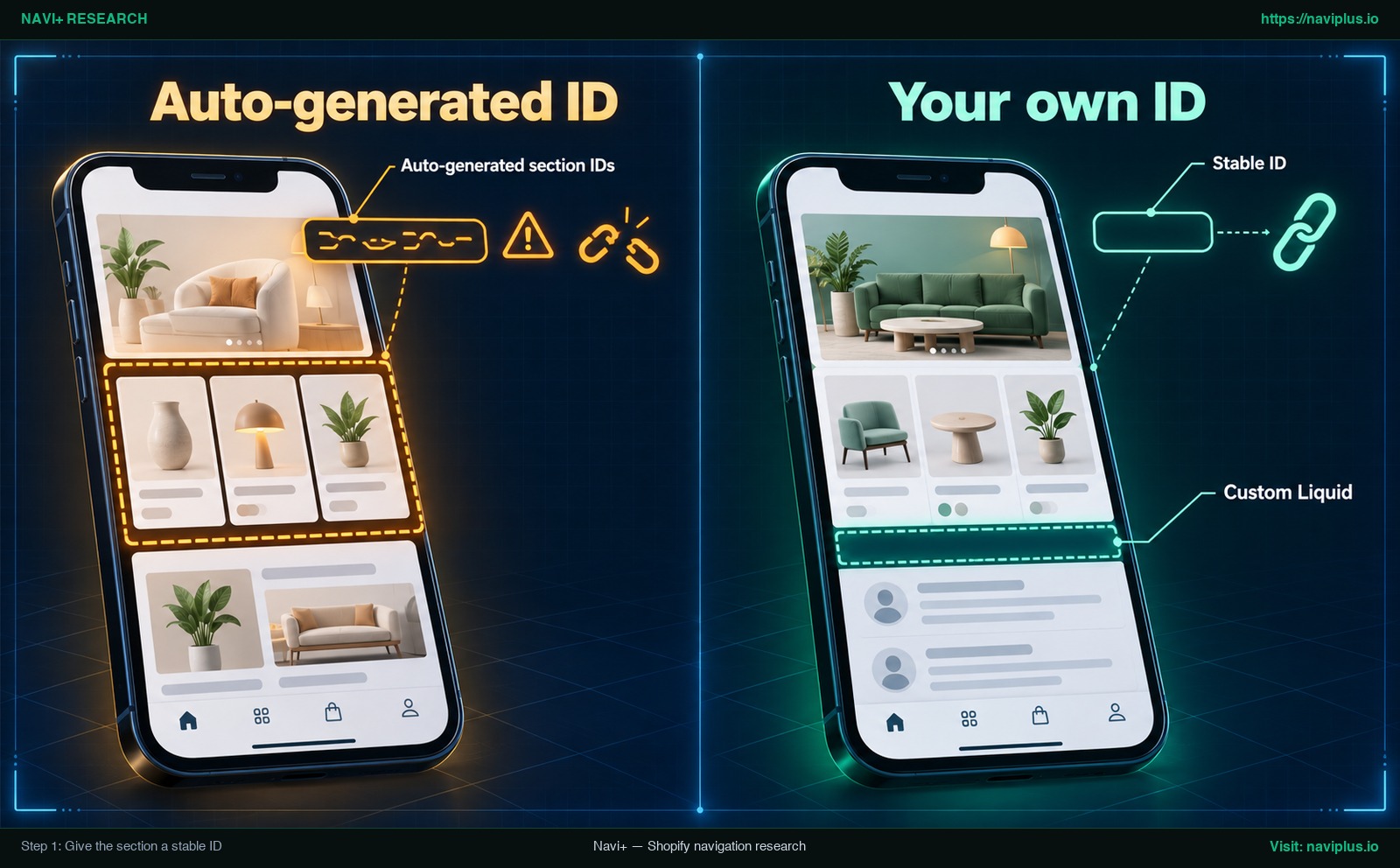
Figure 1: Concept illustration — Auto-generated section ID versus a stable custom ID placed via Custom Liquid.
Step 2: Put the anchor link on the tab
Theme tab bars (custom link block)
Some themes include a mobile bottom bar. For example, Zest theme documentation describes its mobile navigation bar custom link block as a way to “Redirect customers to an attached link page as desired”. That documentation does not mention anchor links, so try it and test: in your theme editor, select the mobile bar block and enter /#reviews.
App tab bars
If you build your navigation using an app, check its documentation to confirm whether its link picker accepts anchor hashes. Some apps have their own syntax for scrolling to an element (for example Navi+’s scroll:OnPage, covered below).
Always format the tab link as /#reviews rather than #reviews if your bottom navigation appears globally. On a product page, tapping #reviews searches that page DOM, finds nothing, and does not respond. The leading slash instructs the browser to return to the homepage root before evaluating the anchor hash.
For an analysis of modern Shopify theme navigation architecture, review our Horizon theme review.
Step 3: Test on a phone (smooth scroll and sticky header offset)
Desktop emulators cannot replicate mobile touch ergonomics. Test your anchor tab directly on a physical phone: once from the homepage, and once from a product page.
Browsers jump instantly to anchors by default. To provide a smooth visual transition, add scroll-behavior: smooth; to your CSS. Per MDN Web Docs CSS scroll-behavior, this sets scrolling behavior for navigation:
html {
  scroll-behavior: smooth;
}
Next, resolve sticky header occlusion. Fixed headers cover section titles because browsers align elements with the viewport top. As documented on MDN Web Docs Element: scrollIntoView(), adjusting scroll margin handles fixed headers. Add scroll-margin-top to your section:
#reviews {
  scroll-margin-top: 80px; /* Adjust according to your sticky header height */
}
Note: The 80px value is an example—measure your mobile header height and adjust accordingly. Also confirm your bottom tab bar does not cover buttons at the end of the section.
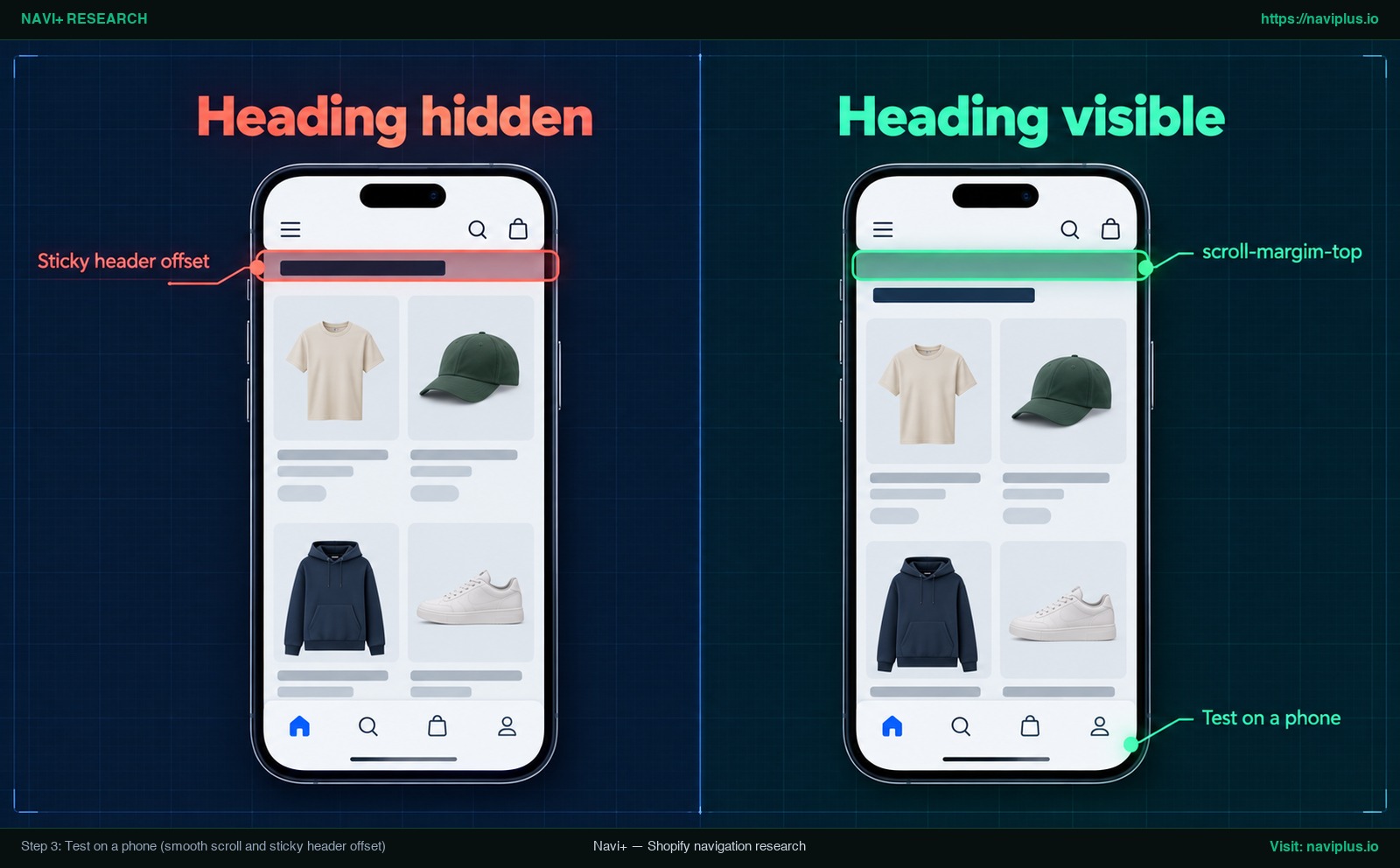
Figure 2: Concept illustration — Section heading hidden under sticky header versus properly offset with scroll-margin-top.
When the anchor doesn’t work
If tapping your tab produces no movement or lands incorrectly, check these five common causes:
-
Re-added section changed ID: If you used an auto-generated ID (
shopify-section-...), reordering the section generated a new string. Switch to a custom ID declared via Custom Liquid. -
Duplicate ID on page: If multiple blocks share an ID, the browser jumps only to the first match, violating HTML uniqueness rules. Ensure your custom ID is unique across the page.
-
Third-party app widgets: Sections rendered asynchronously by external review apps may not expose an editable ID. Place an empty
<div id="reviews"></div>block directly above the app section. -
Lazy-loading layout shifts: Heavy homepage sections with deferred images can shift height while rendering. Test on mobile and tap a second time to verify if alignment corrects.
-
Open drawer menus: If an off-canvas mobile drawer menu remains open, it covers the viewport. Ensure your navigation script closes active drawers upon tab interaction.
| Link Format | Tapped While on Homepage | Tapped While on Another Page (e.g. Product Page) |
|---|---|---|
#reviews |
Scrolls to the reviews section | Produces no visible movement (target ID not on page) |
/#reviews |
Scrolls to the reviews section | Navigates to homepage, then positions view at the section |
Anchor link vs a separate page or collection
While anchoring a bottom tab to a section creates a fast shortcut, it does not suit every content type. Choosing between an on-page jump and a dedicated page requires balancing search indexation against mobile usability.
Anchor links excel when content naturally belongs on the homepage—such as reviews, lookbooks, or concise FAQs. Shoppers inspect key signals instantly without a page reload or losing their browsing flow.
However, if you want search engine visibility, anchor links are limited. Google Search generally does not support URL fragments for distinct page content (see Google Search Central URL Structure). Do not expect /#reviews to appear in search results as its own page. To give the content its own URL in search, use dedicated URLs like /pages/reviews or /collections/all.
Tab bars switch primary views; packing multiple anchor jumps clutters mobile navigation. Keep anchor tabs to one or two high-priority sections. For broader architecture principles, explore our guide on navigation beyond the hamburger menu.
| Strategy Framework | Best Used For | Key Advantages | Trade-offs to Consider |
|---|---|---|---|
Anchor Jump Link (/#reviews) |
Reviews, lookbooks, quick FAQs | Fast scroll without reloading; keeps user position | Google does not index fragments; too many tabs clutter UI |
Dedicated Page or Collection (/pages/reviews) |
Full reviews archive, size guides, collections | Independent search indexation and snippet potential | Triggers full page reload; pulls shoppers from homepage |
Where Navi+ fits
If you build your navigation using the Navi+ Tab Bar—a dedicated mobile bottom bar for Shopify stores—section scrolling is supported natively.
In Navi+, each tab has a Link To field. On Business and Elite plans, it accepts scroll:OnPage(#reviews), scrolling smoothly to matching elements.
Navi+ follows clear conventions: an empty Link To points to the homepage. Internal links use relative paths like /collections/all. A solitary # is reserved for parent dropdowns that expand without navigating—do not confuse # with scroll:OnPage(#reviews).
Even with app syntax, core rules apply: use a stable ID (Step 1) and calibrate sticky header offset using scroll-margin-top on mobile (Step 3). Because scroll:OnPage scrolls to an element on the current page, test the tab from the homepage and from other pages before relying on it.
If you’re using the Navi+ Tab Bar, put scroll:OnPage(#reviews) in the tab’s Link To field and test it on your phone — the full list of link types is in the Navi+ help center. See the Navi+ link types documentation for setup details.
Action checklist
- Choose the homepage section for mobile shoppers to jump to.
- Add an empty Custom Liquid block (
<div id="reviews"></div>) above it for a stable ID. - Set the tab link to
/#your-id(or app syntax likescroll:OnPage(#your-id)). - Add
html { scroll-behavior: smooth; }in CSS for animated scrolling. - Add
scroll-margin-topin CSS to keep sticky headers from covering the section title. - Test on a real smartphone from both the homepage and an internal product page.
- Note the custom ID in store records so theme edits do not delete the block.
FAQ
Where do I find a Shopify section’s ID?
Each section is wrapped in a container div with an ID like shopify-section-.... View it by right-clicking the section in desktop DevTools and selecting Inspect.
Why did my anchor link stop working?
Shopify generates dynamic section IDs for JSON templates. If a section is recreated, that ID changes. A custom ID placed via Custom Liquid provides permanent stability.
Why is the section heading hidden under my header after the jump?
Browsers align the element top with the viewport edge, so a sticky header covers the heading. Adding CSS scroll-margin-top to the section provides offset clearance.
Can I use the same ID twice on one page?
No. The HTML specification strictly requires the id attribute to be unique across the entire document. Reusing IDs causes unpredictable jump behavior.
Will Google index /#reviews as a separate page?
No. Google Search generally does not support URL fragments for serving distinct page content. If you need search indexation, create a dedicated page or collection.
Does Navi+ support linking a tab to a section?
Yes. In the Navi+ Tab Bar, enter scroll:OnPage(#section-id) in the tab’s Link To field for smooth scrolling by CSS selector on Business and Elite plans.
Sources
- Shopify Developer Documentation: Liquid Objects: Section
- Shopify Developer Documentation: Section Rendering API
- MDN Web Docs: HTML id attribute
- MDN Web Docs: Element: scrollIntoView() method
- MDN Web Docs: CSS scroll-behavior
- Google Search Central: URL Structure Guidelines
- FoxEcom Zest Theme Documentation: Mobile Navigation Bar
- Navi+ Help Center: Menu Item Link Types
Explore the topics
This guide links out to focused articles — dive deeper on each.