The three-horizontal-line icon known as the hamburger menu was introduced during the infancy of the mobile web. In 2010, when mobile displays measured 3.5 inches diagonally (such as the iPhone 4 with a 320×480 viewport), tucking full navigation trees behind a compact top-corner toggle was a sensible engineering compromise to conserve scarce pixel real estate.
Fast forward to 2026. The average smartphone display has expanded to between 6.1 and 6.9 inches (such as the iPhone 16 Pro Max at 430×932 viewport points), and mobile traffic accounts for over 70% of global ecommerce sessions. Yet the overwhelming majority of Shopify themes—including free flagships like Dawn and Horizon—still position their primary category navigation inside a 44×44px button pinned to the top-left corner of the screen.
Placing your entire catalog taxonomy behind a top-corner icon introduces severe biomechanical strain and discovery friction. When shoppers cannot see key product categories and must physically reposition their hand to open an off-screen drawer, browsing velocity collapses.
This guide explores the anatomical and behavioral research behind mobile navigation, deconstructs native Shopify Liquid drawer implementations, and outlines the Hybrid Navigation Model that balances persistent bottom tab bars with contextual secondary drawers.
1. Quick Answer & Architectural Comparison
The hamburger menu is not inherently broken; it is misapplied. Tucking the primary browse taxonomy behind an off-screen drawer in the hardest-to-reach physical zone of a large mobile display creates unnecessary cognitive and motor friction.
Mobile navigation succeeds when high-frequency browsing pathways live in the Natural Thumb Zone via persistent bottom navigation, while low-frequency utility links remain in secondary sliding drawers.
| Evaluation Dimension | Standard Top Hamburger Menu | Pure Bottom Tab Bar | Hybrid Multi-Tier Navigation (Recommended) |
|---|---|---|---|
| Ergonomic Accessibility | Poor (Forces grip shift to top corners) | Excellent (100% within natural thumb sweep) | Optimal (Primary hubs at bottom, utilities in drawer) |
| Information Scent | Zero (All categories hidden behind icon) | High (3–5 core destinations always visible) | Highest (Core hubs persistent + instant sub-drawers) |
| Catalog Capacity | Unlimited (Infinite vertical list) | Extremely low (Strictly capped at 3–5 slots) | Scalable (Thousands of SKUs via nested sheets) |
| DOM & Rendering Cost | 450–900 nodes pre-rendered in DOM | Minimal (10–20 lightweight nodes) | Highly optimized (<30 nodes on initial render) |
| Interaction Friction | High (2 taps minimum to see any category) | Zero (Instant 1-tap destination switching) | Low (1 tap for core hubs, 2 taps for subcategories) |
| Suitability | Blogs, portfolio sites, single-page apps | Simple stores with <20 products | Multi-category apparel, retail, 100+ SKUs |
2. Core Thesis
The primary browsing taxonomy of an ecommerce store must be visible without tapping and physically reachable without repositioning the hand. Hiding high-frequency browse pathways inside a top-left hamburger menu forces motor friction that directly suppresses catalog discovery.
When an online store defaults to a top-left hamburger drawer for all navigation, it treats a multi-million-dollar retail catalog the same way a personal portfolio treats its “About” and “Contact” links. Physical reachability and visual prominence are the two non-negotiable pillars of mobile merchandising.
3. Biomechanics of Modern Mobile Displays: The “Grip Shift” Penalty
To understand why top-corner navigation fails, one must examine physical human anatomy and smartphone dimensions.
The Steven Hoober Grip Distribution
In his landmark empirical field study observing 1,333 mobile phone users in natural public settings (transit hubs, cafes, sidewalks), mobile interface researcher Steven Hoober established fundamental truths about mobile ergonomics:
- 49% of users interact one-handed, relying entirely on a single thumb to both stabilize the device and interact with the glass.
- 36% use a cradled grip, holding the phone with one hand while tapping with the thumb or index finger of the other.
- 15% use two-handed interaction, primarily during dedicated typing sessions.
- Over 75% of all screen touches are driven by a thumb.
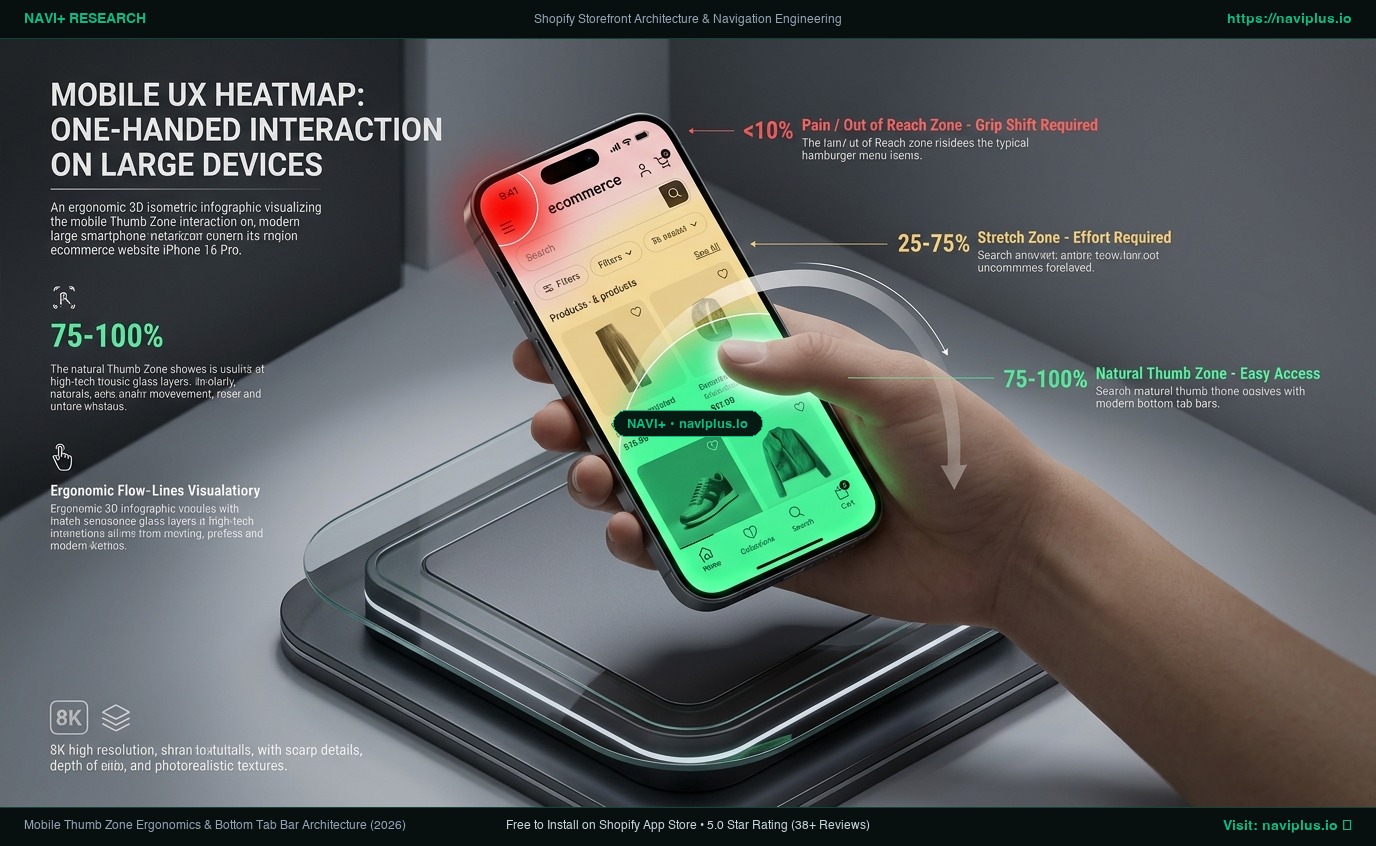
Physical Reach Zones on a Modern 6.7" Device (One-Handed Right Grip):
┌──────────────────────────────┐ 0px
│ [☰ Menu]        [🔍]   [🛒] │ ⚠️ HARD TO REACH ZONE (Red)
│                              │   Requires physical "Grip Shift"
│                              │   or second hand engagement.
├──────────────────────────────┤ ~250px
│                              │
│                              │ ⚡ STRETCH ZONE (Yellow)
│                              │   Reachable with thumb extension;
│                              │   causes mild tendon strain.
├──────────────────────────────┤ ~550px
│                              │
│                              │ 🟢 NATURAL THUMB ZONE (Green)
│                              │   Comfortable sweeping radial arc.
│ [Home]  [Shop]  [Search] [Bag]│   Zero hand adjustment required.
└──────────────────────────────┘ 932px
The Geometry of the Grip Shift
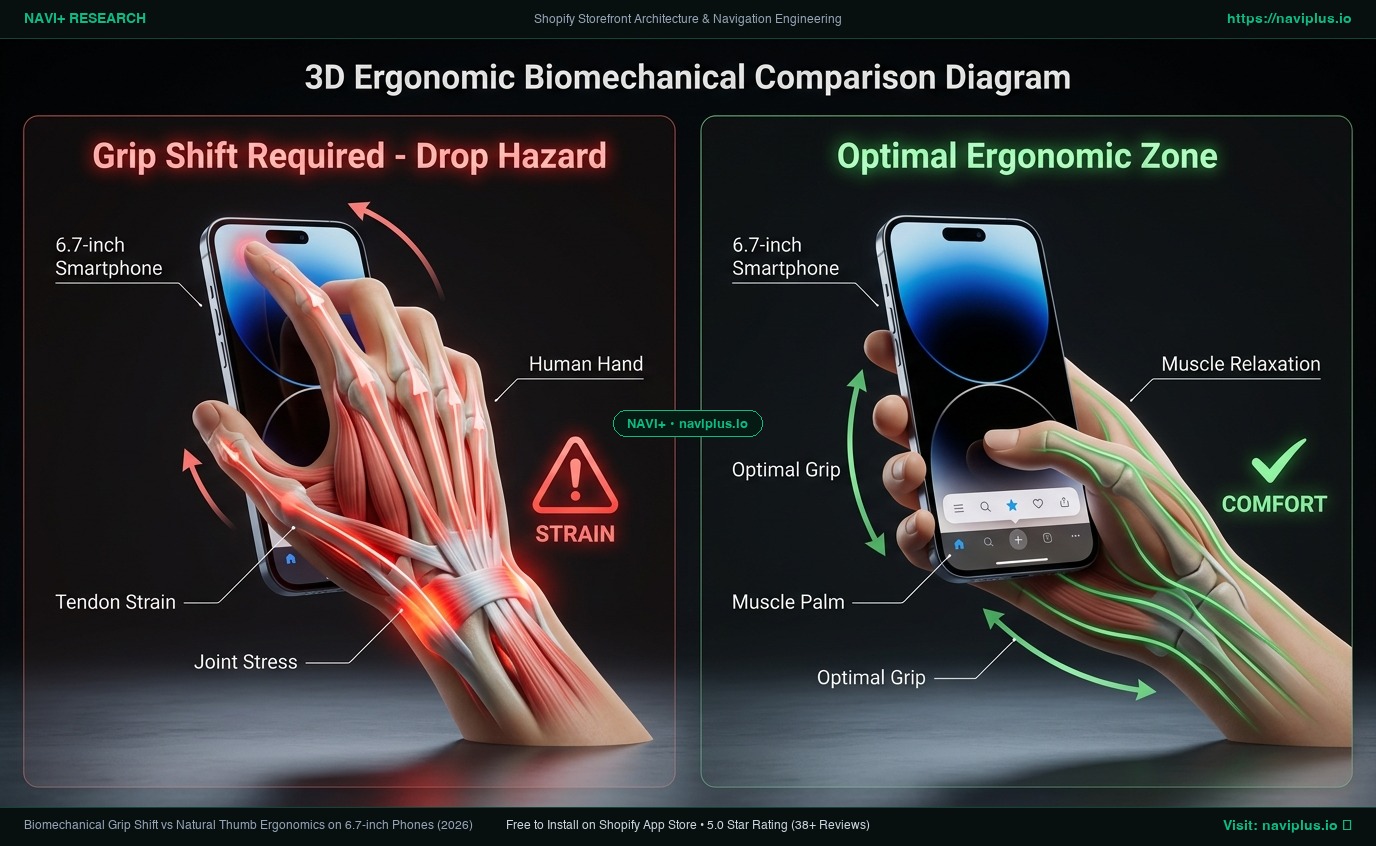
On an iPhone 16 Pro Max (height: 163mm, viewport height: 932pt), the thumb of an adult hand resting naturally in the lower third of the chassis has a comfortable rotational radius of approximately 60–70mm.
Reaching the top-left corner requires the thumb to travel over 135mm diagonally. Because the human skeletal structure prevents the metacarpophalangeal joint from extending that far, the user is forced to perform a Grip Shift: loosening their pinky finger shelf support, sliding the entire palm upward along the chassis, tapping the icon, and sliding the hand back down to scroll.
Every grip shift carries three measurable costs:
- Drop Anxiety: The device is momentarily unstable, increasing user reluctance to casually tap navigation elements.
- Motor Hesitation: Reaching takes between 400ms and 800ms longer than tapping a bottom-anchored target.
- Task Abandonment: Rather than exploring exploratory categories, shoppers resort to passive vertical scrolling on whatever landing page they entered.
4. Usability Research: The Cost of Hidden Information
Physical reachability is only half the battle; cognitive visibility is the other.
The Nielsen Norman Group (NN/g) Discovery Findings
Usability research by Raluca Budiu and Kara Pernice at Nielsen Norman Group evaluated user behavior across visible navigation versus hidden (hamburger) navigation:
- Discoverability dropped by nearly 50% when primary navigation was hidden behind a menu icon compared to when links were visible on screen.
- Task completion times increased significantly, as users had to open the menu speculatively to determine whether a category existed.
- Subjective user ratings dropped: Users perceived sites with hidden navigation as harder to use, even when they successfully completed the assigned task.
The underlying psychological principle is Information Scent (developed by Peter Pirolli and Stuart Card at Xerox PARC). When shoppers browse an online store, they follow proximal sensory cues. If a customer looking for “Merino Wool Cardigans” arrives on a homepage that only displays a hero image and a hamburger icon, there is zero information scent. If they see a bottom bar or horizontal category carousel with “Knitwear” visible, their confidence in finding the product surges immediately.
Baymard Institute Navigation Insights
In their extensive ecommerce usability audits, the Baymard Institute noted that mobile shoppers frequently experience “navigation disorientation” when forced to navigate complex nested menus in full-screen slide-out drawers. Because mobile drawers close upon selection, comparing two distinct departments (e.g., “Men’s Jackets” vs “Men’s Fleece”) requires opening the drawer twice, navigating down an accordion, and backtracking.
5. Technical Inspection: Shopify Dawn’s Native <header-drawer>
To understand why most Shopify stores suffer from this limitation, we must examine Shopify’s official reference theme, Dawn.
In Dawn, mobile navigation is governed by snippets/header-drawer.liquid, which wraps a native web component <header-drawer> around an HTML <details> disclosure element.
<!-- snippets/header-drawer.liquid in Shopify Dawn -->
<header-drawer data-breakpoint="tablet">
  <details id="Details-menu-drawer-container" class="menu-drawer-container">
    <summary
      class="header__icon header__icon--menu header__icon--summary link focus-inset"
      aria-label="{{ 'sections.header.menu' | t }}"
    >
      <span>
        {% render 'icon-hamburger' %}
        {% render 'icon-close' %}
      </span>
    </summary>
    <div id="menu-drawer" class="gradient menu-drawer motion-reduce" tabindex="-1">
      <div class="menu-drawer__inner-container">
        <div class="menu-drawer__navigation-container">
          <nav class="menu-drawer__navigation">
            <ul class="menu-drawer__menu has-submenu list-menu" role="list">
              {%- for link in section.settings.menu.links -%}
                <li>
                  {%- if link.links != blank -%}
                    <header-menu>
                      <details id="Details-HeaderSubMenu-{{ forloop.index }}">
                        <summary class="header__menu-item link link--text list-menu__item focus-inset">
                          <span>{{ link.title | escape }}</span>
                          {% render 'icon-arrow' %}
                        </summary>
                        <!-- Nested Level 2 and Level 3 Links Rendered Here -->
                      </details>
                    </header-menu>
                  {%- else -%}
                    <a href="{{ link.url }}" class="header__menu-item list-menu__item link link--text focus-inset">
                      {{ link.title | escape }}
                    </a>
                  {%- endif -%}
                </li>
              {%- endfor -%}
            </ul>
          </nav>
        </div>
      </div>
    </div>
  </details>
</header-drawer>
The Architectural Flaws of the Theme Monolith:
- DOM Bloat Without Visibility: In Dawn, the entire multi-level category tree (often 500 to 900 DOM nodes) is server-rendered inside
<div id="menu-drawer">on every page load. The browser parses, styles, and lays out these nodes, yet 0% of them are visible until the shopper executes a top-corner tap. - Binary State Mechanism: The
<details>element provides only two states: completely closed or completely taking over the viewport. There is no middle ground for persistent ambient orientation. - Rigid Layout Coupling: Because the
<header-drawer>is nested inside the theme’s<header>section, moving navigation to the bottom of the viewport requires extensive Liquid overrides, breaking automatic theme updates.
6. The Solution: The Hybrid Navigation Architecture
Replacing the hamburger menu does not mean attempting to squeeze 50 category links onto the bottom of a mobile screen. Doing so would violate Apple’s Human Interface Guidelines (HIG) and Google’s Material Design, both of which mandate a minimum touch target size of 44×44pt (Apple) or 48×48dp (Android) with at least 8pt of separation.
The proven architecture used by native retail leaders (such as ASOS, Target, and Nike) is the Hybrid Navigation Model:
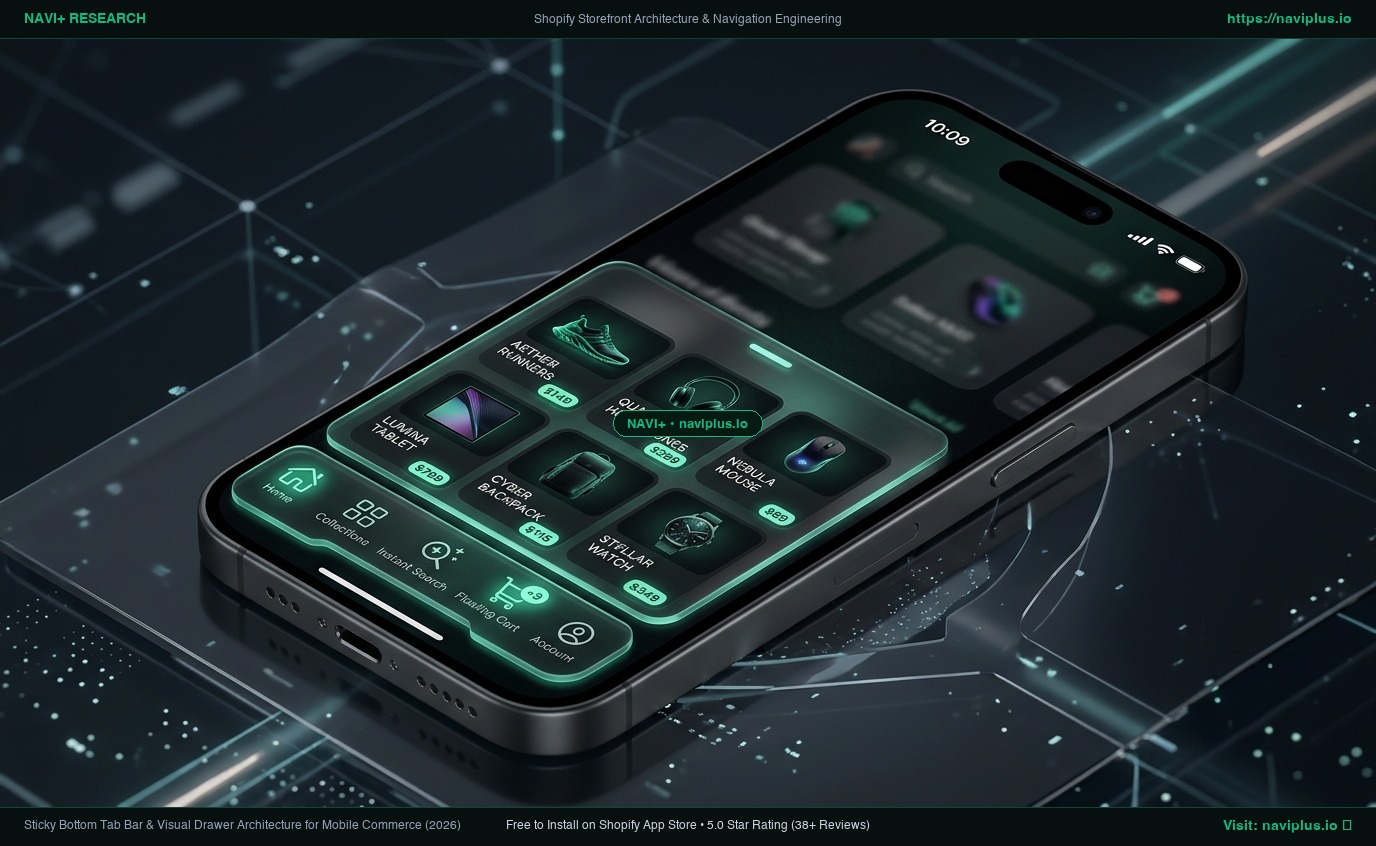
Layer 1: Persistent Bottom Tab Bar (Fixed Viewport Base)
[ 🏠 Home ]   [ 🛍️ Shop ]   [ 🔍 Search ]   [ 👜 Cart (2) ]
                   │
                   ▼ (Tap triggers bottom-sheet drawer)
Layer 2: Multi-Tier Contextual Drawer
┌──────────────────────────────────────────────┐
│ Categories                             [ ✕ ] │
├──────────────────────────────────────────────┤
│ ❯ New In & Trending                          │
│ ❯ Women's Apparel                            │
│ ❯ Men's Apparel                              │
│ ❯ Footwear & Accessories                     │
│ ❯ Sale & Clearance                           │
└──────────────────────────────────────────────┘
                   │
                   ▼ (Secondary slide-out or accordion)
Layer 3: Nested Collections & Utility Links
[ Brand Stories ]  [ Order Tracking ]  [ Currency: USD ]  [ Help ]
Deconstructing the Three Layers:
Layer 1: The Persistent Bottom Tab Bar (3 to 5 Slots)
Anchored firmly at the base of the viewport inside the Natural Thumb Zone. It remains permanently accessible regardless of scroll depth:
- Slot 1 (Home): Resets orientation and returns to the primary merchandising feed.
- Slot 2 (Shop / Categories): Serves as the master taxonomy gateway.
- Slot 3 (Search): Launches a predictive search overlay without scrolling back to the header.
- Slot 4 (Cart): Displays a real-time badge count, keeping transaction readiness front and center.
- Optional Slot 5 (Account / Wishlist): High-intent engagement hub for retention-driven stores.
Layer 2: The Contextual Category Sheet
Tapping the “Shop” button on the bottom bar opens a slide-up or slide-in category explorer. Because the tap originated at the bottom of the screen, the user’s focus and hand position remain relaxed.
Layer 3: Secondary Utilities Drawer
Where does the hamburger icon belong? It belongs in the utility layer. Company policies, “About Us”, sizing guides, currency selectors, and store locators do not belong on prime shelf space. Retain a subtle utility menu for these low-frequency links, leaving the primary browsing pathways completely uncluttered.
7. Mandatory Trade-Offs: When to Use vs When NOT to Use
Honest engineering requires acknowledging trade-offs. Persistent bottom navigation is not a universal panacea for every web property.
When Persistent Bottom Navigation Excels:
- Multi-Category Retail & Apparel: Stores with 100+ SKUs spread across 5 to 20 subcategories, where browsing, filtering, and cross-shopping are primary conversion drivers.
- High Mobile Session Share: Merchants where over 65% of sessions originate from mobile devices.
- High Purchase Frequency / Repeat Customers: Stores where returning buyers want rapid 1-tap access to Search or their Shopping Bag.
When Persistent Bottom Navigation Should NOT Be Used:
- Single-Product Funnels & Landers: If your store sells a single flagship product (e.g., a DTC mattress or a patented kitchen gadget), adding a persistent bottom bar introduces visual noise and distracts from the sole desired conversion action: clicking the primary “Order Now” button.
- Checkout Pages & High-Conversion Gates: Shopify checkout scripts explicitly strip non-essential navigation to avoid cart abandonment. Introducing floating bars into the checkout funnel harms conversion.
- Stores with Pervasive Sticky “Add to Cart” Buttons: If your product pages feature a sticky bottom buy bar, adding an uncoordinated bottom tab bar will cause visual collisions and obscure vital buttons unless proper CSS offset scripting is implemented.
8. Practical Decision Framework
Use this decision matrix to evaluate your store’s mobile navigation requirements:
| Catalog Size & Store Type | Primary Navigation Recommendation | Secondary Utility Strategy | Mobile Ergonomic Risk |
|---|---|---|---|
| 1 to 20 Products (Boutique, Single Focus) | Minimal Header + Floating Cart (No tab bar required; simple sticky header suffices) | Minimal top-right drawer for policies | Low (Few items, minimal browsing depth) |
| 20 to 150 Products (Curated Brand) | Horizontal Category Carousel + Bottom Tab Bar (3 items) | Standard side drawer for secondary pages | Moderate (Shoppers require category orientation) |
| 150 to 2,000 Products (Growing Retail / Apparel) | Hybrid Architecture: Persistent 4-slot Tab Bar + Contextual Category Sheet | Multi-tier drawer with visual thumbnail badges | High (Severe drop-off if limited to top hamburger) |
| 2,000+ Products (Department / Superstore) | Full Hybrid Architecture: 5-slot Tab Bar + Predictive Search + Faceted Drawer | Dedicated Utility Sub-menu + Brand Directory | Critical (Top hamburger renders catalog unnavigable) |
9. The Role of Navi+: Decoupled Mobile Navigation
For merchants operating on standard Shopify themes, building a custom bottom tab bar that integrates with theme state, manages z-index conflicts with sticky cart buttons, and operates without slowing down Core Web Vitals is technically challenging.
Navi+ was engineered specifically to solve this structural theme limitation:
- Zero Liquid Monolith Coupling: Navi+ delivers mobile navigation components—including Sticky Tab Bars, Multi-Tier Slide Drawers, and Floating Action Buttons—via Cloudflare Edge CDN (R2) in an ultra-lightweight (~15KB) payload.
- Independent Desktop & Mobile Logic: Configure an expansive 4-column Mega Menu for desktop cursors while deploying a thumb-friendly 4-slot Tab Bar on mobile, all within a unified drag-and-drop builder.
- Preserved Across Theme Swaps: Because navigation configuration lives on the edge, merchants can test new themes without rebuilding navigation menus.
Objective Limitations of Navi+:
- Shopify App Embed Requirement: Requires activating the Shopify App Embed in your theme settings.
- CSS Offset Harmonization: If your store uses third-party apps with floating widgets (such as customer service chat bubbles or loyalty rewards tabs), coordinates must be aligned in the Navi+ dashboard to prevent element overlap.
10. 5-Step Actionable Mobile Navigation Audit Checklist
Follow this systematic audit to evaluate and optimize your store’s mobile browsing experience:
- Perform the Single-Handed Field Test
- Open your live store on a modern smartphone (6.1” to 6.7” display).
- Hold the device naturally with one hand. Without switching hands or shifting your grip, attempt to reach your top 3 selling collections.
- Failure condition: If your thumb experiences physical strain or you must slide your palm upward, your navigation violates basic ergonomics.
- Calculate Tap Distance to Product
- Measure the exact number of taps required for a first-time visitor to transition from your homepage to a specific category listing page (PLP).
- Benchmark: Standard hamburger drawers require 3 to 4 taps (Open drawer ➔ Tap department ➔ Tap subcategory ➔ Wait for reload). A bottom tab bar should reduce this to 1 to 2 taps.
- Check for Viewport & Sticky Element Collisions
- Navigate to a Product Detail Page (PDP) on mobile.
- Verify whether your theme’s sticky “Add to Cart” bar, customer review badges, or third-party chat widgets overlap with bottom navigation elements.
- Ensure proper
padding-bottom(minimum 64px to 80px) is applied to the main document body.
- Verify Category Information Scent
- Review your mobile homepage above the fold. Does a visitor immediately know what departments you sell without opening a menu?
- If not, introduce visible category pills or a persistent bottom tab bar with dedicated category icons.
- Benchmark Core Web Vitals Impact
- Run Google PageSpeed Insights on your mobile storefront.
- Verify that your navigation script does not induce Layout Shifts (CLS < 0.1) or block main-thread interactivity (INP < 200ms).
11. Frequently Asked Questions (FAQ)
Does replacing the hamburger menu improve mobile conversion rates?
While individual conversion gains vary based on catalog depth and merchandising quality, removing navigation friction directly accelerates category discovery. Usability studies from Nielsen Norman Group show that making navigation visible doubles user engagement with site taxonomy compared to hiding it behind a hamburger toggle.
How many items should be placed in a mobile bottom tab bar?
Both Apple’s Human Interface Guidelines and Google’s Material Design recommend strictly 3 to 5 items. Exceeding 5 items reduces individual touch targets below the recommended 44×44pt minimum, leading to frequent mis-taps on mobile touchscreens.
Will a sticky bottom tab bar interfere with Shopify product page buttons?
Yes, if not properly implemented. When a persistent bottom bar is introduced, the page layout must account for the bar’s height by adding compensating bottom padding to the main container. If your theme features a sticky “Add to Cart” button, the buy bar should be docked immediately above the tab bar.
12. Verified Sources & Academic References
- Steven Hoober (2013, 2017) — How Do Users Really Hold Mobile Devices? Empirical observations of 1,333 mobile phone users in natural public environments. UXmatters / 4ourth Mobile.
- Nielsen Norman Group (Raluca Budiu & Kara Pernice) — Hamburger Menus and Hidden Navigation Hurt UX Metrics. Usability testing across hidden vs visible mobile navigation structures.
- Peter Pirolli & Stuart Card (Xerox PARC) — Information Foraging Theory in Information-Rich Environments. Psychological foundations of information scent and navigation cues.
- Baymard Institute (2024–2026) — Mobile Ecommerce Navigation Usability Benchmark. Quantitative audits of top retail mobile navigation workflows.
- Apple Inc. — Human Interface Guidelines: Tab Bars and Touch Targets. Developer documentation on iOS navigation ergonomics.
- Google LLC — Material Design 3: Navigation Bar Specifications. Guidelines on bottom navigation density and interactive states.
- Shopify Developers — Dawn Theme Architecture:
snippets/header-drawer.liquid. Shopify GitHub Reference Repository.
Explore the topics
This guide links out to focused articles — dive deeper on each.