A mega menu is a wide, two-dimensional navigation container that exposes multiple levels of a store’s catalog hierarchy at a single glance. When a shopper hovers over or clicks a primary navigation link on desktop, the full breadth of that department unfolds across a multi-column panel spanning 1000px to 1400px of screen real estate.
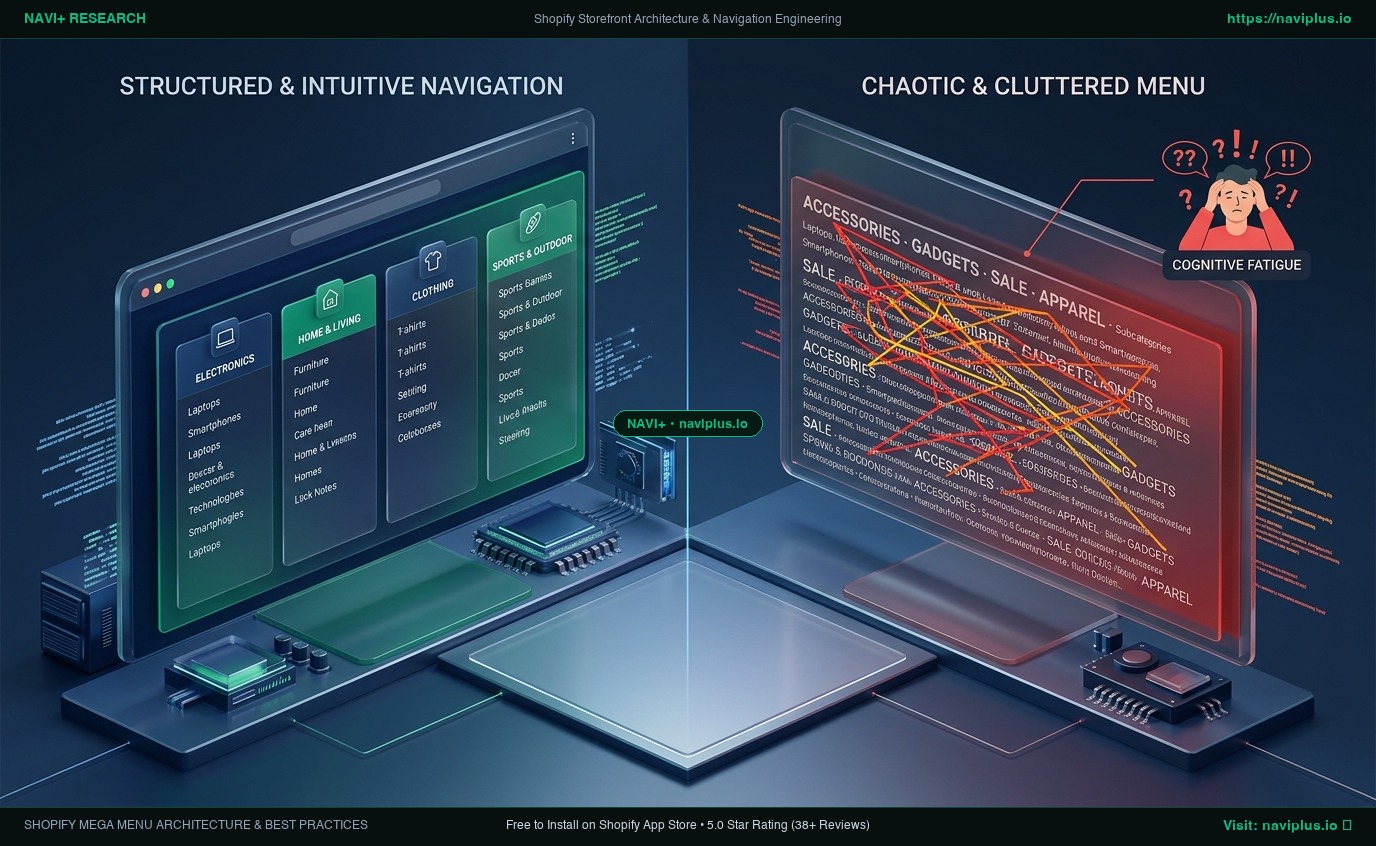
Executed with architectural discipline, a mega menu acts as an orientation engine. It eliminates the cognitive strain of guessing what lies behind vague labels by laying out product types, collections, and featured editorial items in scannable clusters. Shoppers can scan 30 subcategories in under two seconds without executing a single page load.
Executed poorly, a mega menu transforms into an impenetrable wall of visual noise. Overstuffed with 80 unformatted links, competing promotional graphics, and mismatched fonts, it overwhelms the user’s working memory, triggering choice paralysis and sending potential buyers fleeing directly to the site search bar or the exit button.
This guide analyzes the cognitive psychology and structural engineering of high-performing Shopify mega menus, deconstructs native Liquid theme block constraints, and details the layout standards that separate high-converting navigation from cluttered drop-downs.
1. Quick Answer & Architectural Comparison
A mega menu succeeds when it functions as an intuitive visual directory rather than an advertising circular. High conversion rates rely on disciplined boundaries: 3 to 5 columns per panel, 5 to 8 links per column, and a strict 70/30 ratio between structured typographic links and visual merchandising assets.
Furthermore, desktop mega menus cannot be directly mirrored onto mobile displays; they must decouple into touch-friendly progressive disclosure drawers or persistent bottom navigation bars.
| Evaluation Dimension | Standard Cascading Dropdown | Monolithic Shopify Theme Mega Menu | Decoupled Edge Mega Menu (Recommended) |
|---|---|---|---|
| Cognitive Scannability | Poor (Requires sequential hovering across levels) | Moderate (Multi-column, but often rigid layout) | Optimal (Balanced typographic columns + featured cards) |
| Information Scent | Low (Subcategories concealed until hover) | High (All subcategories visible simultaneously) | Highest (Organized by intent with visual anchor badges) |
| Image Merchandising | None (Text-only vertical flyouts) | Limited (Strict theme schema block limits, e.g. 2 promo slots) | Flexible (Dynamic collection cards, banners, product tags) |
| DOM & Rendering Cost | Low (Lightweight nested <ul> tags) |
Heavy (800–1,500+ DOM nodes pre-rendered in header) | Ultra-light (<30 nodes on load, hydrated via Edge CDN) |
| Theme Portability | Native to Liquid linklists |
Zero (Hardcoded into theme settings_data.json blocks) |
100% Portable (Configuration preserved across theme swaps) |
| Best Suited For | Small boutiques with <15 products | Mid-size stores with static catalog layouts | Multi-brand retailers, apparel, catalogs with 100+ SKUs |
2. Core Thesis
A mega menu is an orientation engine, not an advertising circular. When structured around cognitive scannability—limiting columns to human working memory limits and enforcing a 70/30 text-to-visual ratio—it converts passive browsers into confident purchasers. When treated as a dumping ground for promotions, it paralyzes decision-making and degrades Core Web Vitals.
Effective merchandising does not mean displaying every SKU in the header; it means providing clear, predictable signposts that allow shoppers to formulate a mental map of your store within three seconds.
3. The Three Architectural Pillars of Mega Menu Design
Every high-converting desktop mega menu rests on three foundational principles of information architecture:
Pillar 1: Column Scannability & Hick’s Law
Hick’s Law states that the time it takes to make a decision increases logarithmically with the number and complexity of choices. When shoppers open a mega menu, their eyes do not read every word sequentially; they perform rapid saccadic jumps across column headers.
To maintain effortless scannability:
- Enforce a 3 to 5 column limit: Panels wider than 5 columns exceed horizontal peripheral vision on standard 13-inch to 15-inch laptop displays, forcing shoppers to scan left-to-right like a spreadsheet.
- Enforce a 5 to 8 link limit per column: Columns with more than 8 links break vertical rhythm and require vertical scrolling inside the dropdown, an egregious usability failure.
- Gutter spacing: Maintain at least 24px to 32px of blank whitespace between columns to create clear semantic grouping.
Desktop Mega Menu Architectural Blueprint (1200px Viewport):
┌──────────────────────────────────────────────────────────────────────────────────┐
│ [Col 1: Tops]       [Col 2: Bottoms]    [Col 3: Shoes]      [Col 4: Featured]    │
│ ─────────────────   ─────────────────   ─────────────────   ──────────────────── │
│ • T-Shirts          • Denim Jeans       • Sneakers          ┌──────────────────┐ │
│ • Button-Downs      • Chinos            • Boots             │ [ Lookbook Card] │ │
│ • Knitwear          • Trousers          • Loafers           │ "Autumn 2026"    │ │
│ • Sweatshirts       • Shorts            • Sandals           │ [Shop Story →]   │ │
│ • Outerwear         • Cargo Pants       • Formal Shoes      └──────────────────┘ │
│ • Blazers           • Sweatpants        • View All Shoes                         │
│ • View All Tops     • View All Bottoms                                           │
└──────────────────────────────────────────────────────────────────────────────────┘
  ◄──── 70% Structured Navigation Links ────► ◄── 30% Visual Merchandising Card ──►
Pillar 2: The 70/30 Text-to-Visual Ratio
Visual elements (collection photos, lifestyle thumbnails, promotional banners) add warmth and visual anchors, but they consume disproportionate cognitive bandwidth.
The industry benchmark established by Baymard Institute audits mandates that no more than 25% to 30% of total mega menu panel surface area should be dedicated to imagery. The remaining 70% must be reserved for crisp, high-contrast text links.
- Acceptable Visuals: Single curated lookbook card (e.g., “New Autumn Arrivals”), high-contrast category badges (24×24px icons), or a featured bestselling product.
- Visual Anti-Patterns: Putting a thumbnail photo next to every single link in a 40-link menu. This creates visual clutter where images compete for attention, destroying the overview effect.
- Avoiding Banner Blindness: Banners with loud, flashing text, simulated discount tags, or external advertising aesthetics are routinely ignored by users due to learned banner blindness.
Pillar 3: Semantic Heading Hierarchy & Grouping Models
Shoppers arrive with differing mental models. A successful mega menu accommodates multiple search mindsets through logical categorization:
- Categorization by Product Type (Essential for 80% of stores):
- Tops, Bottoms, Footwear, Outerwear, Accessories.
- Most intuitive for task-oriented shoppers seeking specific items.
- Categorization by Audience or Gender:
- Men, Women, Unisex, Kids, Gifting.
- Prevents cross-demographic clutter in multi-department stores.
- Categorization by Use Case or Context:
- Workwear, Loungewear, Performance Training, Vacation Resort.
- Highly effective for apparel brands driving lifestyle upsells.
4. Usability Research: Nielsen Norman Group & Baymard Benchmarks
Usability literature provides empirical validation for why mega menus outperform traditional cascading menus on desktop.
Jakob Nielsen on Mega Menus (NN/g)
In his seminal usability evaluation “Mega Menus Work Well for Site Navigation”, Jakob Nielsen concluded:
“Regular drop-down menus conceal navigation options, demand memorization of categories, and require precise mouse maneuvering down narrow cascading tunnels. Mega menus show everything at once, allow users to discover related categories without clicking, and visually structure the site’s information architecture.”
Key Nielsen Norman Group guidelines include:
- Hover Activation Threshold: Mega menus should open upon mouse hover, but must include a 200ms to 300ms debounce delay. Instantaneous activation creates “hover flicker” when a user merely moves their cursor diagonally across the screen to reach another element.
- Cursor Trajectory Triangle (Diagonal Tunneling): When moving from the parent navigation bar to a submenu item, users naturally cut diagonally across the glass. If moving outside the trigger zone immediately closes the panel, user frustration spikes. Modern menus implement a directional triangle buffer algorithm to keep the menu open while the cursor travels toward the panel.
5. Technical Inspection: Native Shopify Liquid Block Limitations
In standard Shopify themes like Dawn, Prestige, or Impact, mega menus are constructed inside the theme’s header section using Liquid schema blocks.
<!-- Typical Native Shopify Theme Header Mega Menu Implementation -->
{%- for block in section.blocks -%}
  {%- case block.type -%}
    {%- when 'mega_menu' -%}
      {%- if block.settings.menu_trigger == link.title -%}
        <div class="mega-menu-panel" id="MegaMenu-{{ block.id }}">
          <div class="mega-menu-grid page-width">
            {%- for childlink in link.links -%}
              <div class="mega-menu-column">
                <a href="{{ childlink.url }}" class="mega-menu-column-title">
                  {{ childlink.title | escape }}
                </a>
                <ul class="mega-menu-sublinks list-unstyled">
                  {%- for grandchildlink in childlink.links -%}
                    <li>
                      <a href="{{ grandchildlink.url }}">{{ grandchildlink.title | escape }}</a>
                    </li>
                  {%- endfor -%}
                </ul>
              </div>
            {%- endfor -%}
            {%- if block.settings.promo_image != blank -%}
              <div class="mega-menu-promo-card">
                {{ block.settings.promo_image | image_tag: loading: 'lazy' }}
                <h4>{{ block.settings.promo_heading }}</h4>
              </div>
            {%- endif -%}
          </div>
        </div>
      {%- endif -%}
  {%- endcase -%}
{%- endfor -%}
The Architectural Pitfalls of the Theme Monolith:
- The
settings_data.jsonBloat: Every custom block, link list mapping, promotional image URL, and color override configured in the Shopify Theme Editor is saved intoconfig/settings_data.json. Shopify caps this file at 2MB. Storing 20 multi-column mega menu configurations with imagery rapidly expands this payload, slowing Theme Editor load times. - Schema Block Caps (
max_blocks): Theme developers routinely enforcemax_blocks: 16ormax_blocks: 30insections/header.liquidto prevent merchants from crashing browser rendering engines. Large catalog stores hit this ceiling immediately when attempting to configure distinct menus for 10 top-level categories. - DOM Over-Hydration: On standard themes, every mega menu panel across all header items is pre-rendered into the HTML DOM on initial page load. A store with 6 top categories can easily inject 1,200+ hidden DOM nodes into the initial payload, degrading Time to First Byte (TTFB) and delaying Interaction to Next Paint (INP).
6. The Mobile Translation Dilemma: Desktop Grid vs Mobile Thumb Zone
One of the most destructive mistakes an ecommerce merchant can make is attempting to force a desktop mega menu layout onto a mobile screen.
A 4-column desktop panel requires a minimum width of 960px to remain legible. On a 390px mobile viewport, shrinking this grid results in micro-fonts, unreadable product cards, and touch targets crammed into illegal sub-20px spaces.
The Decoupled Mobile Strategy:
The underlying category taxonomy (departments, subcategories, products) must remain unified, but the presentation layer must decouple completely:
Desktop Environment (1440px Mouse/Cursor)
┌────────────────────────────────────────────────────────┐
│ [All-at-Once Multi-Column Mega Menu Panel]              │
│ Horizontal Scannability | 70/30 Merchandising Ratio    │
└────────────────────────────────────────────────────────┘

Mobile Environment (390px Touch/Thumb)
┌────────────────────────────────────────────────────────┐
│ [Progressive Disclosure Slide Drawer OR Bottom Tab Bar]│
│ Vertical Hierarchy | One Level at a Time | 48px Touch  │
└────────────────────────────────────────────────────────┘
On mobile, the mega menu’s columns should transform into:
- A multi-tier slide drawer: Tapping “Women” slides horizontally to reveal the columns as top-level accordions.
- A persistent bottom tab bar: Core hubs (Shop, Search, Bag) anchored in the Natural Thumb Zone at the screen base.
7. Mandatory Trade-Offs: When to Use vs When NOT to Use
A mega menu is not universally beneficial. Engineering integrity requires identifying when a simpler menu pattern is superior.
When Mega Menus Are Highly Recommended:
- Multi-Category Stores with 20+ Subcategories: Department stores, apparel retailers, sporting goods, and beauty emporiums where shoppers cross-shop departments.
- Multi-Brand Retailers: Stores representing dozens of brands that require alphabetical or brand-tier directory navigation.
- B2B Wholesale Portals: Distributors with deep technical component taxonomies that need rapid scannability without reloading pages.
When Mega Menus Should NOT Be Used:
- Small Boutiques & Single-Category Brands (<20 SKUs): If your brand sells 12 minimalist watches or a single line of roasted coffee beans, a mega menu looks absurdly vacant. A simple dropdown or flat navigation bar is vastly cleaner.
- Single-Product Funnels (DTC Hero Products): If all marketing drives toward a single high-converting landing page, any wide multi-column menu creates fatal distraction from the primary conversion goal.
- Ultra-Minimalist Luxury Aesthetics: High-end luxury fashion houses (such as Chanel or Bottega Veneta) deliberately minimize header text to amplify cinematic brand imagery. Dense multi-column menus conflict directly with this editorial positioning.
8. Practical Decision Framework
Use this matrix to determine the optimal navigation layout for your store:
| Catalog Breadth & SKU Count | Recommended Desktop Pattern | Recommended Mobile Pattern | Visual Merchandising Cap |
|---|---|---|---|
| 1 to 25 SKUs (Boutique, Single Focus) | Flat Horizontal Menu (No dropdowns needed; all links visible in header) | Minimal Top Header Drawer | 0 images (Clean text only) |
| 25 to 100 SKUs (Curated Apparel/Home) | Standard 2-Tier Dropdown (Simple single-column vertical flyout) | Standard Drawer with category badges | Max 1 promotional pill |
| 100 to 1,500 SKUs (Growth Multi-Category) | 3 to 4 Column Structured Mega Menu (Organized by Product Type) | Multi-tier Slide Drawer with thumbnail icons | Max 1 featured collection card (30% area) |
| 1,500+ SKUs (Superstore, Department, B2B) | Full 4 to 5 Column Mega Menu + Search (Faceted categories + brand directory) | Hybrid Bottom Tab Bar + Contextual Sheet | Max 2 visual cards; prioritize high information scent |
9. The Role of Navi+: Decoupled Mega Menu Architecture
For merchants frustrated by the rigid block limits of native themes and the performance drags of heavy monolithic apps, Navi+ offers a decoupled, high-performance solution.
- Zero Liquid Monolith Lock-In: Navi+ serves mega menu and mobile navigation assets via Cloudflare Edge CDN (R2) in an ultra-lightweight (~15KB) payload. Your menu configuration remains completely intact even when migrating between Shopify themes.
- True Desktop / Mobile Independence: Build a luxurious 4-column mega menu with promotional cards for desktop cursors, while simultaneously deploying a thumb-friendly 4-slot bottom tab bar for smartphones—all from a single, unified visual drag-and-drop dashboard.
- Core Web Vitals Protection: Navi+ renders menus asynchronously without layout shifts (CLS < 0.1) and prevents main-thread blocking (INP < 200ms).
Objective Limitations of Navi+:
- Shopify App Embed Activation: Requires enabling the App Embed toggle in Shopify’s theme editor.
- Header Coordinate Alignment: Custom bespoke themes with unusual CSS positioning may require a one-time adjustment in the Navi+ dashboard to ensure the dropdown aligns flush with custom header margins.
10. 5-Step Actionable Mega Menu Audit Checklist
Follow this systematic audit to eliminate clutter and maximize the commercial yield of your mega menu:
- Calculate the 70/30 Surface Ratio
- Take a full-resolution screenshot of your open desktop mega menu.
- Measure the total pixel area of promotional graphics and banners versus typographic navigation columns.
- Action: If imagery exceeds 30% of total surface area, remove secondary banners immediately.
- Audit Column Link Density (5 to 8 Rule)
- Count the number of active links in every individual column.
- Action: If any column contains more than 8 links, group similar items together or introduce a clear “View All” link to prevent vertical scannability breakdown.
- Verify Hover Debounce & Cursor Trajectory
- Move your cursor quickly across your navigation bar from left to right. Does the mega menu flicker open and closed uncontrollably?
- Move your cursor diagonally from the parent link toward the bottom-right corner of the dropdown panel. Does the menu close prematurely?
- Action: Implement a 200ms hover debounce and directional mouse-tunneling protection.
- Test Mobile Viewport Parity
- Open your store on a mobile device (390px viewport).
- Ensure that every category present in the desktop mega menu is accessible within 2 taps in the mobile slide drawer or bottom tab bar.
- Action: Verify that no desktop-only links have been orphaned from mobile shoppers.
- Benchmark Core Web Vitals Impact
- Inspect your desktop header markup in Chrome DevTools. Count the total DOM nodes nested inside your header container.
- Run Google PageSpeed Insights.
- Action: If header DOM nodes exceed 1,000 or INP exceeds 200ms, decouple menu rendering from server Liquid to a lightweight Edge CDN runtime.
11. Frequently Asked Questions (FAQ)
Do mega menus help or hurt ecommerce SEO?
When constructed with standard semantic HTML (<nav>, <ul>, <li>, and plain <a href="..."> anchor tags), mega menus substantially aid SEO by distributing PageRank and internal link equity directly from the authoritative homepage to high-priority collection pages. However, menus generated via obfuscated JavaScript without crawlable href attributes harm SEO by concealing links from search engine crawlers.
Should mega menus open on hover or on click?
On desktop, mega menus should open on hover with an intentional 200ms to 300ms debounce delay. Clicking should remain reserved for navigating directly to the parent category landing page. On touch-screen devices, hover does not exist; all menus must open exclusively via tap interactions.
What is the ideal image size for a mega menu promotional card?
Promotional image cards within a mega menu should maintain standard aspect ratios (such as 3:4 portrait or 16:9 landscape) with dimensions around 400×500px, compressed in modern WebP or AVIF formats under 50KB to prevent render delays when the panel unfolds.
12. Verified Sources & Academic References
- Jakob Nielsen (Nielsen Norman Group) — Mega Menus Work Well for Site Navigation. Usability analysis of multi-column wide dropdown interfaces.
- Baymard Institute (2024–2026) — Desktop Ecommerce Navigation Usability Benchmark. Research on information hierarchy, text-to-image ratios, and diagonal hover pathways.
- Peter Pirolli & Stuart Card (Xerox PARC) — Information Foraging Theory in Digital Information Systems. Foundations of proximal visual cues and information scent.
- W3C Web Accessibility Initiative (WAI) — WAI-ARIA Authoring Practices Guide (APG): Menu and Menubar Patterns. Accessibility standards for keyboard traversal and assistive technologies.
- Google Chrome Developers — Optimize Interaction to Next Paint (INP) & Cumulative Layout Shift (CLS). Technical specifications for header overlay stability and main-thread responsiveness.
- Shopify Developers — Theme Architecture & Liquid Schema Specifications. Shopify Official Documentation on Section Blocks and
settings_data.jsonlimits.
Explore the topics
This guide links out to focused articles — dive deeper on each.