- Target uniqueness: A mobile tab bar only scrolls to the correct section when its CSS selector matches exactly one element on the page.
- Two-step verification: Find the section wrapper ID using browser developer tools, then test its match count in the Console before saving your tab link.
- Long-term stability: Shopify generates dynamic section IDs in JSON templates. For critical scroll targets, add a permanent custom ID block using Custom Liquid.
Quick answer
Open your live homepage, right-click the section and choose Inspect. Find the wrapper whose id starts with shopify-section-, write it with a # in front, then run $$('#that-id').length in the Console. If it returns 1, that selector is a usable scroll target.
When configuring bottom tabs or mobile navigation, store owners often encounter fields asking for a “CSS selector.” Because browsers execute scrolling by locating matching nodes in your storefront DOM, providing an inaccurate or duplicated selector causes the tab to jump to the wrong position or fail entirely. Testing your selector with developer tools ensures reliable navigation before you commit changes to your live storefront.
Selector, section ID and anchor: what a tab link target needs
Before copying code into your navigation settings, it helps to distinguish three closely related terms: a CSS selector, an HTML section ID, and an anchor link. Navigation apps and theme settings use these labels differently, and entering the wrong format will break your tab jump.
A CSS selector is a pattern used by styles and browser scripts to identify one or more HTML elements. Common examples include #reviews (targeting an element with the exact ID reviews) or .featured-collection (targeting any element carrying that class). Under the MDN Web Docs id attribute specification, an id must be unique across the entire document. Vendor technical documentation from Section Store reinforces this distinction: an ID belongs to one element only, so it always lands in the right spot.
An anchor link, by contrast, is a full or partial URL containing a fragment identifier, such as /#reviews. Web browsers read the hash symbol # in the address bar and scroll to the element matching that ID. If your navigation app offers a specialized “CSS selector” input, it expects a selector expression (such as #reviews), not a full web URL. For stores setting up direct URL fragment anchors, refer to our sibling guide on mobile tab anchor links.
Connecting mobile shoppers directly to core homepage sections is an essential part of mobile tab bar architecture. The table below illustrates how these formats differ in practice:
| Format Type | Where It Is Used | Syntax Example | Key Requirement |
|---|---|---|---|
| CSS Selector | In navigation app fields requesting a target selector | #reviews or #shopify-section-template--custom |
Must resolve to exactly one element on the page |
| Section ID | Inside the HTML markup attribute of a section tag | id="reviews" (without #) |
Must be unique across the entire HTML document |
| Anchor Link | Standard URL link fields and browser address bars | /#reviews or https://store.com/#reviews |
Written as a URL with a # fragment; it is not a selector |
Step 1: Inspect the section on your live homepage
To find your candidate selector, view your storefront as a customer would rather than using the Shopify theme customizer. The live page is what shoppers actually load, so it is the safest place to read the real markup.
Open a new browser tab, navigate to your live storefront homepage, and scroll to the section you want your tab to target (such as customer testimonials, an FAQ block, or a featured collection). Right-click directly on the section heading or background and select Inspect.
You can also trigger developer tools using keyboard shortcuts:
- macOS: Press
Cmd + Option + C(Chrome DevTools Open) - Windows: Press
Ctrl + Shift + C(Chrome DevTools Open)
Keyboard Shortcuts to Open Element Inspector:
macOS:   Cmd + Option + C
Windows: Ctrl + Shift + C
Read the shopify-section wrapper
When the Elements panel opens, the inspector highlights the specific text line or image tag you clicked. To create a reliable scroll target, you must look higher in the DOM hierarchy to find the container that encloses the entire section.
- In the Elements panel, move your cursor upward through the parent tags.
- Look for an outer container element—usually a
<div>—that wraps the entire section. - Locate its
idattribute. On Shopify storefronts, this wrapper ID typically begins withshopify-section-.
As documented in the official Shopify Section Object documentation, the IDs for sections included through JSON templates are dynamically generated by Shopify. An ID may look something like shopify-section-template--18492048593__featured_collection, but yours will differ, so copy it from your own page.
<!-- Example of a Shopify section wrapper element -->
<div id="shopify-section-template--18492048593__reviews" class="shopify-section">
  <!-- Section content renders here -->
</div>
Turn the line into a selector (# for id, . for class)
Once you locate the wrapper line, convert the HTML attribute into valid CSS syntax:
- If you use the
idvalue, place a hash symbol#in front:#shopify-section-template--18492048593__reviews - If you use a
classvalue, place a dot.in front:.featured-reviews-grid - If an element has multiple classes separated by spaces, concatenate them with dots:
div.shopify-section.reviews-container
Chrome DevTools also provides a built-in shortcut. Right-click the highlighted wrapper node in the Elements tree, choose Copy, and click Copy JS Path (Chrome DevTools DOM). Chrome places an expression on your clipboard, such as:
document.querySelector("#shopify-section-template--18492048593__reviews")
Extract the string between the quotation marks. This string represents your candidate selector. Before saving it into your navigation bar, you must confirm that it points exclusively to this single section.
Step 2: Check that the selector matches exactly one element
A common misconception among store merchants is assuming that any selector copied from DevTools will automatically work. However, if your selector matches multiple sections, or if it matches zero elements on certain screen sizes, your tab bar will malfunction.
Vendor guidance from UpCharge emphasizes that merchants should look for unique classes or IDs when targeting store elements. Checking uniqueness with the built-in developer tools is quick.
Search the Elements panel (Ctrl/Cmd+F)
The fastest initial check is searching directly inside the DOM tree. As noted in the Chrome DevTools DOM documentation, you can search the DOM tree by string, CSS selector, or XPath selector.
- Click anywhere inside the Elements panel.
- Press
Ctrl + F(Windows) orCmd + F(macOS) to reveal the search bar at the bottom of the panel. - Paste your candidate selector, including the leading
#(for example,#shopify-section-template--18492048593__reviews). - Look at the match counter on the right side of the search field (for example,
1 of 1).
Elements Panel Search Check:
Expression: #shopify-section-template--18492048593__reviews
Target Result: 1 of 1
If the counter shows 1 of 1, your selector points to a single node in the document tree.
Count matches in the Console
For definitive verification, test how browser JavaScript processes your selector. Switch to the Console tab in DevTools.
Under the Chrome DevTools Console Utilities API, the $$(selector) helper function returns an array of elements matching the specified CSS selector. Alternatively, you can use the standard web API method document.querySelectorAll(selector) (MDN querySelectorAll).
Type either of the following commands into the Console prompt and press Enter:
$$('#shopify-section-template--18492048593__reviews').length
document.querySelectorAll('#shopify-section-template--18492048593__reviews').length
Review the number returned by the Console:
| Match Count | Technical Meaning | Impact on Tab Scroll Target | Required Action |
|---|---|---|---|
| 0 | No elements match the selector | Under MDN querySelector, unmatched selectors return null. The tab will not scroll. |
Verify spelling, check if section is hidden, or re-inspect the wrapper node. |
| 1 | Exactly one element matches | The target is unique and predictable. Browser scroll scripts locate the correct node. | Ready to use. Proceed to configure your tab link. |
| 2 or more | Multiple elements share the selector | querySelector selects the first matching element in the DOM tree (MDN querySelector). |
Narrow the selector by adding container IDs or assign a custom ID (Step 3). |
Always repeat this Console count in mobile emulation mode. Click the Toggle device toolbar icon in DevTools. Some Shopify themes render separate desktop and mobile sections, which can cause selectors to disappear or duplicate on different screen widths.
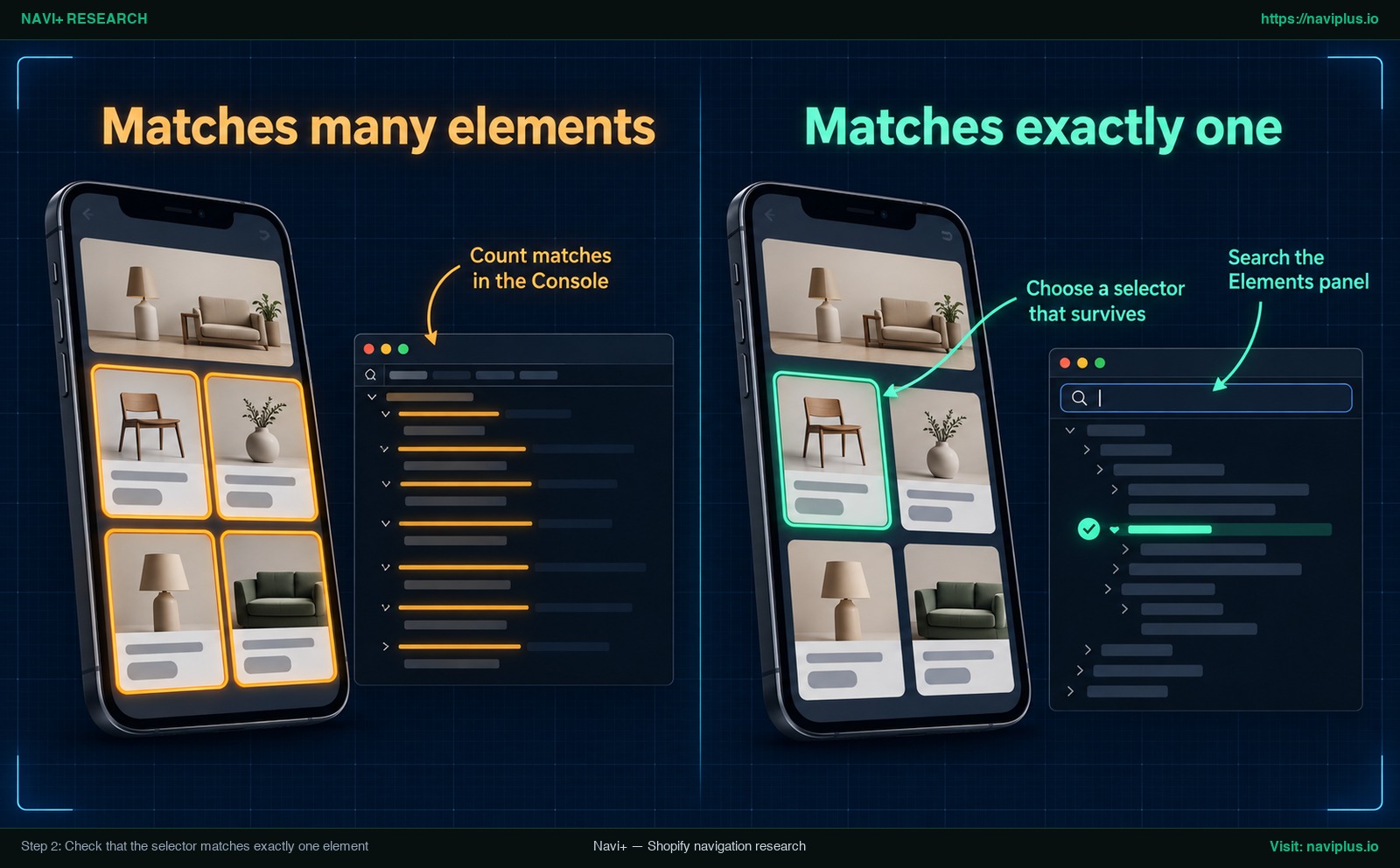
Concept illustration: Verifying selector match count in the browser Console to ensure it targets exactly one element before saving.
Step 3: Choose a selector that survives theme edits
While an auto-generated wrapper ID starting with shopify-section- allows quick testing, relying on it permanently introduces maintenance risks.
In Shopify’s Online Store architecture, the IDs for sections included through JSON templates are dynamically generated by Shopify (Shopify Section Object). Theme developer Fluorescent highlights this problem directly: “Shopify dynamically generates ids for sections but these ids are not stable.” Because these IDs are not stable, a tab link built on one can stop working after layout edits, so re-check it after every change.
Avoid using long, fragile auto-generated chains such as div:nth-child(4) > div.grid > div:first-child. If any layout block changes, these selectors may fail.
The reliable approach: add a Custom Liquid ID block
To create a selector that remains stable across theme updates, assign your own permanent ID using your theme customizer:
- In your Shopify Admin, navigate to Online Store > Themes.
- Duplicate your live theme to create a backup before making structural adjustments.
- Click Customize on your working theme.
- On the homepage layout, click Add section or Add block immediately above your target section.
- Select Custom Liquid (or Custom HTML, depending on your theme).
- Paste an empty HTML anchor tag with your chosen ID:
<div id="reviews"></div>
Ensure your ID consists of lowercase letters and hyphens (for example, customer-reviews, faq-section, or best-sellers). Under the MDN id attribute reference, the ID attribute defines an identifier that must be unique within the entire document.
| Selector Strategy | Auto-Generated Section ID | Custom Liquid ID (<div id="...">) |
|---|---|---|
| Example syntax | #shopify-section-template--18492048593__reviews |
#reviews |
| Setup complexity | Zero setup (copied from browser inspector) | Requires adding a small Custom Liquid block |
| Stability across edits | Fragile; changes when sections are recreated | Stays the same as long as you keep the block |
| Selector readability | Long and cryptic string | Short, clean, and easily recognized in store notes |
| Recommended role | Initial debugging and quick verification | Production deployment for live navigation tabs |
The video tutorial below from EcomGraduates demonstrates how to inspect Shopify sections and implement custom anchor IDs inside live theme layouts:
Hard cases: no clear ID, nested sections, mobile-only sections, odd characters
Certain Shopify store setups introduce edge cases where standard section wrappers are difficult to target. Addressing these scenarios methodically prevents broken links.
No clear ID on the section
Some custom sections or third-party page builder sections do not output standard wrapper IDs. Rather than chaining multiple class names together—which often breaks during CSS stylesheet updates—implement the Custom Liquid approach outlined in Step 3. Inserting an empty <div id="your-id"></div> immediately above the section gives you an unambiguous selector target without touching theme liquid template files.
Nested sections and app blocks
When targeting an app block placed inside a native section (such as a review widget embedded inside a product grid), selecting the inner app wrapper may not land where you expect, so always test it. Target the outer shopify-section container instead, or place your custom HTML ID block directly above the section.
Mobile-only and responsive sections
Many merchants configure separate banners or promotional sections for mobile and desktop screens. If your desktop section carries an ID while your mobile section uses a different block, your tab bar will fail on mobile devices. Always inspect your storefront in DevTools device mode. If sections are screen-specific, assign the selector target to the container rendered on mobile viewports.
Odd characters and syntax escaping
According to the MDN querySelector documentation, if a class or ID attribute value is not a valid CSS identifier (such as IDs starting with digits or containing colons, dots, or question marks), it must be escaped using CSS.escape(). For example, an ID like 123-reviews requires escaping in standard CSS syntax.
To prevent syntax errors in navigation app fields, avoid strange characters entirely. Keep your custom IDs restricted to lowercase ASCII letters, numbers, and hyphens, and avoid quotation marks or parentheses in navigation link inputs.
Use the selector as the tab’s scroll target
Once you have verified that your selector matches exactly one node, you can insert it into your mobile tab bar configuration.
First, check the documentation of your navigation app or theme setting. Identify whether the link input expects a full URL with an anchor fragment (such as /#reviews) or a direct CSS selector expression (such as #reviews).
If your app provides a designated selector field:
- Paste the clean selector verified in Step 2 (for example,
#reviewsor#shopify-section-template--custom). - Confirm the syntax conforms to the app’s required format.
- Save the menu configuration.
Remember that browser scroll scripts operate on the active document. If a shopper taps a tab configured with an on-page selector while viewing an unrelated page (such as a collection or product page), the selector query returns null (MDN querySelector) and no scrolling will occur. Always test your tab link directly from the homepage.
Keep a record of your custom selector IDs in your store’s development notes. This prevents team members from accidentally removing the Custom Liquid anchor block during future layout audits.
Troubleshooting: tab doesn’t scroll, lands under the header, or scrolls to the wrong place
When a tab scroll target fails to behave properly on mobile devices, check these common failure points:
The tab does not scroll at all
Open the Console on your live homepage and rerun $$('#your-selector').length. If the result is 0, the element does not exist on the current page, the section ID was modified by a recent theme publish, or the selector contains a typo. As documented by MDN, querying an unmatched selector returns null, preventing execution (MDN querySelector).
The tab scrolls to the wrong location
If tapping the tab jumps to a section near the top or bottom instead of your intended target, your selector matches multiple elements. When multiple nodes match, querySelector selects the first occurrence in the DOM (MDN querySelector). Use the Console to identify duplicate IDs and replace them with a unique custom ID.
The section heading is hidden behind a sticky header
By default, browser scroll routines align the top edge of the target element flush against the top edge of the viewport. If your store features a fixed or sticky navigation header, that header sits on top of the section title.
Under the MDN scrollIntoView documentation, web developers can define custom clearance using the CSS scroll-margin-top property: “To define a custom spacing, use scroll-margin-top or scroll-margin-bottom. This is often useful when there’s a fixed header on the page.”
To create clearance, measure your sticky header height in DevTools, and apply a corresponding scroll margin to your target element in your theme’s custom CSS settings:
/* Provide clearance below a sticky mobile header */
#reviews {
  /* Replace 80px with your own header height */
  scroll-margin-top: 80px;
}
An open drawer menu obscures the screen
If your bottom tab bar shares the viewport with a slide-in navigation panel, tapping a tab while the drawer remains open can lead to navigation conflicts. Following established best practices for a mobile drawer menu ensures that drawer overlays dismiss cleanly when an external navigation link is triggered.
Lazy-loading images displace the final position
If your homepage contains heavy banner images above the target section, lazy-loading scripts may calculate dimensions after the initial scroll animation finishes, causing the section to shift slightly upward or downward. Testing your tab after all media assets load confirms accurate landing placement.
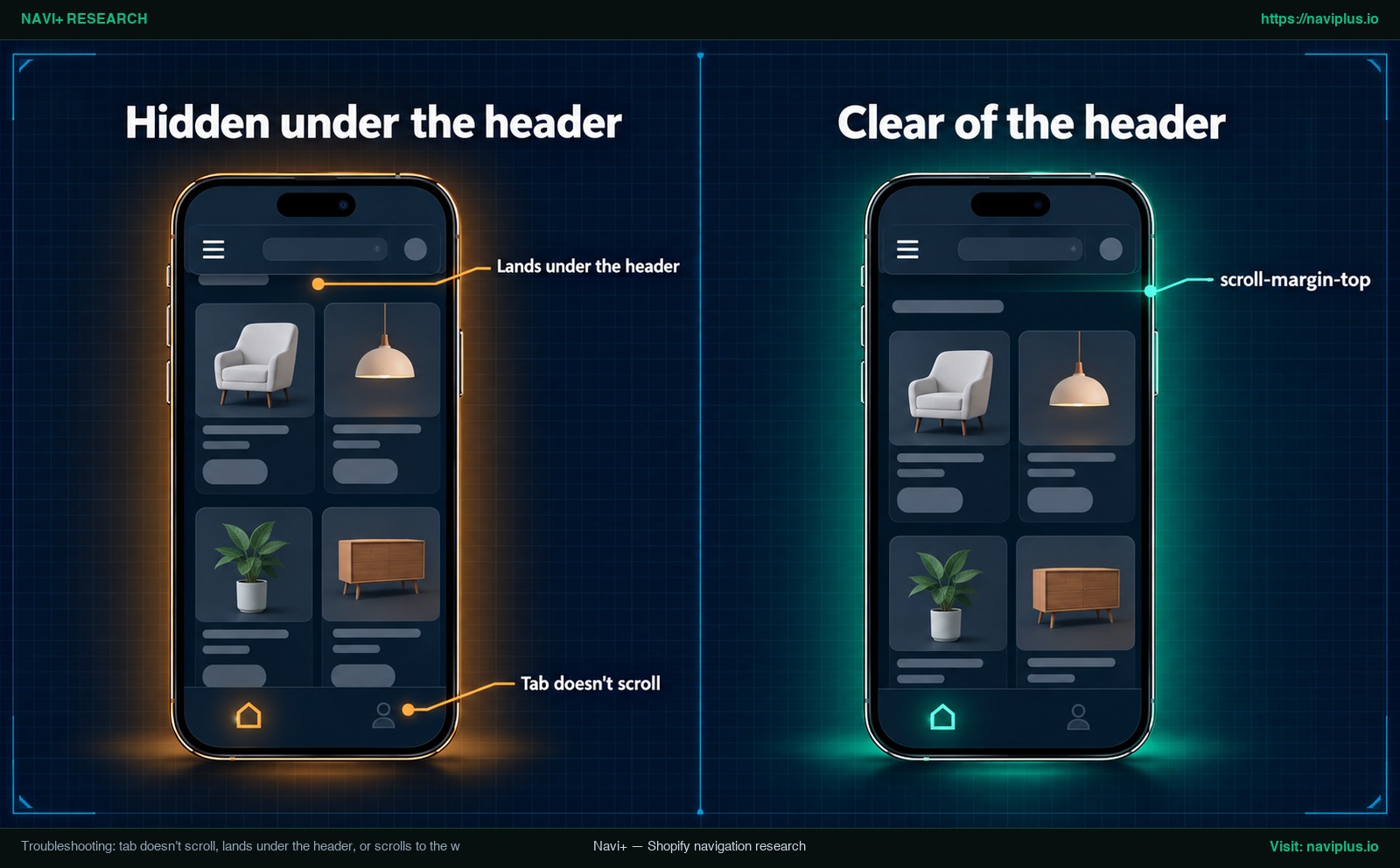
Concept illustration: Resolving sticky header overlap on a section title using the CSS scroll-margin-top property.
Trade-offs: when a selector target is the wrong tool
While scrolling to an on-page section provides a smooth experience for single-page interactions, it is not always the best navigation architecture for an ecommerce storefront.
Deep content that needs its own page
If the content you are linking to is an extensive product catalog, detailed brand policies, or in-depth support answers, squeezing it into one homepage section makes it harder to find and share. Dedicated collection or policy pages each get their own URL, which a tab can link to directly instead of relying on an on-page scroll.
Tab bar overload and visual fatigue
A mobile tab bar is designed for rapid thumb navigation between primary store areas. Dedicating multiple bottom tabs to internal homepage sections clutters the bottom navigation bar and confuses shoppers navigating deeper catalog pages. As outlined in our guide on navigation beyond the hamburger menu, bottom tabs should be reserved for high-intent, primary destinations.
Theme dependency and maintenance overhead
Any custom selector tied to auto-generated theme markup requires verification whenever you switch or update themes. When complex theme menu customizations become difficult to maintain across multiple layouts, store owners should review the structural limits of theme menus to determine whether a dedicated navigation app provides a cleaner long-term solution.
Where Navi+ fits
Navi+ provides dedicated navigation controls for Shopify merchants through its Tab Bar and Mobile Menu components. Each navigation item includes an explicit Link To field designed to accommodate standard web URLs as well as specialized interaction syntax.
For merchants seeking smooth section scrolling, Navi+ supports the syntax scroll:OnPage(#section-id), documented in the official help center as “Scroll to a section by CSS selector” (Navi+ link types). This feature is available on the Business and Elite plans.
When configuring this feature, enter the exact single-match selector you tested in Step 2. Because the on-page scroll handler resolves targets against the active document DOM, the target section must be present on the page currently viewed by the customer. Always test your navigation setup from a physical mobile device starting on your homepage.
If you use the Navi+ Tab Bar, paste the selector you just tested into the tab’s Link To field as scroll:OnPage(#your-id), then tap it on your phone from the homepage. The full list of link types is in the Navi+ help center.
Action checklist
Follow this seven-point checklist to audit and deploy your homepage section selector:
- Open your live storefront homepage in a desktop browser (outside the theme editor).
- Right-click the target section, select Inspect, and locate the outer wrapper whose id starts with
shopify-section-. - Note the wrapper ID and convert it into a candidate selector with a leading
#. - Run
$$('#your-selector').lengthin the DevTools Console to confirm it returns exactly 1. - Toggle device mode in DevTools to confirm the selector exists and remains unique on mobile viewports.
- If long-term theme stability is required, add a Custom Liquid block with
<div id="your-id"></div>above the section. - Paste the verified selector into your tab bar settings, add
scroll-margin-topif a sticky header obscures the title, and test on a physical smartphone.
FAQ
Where do I see a section’s ID in Shopify?
Section IDs are not displayed within the standard Shopify administrative dashboard. To find a section’s ID, open your live storefront in a web browser, right-click the section, select Inspect, and read the id attribute on the outer shopify-section wrapper element (Shopify Section Object, MDN querySelectorAll).
Why did my section’s selector stop working?
Shopify dynamically generates IDs for sections included through JSON templates, and these IDs are not stable across layout edits or section re-creation (Shopify Section Object, Fluorescent). To create a permanent target, insert a Custom Liquid block containing a static HTML ID attribute directly above the section.
How do I know my selector matches only one element?
Open the developer tools Console tab and evaluate $$(selector).length or document.querySelectorAll(selector).length (Chrome DevTools Console Utilities, Chrome DevTools DOM). A return value of 1 confirms that the selector matches exactly one element in the active document.
Should I use “Copy selector” from DevTools?
You can use Chrome’s “Copy selector” or “Copy JS Path” feature as an initial starting point, but the resulting multi-level selector chains are often brittle and break when theme markup changes. It is safer to trim the expression down to a unique section ID.
What happens if the selector matches several sections?
When a selector matches multiple elements, browser JavaScript APIs like querySelector select only the first matching element in document order (MDN querySelector). As a result, tapping the tab may scroll your screen to an unexpected section further up the page.
Why is the section title hidden under my header after scrolling?
Browsers naturally align the top boundary of the scrolled element flush with the viewport top. If your store uses a fixed or sticky navigation header, the header overlaps and conceals the section heading. Adding the CSS property scroll-margin-top to your target section provides the necessary offset clearance (MDN scrollIntoView).
Sources
- Shopify Developer Documentation: Section Liquid Object — Details on dynamic section ID generation in JSON templates.
- Fluorescent Documentation: Custom Liquid Developer Guide — Technical overview of section ID instability and custom ID anchor implementation.
- MDN Web Docs: HTML id global attribute — Formal specifications governing document-wide ID uniqueness.
- MDN Web Docs: Document.querySelector() — Technical return values, first-match behavior, null conditions, and selector escaping rules.
- MDN Web Docs: Document.querySelectorAll() — Static NodeList evaluation and collection matching mechanics.
- MDN Web Docs: Element.scrollIntoView() — Viewport alignment behavior and scroll-margin-top offset specifications.
- Chrome for Developers: Chrome DevTools DOM Inspection — DOM tree search capabilities and node expression copying.
- Chrome for Developers: Console Utilities API — Selector query helper evaluation documentation (
$$). - Chrome for Developers: Open Chrome DevTools — Operating system keyboard shortcuts for developer inspection mode.
- Section Store Help: Custom Placement: Finding a CSS Selector — Vendor guidance on element ID uniqueness and targeting.
- UpCharge Help Center: Selector Settings Guide — Practical merchant advice on identifying unique classes and IDs.
- Navi+ Help Center: Navigation Item Link Types — Official syntax specifications for
scroll:OnPage(#section-id)on Business and Elite plans.
Explore the topics
This guide links out to focused articles — dive deeper on each.