

The Problem
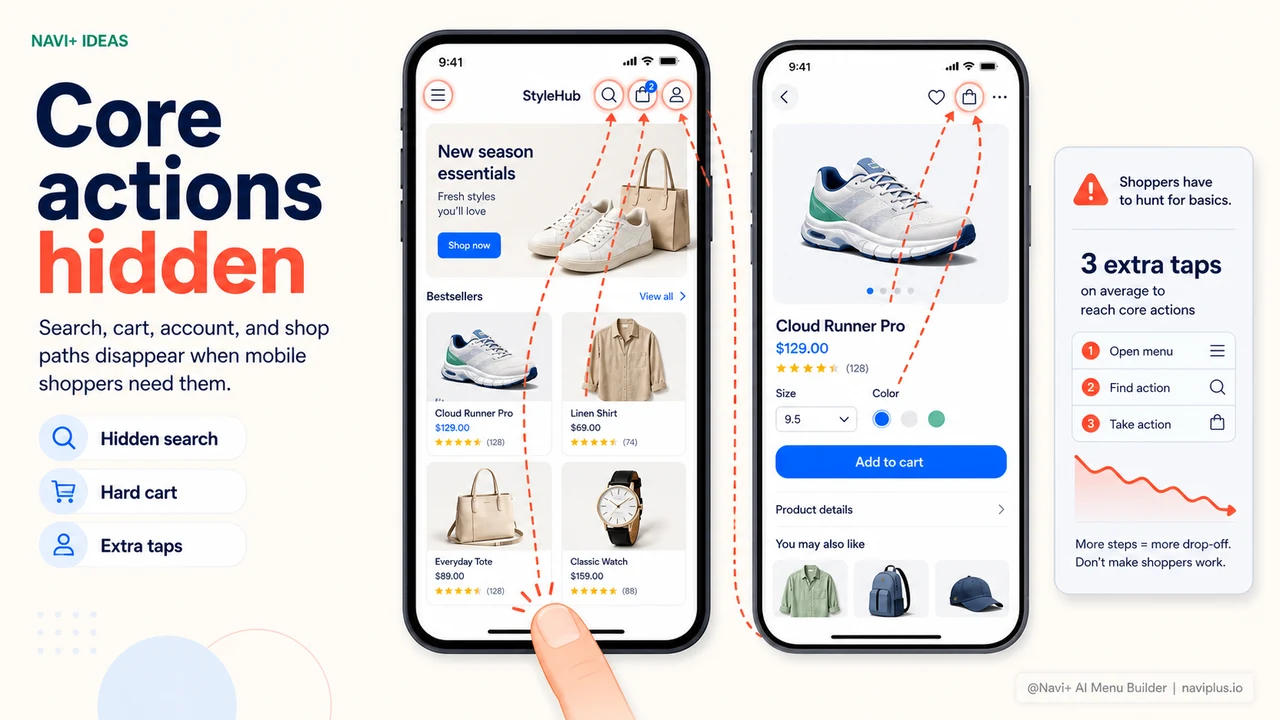
Open any major e-commerce app — Amazon, eBay, ASOS — and what's the first thing you notice? A fixed navigation bar at the bottom of the screen. Home, Categories, Search, Cart, Account — all within thumb reach, always visible no matter where you are in the app.
Your store is different. To get back to the home page, customers have to scroll to the top and tap the logo. To reach the cart, they hunt for an icon in the header. To go to a different category, they have to open the hamburger menu. Every extra action is one more opportunity for the customer to give up.
This isn't an aesthetic issue. It's a behavioral one. Mobile customers are conditioned to bottom navigation from dozens of apps they use every day — and when your store doesn't have it, the experience feels incomplete and unprofessional.
"Customers would message me: 'I don't know how to get back to the home page.' That's when I realized — on mobile, my store looked like a website from 2015, while every app they use has that convenient bar at the bottom."
— A Navi+ customer
Why bottom navigation matters so much
As phone screens get larger (6–6.7 inches is now typical), the area reachable by a thumb keeps shrinking to the bottom portion of the screen. UX research consistently shows that the top of the screen is a "dead zone" for mobile users — hard to reach, prone to missed taps.
Bottom navigation solves this by placing the most important actions exactly where a thumb lands naturally. That's why every super-app follows this pattern — not because it's trendy, but because it genuinely works.
- Fewer navigation steps — from 3–4 taps down to 1
- Customers know where they are — the active tab is clearly highlighted
- More pages per session — easier navigation means more browsing
- Feels professional — the store looks and behaves like a real app
Navi+ Tab Bar and FAB Button
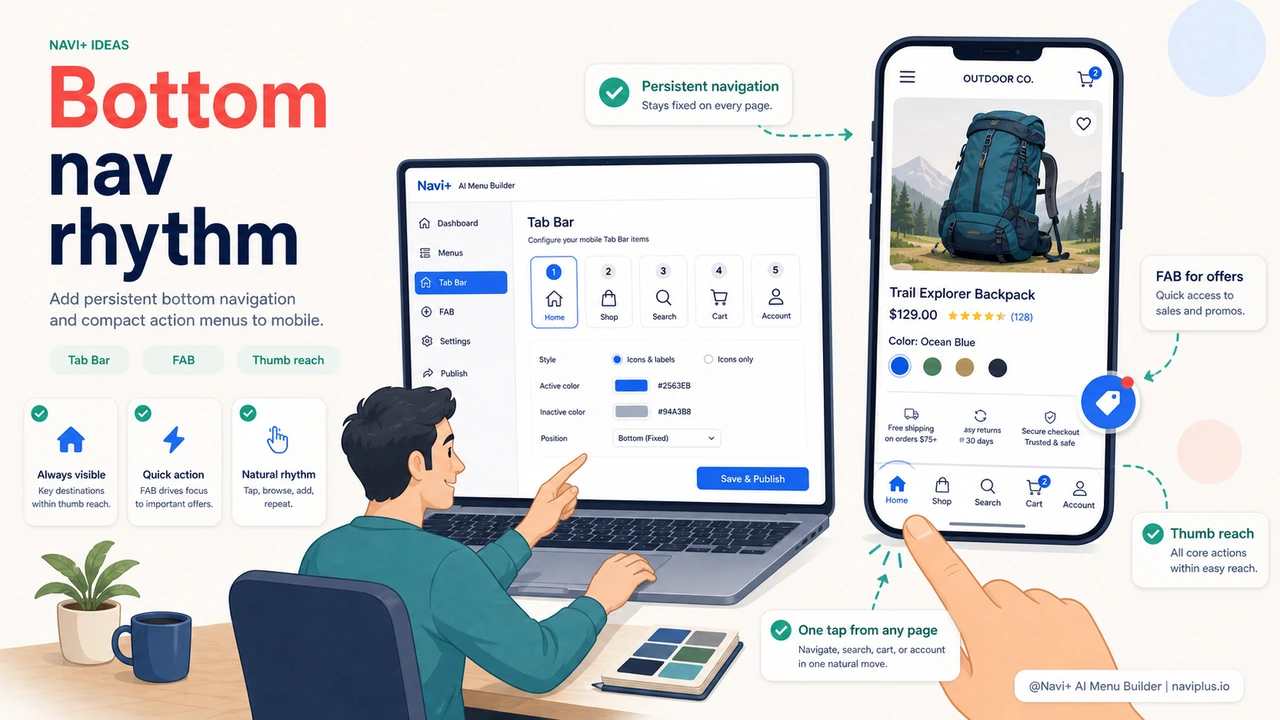
Navi+ provides a Tab Bar — a fixed navigation bar at the bottom of the screen — and a FAB Button (Floating Action Button) for quick access to priority actions. Both are fully customizable from the dashboard, no code required.
The Tab Bar supports up to 5 items with custom icons. The FAB Button can open the cart, open the menu, or go directly to any page with a single tap. Combined, your store gets a navigation experience that rivals a native app.
| Mobile navigation feature | Default store | Navi+ Tab Bar + FAB |
|---|---|---|
| Fixed bottom navigation bar | ✗ | ✓ Always visible, every page |
| Floating Action Button | ✗ | ✓ Customizable action |
| Custom icons for each tab | ✗ | ✓ Built-in icon library |
| Highlight active tab | ✗ | ✓ Clear, customizable colors |
| Cart item count badge | Header only | ✓ Right on the tab bar |
| Customize without code | Requires developer | ✓ Drag & drop in dashboard |
How to set it up
Go to the Navi+ dashboard → Tab Bar → choose the number of tabs (3–5 items) → select icons and destination pages for each tab. Enable the FAB Button if you want a floating button too. Save — the Tab Bar appears on your store immediately, no reload or deploy needed.
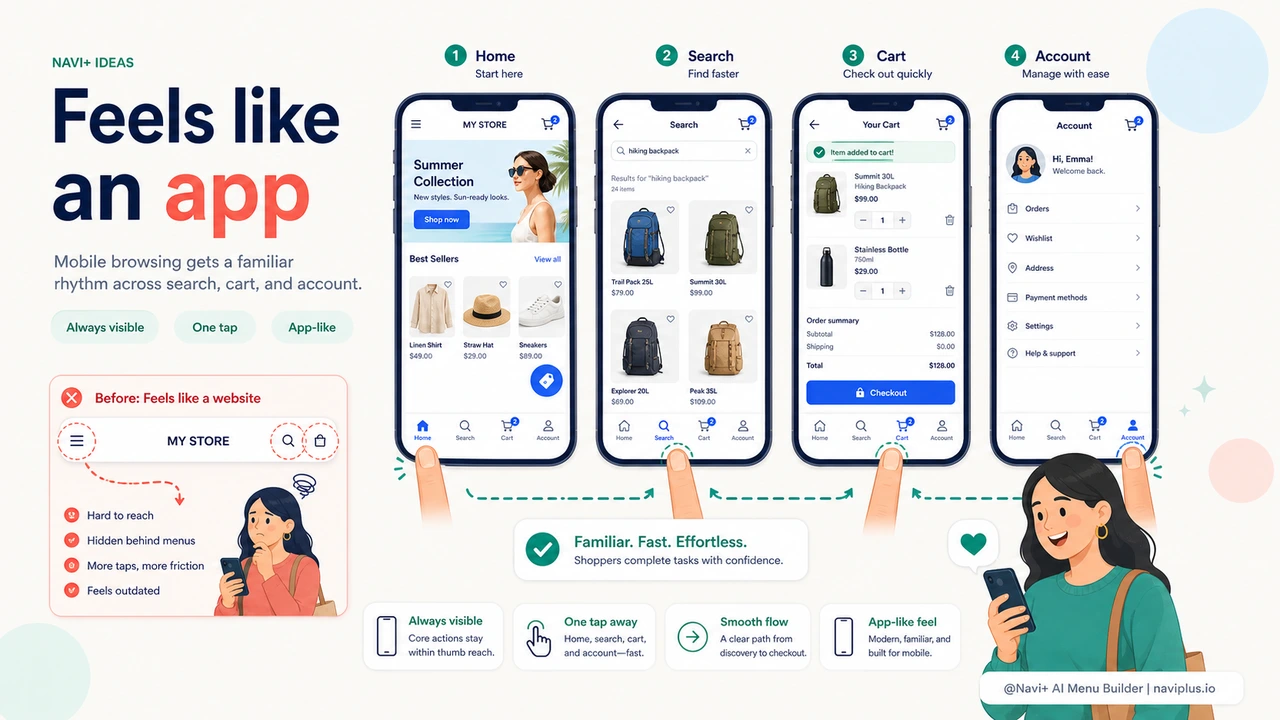
A common tab order to start with: Home → Categories → Search → Cart → Account. Adjust based on what actually matters to your customers.
Try it free — no code, no developer needed
Install in minutes on Shopify, WordPress, or any website.