

The Problem
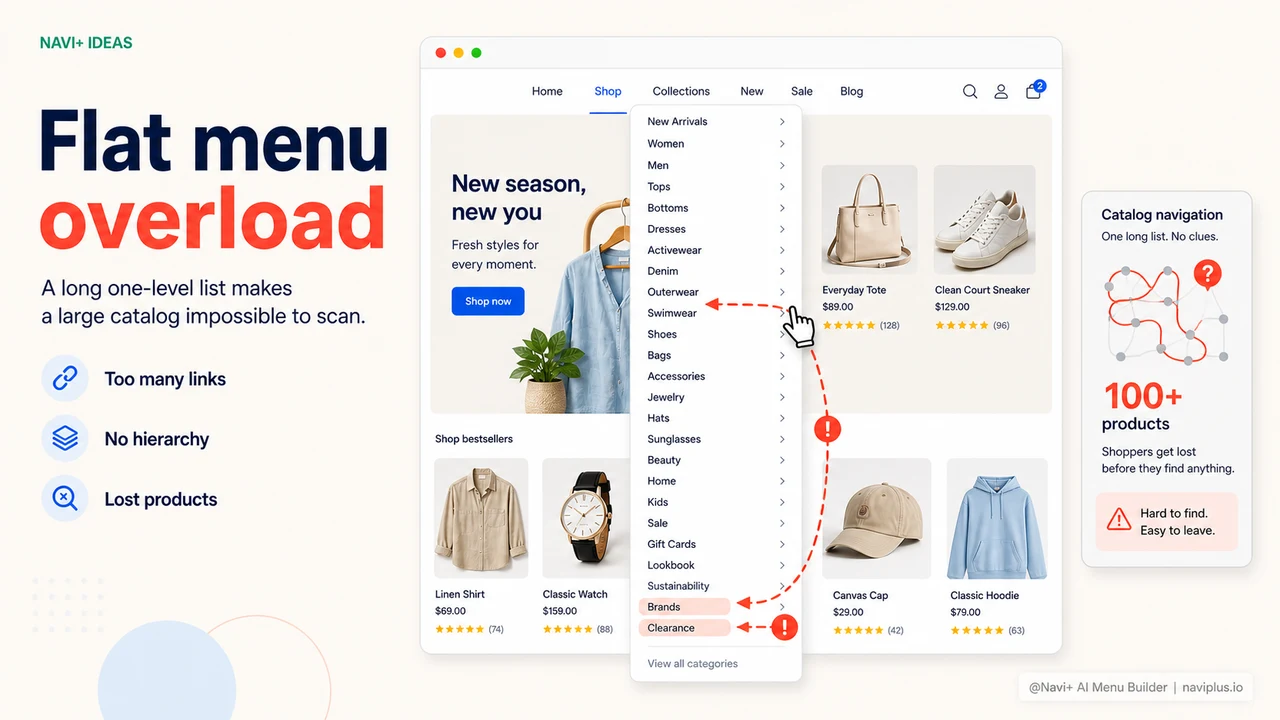
Your store has 100, 200, even 500+ products — yet your navigation menu is still a single-level flat list. Customers land on the page, look at the menu, have no idea where to start, scroll through a few items, and leave.
This isn't the customer's fault. When you have a lot of products but the menu structure doesn't reflect any grouping, shoppers get disoriented from the very first step. They have no reason to stay and keep looking.
"I had 8 different product lines, but the menu just listed everything in one long row. Customers kept messaging me: 'Do you sell X?' — while X was sitting right there on the page."
— A Navi+ customer
Why a flat menu loses customers
As the number of categories grows, a flat menu starts to fail in very specific ways:
- Too many choices at once — customers see 15–20 items side by side with no hierarchy, don't know which to prioritize, and end up choosing nothing
- No semantic hierarchy — "Tops" and "Men's button-down Oxford shirts" sit at the same level, so customers can't understand how items relate to each other
- No guided shopping journey — a flat menu just lists; it doesn't lead. Customers don't know which path to follow
- Search can't compensate — most customers don't know the exact product name they want. They need to browse, not search
The direct result: conversion rates below your store's real potential, even when you have everything customers are looking for.
How Navi+ AI Menu Builder solves this
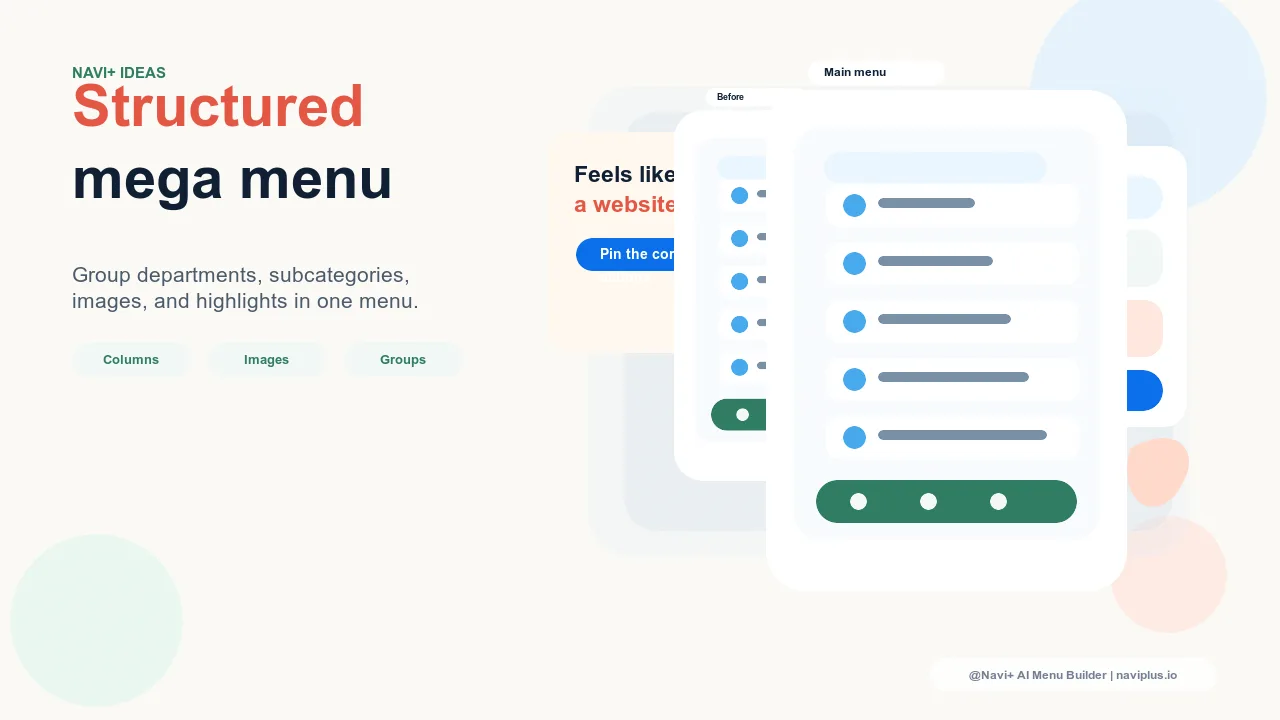
Navi+ lets you build a multi-level mega menu — clearly organized categories, unlimited sub-menu depth, displayed as columns or a visual grid. Customers glance at the menu once and immediately understand what your store sells and where to find it.
The whole setup is done through a drag-and-drop interface — no code, no developer needed. You can do it yourself in an afternoon.
| Feature | Default menu | Navi+ Mega Menu |
|---|---|---|
| Number of supported menu levels | 1 level only | ✓ unlimited levels |
| Group categories into columns | ✗ | ✓ flexible column & grid layout |
| Thumbnail images for categories | ✗ | ✓ |
| Highlight featured categories | ✗ | ✓ badges, custom colors |
| Customize without code | Requires theme edits | ✓ visual drag & drop |
| Survives a theme switch | ✗ lost entirely | ✓ config stored independently |
Getting started
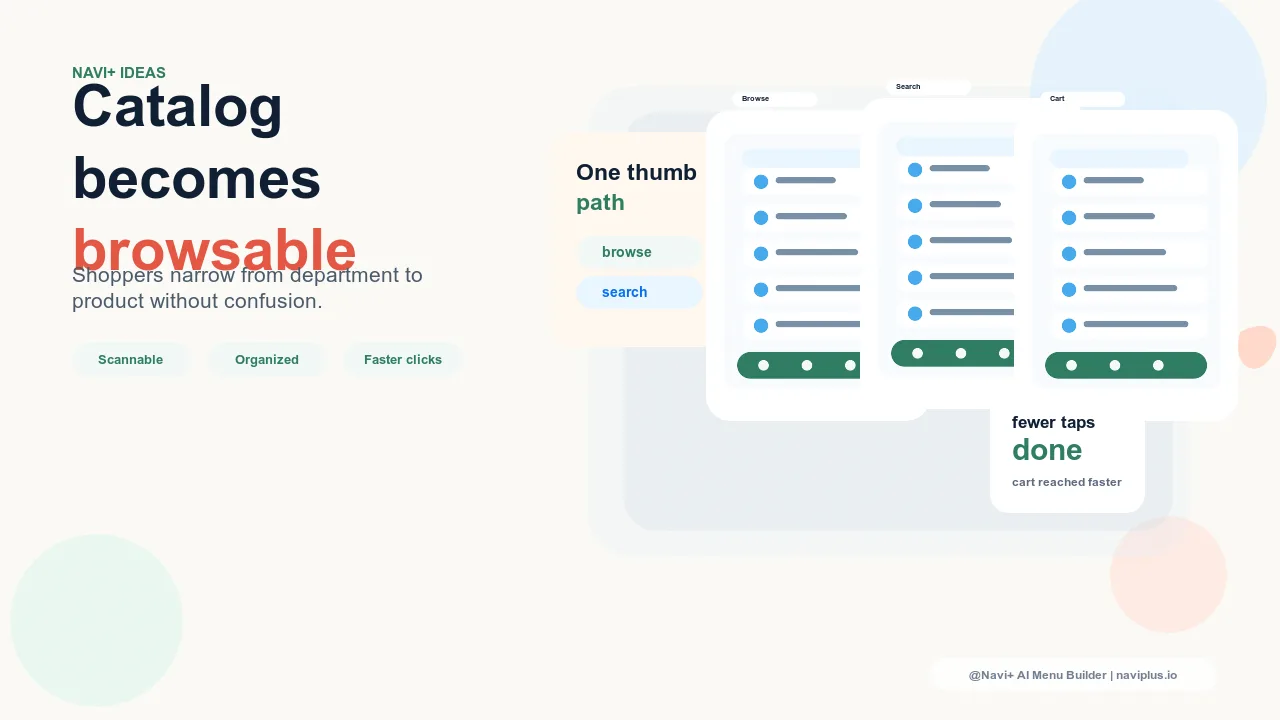
After installing Navi+, go to your dashboard → Create new menu → Mega Menu. Import your existing category structure, drag and drop items into meaningful groups, then choose the display layout that fits your industry. The basics take about 10 minutes. No code required.
If you have many subcategories, start by grouping them around "purchase context" — for example, by customer type or by product use case. Customers navigate that logic far better than a plain list of category names.
Try it free — no code, no developer needed
Install in minutes on Shopify, WordPress, or any website.