

The Problem
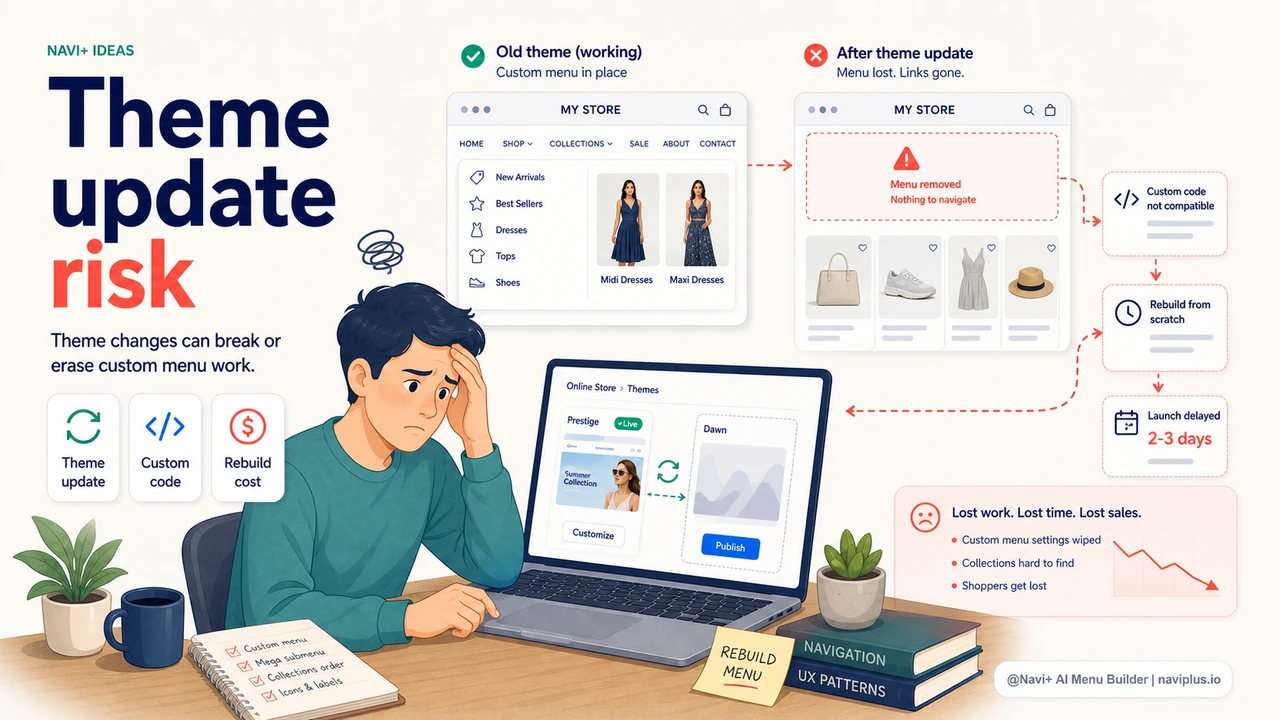
You spend hours setting up your menu — organizing category levels, naming each item, deciding the priority order. Then one day you decide to freshen up your store with a new theme, or you need a different theme for new features. And all that work disappears.
On most e-commerce platforms, the menu is stored inside the theme structure — when you switch to a new theme, the old menu doesn't carry over. You're looking at a blank menu in your store, and you have to start again from scratch. Meanwhile, your store may be showing an incomplete menu to real customers.
"After I switched themes, a customer messaged me asking why there were no categories showing in the store. That's when I realized the menu had been completely wiped. I spent the whole evening rebuilding it."
— A Navi+ customer
Why this problem is worse than it seems
Losing your menu when switching themes isn't just annoying — it has real consequences:
- Navigation downtime — while you're rebuilding, customers can't find products, and bounce rate spikes
- Easy to make mistakes — reconstructing the old structure from memory means missing items, entering wrong links, and getting priority order wrong without realizing it
- Afraid to switch themes even when you want to — many merchants know their current theme is no longer a good fit, but they avoid switching because they dread rebuilding the menu. The store stagnates design-wise out of fear
- Loses all custom work — if you paid a developer to add special logic to your menu, that investment is gone entirely
How Navi+ solves this
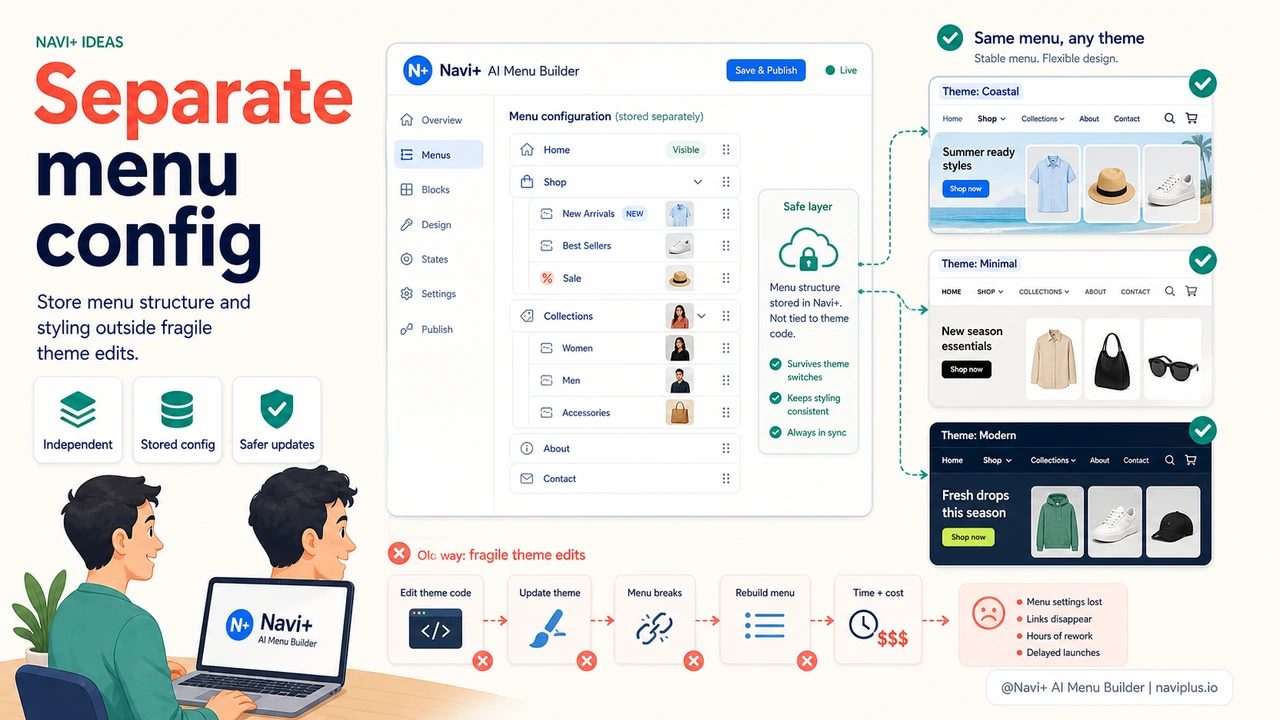
Navi+ runs completely independently of your theme. Your menu configuration is stored in Navi+'s own system, not tied to any theme you happen to be using. When you switch themes, Navi+ continues injecting your menu into the right position — all your configuration, images, and hierarchy are preserved.
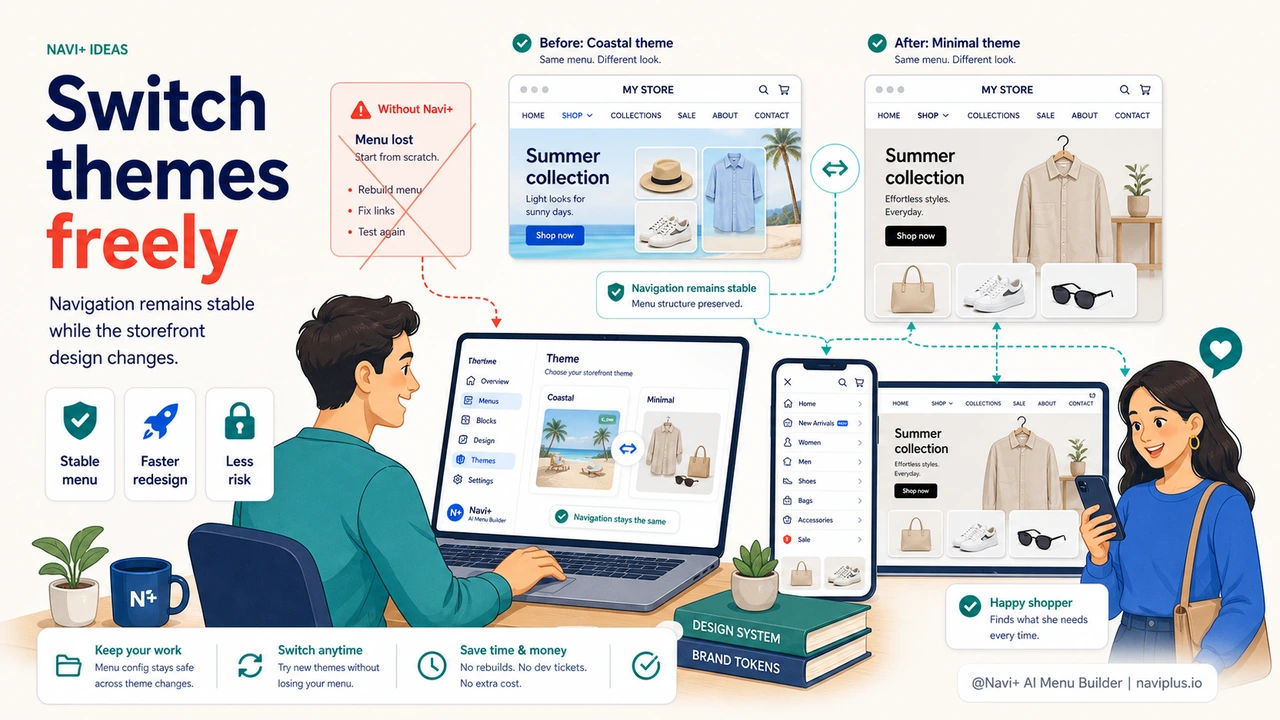
Switch themes as many times as you like. Your menu is never affected.
| Scenario | Theme's default menu | Navi+ |
|---|---|---|
| Switch to a new theme | ✗ entire config lost | ✓ preserved 100% |
| Update theme (new version) | May lose customizations | ✓ unaffected |
| Store downtime during theme switch | Yes — blank menu while rebuilding | ✓ No — menu keeps working |
| Save and reuse menu config | ✗ | ✓ export / backup supported |
| Works across different themes | ✗ tied to each theme | ✓ compatible with any theme |
| Try a new theme without losing menu | ✗ | ✓ test freely, easy rollback |
Getting started
Install Navi+ and set up your menu once in the dashboard. From that point on, any theme changes you make won't touch the menu you've configured. Navi+ automatically injects the menu into the correct header position, active the moment your new theme is enabled.
If you're planning a theme switch soon, this is the right time to install Navi+ first — set up the menu, then switch themes, with nothing to lose.
Try it free — no code, no developer needed
Install in minutes on Shopify, WordPress, or any website.