

The Problem
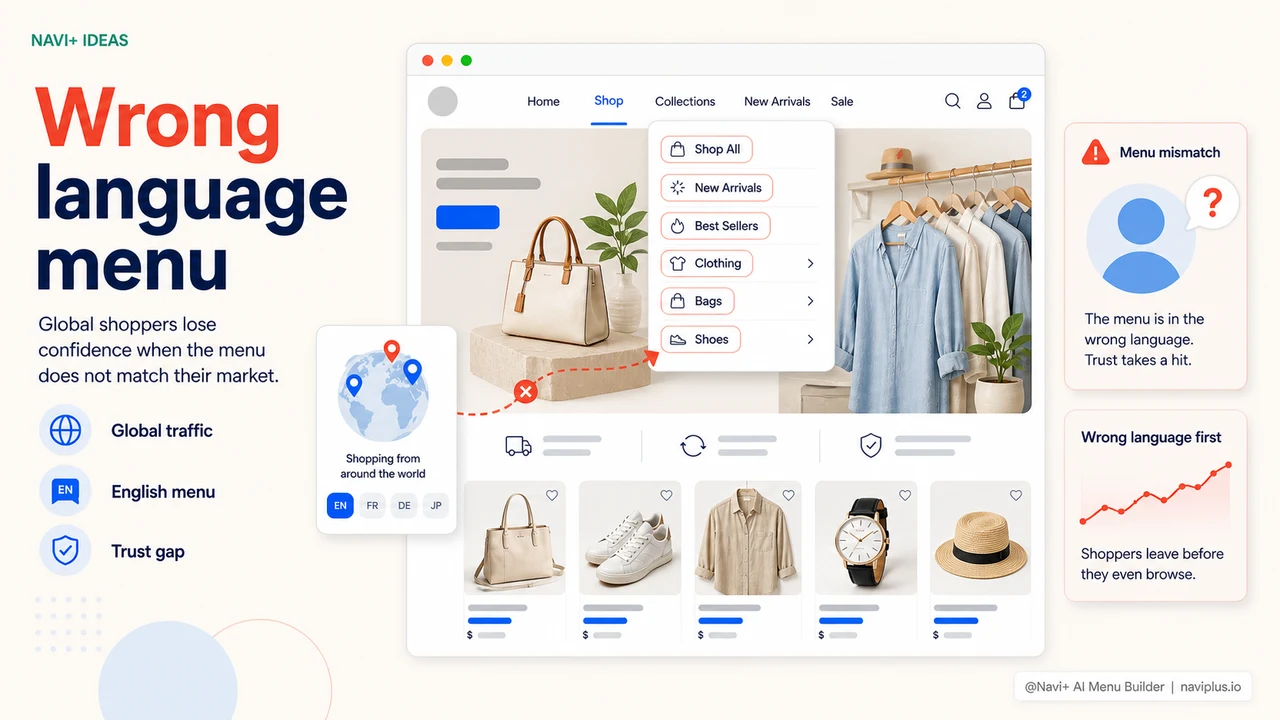
You've put work into translating product descriptions, setting up market-specific pricing, maybe even enabling multi-currency. But when customers from the US, Japan, or South Korea visit your store — they still see the navigation menu in your native language.
The menu is the first thing customers interact with after landing on the page. If the language is already wrong at that point, the message is clear: this store isn't really selling to me. They'll leave without looking at a single product.
"We ran ads to the US market, traffic went up but purchase rate was nearly zero. When we investigated, we found the menu was still showing in our local language to all international visitors."
— A Navi+ customer
Why a wrong-language menu is more serious than it looks
International customers have no patience for guesswork. Unlike local customers — who might figure out what you sell even with a slightly confusing navigation — foreign visitors assess trust signals within the first few seconds. A menu in the wrong language is an immediate negative trust signal:
- They can't read the categories — they can't find products, can't buy even if they want to
- Signals the store isn't ready for their market — even when your products are a perfect fit
- Bounce rate spikes — Google takes note, ad traffic quality drops, ad costs increase
- Ad spend with no return — the barrier is right at the first navigation step
And this is difficult to fix on your own. The default menu on most e-commerce platforms doesn't integrate with translation systems — you'd have to hardcode each language, or add a translation app and hope the two don't conflict with each other.
How Navi+ handles multilingual menus
Navi+ has multilingual support built directly into the menu system. You enter category names for each language right in the dashboard — and Navi+ automatically detects each customer's locale and displays the correct language version. No third-party translation app required, no complex configuration.
| Feature | Default menu | Navi+ AI Menu Builder |
|---|---|---|
| Multiple languages in menu | ✗ single fixed language | ✓ unlimited languages |
| Auto-detect customer locale | ✗ | ✓ automatic, no customer action needed |
| Enter translations in dashboard | ✗ requires code or separate app | ✓ visual interface |
| Compatible with translation apps (Langify, Weglot…) | Often conflicts | ✓ works in parallel |
| Fallback to default language when translation is missing | ✗ | ✓ never shows an empty menu |
| Preview each language before publishing | ✗ | ✓ view directly in editor |
Set it up in 15 minutes
After installing Navi+, go to your dashboard → select the menu you want to edit → click the Languages tab. The system lists all languages currently active in your store. For each menu item, enter the corresponding translation. Preview by switching locales in the editor to confirm everything looks right before saving.
If your store uses Weglot or Langify to translate product content, Navi+ works alongside them without conflicts. The navigation menu uses the translations you enter in Navi+, and the page content uses your translation app. Two independent systems, no interference.
Try it free — no code, no developer needed
Install in minutes on Shopify, WordPress, or any website.