You spend hours curating collections and nesting links in your Shopify admin. On a computer screen, your categories unfold across a spacious mega menu. But when you open the mobile drawer on your smartphone, the navigation often feels split or out of sync.
You do not need to build and maintain two separate menus. By keeping a single category hierarchy as your source of truth, you can let each device render that structure in its ideal layout.
Quick answer: can one menu power both desktop and mobile?
Yes. In Dawn, the header’s main menu feeds both the desktop menu and the mobile drawer, so the structure is already shared. What differs is the layout: desktop can show columns, mobile drills down level by level. Pick the method that keeps one source of truth.
- Method 1 (Native theme settings): Keep one menu in Shopify admin and switch your desktop header setting to Mega menu, letting the theme handle mobile drawer display.
- Method 2 (Separate menus): Create an independent mobile linklist in your admin and point your drawer code to it, accepting duplicate maintenance.
- Method 3 (Drawer template modification): Edit your drawer Liquid snippet so nested sub-categories display immediately without multi-tap drill-downs.
How Shopify themes reuse one menu on desktop and mobile
In Shopify, navigation data lives separate from layout code. When you build a menu in Content > Menus, Shopify stores it as a linklist object. According to the Shopify Developer Documentation, “You can nest links up to three levels deep”: a top-level item plus two nested child tiers. For foundational taxonomy guidance, see our Shopify menu guide.
Because each linklist is structured data, your theme decides how to present it (Shopify Dev Docs). In Dawn’s sections/header.liquid, the theme provides a menu_type_desktop setting to choose between dropdown, mega menu, or drawer layouts (GitHub Shopify Dawn).
Regardless of the desktop style you select, Dawn’s mobile drawer consumes that exact same linklist. In snippets/header-drawer.liquid, the drawer loops through the header menu using for link in section.settings.menu.links and iterates down to grandchild links with for grandchildlink in childlink.links (GitHub Shopify Dawn). Liquid also tracks nesting depth via the levels property on each link (Shopify Liquid API).
The underlying structure is already shared. You have One menu tree; what differs between screens is simply the layout.
Why the two layouts still feel different
Even when sharing a menu, desktop and mobile interfaces feel noticeably different due to distinct interaction models.
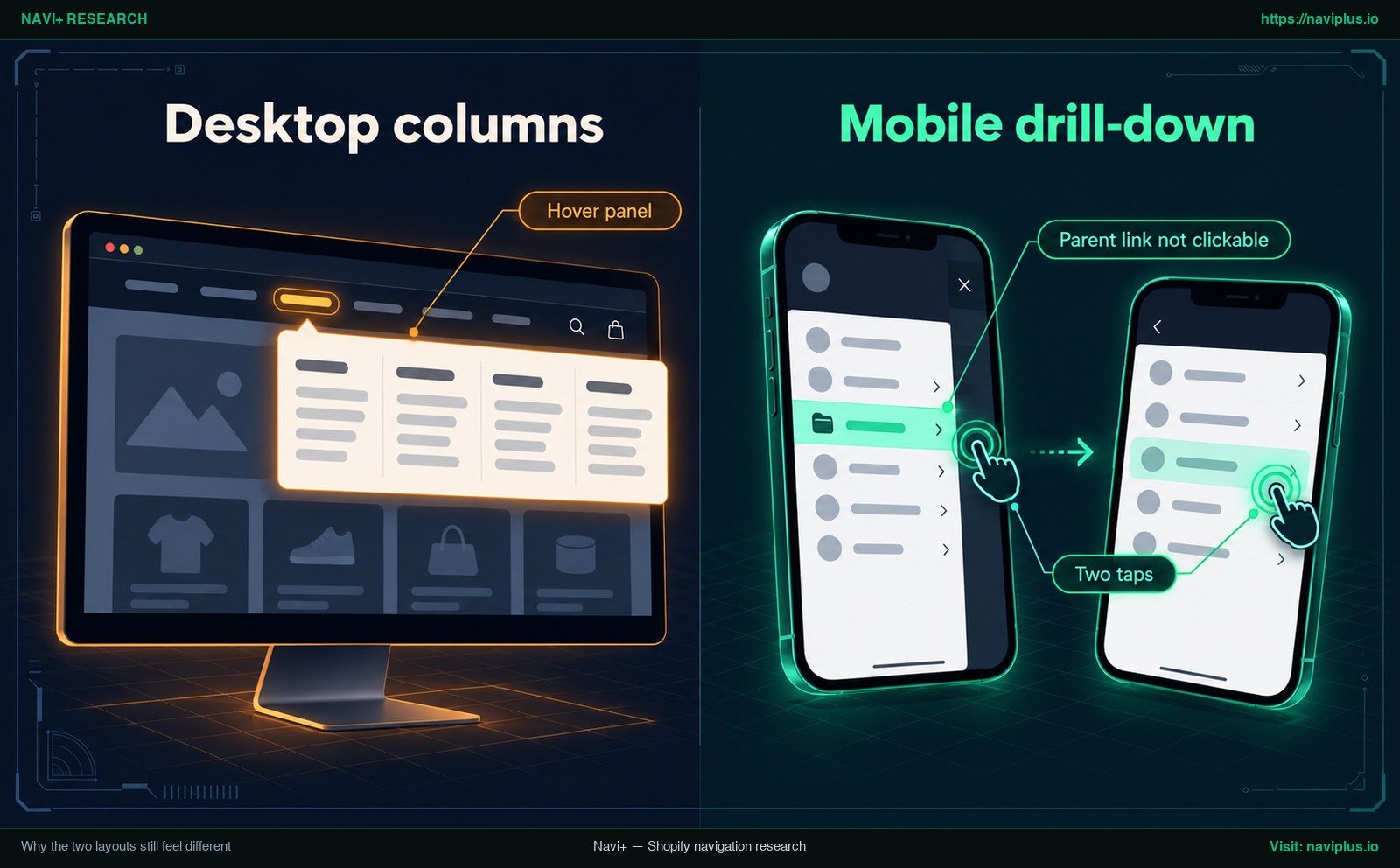
Figure 1: Concept illustration — Why the two layouts still feel different
On desktop, hovering a category reveals a wide Hover panel where multiple columns of links appear simultaneously. Shoppers can scan sub-categories and product links at a glance.
On mobile, narrow viewports cannot fit multi-column grids. Themes use an off-canvas drawer with drill-down screens. Reaching a sub-category requires tapping a parent row, waiting for the screen to slide, and tapping again. This requirement of Two taps is a complaint some Dawn users have raised (Shopify Community). For deeper drawer mechanics, see our guide on mobile drawer menu architecture.
Touchscreens also introduce unique usability hurdles:
- Parent link not clickable: In many mobile drawers, tapping a parent item merely slides open the sub-panel, preventing navigation to the collection page.
- Accidental touch selection: Usability research from Nielsen Norman Group shows that “tiny options inside mega menus cause selection errors on touchscreens” (NN/g).
- Dedicated mobile designs: Apps like Meteor maintain separate desktop and mobile templates (Helium Meteor Docs), while Clean Canvas recommends a single-layer mobile menu with direct product links for Symmetry (Clean Canvas).
Method 1: Keep one Shopify menu and switch the desktop menu type to Mega menu
The cleanest no-code method is using your theme’s built-in mega menu setting. This keeps one menu tree in your admin while letting the theme adapt the display for each screen.
Follow these four steps:
- Build your three-tier hierarchy in admin: In Content > Menus, organize your Main menu into top-level items, second-level subheadings, and third-level links.
- Assign the menu to your header: In Online Store > Themes > Customize > Header, ensure your menu is selected under the Menu setting.
- Switch desktop menu type to Mega menu: In the Header settings, change Menu type to Mega menu (GitHub Shopify Dawn). To configure Dawn’s header, read our guide to add a mega menu to Dawn.
- Preview mobile drawer: Switch the preview to Mobile and open the drawer. It automatically renders the exact same menu tree (GitHub Shopify Dawn).
Other themes may label this setting differently; check your theme documentation (Shopify Dev Docs).
Method 2: Use two separate menus in Shopify admin
If your desktop menu has complex promotional links that clutter handheld screens, you can build two separate menus in Shopify admin.
You create a primary menu for desktop and a second, shorter menu named “Mobile Menu” in Content > Menus. To connect it, developers modify snippets/header-drawer.liquid to target the mobile menu variable instead of section.settings.menu (Shopify Community). Check your theme’s documentation to see whether it offers a separate drawer menu setting, which would avoid code.
While this allows a custom mobile structure, it carries a significant maintenance cost:
- Every collection update or seasonal campaign requires updating two distinct menus.
- The two menus can drift apart over time, leaving mobile shoppers without links that desktop has. Merchants who want to “replicate my desktop menu on mobile” are asking to avoid exactly this (Shopify Community).
Use Method 2 only when your mobile store truly requires an entirely different navigation structure.
Method 3: Edit the drawer so nested levels show at once
Merchants often prefer mobile drawers that show sub-categories immediately without sliding through sequential screens (Shopify Community).
Dawn’s drawer template already loops through child links and grandchild links (GitHub Shopify Dawn). By adjusting Liquid and CSS, developers can unwrap nested panels so second- and third-level links appear open by default.
Keep these practical precautions in mind:
- Theme versions differ: Community snippets from 2022 were written for older Dawn releases. Markup and file structures change between versions.
- Duplicate first: Always duplicate your theme before editing Liquid files. Never edit live code untested.
- Long vertical scrolling: Showing dozens of sub-categories at once forces extensive vertical scrolling on smaller screens.
What carries over from a desktop mega menu to mobile
When translating a desktop mega menu to mobile, layout elements must adapt. Nielsen Norman Group recommends you “Chunk options into related sets” (NN/g). For visual grouping strategies, review our mega menu layout and grouping best practices.
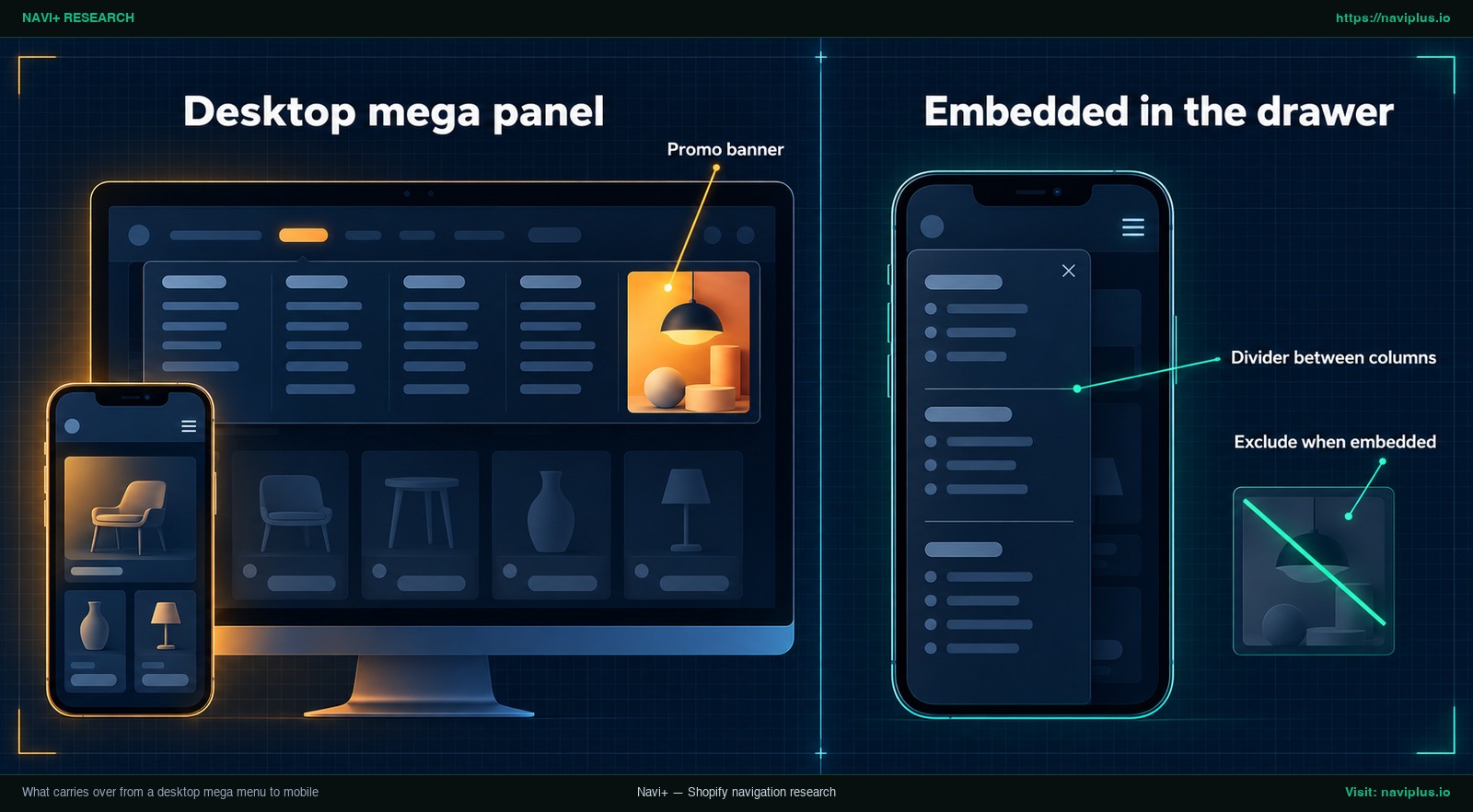
Figure 2: Concept illustration — What carries over from a desktop mega menu to mobile
| Desktop element | On a phone | What to do |
|---|---|---|
| Multi-column grid | Handheld viewports cannot fit multiple horizontal columns (Navi+ Docs) | Columns become one column stacked vertically in a single scrollable drawer list |
| Column headings | Headings that only label a desktop column take up room in a narrow list | Usually drop them when columns stack; a thin Divider between columns keeps the old grouping visible |
| Promotional images and banners | Large Promo banner tiles push navigation links below the screen fold | Hide heavy graphics on mobile; use settings like Exclude when embedded to keep the drawer lean (Navi+ Docs) |
| Menu depth | Shopify limits linklists to three total tiers (Shopify Dev Docs) | Keep your hierarchy to ≤ 3 total tiers so links are not cut off in native Liquid loops |
| Compact text links | Closely spaced text causes tap errors on touchscreens (NN/g) | Ensure touch targets meet the WCAG 2.2 minimum of at least 24 by 24 CSS pixels (W3C WCAG 2.2) |
Test on real devices before you publish
Browser developer tools simulate screen width, but they cannot replicate thumb reach or touch targets. Test on physical hardware before launching:
- Test on physical phones: Open your preview on iOS and Android devices in both portrait and landscape orientations.
- Tap every level: Tap top-level, sub-category, and grandchild links to verify landing URLs.
- Verify parent row behavior: Check whether tapping parent categories opens collection pages or expands sub-menus cleanly.
- Measure touch targets: Ensure interactive rows provide comfortable tap padding meeting the WCAG 2.2 standard of at least 24 by 24 CSS pixels (W3C WCAG 2.2).
- Check drawer scrolling: Confirm that long menus scroll smoothly down to bottom account links without getting stuck.
- Use theme preview: Test on an unpublished theme duplicate before making live modifications.
Common problems and fixes
When aligning desktop and mobile navigation, merchants frequently encounter four common issues:
Mobile menu needs two taps
- Cause: Drill-down drawer mechanics require tapping a category, waiting for animation, and tapping again (Shopify Community).
- Fix: Restructure drawer code to expand sub-items inline (Method 3), or adopt a layout that omits the intermediate column layer so shoppers reach links in one touch.
Deep levels are cut off
- Cause: Shopify menus support up to three tiers (top-level plus two nested tiers) (Shopify Dev Docs). Dawn does not loop beyond grandchild links (GitHub Shopify Dawn).
- Fix: Flatten your category structure so every destination page sits within three tiers.
Parent link is not clickable
- Cause: Tapping the parent category row in mobile drawers is reserved for opening nested sub-panels.
- Fix: Add a “View all [Category]” link as the first item inside each child menu.
Mobile menu shows different items
- Cause: Your store is using Method 2 via custom code in
snippets/header-drawer.liquidor an app setting pointing to a separate mobile menu (Shopify Community). - Fix: Check theme header settings and drawer Liquid code to confirm which menu handle is referenced.
Trade-offs: when one structure is the wrong choice
Using one navigation structure across desktop and mobile saves time, but each implementation method involves distinct trade-offs:
| Method | Setup effort | Code required | Maintenance location | Key trade-offs & limitations |
|---|---|---|---|---|
| Method 1: Native Mega Menu | Low (minutes) | None (theme settings) | Single menu in Shopify admin | Constrained by theme layout features; mobile drawer uses default drill-down taps |
| Method 2: Two Separate Menus | Medium | Minor Liquid edit or theme picker | Two menus in Shopify admin | Risk of catalog drift; requires duplicate updates for every catalog change |
| Method 3: Edited Drawer Template | High | Custom Liquid and CSS changes | Single menu in Shopify admin | Code may break on theme updates; long lists increase vertical mobile scrolling |
When to separate desktop and mobile menus
While maintaining one structure prevents catalog drift, separating menus makes sense in certain situations:
- Very large catalogs: Stores with thousands of products across deep sub-branches can overwhelm smartphone screens. A curated, single-layer mobile menu with direct product links offers cleaner touch navigation (Clean Canvas).
- Mobile-first shortcuts: Smartphone visitors may benefit from quick utility shortcuts like Order Status or Store Locator placed at the top level.
- Search crawlability: If you hide categories on mobile, ensure all collections remain discoverable through collection pages, breadcrumbs, and sitemaps. Read our guide to keep your menu crawlable.
Where Navi+ fits
If your theme lacks built-in mega menu layouts or editing Liquid feels complex, Navi+ offers a structured way to share navigation across devices.
According to the Navi+ documentation, this is how the desktop and mobile menus work together:
- Desktop Mega Menu: On wide screens, Navi+ Desktop Mega Menu renders multi-column panels with images and banners. It does not display on phones because columns have nowhere to go (Navi+ Docs).
- Mobile Menu embedding: Rather than rebuilding items, Navi+ Mobile Menu embeds your Desktop Mega Menu using an embed item at level 1 of the drawer (Navi+ Docs).
- Single-column stacking: When embedded, Columns become one column, stacked cleanly (Navi+ Docs). The column tier is omitted so shoppers reach links in one tap, not two.
- Visibility controls: Turn on Exclude when embedded to keep desktop banners off mobile screens (Navi+ Docs).
- Edit in one place: The drawer reuses the mega menu’s items, so you Edit once in your Desktop Mega Menu and the embedded copy in the drawer follows. To delete a mega menu, remove the embed item from your Mobile Menu first (Navi+ Docs).
- Three-level depth: Navi+ Mobile Menu supports three navigation levels (categories, subcategories, and links) (Navi+ Docs).
To set this up:
- In Navi+, copy the embed item from your Desktop Mega Menu.
- Paste the embed item at level 1 of your Mobile Menu.
- Enable Exclude when embedded on any promotional banners or items meant only for desktop.
For step-by-step setup, see how to reuse a Desktop Mega Menu on phones and manage visibility with Exclude when embedded.
If you already use Navi+ for a Desktop Mega Menu, try copying its embed item into a Mobile Menu and preview it on your phone — if the result is not what you want, delete the embed item and nothing else changes.
Action checklist
Follow this checklist to align your desktop mega menu and mobile navigation:
- Establish one menu tree: Build your category hierarchy in Content > Menus, staying within Shopify’s three-tier limit.
- Select your method: Choose between native theme settings (Method 1), separate menus (Method 2), or drawer code adjustments (Method 3).
- Duplicate your theme: Create a backup theme before editing Liquid templates or adding custom code.
- Stack columns into one column: Ensure desktop columns collapse into a clean single-column drawer list on mobile screens.
- Filter out desktop-only assets: Hide wide promotional banners and decorative graphics from mobile drawers.
- Verify parent links: Confirm parent items either open a collection page or include a “View all” child link.
- Test on a physical device: Test tap responsiveness, scroll depth, and touch targets of at least 24 by 24 CSS pixels on a smartphone.
FAQ
Can I use one menu for both desktop and mobile?
Yes. In themes like Dawn, the mobile drawer builds from the exact same menu assigned to your header, meaning you maintain one linklist while your theme applies distinct layouts.
How many levels can a Shopify menu have?
A top-level Shopify menu item can have up to two levels of nested links below it, for a total of three tiers. Dawn’s drawer template iterates through links down to grandchild links.
Why does my mobile menu need two taps?
Default mobile drawers often use a drill-down architecture where tapping a category slides into a sub-panel, requiring a second tap to select a link. You can eliminate this extra step by expanding sub-menus inline or removing the intermediate column layer.
Do mega menu columns and images work on mobile?
Multi-column grids do not fit mobile screens and stack into a single column. Promotional images and banners often take up too much vertical room, so they are typically omitted or hidden using visibility settings.
Do I need to edit theme code?
No. If your theme includes native mega menu support, you can enable it directly in the Theme Editor without editing code. Code modifications are only needed if you want to alter the default drawer behavior or redirect it to a separate menu.
Sources
- Shopify Developer Documentation: Navigation and Search — Specifications on linklist objects and nesting links up to three levels deep.
- Shopify Dawn Repository: header.liquid — Source implementation of desktop menu types including dropdown, mega menu, and drawer.
- Shopify Dawn Repository: header-drawer.liquid — Mobile drawer loop implementation traversing links down to grandchild items.
- Shopify Liquid API Reference: Link Object — Documentation on link attributes including the nested levels property.
- Nielsen Norman Group: Mega Menus Work Well Anywhere — UX research on touch selection errors, chunking options into related sets, and visual hierarchy.
- W3C Web Accessibility Initiative: Target Size Minimum (WCAG 2.2) — Accessibility standard requiring touch targets of at least 24 by 24 CSS pixels.
- Shopify Community: Main menu nesting mobile vs desktop — Discussion regarding the two-tap requirement in Dawn mobile navigation.
- Shopify Community: Desktop Mega Menu and Mobile Hamburger Menu — Implementation discussion on targeting separate mobile menus in drawer templates.
- Shopify Community: DAWN how to show nested menu/submenu on mobile — Community requests to display second and third menu tiers simultaneously on mobile devices.
- Shopify Community: How can I make my desktop menu identical on mobile — Merchant queries on replicating desktop menu structures across viewports.
- Helium Meteor Documentation: Welcome to Meteor — Overview of distinct desktop and mobile menu template architectures.
- Clean Canvas Blog: Mega Menu Your Shopify Store — Symmetry theme documentation recommending single-layer mobile navigation strategies.
- Navi+ Documentation: Create a Desktop Mega Menu — Technical guidance on column stacking, embed items, and visibility controls.
- Navi+ Documentation: Create a Mobile Menu — Structure guidelines for three-level mobile navigation and drawer embedding.
- Navi+ Documentation: Item Visibility — Instructions for using Exclude when embedded to control device-specific navigation elements.
Explore the topics
This guide links out to focused articles — dive deeper on each.