Shopify Menu Guide: Architecture, Navigation Patterns, Mobile Ergonomics, and Storefront UX
Navigation guides shoppers to products. Clear pathways keep visitors moving forward, while hidden links and awkward tap targets stall discovery.
Ecommerce spans two contexts: wide desktop displays with horizontal scanning room, and smartphones navigated with a single thumb. Serving both requires deliberate choices.
This guide provides a practical blueprint: how Shopify manages menus, how four core patterns compare, what research recommends, and a checklist to audit your store on real devices.
Quick Answer: How Shopify Menus Work
Shopify menus are built in Content > Menus and shown by your theme; a top-level item can hold up to two nested levels (three in total). Use a simple dropdown for small catalogs, a mega menu for broad desktop catalogs, and on phones keep key links visible instead of hiding everything behind a hamburger.
| Navigation Pattern | Best For | Watch Out For | Read More |
|---|---|---|---|
| Simple Dropdown | Small catalogs and single-brand stores with focused collections | Long single-column vertical lists that hide lower options below the fold | Shopify theme menu limitations |
| Multi-Column Mega Menu | Broad catalogs with multiple collections and structured subcategories | Accidental hover flickering and oversized panels that overwhelm smaller screens | Shopify mega menu best practices |
| Off-Canvas Slide Drawer | Secondary utilities, customer service links, and deep mobile taxonomy | Hiding all navigation behind an icon, making key product categories harder to discover | mobile drawer menu best practices |
| Bottom Tab Bar | Stores with heavy smartphone traffic wanting instant thumb access | Trying to fit more than 5 destinations, which crushes touch targets | bottom tab bar for Shopify |
Key Points
- Platform Hierarchy: Shopify enforces a three-level nesting limit (one top-level item plus up to two nested drop-down levels) managed under Content > Menus (Shopify Help Center).
- Desktop Visibility: Nielsen Norman Group research demonstrates that mega menus let users see options at a glance rather than remember category lists (NN/g).
- Mobile Engagement: NN/g usability testing found hidden menus reached only 57% engagement on mobile, whereas combo navigation keeping key links visible achieved 86% (NN/g).
How Shopify Menus Are Built: Content > Menus, Themes, and the Three-Level Limit
Configuring navigation begins with understanding how Shopify separates menu data from theme presentation. Menus exist as persistent store records, while themes handle styling.
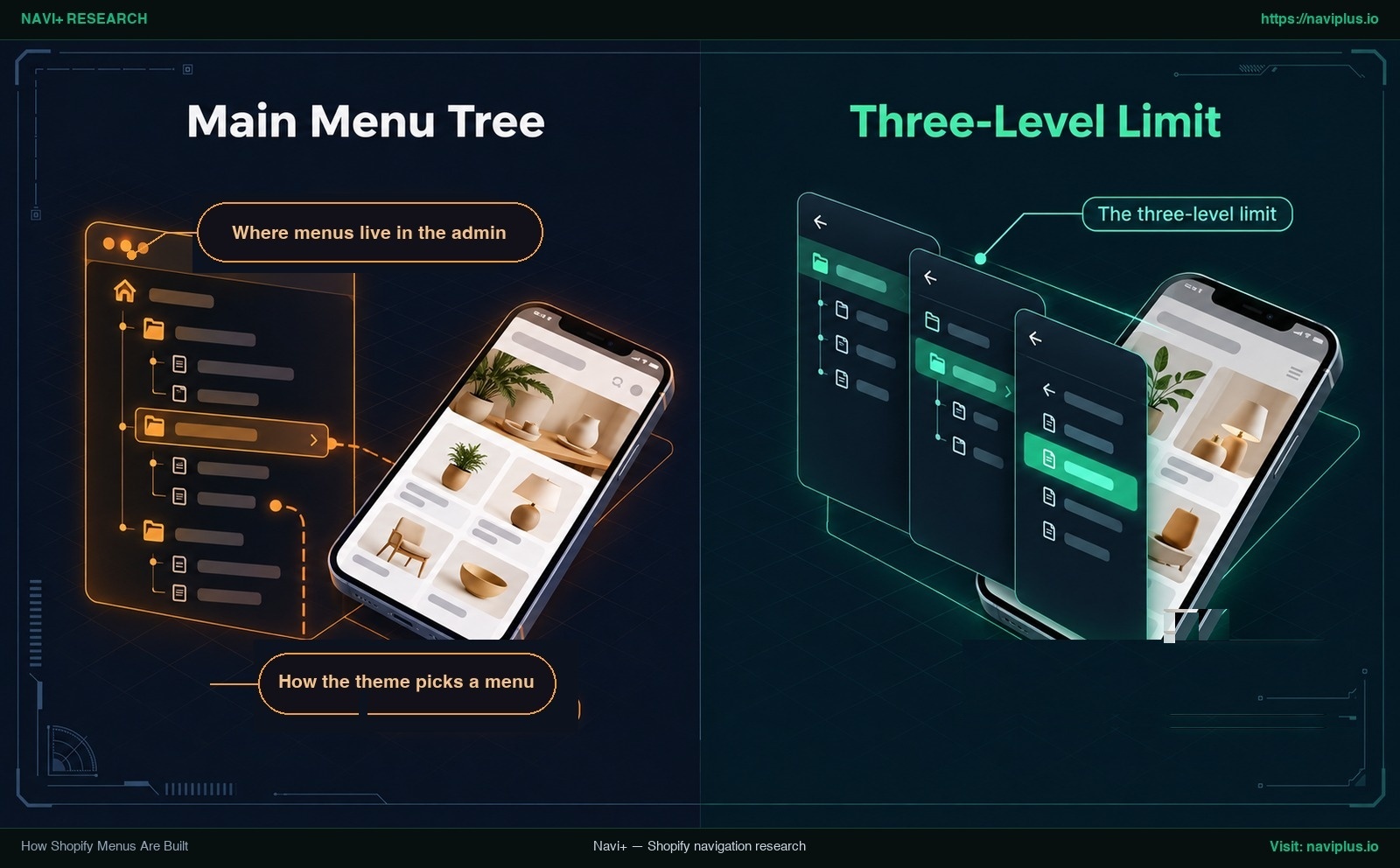
Figure 1: Concept illustration — How Shopify Menus Are Built: Content > Menus, Themes, and the Three-Level Limit
Where Menus Live in the Admin
In the Shopify admin, navigation is managed under Content > Menus (Shopify Help Center). From here, merchants create menus, add links, and organize store pathways.
Because menus exist as platform records rather than theme code, hierarchies remain intact when switching themes. Dragging menu items beneath parent links creates nested tiers.
How the Theme Picks a Menu
Themes control how menus render. Shopify themes connect to admin menus through a link_list setting (Shopify Dev Documentation), letting merchants select which menu populates the header, drawer, or footer.
When changing themes, links remain intact. In the new theme Customizer, select your menu in the Header link_list setting. Custom blocks or banners from the previous theme do not transfer automatically.
The Three-Level Limit
Shopify navigation enforces a three-level nesting limit: a top-level item can hold up to two nested drop-down levels (three levels total), documented by the Shopify Help Center and Shopify Dev Documentation.
Plan your taxonomy within these three levels. The Shopify Help Center also notes that most themes support up to two nested drop-down levels.
When a top-level item controls a nested submenu, it functions as a button to expand the menu rather than as a direct hyperlink (Shopify Help Center). Always include an explicit “Shop All [Category]” link inside the panel so shoppers can reach the parent collection.
The Four Core Navigation Patterns: Dropdown, Mega Menu, Drawer, and Tab Bar
Shopify storefronts rely on four primary patterns, each balancing screen real estate against discoverability.
1. Simple Dropdown
A simple dropdown reveals a vertical link list. It suits focused catalogs well, but on broader catalogs, regular dropdown menus typically hide most of the user’s options (NN/g).
2. Multi-Column Mega Menu
A mega menu organizes links into a multi-column panel. Grouping related links under clear headings makes a broad catalog easier to scan on desktop viewports.
For layout architecture, review our guide on Shopify mega menu best practices.
3. Off-Canvas Slide Drawer
An off-canvas drawer conceals links behind a menu button until opened. Nielsen Norman Group cautions that hiding navigation makes options least discoverable (NN/g).
For implementation tips, see our mobile drawer menu best practices.
4. Bottom Tab Bar
A bottom tab bar anchors primary destinations along the lower screen edge, placing core hubs within thumb reach. It is best reserved for a few primary destinations.
For layout patterns, read our guide on creating a bottom tab bar for Shopify.
Hybrid Navigation Architecture
Stores frequently combine patterns: a desktop mega menu paired with a mobile bottom tab bar and slide drawer to balance scannability with catalog depth.
Desktop Navigation: When a Mega Menu Beats a Dropdown
On desktop displays, horizontal space allows broader visibility. Nielsen Norman Group research highlights that mega menus show everything at a glance, so users can see rather than try to remember (NN/g). Regular dropdowns, by contrast, typically hide most of the user’s options.
Hover Timing That Does Not Flicker
An uncalibrated hover trigger causes friction. When a mega menu opens the instant a cursor brushes past a header item, it can pop open by accident during normal mouse travel.
Nielsen Norman Group advises that the mouse should remain stationary for 0.5 seconds before displaying hover-dependent content (NN/g), and then display its mega menu within 0.1 seconds (NN/g). This prevents accidental triggering while feeling instantaneous.
Grouping Links Inside the Panel
Inside the panel, organize links into topical clusters under concise headings. Each category link should appear in only one logical group. Featured imagery can support navigation, but should never replace clear text labels.
Avoid hiding desktop navigation behind an icon when horizontal space is available. NN/g observed that desktop users accessed hidden menus in only 27% of cases (NN/g). For deeper structuring, review our Shopify mega menu best practices.
Mobile Ergonomics: Thumb Reach, Hidden Menus, and Tab Bars
Mobile navigation is fundamentally an ergonomics challenge. When shoppers browse on smartphones, physical thumb reach dictates ease of navigation.
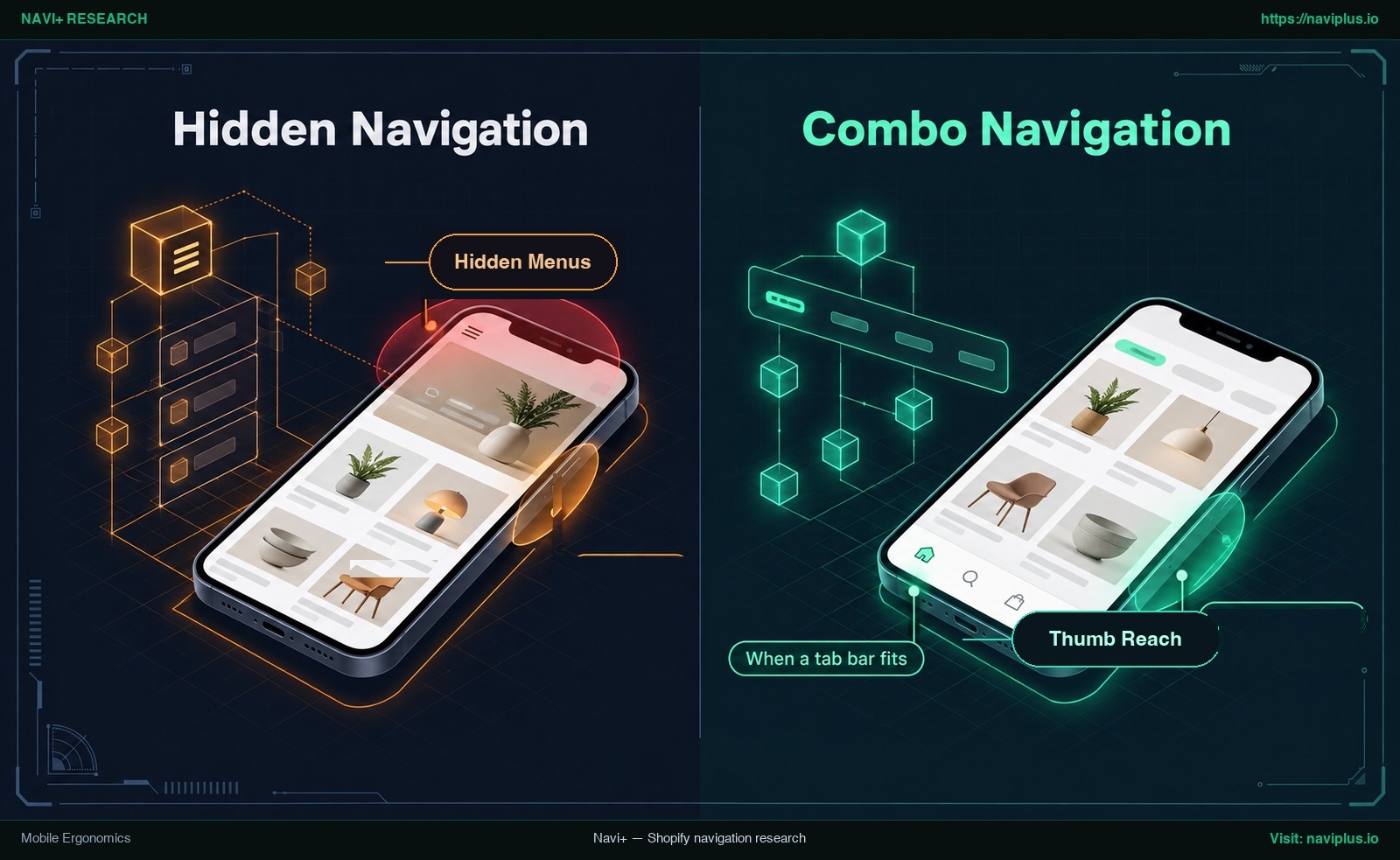
Figure 2: Concept illustration — Mobile Ergonomics: Thumb Reach, Hidden Menus, and Tab Bars
How People Actually Hold Phones
In an empirical study, Steven Hoober recorded 1,333 observations of people using mobile devices in public spaces (UXmatters), with 780 actively touching the screen to scroll, type, or tap.
Grip postures among those 780 touchscreen users broke down as follows:
- One-handed use: 49% held and operated their device entirely with one hand.
- Cradled use: 36% cradled the phone in one hand while using fingers from the second hand.
- Two-handed use: 15% held the device with both hands, typing with thumbs.
Hoober documented public device handling in 2013 rather than ecommerce conversion rates. View these figures as a snapshot of physical grip habits.
In Hoober’s sample, roughly half of touchscreen users held their device with one hand. When menus sit exclusively in top corners, one-handed users may have to stretch or shift grip. For reach dynamics, explore our research on thumb zone ergonomics.
What Hiding the Menu Costs
Hiding mobile navigation carries measurable discovery costs. Nielsen Norman Group measured user engagement across navigation presentations (NN/g):
| Navigation Layout | Device Context | Navigation Engagement | Research Source |
|---|---|---|---|
| Hidden Menu (Hamburger) | Desktop | 27% of cases | Nielsen Norman Group (2016) |
| Hidden Menu (Hamburger) | Mobile Viewport | 57% of cases | Nielsen Norman Group (2016) |
| Combo Navigation (Visible Links + Drawer) | Mobile Viewport | 86% of cases | Nielsen Norman Group (2016) |
NN/g found mobile shoppers used hidden navigation in 57% of cases, while combo navigation reached 86% (NN/g). Note that NN/g did not test sites with only visible navigation on phones, so the comparison is between hidden and combo navigation. In that test, keeping key links visible went with clearly higher navigation use.
When a Tab Bar Fits
To improve mobile discoverability, stores often keep primary links visible. Nielsen Norman Group recommends displaying 4 or fewer top-level navigation links as visible options (NN/g).
A bottom tab bar places core destinations permanently near the thumb. However, NN/g cautions that when placing more than 5 options in a tab or navigation bar, it becomes hard to fit them and still keep an optimum touch-target size (NN/g).
Jamming excessive icons into a bottom bar crowds targets and triggers accidental taps. Keep your tab bar focused on a few core destinations.
For detailed patterns, consult our guides on implementing a bottom tab bar for Shopify and exploring mobile navigation beyond the hamburger menu.
Accessibility and Performance: Menus Shoppers Can Actually Use
Navigation styling matters little if menus are difficult to operate or slow page rendering. Shopify menus must satisfy core accessibility rules and maintain lightweight markup.
Interactive Triggers vs. Direct Links
Accessible controls must communicate clear function. Per the Shopify Help Center, a top-level item with a submenu functions as a button to expand the menu rather than as a link to a new page.
Assigning both collection navigation and submenu toggling to one control creates conflicting behaviors on touch and screen readers. Keep the trigger dedicated to expanding the submenu, placing navigation links inside.
Location Indicators and Touch Target Spacing
Nielsen Norman Group notes that failing to indicate current location is probably the single most common mistake on website menus (NN/g). Active links must be highlighted clearly with bold weight, high contrast, or underlines.
Touch targets require equal attention. NN/g emphasizes that links that are too small or too close together are a huge source of frustration for mobile users (NN/g). Maintain generous touch hit areas and spacing.
For implementation steps, review our navigation accessibility guide.
DOM Node Count and Rendering Overhead
Every link, column, and image adds to the Document Object Model (DOM). In its performance audits, Google Chrome Lighthouse warns when the body element has more than ~800 nodes and errors above ~1,400 nodes (Google Chrome Lighthouse).
If your theme outputs separate desktop and mobile containers, the category tree may appear twice in the page markup. Check your own theme: duplicated links contribute directly to total DOM node counts.
Interaction to Next Paint (INP) on Mobile
Under Google’s Core Web Vitals framework, Interaction to Next Paint (INP) measures responsiveness. According to Google Chrome Web.dev, an INP below or at 200 milliseconds means a page has good responsiveness.
Google notes that INP does not consider scrolling (Google Chrome Web.dev). However, INP measures tap and click latency—such as opening a drawer or expanding submenus. Heavy navigation scripts delay visual feedback and hurt INP.
For optimization guidelines, see our guide on how navigation affects page speed.
Choosing a Menu Pattern for Your Store
Selecting a navigation pattern is a structural decision based on catalog scope and mobile visitor share.
Store Profile Matrix
| Store Archetype | Catalog Scope | Desktop Recommendation | Mobile Recommendation | Architectural Principle |
|---|---|---|---|---|
| Single-Product / Boutique | Narrow product assortment | Simple horizontal link list | Sticky header with primary link | Eliminate intermediate tiers; provide direct product access |
| Seasonal Fashion Boutique | Curated lookbooks and rotating lines | Compact mega menu with banners | Bottom tab bar for primary categories plus slide drawer | Keep seasonal campaigns visible without cluttering navigation |
| Multi-Category Department | Diverse product lines and deep taxonomy | Multi-column structured mega menu | Bottom tab bar paired with hierarchical drawer | Group links logically for at-a-glance scanning and thumb reach |
| Specialized B2B Store | Specification lines and repeat buyers | Structured mega menu by product family | Search-prominent header paired with tab bar | Support repeat bulk buyers with fast search and direct indexing |
Navigation Selection Framework
Evaluate three structural questions to guide your selection:
- Primary destination count: With 4 or fewer top-level links, display them as visible options rather than hiding them behind an icon (NN/g).
- Subcategory depth: If your catalog spans diverse collections, a multi-column panel allows direct visual scanning instead of tiered drill-downs.
- Mobile traffic share: Review your store analytics. Heavy smartphone traffic requires prioritizing thumb reach so key shopping paths remain visible.
Shopify Store Navigation Selection Tree:
+-- Top-level destinations <= 4?
|   +-- Yes: Display them as visible links (NN/g recommendation)
|   +-- No: Group into logical category hubs
|
+-- Does catalog span multiple distinct subcategories?
|   +-- No: Use simple dropdown lists to prevent empty panel whitespace
|   +-- Yes: Implement multi-column mega menu on desktop for scannability
|
+-- Mobile traffic audit:
    +-- Overwhelmingly smartphone shoppers?
        +-- Avoid pure hidden hamburger navigation (57% engagement)
        +-- Prefer combo navigation: key links visible + drawer for deep catalog (86% vs 57% in NN/g test)
Trade-offs: When Not to Use Complex Menus
Multi-column mega menus and bottom tab bars improve scannability, but are not universally suitable. Introducing complex patterns into the wrong store context adds unnecessary friction.
1. Small or Single-Product Stores
For stores with a small assortment, mega menus are counterproductive. Spreading few items across oversized panels creates empty whitespace. A clean horizontal header provides direct product access without extra layers.
2. Interface Layer Overlap on Mobile Viewports
Bottom tab bars occupy vertical screen space. If a store already runs chat widgets or banners, adding a tab bar can cause overlap. If a floating bubble covers a tab or purchase button, shoppers cannot reach it. Audit floating widgets before enabling sticky bars.
3. Rendering Overhead and High-Resolution Imagery
Crowding mega menus with high-resolution images inflates document weight and adds DOM nodes toward Lighthouse’s ~800-node warning threshold (Google Chrome Lighthouse). Furthermore, panels that open only on hover are hard to use on touchscreens.
4. When Native Shopify Themes Are Completely Sufficient
If your catalog fits within Shopify’s three-level limit and your theme provides a clean mobile drawer, you may not need a third-party app. Check what your theme already offers before adding anything. Evaluate native capabilities via our guide on Shopify theme menu limitations.
Where Navi+ Fits
For merchants whose catalogs or mobile user experiences require dedicated navigation patterns, Navi+ provides a modular navigation suite designed for Shopify.
Modular Navigation Built for Shopify
Navi+ lets merchants deploy a Mobile Bottom Tab Bar, Slide Drawer, Desktop and Mobile Mega Menus, Visual Icon Grid, and Floating Buttons without code. The Mobile Bottom Tab Bar anchors primary destinations near the thumb, with an optional auto-hide on scroll.
Theme Code Left Untouched & Native Three-Level Support
Navi+ installs via Shopify App Embeds without modifying Liquid templates. Your theme files stay untouched. Menus support up to three nesting levels, mirroring platform taxonomy. The Mobile Menu can embed an existing Shopify menu and refresh its copy with a one-click “Sync now” button.
Reusable Across Themes
Because menus are stored in Navi+, switching themes does not reset your structure. You simply enable the app embed on the new theme and check placement. Navi+ has been tested on 331 themes, listed in the Navi+ theme compatibility directory.
If your theme menu already works for your catalog, keep it. If you want a bottom Tab Bar or a mega menu without editing theme code, you can try Navi+ on your current theme and check it against the checklist below.
Action Checklist: Audit Your Shopify Menu
Use this checklist to audit your storefront navigation on live devices for usability, ergonomics, and performance.
- Audit Admin Menu Depth: In Content > Menus, verify hierarchies stay within three levels and each parent container offers a direct link to its full collection.
- Conduct Single-Handed Reach Test: On a physical phone, attempt to open your three top collections using only your thumb without shifting grip. If reaching is awkward, add visible mobile links or a bottom tab bar.
- Measure Storefront DOM Nodes: In Chrome Console, run
document.querySelectorAll('body *').lengthand compare against Lighthouse’s warning threshold of ~800 nodes and error threshold of ~1,400 nodes. - Check Location Indicators and Tap Targets: Ensure active categories display clear highlights (bold text or underlines) and touch targets have sufficient spacing to prevent mis-taps.
- Compare Navigation vs. Search Analytics: In Shopify Analytics, evaluate conversion rates for menu-browsing visitors versus site search users to uncover hidden catalog paths.
FAQ
How many menu levels does Shopify support?
Shopify natively supports up to three navigation levels: a top-level item with up to two nested drop-down levels (Shopify Help Center). Most themes adhere to this limit.
Where do I edit navigation menus in the Shopify admin?
Manage store navigation in your Shopify admin under Content > Menus (Shopify Help Center), where you create menus, add links, and organize tiers. Your theme settings then choose which menu to display.
Will my navigation menus disappear if I change my Shopify theme?
No. Menus are stored as platform data in Content > Menus, not in theme code. When changing themes, reselect your menu in your new theme’s Header settings (Shopify Dev Documentation).
When should I use a mega menu instead of a dropdown on Shopify?
Use a mega menu when your catalog has diverse subcategories requiring visual scanning (NN/g). For small catalogs, a simple dropdown avoids empty whitespace.
Why is hiding all navigation behind a hamburger menu problematic on mobile?
NN/g usability testing found shoppers engage with hidden mobile navigation in only 57% of cases, compared to 86% engagement when combo navigation keeps key links visible (NN/g).
What is the maximum number of items recommended for a mobile tab bar?
Keep a mobile tab bar to a few core destinations. NN/g notes that with more than 5 options it is hard to fit them in a tab or navigation bar and still keep an optimum touch-target size (NN/g).
Sources
- Shopify Help Center: Menus and links — Managing store navigation menus in Shopify admin.
- Shopify Help Center: Drop-down menus — Guidelines on three-level limits and parent disclosure behavior.
- Shopify Dev Documentation: Navigation Architecture — Reference for theme link_list settings.
- Nielsen Norman Group: Mega Menus Work Well (Angie Li & Jakob Nielsen, 2017) — Research on scannability and 0.5-second hover timing.
- Nielsen Norman Group: Hamburger Menus and Hidden Navigation (Kara Pernice & Raluca Budiu, 2016) — Usability testing on visible vs hidden navigation.
- Nielsen Norman Group: Mobile Navigation Patterns (Raluca Budiu, 2015) — Analysis of drawer menus and navigation bars.
- Nielsen Norman Group: Menu Design Best Practices (Page Laubheimer, 2024) — Principles on indicating user location and touch target spacing.
- UXmatters: How Do Users Really Hold Mobile Devices? (Steven Hoober, 2013) — Observations of 1,333 people using mobile devices documenting grip postures.
- Google Chrome Lighthouse: DOM Size Thresholds — Guidelines establishing the 800-node warning and 1,400-node error limit.
- Google Chrome Web.dev: Interaction to Next Paint (INP) — Standards establishing the 200-millisecond INP threshold.
- Navi+ Theme Compatibility Directory — Hub page listing the 331 Shopify themes Navi+ has been tested on.
Explore the topics
This guide links out to focused articles — dive deeper on each.