How to Create a Desktop Menu and a Mobile Menu for Your Shopify Store (Step-by-Step)
A wide desktop header easily accommodates multiple collections and dropdowns. On phones, that structure turns into an overcrowded drawer requiring extensive scrolling.
Merchants often seek an admin setting to assign separate menus by device. However, many themes do not provide a separate mobile menu setting. While Shopify lets you build more than one menu in Content > Menus, themes decide where they show, and most feed the same menu to desktop and mobile.
To separate them, keep one clean menu, edit your drawer template, or use a navigation app.
Quick answer: can Shopify show a different menu on mobile?
Not with most themes out of the box. You build menus in Content > Menus, but the theme decides where they show, and themes like Dawn feed the same menu to the desktop header and the mobile drawer. To split them, edit the drawer code or use a menu app.
You have three options:
- Option 1: Keep one menu and let the theme drawer handle mobile. Use one clean list in Content > Menus without code.
- Option 2: Assign a separate mobile menu by editing theme code. Duplicate your theme and point
snippets/header-drawer.liquidin Dawn to a mobile menu handle. - Option 3: Use a navigation menu app. Build a desktop mega menu and a mobile drawer or bottom bar, toggling device visibility independently.
Review our comparison table below to decide which option fits best.
How Shopify menus work on desktop and mobile
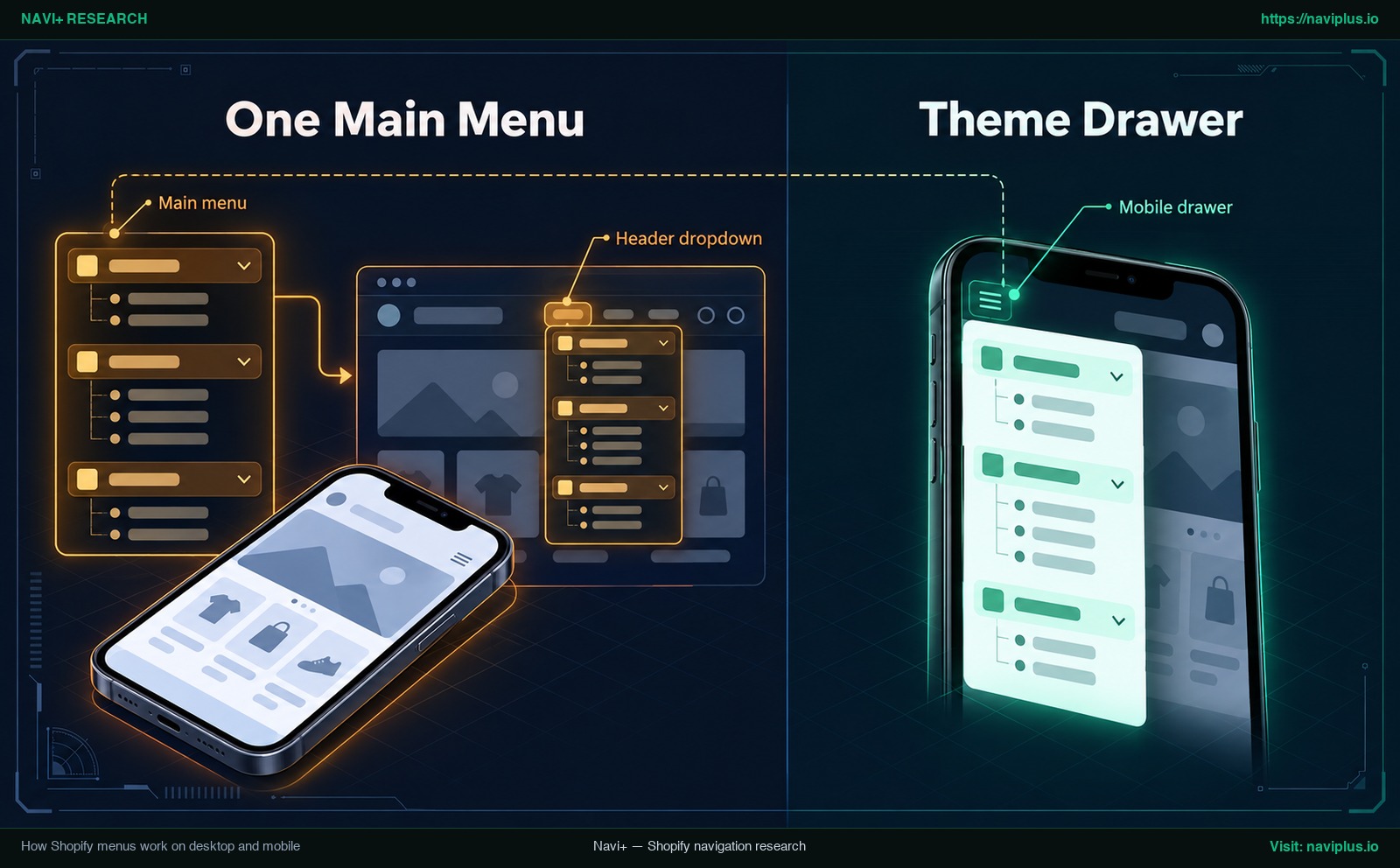 Concept illustration: one Shopify main menu feeding both the desktop header and the mobile drawer.
Navigation links are managed under Content > Menus. As noted in Shopify Help Center documentation, menus display in different locations depending on your theme.
In Dawn, the Header section has one link_list setting (defaulting to main-menu). Desktop screens display this horizontally with subcategories in a Header dropdown.
On mobile screens, a hamburger button opens the Mobile drawer. In Dawn, snippets/header-drawer.liquid loops through that same setting:
{%- for link in section.settings.menu.links -%}
Because the drawer reads from section.settings.menu.links, editing your Main menu alters both layouts.
Some themes may include a separate mobile menu setting in Header settings. Check your Theme Editor first; if no setting exists, choose an option below.
Step 1: Create your desktop menu and mobile menu in Content > Menus
Before editing code or using an app, build both navigation lists in Content > Menus.
Always build your menus in Content > Menus.
Build the desktop menu (main menu with drop-downs)
- In your Shopify admin, go to Content > Menus.
- Click Main menu or click Add menu.
- Click Add menu item to add primary categories and pages.
- Drag subcategories under parent items. Per Shopify drop-down menu documentation, a top-level item can have up to two levels of nested drop-down menus.
Build a shorter mobile menu
- In Content > Menus, click Add menu.
- Name it clearly, such as
Mobile menu. - Note the menu’s handle (e.g.,
mobile-menu), required for Option 2. - Add essential links: top collections, search, order tracking, and support.
- Click Save menu.
[!NOTE] Creating a Separate mobile menu in Content > Menus saves it in admin; it will not display until theme settings, Liquid, or a Menu app calls it.
Option 1: Use one menu and let the theme drawer handle mobile
For small catalogs, keep one Main menu and let your theme’s native Mobile drawer handle mobile screens.
Keep categories broad and nesting shallow. The theme automatically collapses these links into an off-canvas drawer.
- Advantages: No code, no app fees, and little maintenance. Updating one menu updates both desktop and mobile.
- Disadvantages: Both viewports share links. A large desktop mega menu becomes a long drawer requiring heavy scrolling.
Check your Theme Editor for drawer settings. For structuring advice, read our guide on mobile drawer menu best practices.
Option 2: Assign a separate mobile menu by editing theme code
To assign a dedicated mobile menu without apps, edit theme Liquid code to point the mobile drawer to your mobile menu.
Duplicate your theme first
Per Shopify theme management guidelines, make a backup copy so that you can discard your changes and start again if you need to.
- Go to Online Store > Themes.
- Click
...next to your live theme and select Duplicate. - Edit only the unpublished duplicate copy.
Point the drawer at your mobile menu
- On the duplicate theme, click
...and select Edit code. - In Dawn, open
snippets/header-drawer.liquid. - Find the primary loop:
{%- for link in section.settings.menu.links -%}
- As noted in the Shopify Liquid reference for linklists, you can access a specific menu through the
linklistsobject using the menu’s handle. Replace that line with:
{%- for link in linklists['mobile-menu'].links -%}
(Replace 'mobile-menu' with your exact handle from Step 1.)
A similar solution was detailed in a Shopify Community thread for the Ride theme.
[!WARNING] The file name above is an example for Dawn; other themes use a different file, so look for a similar loop that reads
section.settings.menu. Only edit the outer loop; leave inner loops intact to preserve submenus. Custom Liquid code may need to be reapplied after a theme update.
Preview the duplicate theme on desktop and mobile before publishing.
Option 3: Use a menu app for separate desktop and mobile menus
If you prefer visual editing without touching code, a dedicated Menu app provides an effective solution.
Menu apps let you build distinct layouts per screen: a desktop mega menu, and a streamlined mobile drawer or bottom tab bar.
When selecting an app, evaluate:
- Device visibility toggles: Explicit controls to display menus on Mobile, Desktop, or both.
- Mobile preview: Built-in viewport previewing before publishing live.
- How it installs: Check whether the app installs via Theme App Embed or requires editing theme files.
- Theme compatibility: Seamless integration with your existing header.
To evaluate navigation styles for your store, read our guide on how to choose the right menu type for each screen.
Design rules for a mobile menu
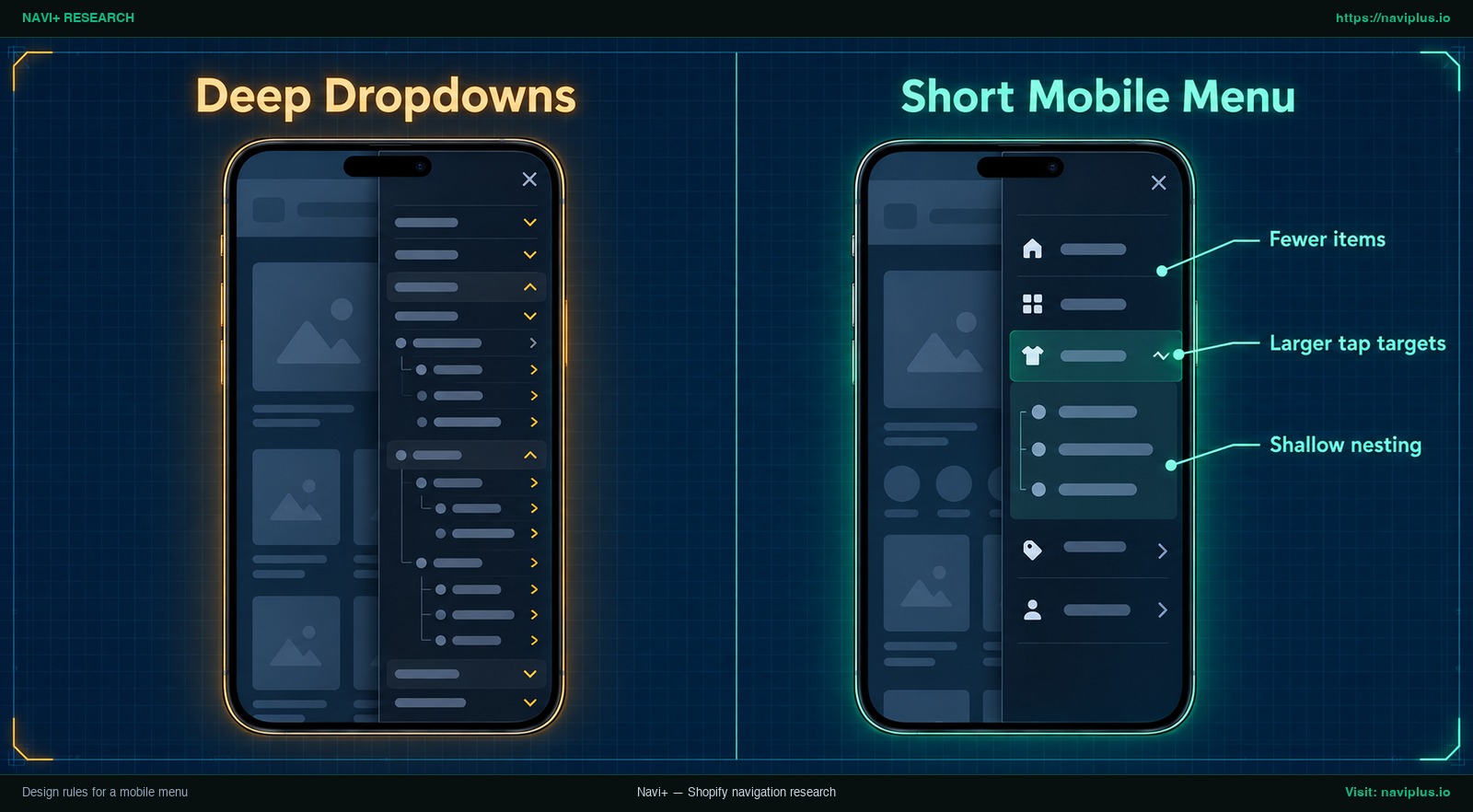 Concept illustration: deep nested dropdowns compared with a short mobile menu with larger tap targets.
When designing mobile links, follow these UX principles:
- Fewer items: Prioritize top collections and essentials. Place secondary links like Careers or Press in the footer.
- Larger tap targets: Touch screens lack precision. Under WCAG 2.2 Target Size (Minimum) Criterion 2.5.8, pointer targets must be at least 24 by 24 CSS pixels (with some exceptions). Generous row padding ensures comfortable tapping.
- Shallow nesting: Deep accordions are harder to use on a small screen. Use Shallow nesting with flat lists or one subcategory level.
- Beyond the hamburger: Usability research from the Nielsen Norman Group shows that the hamburger menu is not so universal that everyone knows it or immediately looks for it. Consider pairing a drawer with a bottom bar.
For hybrid navigation layouts, read our breakdown of mobile navigation beyond the hamburger menu.
Test before you publish
As the Shopify Help Center recommends, you can test menus on mobile devices to confirm that drop-down menus expand as expected.
Follow these verification steps:
- Theme Editor preview: Switch between Desktop and Mobile views to confirm display.
- Physical phone test: Open the preview link on a phone in Safari and Chrome.
- Drawer action: Confirm the mobile drawer opens and closes smoothly.
- Submenu accordions: Tap nested dropdowns to ensure child links expand cleanly.
- Link destinations: Tap each link to confirm active pages without 404 errors.
- Landscape orientation: Rotate your phone horizontally to check for layout clipping.
- Multiple page templates: Test from homepage, collection, and product pages.
Common problems and fixes
- Mobile still shows the old menu: Check if you are previewing an unpublished theme backup, or verify your handle in
linklists['mobile-menu'].linksmatches Content > Menus. - Newly created menu does not appear anywhere: Creating a menu only saves it in admin. It remains invisible until assigned in Header settings, custom Liquid, or an app.
- Deleting a parent menu item removed all subcategories: Under Shopify menu editing rules, when you remove a menu item that has items nested below it in a drop-down menu, the nested menu items are also removed. Drag child items out first.
- Drop-down menus will not open on mobile: Keep nesting within Shopify’s two-level drop-down limit below top-level items, and test behavior in your theme’s drawer.
- Mobile drawer lost its submenus after editing code: Ensure you only replaced the outer
section.settings.menu.linksloop. Keep innerlink.linksloops intact to preserve submenus.
Trade-offs: when not to split your menus
| Criteria | Option 1: One Menu (Theme Default) | Option 2: Edit Drawer Code | Option 3: Navigation Menu App |
|---|---|---|---|
| Setup effort | Low (single menu) | Moderate (Liquid edits) | Low to Moderate (visual app setup) |
| Needs code | No | Yes (Liquid) | No |
| Risk on theme update | Low (no code changed) | Higher (custom Liquid may need to be reapplied) | Depends on the app (check how it installs) |
| Different links per device | No (shared links) | Yes (points drawer to custom handle) | Yes (independent menus by device) |
| Best for | Small, simple product catalogs | Stores avoiding apps | Stores needing mega menus & mobile bars |
When not to split your menus
Splitting menus is not always necessary:
- Small catalogs: Stores with a small, simple catalog work well with one unified menu.
- Limited maintenance time: Managing two menus requires updating both lists in Content > Menus whenever collections change.
- Frequent theme updates without code support: Liquid modifications may need to be reapplied after a theme update.
If a single clean menu serves both screen sizes comfortably, keeping one menu provides the lowest maintenance overhead.
Where Navi+ fits
If you would rather not edit theme code, Navi+ lets you build a desktop mega menu and a separate mobile menu or tab bar, then choose which device each one appears on. You can try it on the free plan and keep your theme untouched.
Navi+ builds sticky bottom tab bars, multi-column mega menus, mobile drawers, icon menus, and floating buttons via drag-and-drop editing without coding.
In the Publish tab of each menu, Navi+ includes independent display toggles:
- Mobile toggle: Displays the menu on smartphone viewports.
- Desktop toggle: Displays the menu on desktop screens.
By default, only Mobile is enabled. Set mobile drawers to Mobile, and desktop menus to Desktop. Both operate independently on your storefront, supporting up to three levels of nesting.
You can combine a drawer with a bottom tab bar for Shopify, keeping Search, Cart, and core collections within thumb reach.
Action checklist
- Audit catalog: Decide if separate menus are necessary or if one list suffices.
- Build desktop menu: In Content > Menus, configure Main menu with dropdowns.
- Build mobile menu: In Content > Menus, create a mobile menu and note its handle.
- Check Header settings: Look for a mobile menu setting in Theme Editor.
- Choose method: Select Option 1 (one menu), 2 (code), or 3 (app).
- Duplicate theme: Duplicate theme before editing
snippets/header-drawer.liquid. - Set device toggles: If using an app, toggle Desktop and Mobile appropriately.
- Test on a phone: Verify drawer opening, accordion dropdowns, touch targets, and landscape mode.
- Maintain both menus: Update both lists in Content > Menus when collections change.
FAQ
Can I show a different menu on mobile than on desktop?
Yes, though most Shopify themes feed the same menu to both headers by default. To separate them, edit drawer Liquid code or use a navigation app.
Why does my mobile menu show the same links as my desktop menu?
Dawn’s drawer template loops through section.settings.menu.links. Changing your Main menu therefore updates both viewports.
Do I need to edit theme code to use two menus?
No, you can use a menu app to assign separate menus by device without code. If editing code, always duplicate your theme first.
Where do I create menus in Shopify?
You create and manage all online store menus under Content > Menus in your Shopify admin.
How many levels can a Shopify drop-down menu have?
A top-level item can have up to two levels of nested drop-down menus below it, allowing three total navigation tiers.
What happens if I delete a parent menu item?
When you remove a menu item with nested items below it, the nested items are also deleted. Drag child items out before deleting.
Sources
- Shopify Help Center: Editing Menus — Guidance on managing online store navigation under Content > Menus and drop-down deletion rules.
- Shopify Help Center: Drop-down Menus — Documentation on two-level nesting limits, theme placement variations, and mobile testing.
- Shopify Help Center: Duplicating Themes — Official best practices on creating backup theme copies before making code modifications.
- Shopify Developer Documentation: Liquid linklists Object — API reference for accessing specific store menus using their handle.
- Shopify Dawn Repository: sections/header.liquid — Open-source Liquid code showing the default
link_listmenu setting in the Dawn theme. - Shopify Dawn Repository: snippets/header-drawer.liquid — Source code showing the mobile drawer looping through
section.settings.menu.links. - Shopify Community: Customizing Main Menu and Sidebar Menu for Desktop and Mobile — Community solution detailing how to point
header-drawer.liquidto an alternate menu in the Ride theme. - Shopify Community: Use Different Menu for Mobile and Desktop — Community thread highlighting merchant demand for separate mobile and desktop menus.
- Fudge: How to Change Mobile Menu Behavior in Shopify — Guide discussing default unified menu behavior and mobile navigation customization.
- W3C Web Accessibility Initiative: WCAG 2.2 Target Size (Minimum) — Success Criterion 2.5.8 specifying touch targets of at least 24 by 24 CSS pixels.
- Nielsen Norman Group: Mobile Navigation Beyond the Hamburger — Usability research on hamburger icon discoverability and hybrid navigation patterns.
- Navi+ Help Center: Display Rules Settings — Documentation on setting mobile and desktop visibility rules for menus.
- Shopify App Store: Navi+ Navigation & Menu Bar — App details for drag-and-drop mega menus, mobile drawers, and bottom tab bars.
Explore the topics
This guide links out to focused articles — dive deeper on each.