Quick answer: how to make a header and footer menu sticky
To make the header sticky, open Theme settings > Header and pick a Sticky header option (Dawn offers None, On scroll up, Always, and Always, reduce logo size). Most themes have no sticky footer menu, so add a bottom tab bar with custom CSS or a menu app, then test on a real phone.
Follow this three-step sequence to pin your navigation at both poles of the screen:
- Turn on the header setting: In your Shopify admin, go to Online Store > Themes > Customize. Open the Header section (or Theme settings > Header), select your preferred Sticky header behavior, and save your changes.
- Add a mobile bottom tab bar: Because standard Shopify themes treat the footer as a page-ending container rather than a persistent navigation bar, introduce a sticky bottom menu using scoped CSS or an app embed.
- Verify hardware viewports: Inspect your storefront on a physical mobile device to confirm neither the header nor the bottom bar conceals page titles, interactive buttons, or phone safe areas.
- The Two-Pole Interface: Sticky headers keep branding, search, and the shopping cart accessible at the top edge, while sticky footer menus function as mobile bottom tab bars anchored in the primary thumb zone.
- Document Flow & Overlap: Positioning headers with
position: fixedpulls elements out of normal document flow and collapses layout space, whereasposition: stickypreserves natural page flow until triggered. - The Dual-Bar Viewport Tax: Stacking both a fixed header and a bottom tab bar on mobile consumes vertical screen height; keeping the header compact and testing against the product Add to Cart button prevents checkout collisions.
Sticky header vs sticky footer menu: what each one does
A sticky header stays anchored at the upper boundary of the browser viewport while the shopper scrolls down the page. It ensures that critical store utilities—such as your brand logo, primary collection links, live search bar, and the shopping cart icon—remain accessible without requiring the visitor to scroll all the way back to the top of a lengthy collection or product description.
A sticky footer menu, by contrast, is not the standard site footer containing copyright notices, payment icons, and privacy policies. Instead, in modern web design, a sticky footer menu refers to a bottom navigation bar (often termed a bottom tab bar) that remains pinned to the bottom edge of the mobile screen. This bar houses a handful of high-frequency actions—such as Home, Search, Catalog Drawer, Wishlist, and Cart—directly within natural thumb reach.
Sticky vs fixed in CSS
In CSS, position: sticky keeps an element in normal document flow until the viewport scrolls to a defined threshold. According to MDN Web Docs on CSS position, an element with position: sticky requires at least one directional offset threshold—such as top, bottom, left, or right—to behave as expected. Because the element remains part of the document flow prior to sticking, it preserves its natural footprint in the page layout.
By contrast, position: fixed removes the element entirely from the normal document flow. As MDN Web Docs notes, no space is created for the element in the page layout, causing sibling and subsequent elements to shift upward and render directly behind it. Furthermore, positioning an element as fixed or sticky always establishes a new stacking context, altering how nested layers and z-index values interact.
Method 1: Turn on the sticky header in theme settings
If your store runs on Shopify’s official Dawn theme or a modern Online Store 2.0 theme, you do not need to write CSS or edit code files to enable a sticky header. The capability is built directly into the theme customizer.
- In your Shopify admin, navigate to Online Store > Themes.
- Locate the theme you wish to update and click Customize.
- In the left-hand theme editor sidebar, click on the Header section (or open Theme settings > Header depending on your theme release).
- Scroll to the Sticky header dropdown setting, choose your preferred behavior, and click Save.
The four Sticky header options in Dawn
In Shopify’s flagship Dawn theme, the header configuration provides four explicit sticky choices defined within the theme’s schema:
| Setting Option | Storefront Behavior | Best Practical Use Case |
|---|---|---|
| None | The header scrolls naturally with page content and leaves the screen when scrolling down. | Single-product landing pages, minimalist boutiques, or short editorial articles where viewport space is paramount. |
| On scroll up | The header hides automatically during downward scroll, and slides smoothly back into view when the shopper scrolls upward. | Stores with extensive product catalogs; this is the default setting in Dawn’s source code. |
| Always | The header remains permanently anchored at the top of the browser window at its full initial height. | Stores where search, currency selectors, and cart visibility must remain immediate at all scroll depths. |
| Always, reduce logo size | The header stays permanently pinned, but shrinks the brand logo image to conserve vertical viewport height. | Stores featuring tall or vertical logo marks that would otherwise crowd product photography. |
As documented in the official Shopify Dawn GitHub repository, Dawn sets on-scroll-up as its default sticky_header_type and implements the element using position: sticky.
Usability research from the Nielsen Norman Group on sticky headers supports this mechanism: partially persistent (‘On scroll up’) headers operate on the assumption that any upward scroll indicates an explicit user intent to navigate, access top-level menus, or check their cart. By tucking the header away during downward reading, stores maximize visible content without sacrificing navigation access.
Other Online Store 2.0 themes
Other Online Store 2.0 themes may offer a similar sticky header setting, but the name and the available options can differ from Dawn’s. Always check your theme’s native Header section settings before attempting custom CSS; if there is no such setting, move on to Method 2. If you are building your storefront on Dawn, explore our dedicated breakdown of Navi+ on the Dawn theme.
Prefer video? This walkthrough shows the setting in the theme editor:
Method 2: Make the header sticky with custom CSS
When using a custom theme, a third-party legacy build, or an Online Store 2.0 theme that lacks a native sticky setting, you can pin the header using custom CSS without opening theme.liquid or editing core template assets.
Duplicate your theme first
Before modifying storefront styling, always safeguard your live store by creating a backup copy. As emphasized in the Shopify Help Center on duplicating themes: “Before you customize a theme, it’s a good idea to make a backup copy so that you can discard your changes.”
To duplicate your theme, navigate to Online Store > Themes, click the three dots (...) icon next to your active theme, and select Duplicate. Perform your customizations and preview tests on the duplicated copy before publishing.
Where to paste the CSS
Shopify provides a dedicated Custom CSS input directly inside the visual theme editor. Navigate to Online Store > Themes > Customize, click the Theme settings (gear icon) on the left sidebar, and open the Custom CSS panel.
According to the Shopify Help Center guide on adding custom CSS, rules placed in this theme-wide Custom CSS box affect your entire storefront and are capped at a 1,500-character limit. Note that if you add CSS inside an individual section instead, Shopify scopes those styles exclusively to that section, which may prevent global wrappers from inheriting sticky behavior.
/* Example — adjust selectors to your theme and test on a duplicate theme */
.section-header {
  position: sticky;
  top: 0;
  z-index: 3;
}
This snippet applies position: sticky to the header container. As established by MDN Web Docs, a sticky element requires a directional boundary—here, top: 0 specifies that the container must stick when its upper edge meets the top of the browser viewport. The z-index: 3 assignment ensures that the header renders cleanly above underlying text, grid cards, and image assets.
Beware of legacy forum tutorials. Popular historical threads on the Shopify Community—such as the legacy sticky header guide for Debut (Shopify Community)—rely on custom jQuery scripts and manual JavaScript manipulation. The thread itself states that it is an advanced tutorial that is not supported by Shopify, so do not copy its scripts into a current theme; this guide uses only theme settings and CSS.
Fixing common sticky header problems
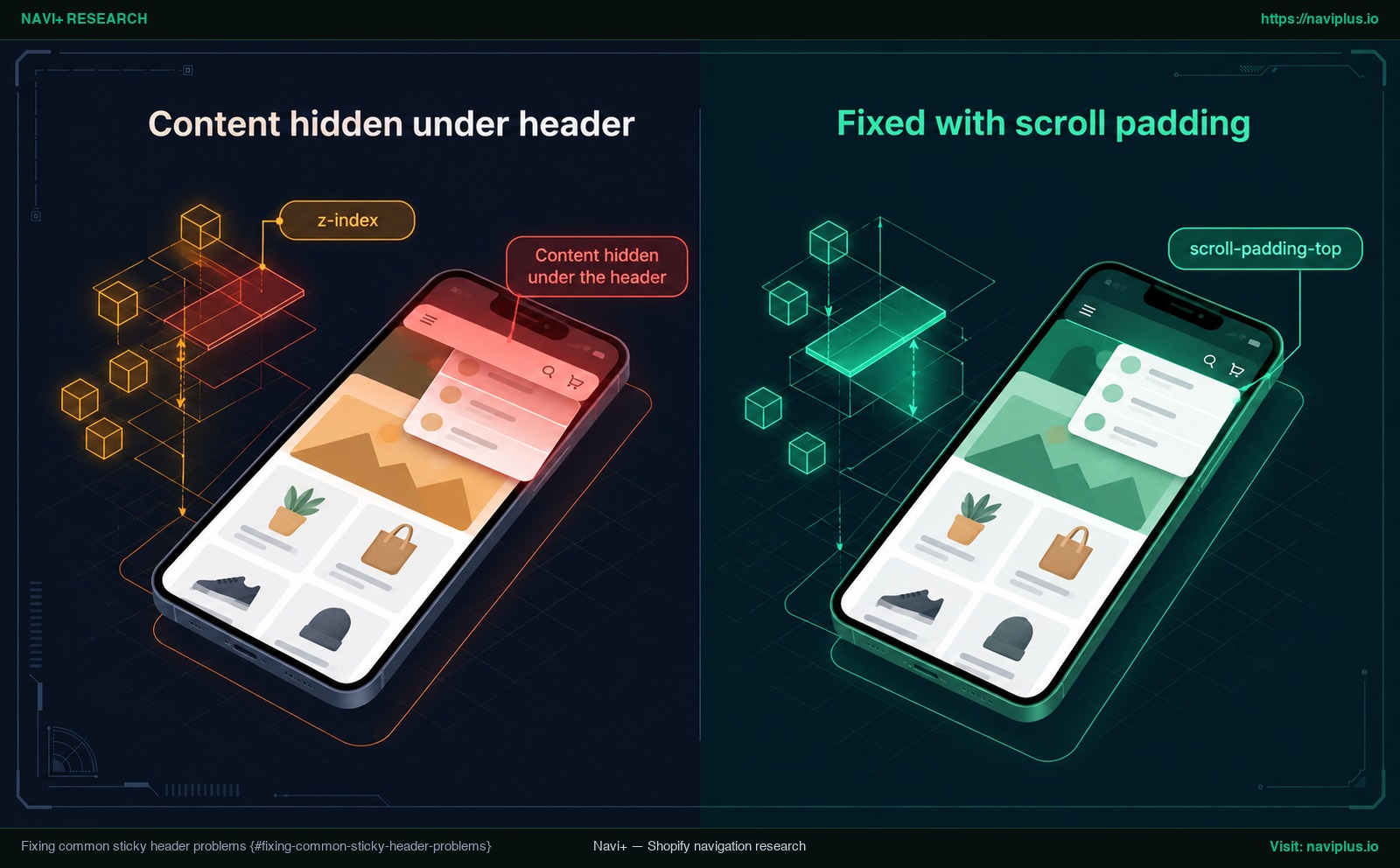 Figure 1: Concept illustration — Resolving content overlap and stacking context clipping with scroll-padding-top.
Pinning a navigation bar interacts with page geometry, viewport rendering, and browser stacking contexts. When issues occur, they almost always stem from one of four predictable CSS conditions.
Content hidden under the header
The most common merchant complaint after applying sticky navigation is that hero banners, page titles, or product images become partially hidden beneath the header upon page load (Shopify Community discussion).
This defect occurs when a theme or tutorial applies position: fixed instead of position: sticky. Because fixed positioning removes the header from the document flow (MDN Web Docs), subsequent content slides upward to occupy the top of the page. Switching to position: sticky usually eliminates this problem immediately because the sticky container retains its physical footprint until scrolling begins.
If your theme architecture genuinely requires fixed positioning, or if internal anchor links (such as #reviews or #specifications) jump behind the header when clicked, apply scroll-padding-top to the root HTML document. As defined on MDN Web Docs, scroll-padding-top excludes the top portion of the scrollport so targeted elements align beneath fixed bars:
/* Example — adjust selectors to your theme and test on a duplicate theme */
html {
  scroll-padding-top: 80px; /* placeholder: replace with your own header's measured height */
}
Always measure the exact pixel height of your own store’s header using browser Developer Tools; avoid copying arbitrary padding values from forum threads, as header dimensions vary widely across branding assets.
Sticky stops working (overflow)
A frequent scenario is a sticky header that suddenly stops sticking after a store adds a custom app, image slider, or third-party banner.
The underlying mechanism is documented on MDN Web Docs: a sticky element sticks to its nearest ancestor that has a scrolling mechanism. If an ancestor element—such as html, body, <main>, or an outer page wrapper—is assigned overflow: hidden, overflow: auto, overflow: scroll, or overflow: overlay, the sticky element binds to that parent container rather than the viewport window. If that ancestor does not scroll, the header will remain completely stationary. To resolve this, inspect your theme’s layout containers and remove unintentional overflow: hidden declarations from outer structural wrappers.
Header slides under other elements (z-index)
When scrolling past video embeds, image carousels, or customer review widgets, the sticky header may slide underneath those components. Conversely, drop-down menus or slide-out cart drawers may be clipped by the header container.
Because position: sticky and position: fixed establish new stacking contexts (MDN Web Docs), elements inside the header are evaluated relative to the header’s own stacking level. Ensure your header has an adequate z-index, while verifying that modal overlays, search modals, and the slide-out cart drawer keep a higher value than the header.
Turn it off on mobile only
On smartphones with limited vertical space, a persistent header can occupy too much of the screen. You can restrict custom sticky styling to desktop viewports by wrapping your rule in a standard CSS media query:
/* Example — adjust selectors and the breakpoint (750px here) to your theme and test on a duplicate theme */
@media (min-width: 750px) {
  .section-header {
    position: sticky;
    top: 0;
    z-index: 3;
  }
}
Shopify’s Custom CSS field supports @media queries (Shopify Help Center). On Dawn, you can also set the Sticky header option to None or On scroll up to relieve mobile screen crowding. Avoid injecting client-side JavaScript scripts that swap header DOM classes seconds after the page loads. Late layout alterations cause visual jumping, hurting your store’s Core Web Vitals. As recommended by Google web.dev on Cumulative Layout Shift, sites should strive to maintain a CLS score of 0.1 or less.
The following reference matrix summarizes common sticky header failures and their technical remedies:
| Symptom / Issue | Root Architectural Cause | Recommended Resolution |
|---|---|---|
| Content cut off on initial page load | Header uses position: fixed, collapsing normal document layout space. |
Switch to position: sticky or apply matching top padding to the page container. |
| In-page anchor links jump behind header | Viewport targets the top edge of the section without accounting for the pinned bar. | Add html { scroll-padding-top: <height>; } calibrated to your exact header height. |
| Header fails to stick during page scroll | An ancestor layout wrapper contains overflow: hidden, scroll, or auto. |
Inspect parent containers (html, body, #wrapper) and remove restrictive overflow rules. |
| Banner or widget slides over header | Competing stacking contexts and insufficient header z-index elevation. | Increase header z-index while keeping cart drawers and modal overlays higher. |
| Mobile viewport feels restricted | Tall header consumes excessive vertical space on smartphone displays. | Use Dawn’s ‘On scroll up’ mode, reduce logo dimensions, or scope sticky rules to desktop. |
Why most Shopify themes have no sticky footer menu
While sticky headers are common across modern themes, the second half of the search query—a sticky footer menu—reveals a significant gap in standard theme architecture.
In Shopify themes, the “footer” section is designed as a foundational landing block at the very bottom of the document. A typical theme footer contains several blocks of text: brand bios, customer service links, policy links, legal copyright lines, and payment provider badges. Pinning a full theme footer to the bottom of a smartphone screen would obstruct the entire viewing area, preventing shoppers from viewing products.
What merchants and shoppers actually want when asking for a “sticky footer menu” is a mobile bottom tab bar—a compact navigation strip pinned to the base of the smartphone screen. Most standard Shopify themes do not include a mobile bottom tab bar out of the box. To implement a bottom navigation bar, merchants must choose between custom CSS with custom section development, or a dedicated menu application.
A sticky bottom bar with custom CSS
If you decide to write custom CSS, the baseline structure requires fixed positioning pinned to the lower edge of the viewport:
/* Example — adjust selectors to your theme and test on a duplicate theme */
.my-bottom-bar {
  position: fixed;
  bottom: 0;
  left: 0;
  right: 0;
  height: 60px;
  background-color: #ffffff;
  border-top: 1px solid #e5e7eb;
  z-index: 10;
}

body {
  padding-bottom: 60px;
}
Because position: fixed removes the bar from the document flow (MDN Web Docs), adding corresponding bottom padding to the body tag is required. Without this compensation, the bottom tab bar will permanently cover your store’s actual footer links, copyright text, and mobile chat widgets. Keep in mind that CSS alone only styles the container. You must also write custom Liquid and HTML code to output links, icons, and active-state indicators, and maintain this custom markup across every theme update.
Safe area on iPhone
Modern mobile devices—including iPhones without physical home buttons—display a persistent home indicator line across the bottom edge of the glass. If a fixed bar sits flush against the bottom edge without hardware padding, navigation icons will clash with the operating system swipe bar.
As detailed in MDN Web Docs on CSS env(), hardware-safe padding can be applied using standardized environment variables:
/* Example — adjust selectors to your theme and test on a duplicate theme */
.my-bottom-bar {
  padding-bottom: env(safe-area-inset-bottom, 0px);
}

body {
  padding-bottom: calc(60px + env(safe-area-inset-bottom, 0px));
}
Using env(safe-area-inset-bottom) ensures buttons within your fixed bottom bar remain easily clickable and never collide with native system gestures. For an in-depth exploration of thumb ergonomics and mobile navigation architecture, read our technical guide on bottom navigation and tab bar design on Shopify.
Using a sticky header and a bottom tab bar together on mobile
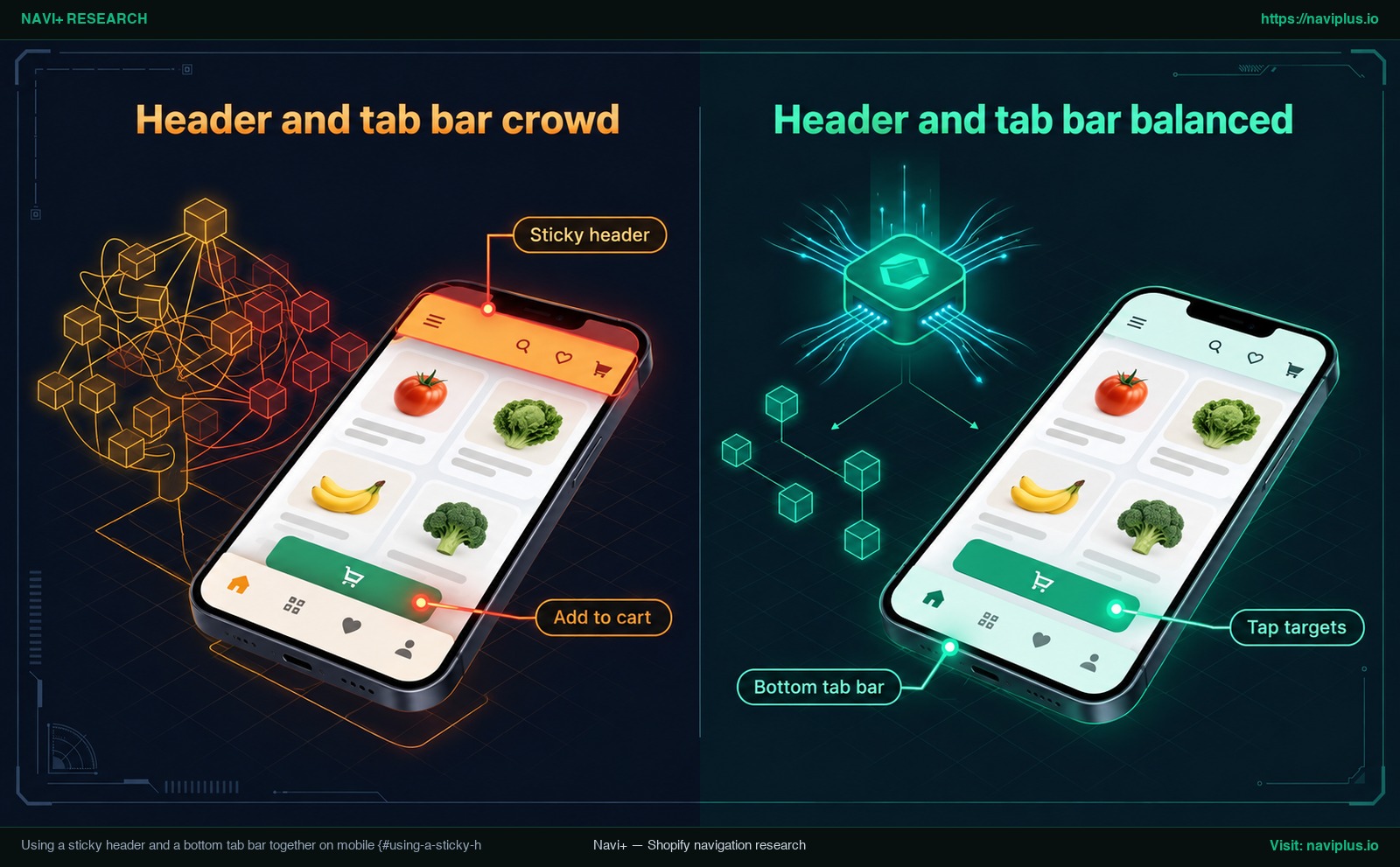 Figure 2: Concept illustration — Balancing dual persistent bars on mobile viewports to prevent checkout collision.
Deploying both a sticky header and a bottom tab bar simultaneously introduces an ergonomic challenge: vertical viewport competition.
On desktop monitors there is usually plenty of vertical room for a header. On mobile devices, however, screen real estate is constrained. Usability findings from the Nielsen Norman Group emphasize that screen real estate conservation is critical on mobile devices given the small size of the display.
When both a tall top header and a bottom bar are pinned permanently, shoppers are left with a compressed viewing strip. To keep browsing enjoyable, consider these design principles:
- Keep the header slim: Use Dawn’s On scroll up setting, which tucks the header away during downward reading, or Always, reduce logo size to keep a pinned header smaller.
- Prevent Add to Cart collisions: On product pages, some themes feature their own sticky “Add to Cart” or sticky checkout trigger. If your bottom tab bar is fixed at
bottom: 0, it may cover the Add to Cart button entirely. Always audit product pages on mobile to verify that primary purchase actions are never obscured. - Preserve keyboard and focus visibility (WCAG 2.4.11): Accessibility standard W3C WCAG 2.4.11 (Focus Not Obscured - Minimum) specifies that interactive elements receiving keyboard focus must not be entirely hidden beneath author-created content. Sticky headers and sticky footers are primary culprits of focus clipping. Setting both
scroll-padding-topandscroll-padding-bottom(MDN Web Docs) ensures browser focus rings scroll cleanly into view. - Maintain comfortable tap target dimensions (WCAG 2.5.8): Under W3C WCAG 2.5.8 (Target Size - Minimum), touch targets on mobile pointers must measure at least 24 by 24 CSS pixels. Ensure icons and labels on your bottom bar provide generous tap padding to avoid frustrating miss-taps.
For broader architectural strategies around multi-device interfaces, see our guides on mobile navigation beyond the hamburger menu and our comprehensive navigation accessibility guide.
Trade-offs: when not to make menus sticky
Persistent navigation bars are powerful, but they are not universally appropriate for every store or page layout. As Page Laubheimer observed in research published by the Nielsen Norman Group: “Sticky headers can be a positive addition to a site, but only if they truly serve a purpose for your users.”
Evaluate these trade-offs before implementing sticky navigation:
- Single-product stores and lean catalogs: If your store offers only one or two products with short, narrative landing pages, visitors do not need constant access to broad category menus. A sticky bar simply consumes visual space without adding functional value.
- Stores with sticky product action bars: If your theme already incorporates a sticky bottom Add to Cart bar, promotional notification strip, or floating live chat widget, introducing another sticky bottom navigation bar creates visual clutter.
- Maintenance overhead on theme updates: Every line of custom CSS added to your theme customizer represents code you must maintain. As highlighted in Shopify’s documentation on custom CSS, subsequent theme upgrades may rename internal CSS classes or restructure Liquid containers, requiring manual testing and style adjustments.
To determine which navigation model aligns with your catalog scale, read our framework to choose the right menu type for your store.
Where Navi+ fits: a sticky bottom tab bar without code
To be completely clear: Navi+ does not create or manage sticky headers. Your theme’s native customizer (Method 1) or theme-wide custom CSS (Method 2) remains the right solution for pinning your header at the top of the viewport.
Where Navi+ fits is solving the bottom half of the puzzle—the sticky footer menu that Shopify themes leave out. Rather than hand-coding custom Liquid sections, styling responsive fixed wrappers, and managing hardware safe-area offsets in CSS, Navi+ provides a Tab Bar: a menu bar fixed at the bottom of the screen that you build from templates inside the app.
What it does:
- Persistent cross-page presence: The Navi+ Tab Bar stays visible across all store pages (Navi+ documentation), and its menu structure supports up to three levels.
- Zero code activation: The Tab Bar integrates via Shopify App embeds. According to the Navi+ publishing guide, you simply create your menu in the app, navigate to Online Store > Themes > Customize > App embeds, enable Store Connector, and click Save.
- Display rules: Menus can be set to show or hide by device (mobile or desktop), by page type (such as home, product, or collection pages), or by URL keywords (Navi+ documentation). For example, you can show the Tab Bar on mobile only.
As with any visual change, follow best practices and test your configuration on a duplicated theme first (Shopify theme duplication guide).
If you’d rather not maintain custom CSS for the bottom bar, Navi+ Tab Bar gives you a sticky bottom menu you can set up from templates and limit to mobile — try it on a duplicate theme first. For official setup instructions, see how to publish the Tab Bar on Shopify.
Action checklist
- Duplicate your theme: Create a backup copy in Online Store > Themes prior to adjusting theme settings or inserting CSS rules.
- Select your sticky header setting: Choose an appropriate mode in theme settings (such as “On scroll up” or “Always”).
- Verify scroll dynamics: Scroll up and down on collection and product pages to confirm smooth header transitions.
- Check anchor link offsets: Test in-page jumps (
#reviews,#details) to ensure headings do not clip beneath the header; applyscroll-padding-topif necessary. - Inspect overlay hierarchy: Open drop-down menus, mega navigation panels, and the slide-out cart drawer to confirm they render above the header.
- Implement the bottom bar: Add your mobile bottom tab bar using scoped CSS or an app embed, verifying
env(safe-area-inset-bottom)and bottom body padding. - Audit the product page: Check mobile product pages to ensure the bottom bar does not overlap the Add to Cart button or sticky checkout triggers.
- Verify keyboard accessibility & hardware: Tab through interactive elements to ensure focus states remain visible, and test the layout on physical iPhone and Android devices.
FAQ
How do I make a header and footer menu sticky?
To make the header sticky, select a Sticky header option in your theme settings, such as Dawn’s ‘On scroll up’ or ‘Always’ setting. Because most themes do not include a sticky footer menu, add a mobile bottom tab bar using custom CSS with fixed positioning or a dedicated menu app embed.
Why is my content hidden behind the sticky header?
Page content typically gets hidden when a header uses position: fixed, which removes the element from normal document flow without reserving layout space. Switching to position: sticky or adding scroll-padding-top to your root HTML styling resolves the overlap.
Why did my sticky header stop working?
A sticky header stops functioning when an ancestor element in your theme layout has overflow: hidden, overflow: scroll, or overflow: auto. In CSS, sticky elements bind to their nearest scrolling ancestor rather than the viewport window.
Can I keep the sticky header on desktop but not on mobile?
Yes. If you are applying custom CSS, wrap your sticky positioning rules inside a desktop media query such as a min-width query that matches your theme’s breakpoint. If using an app like Navi+ for your bottom tab bar, set its display rule by device so it shows only on mobile screens.
Will a sticky bottom bar cover the iPhone home indicator?
A fixed bottom bar can overlap the home indicator unless you account for hardware safe areas. Adding env(safe-area-inset-bottom) to your bottom bar’s padding ensures icons sit comfortably above system gesture indicators.
Is a sticky header bad for UX?
Research from the Nielsen Norman Group shows sticky headers benefit shoppers when they serve a clear practical purpose, such as preserving cart access or category navigation. However, on mobile screens, headers must remain compact or hide during downward scrolling to prevent crowding visible content.
Sources
- Shopify Dawn Theme Locale Schema: locales/en.default.schema.json
- Shopify Dawn Header Section Source: sections/header.liquid
- MDN Web Docs — CSS position: developer.mozilla.org/en-US/docs/Web/CSS/position
- MDN Web Docs — CSS scroll-padding-top: developer.mozilla.org/en-US/docs/Web/CSS/scroll-padding-top
- MDN Web Docs — CSS env(): developer.mozilla.org/en-US/docs/Web/CSS/env
- W3C Web Accessibility Initiative — WCAG 2.4.11 Focus Not Obscured (Minimum): w3.org/WAI/WCAG22/Understanding/focus-not-obscured-minimum.html
- W3C Web Accessibility Initiative — WCAG 2.5.8 Target Size (Minimum): w3.org/WAI/WCAG22/Understanding/target-size-minimum.html
- Nielsen Norman Group — Sticky Headers (Page Laubheimer): nngroup.com/articles/sticky-headers/
- Google web.dev — Cumulative Layout Shift (CLS): web.dev/articles/cls
- Shopify Help Center — Adding Custom CSS to Your Theme: help.shopify.com/en/manual/online-store/themes/theme-structure/extend/add-css
- Shopify Help Center — Duplicating Themes: help.shopify.com/en/manual/online-store/themes/managing-themes/duplicating-themes
- Shopify Community — Sticky/Fixed Header Menu: community.shopify.com/t/sticky-fixed-header-menu/308093
- Shopify Community — Sticky/Fixed Header and Navigation for Debut Theme: community.shopify.com/t/sticky-fixed-header-and-navigation-for-debut-theme/3640
- Navi+ Help Center — Publishing Tab Bar on Shopify: help.naviplus.io/docs/usage/tabbar-bottom-navigation/publishing-on-shopify/
- Navi+ Help Center — Tab Bar Usage & Targeting: help.naviplus.io/docs/usage/tabbar-bottom-navigation/how-to-use/
Explore the topics
This guide links out to focused articles — dive deeper on each.