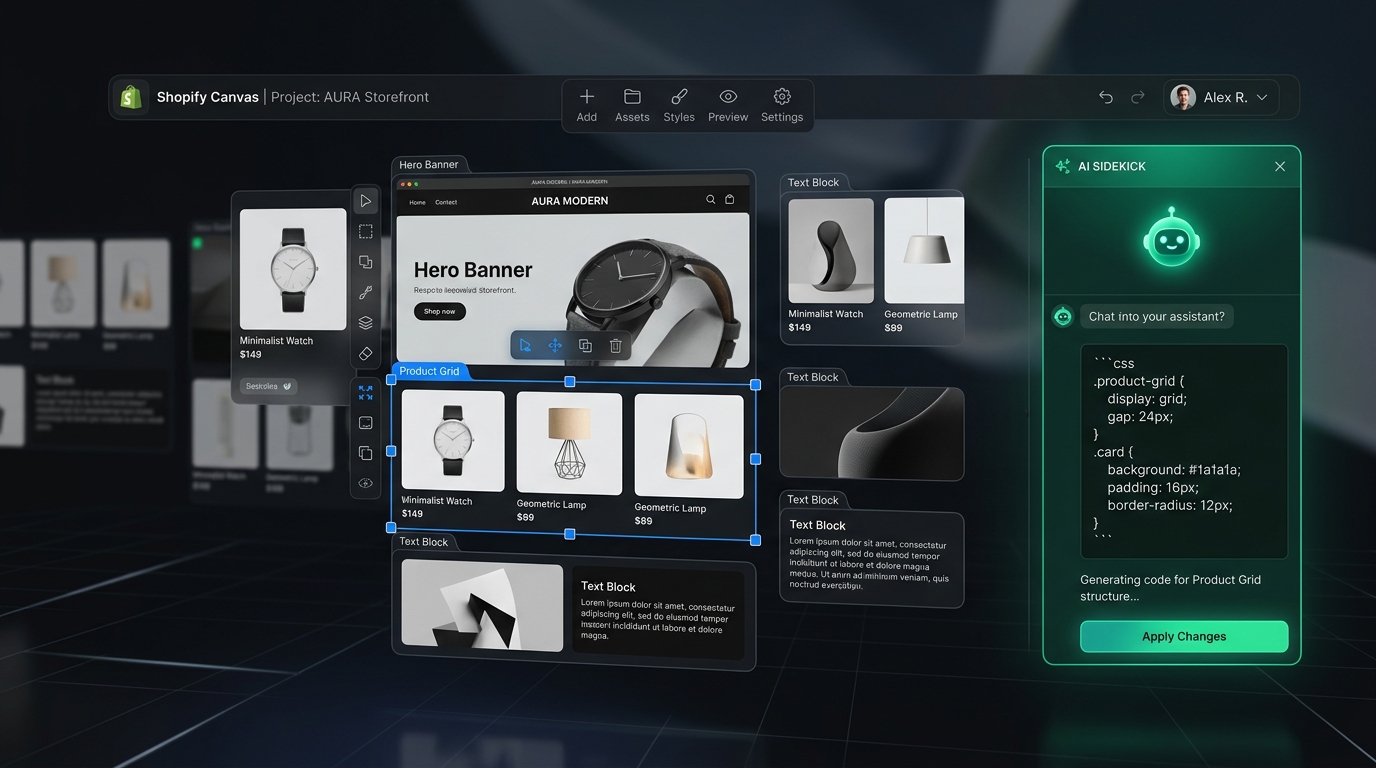
On October 1, 2026, Shopify announced Shopify Canvas, hailing it as the largest conceptual shift in storefront design since Online Store 2.0. Rather than stacking rigid sections inside a sidebar, Canvas introduces an infinite spatial workspace where merchants can drag, scale, and manipulate components freely while Sidekick AI writes production Liquid and CSS code in real time.
Is this the death of traditional theme customizers, or an early-access trap that compromises theme stability and mobile conversion? In this deep-dive review, we put Shopify Canvas through its paces.
- The promise: A zero-code spatial canvas where natural language prompts instantly generate functional frontend sections.
- The reality: Outstanding for rapid desktop visual exploration, but severely constrained by a lack of third-party theme support, missing app blocks, and broken theme update paths.
- Navigation impact: Canvas does not solve thumb-friendly mobile navigation, making decoupled tools like Navi+ essential for smartphone conversions.
Part of the Topic HubExplore the Shopify Canvas Spotlight Hub with all 10 technical deep-dives →
1. What Shopify Promises
Shopify positions Canvas not just as an incremental upgrade to the Theme Editor, but as a complete paradigm shift toward Spatial Storefront Design.
According to official Shopify product briefings and documentation:
- Infinite Spatial Freedom: Merchants are no longer bound by predetermined column widths or fixed vertical stacks. Sections can be visually manipulated, layered, and rearranged directly on an open canvas.
- Sidekick AI as a Real-Time Frontend Engineer: Instead of picking from predefined dropdowns, you describe what you want in plain English (e.g., “Create a high-impact summer collection banner with a countdown timer and soft glassmorphism”). Sidekick writes semantic Liquid and CSS directly into the theme.
- Instant Live Preview & Responsive Testing: Canvas allows creators to interact with functional buttons, animations, and typography changes on the fly without refreshing the page or leaving the editor.
- Democratization of Bespoke Commerce: Shopify claims small merchants can now achieve custom agency-level storefront design without spending thousands of dollars on custom development.
2. Hands-on Reality & Technical Evaluation
We spent 48 hours testing the Early Access build of Shopify Canvas across three distinct stores running Shopify Dawn and Horizon themes. Here is what happened in practice:
What Worked Incredibly Well
- Prompt Comprehension: Sidekick’s ability to interpret layout intent is genuinely impressive. Prompting for “A modern grid showing three customer testimonials with gold star ratings and a subtle drop shadow” yielded clean HTML markup and CSS flexbox styling within 8 seconds.
- Micro-Animations: Sidekick effortlessly implemented CSS keyframe animations, hover states, and smooth transitions that would normally take a developer 30 minutes to dial in.
- Direct Canvas Manipulation: Resizing and repositioning containers directly with the mouse feels vastly superior to typing pixel numbers into sidebar inputs.
Where the Friction Began
- Code Duplication & Inline Debt: When inspecting the generated Liquid files (
sections/canvas-generated-*.liquid), we found that Sidekick frequently outputs redundant CSS classes and inline styles rather than leveraging your theme’s global design tokens (base.css). - Desktop Bias: Although Canvas provides a mobile preview toggle, the spatial interface is inherently desktop-centric. Elements arranged artfully across a 1400px widescreen often collapsed into an awkward single-column cascade on mobile screens, requiring manual prompt-tuning to fix.
- Rollback Complexity: While Canvas has an “Undo” button during an active editing session, once you click “Save”, the Liquid files are permanently overwritten. Reverting requires opening the code editor and manually rolling back Liquid file versions.
3. Community & Industry Reactions
The release sparked intense discussion across the Shopify ecosystem, from Reddit’s r/shopify to private Slack channels for Shopify Plus agencies:
The Merchant Reaction: Optimism Mixed with Caution
“For the first time, I felt like I could build a landing page that didn’t look like every other store using Dawn. But the moment I tried to put my Klaviyo signup form inside a Canvas banner, nothing worked.”
— Store Owner, Apparel Brand (Shopify Community)
Merchants love the visual freedom, but are quickly hitting walls when trying to integrate existing marketing apps.
The Developer & Agency Reaction: Skepticism on Maintainability
Experienced Shopify developers have voiced strong concerns regarding code maintainability:
- Theme Forking: Agencies warn that client stores using Canvas will become impossible to maintain under standard Git CI/CD workflows, as AI code edits bypass version control commits.
- Performance Bloat: Without strict linting, repeated Sidekick prompts accumulate dead CSS selectors that inflate the theme payload over time.
4. Navi+’s Strategic Verdict & Architecture Impact
From our vantage point as navigation and conversion specialists serving over 2,000+ Shopify merchants, Shopify Canvas represents an exciting visual tool, but one with a critical architectural blindspot:
The Canvas Desktop vs. Mobile Conversion Paradox
Canvas makes desktop layout creation fast and fun. However, over 75% of ecommerce traffic and 68% of transactions occur on mobile devices.
- A gorgeous desktop layout does not solve mobile usability.
- Canvas cannot generate persistent, accessible thumb-zone navigation patterns such as a Sticky Bottom Tab Bar or an Accordion Mobile Drawer that stays pinned across the entire buyer journey.
- When shoppers land on a Canvas-generated page on their phone, they are still forced to reach their thumb to the top-left corner to open a generic hamburger menu.
Does This Replace Navi+? How Navi+ Powers Your Conversion Engine
The definitive answer is NO. Shopify Canvas and Navi+ solve two fundamentally distinct engineering problems in ecommerce:
- Canvas is a section-level design tool (Page-Level Sections): Canvas empowers you to compose visual banners, promotional grids, and product highlights. But Canvas is not a storewide navigation engine. It cannot produce persistent thumb-zone tab bars, manage deep multi-tier hierarchies for thousands of SKUs, or integrate third-party app blocks.
- Why Navi+ gives your store the winning edge:
- Mobile thumb-zone conversion optimization: Over 75% of store orders originate on mobile. Navi+ anchors a Bottom Tab Bar (Home, Smart Search, Visual Categories, 1-Tap Cart) directly within thumb reach, respecting mobile screen safe areas.
- Zero theme bloat and complete decoupling: Delivered via Cloudflare R2 edge CDN in under 16ms, Navi+ injects zero messy Liquid code or inline CSS into your theme. Test Canvas, switch themes, or update core code with zero risk to your navigation.
- Deep catalog management & multi-column Mega Menus: Supports promotional badges, category imagery, tabbed collection switchers, and automatic Shopify Markets localization.
- Specialized Navigation AI: Navi+ includes built-in AI specifically tuned to generate high-converting ecommerce navigation structures in a single prompt without risking theme code stability.
5. Actionable Merchant Preparation Checklist
If you plan to experiment with Shopify Canvas, do not test it directly on your live store. Follow this 5-step checklist:
- Duplicate Your Production Theme: Go to Online Store → Themes → Actions → Duplicate. Never run Canvas or Sidekick directly on your live published theme.
- Export Your App Settings: Take inventory of your crucial marketing widgets (reviews, email capture, upsells, trust badges). Note where they are placed, as they cannot currently live inside Canvas sections.
- Decouple Your Navigation: Ensure your store’s primary navigation (mobile tab bar, sticky header, drawer) is managed through an independent system like Navi+ so that AI layout changes don’t break shopper browsing.
- Audit Generated Code: After saving a Canvas section, review the generated
.liquidfile in your theme code editor to verify that no bloated or broken inline styles were introduced. - Run Google Lighthouse Tests: Compare mobile page speed scores before and after publishing Canvas sections to prevent Core Web Vitals penalties.
Next in the SeriesPart 2: Step-by-Step Guide to Using Shopify Canvas & Sidekick AI Prompts →