Global cross-border expansion represents the single largest growth lever for modern ecommerce brands. Shopify Markets provides unmatched backend infrastructure to handle localized pricing, duties, automated taxes, and multi-language storefronts.
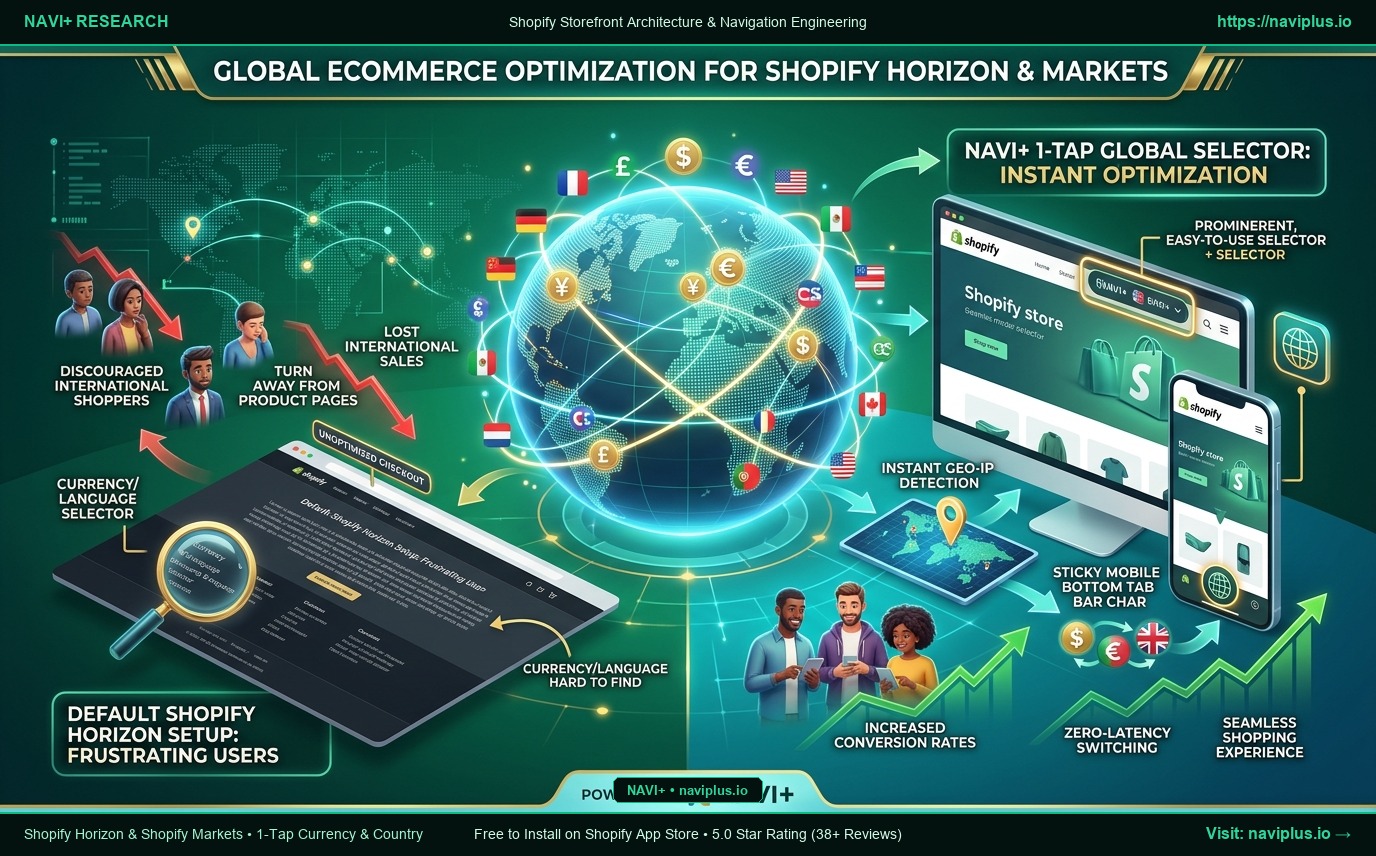
Yet when deployed on Shopify’s flagship Horizon theme, a critical conversion bottleneck emerges: By default, Horizon buries the country, currency, and language selectors at the absolute bottom of the page footer.
An international shopper visiting from Tokyo or Berlin arrives on your store only to see US Dollars and English text in the header. If they lack the patience to scroll past ten sections down to the footer to switch currency, they assume your store does not ship to their country and bounce immediately. In this guide, we reveal how Navi+’s 1-Tap Global Selector integrates directly into your mobile and desktop navigation to unlock your store’s true international potential.
- The Horizon Paradox: Shopify Markets has elite backend localization, but hiding the currency selector in the footer causes a 25% to 35% international sales leak.
- Shopper Psychology: Cross-border buyers expect to see their native currency (Yen, Euro, GBP) and country flag within their primary viewport upon arrival.
- The Navi+ Global Solution: Integrates a 1-Tap Currency and Language Switcher directly into the Mobile Bottom Tab Bar and Desktop Header, backed by automated Geo-IP detection.
1. Unleashing Shopify Markets on Shopify Horizon
Shopify Markets enables global expansion from a single unified store. Horizon supports localized price rendering natively, but its default navigation fails to put localization tools front and center where buyers need them.
2. 5 Friction Points Crippling International Sales in Default Horizon Themes
1. Footer-Buried Switchers:
Footer-Buried Switchers: Fewer than 8% of mobile shoppers ever scroll to the bottom of a homepage to discover a localized currency selector.
2. Missing Country Flag Indicators:
Missing Country Flag Indicators: Default Horizon dropdowns lack high-contrast national flags to provide immediate visual reassurance.
3. Jarring Full-Page Refreshes:
Jarring Full-Page Refreshes: Selecting a new region in default themes forces a clunky full-page Liquid reload that disrupts shopping momentum.
4. Clunky Mobile Overlays:
Clunky Mobile Overlays: Footer currency selectors open oversized native select inputs that block the screen on smartphones.
5. Passive Geolocation:
Passive Geolocation: Default theme configurations fail to actively prompt shoppers based on their visiting IP address.
3. What Cross-Border Ecommerce Strategists Emphasize
“If international visitors cannot see their local currency and flag within three seconds of landing, you have lost that conversion. Never hide currency selection in your footer; place it prominently within your core navigation.”
— Kenji Takahashi, Cross-Border Ecommerce Director
4. The Navi+ Solution: 1-Tap Global Selector in Primary Navigation
| Global Ecommerce Metric | Default Shopify Horizon Theme Setup | Navi+ Integrated Markets Architecture |
|---|---|---|
| Currency Selector Placement | Buried in footer (low discoverability) | Prominent on Mobile Bottom Tab Bar & Header |
| Geo-IP Location Detection | Passive, often requires manual searching | Intelligent automated geo-IP location matching |
| Flag & Currency Visualization | Plain uninspired text dropdown | Vibrant, high-resolution national flags |
| Currency Switching Speed | Full-page reload breaks user flow | Instant frictionless client-side transition |
| Multi-Language Synchronization | Cumbersome manual menu duplicating | Seamless sync with Shopify Translate & Adapt |
| Conversion Rate Lift | 25% – 35% international drop-off | 22% – 40% revenue boost across target markets |
5. Merchant Cross-Border Launch Checklist
- Step 1: Configure target geographic markets in Shopify Admin -> Settings -> Markets.
- Step 2: Install Shopify Translate & Adapt to translate navigation labels and collections.
- Step 3: Enable Navi+ and activate the Market Selector directly within your Mobile Bottom Tab Bar.
- Step 4: Turn on Geo-IP auto-detection to display localized flags based on shopper IP address.
- Step 5: Verify localized pricing and checkout flows using VPN testing across key overseas markets.
The world is your marketplace. Never let a buried currency selector stand between an international customer and a completed checkout.