How to Add a Submenu to Your Shopify Navigation Menu (Dropdown, Nested Levels and Mobile)
Adding a submenu in Shopify takes one drag in Content > Menus — but it only works for shoppers when the parent item, the theme’s Header menu, and the mobile drawer are all set up right.
When launching an online store, a flat horizontal bar with four or five links works well. But as your product catalog grows, listing every collection on one row quickly clutters your header. A submenu, a dropdown menu, and nested menu items all describe the same pattern: child links grouped cleanly under a parent header. You can create them directly in your Shopify admin without editing theme code.
- Fast nesting: In Content > Menus, drag child items below and slightly right of any parent item using the handle icon (
⠿). - Hierarchy limits: Shopify allows a top-level parent to hold up to two nested levels (three total tiers), provided your theme supports them.
- Non-clickable parents: Assign
#in the link field so tapping or clicking a parent header acts as a toggle button instead of loading an unwanted page.
Quick Answer: How to Add a Submenu in Shopify
To add a submenu in Shopify, go to Content > Menus, open your main menu, add the item you want under a parent, then drag it below and slightly right of that parent and click Save menu. A top-level item can hold up to two levels of nested drop-down menus.
- Go to Content > Menus in your Shopify admin.
- Click the title of the menu you want to edit (such as Main menu).
- Click Add menu item, enter the Name and destination link, and click Add.
- Click and hold the handle icon (
⠿) beside the item, and drag it directly below and slightly to the right of the parent item to nest it. - Click Save menu.
A top-level item can hold up to two levels of nested drop-down menus below it.
What a Submenu Is and When Your Store Needs One
A submenu is a list of child links grouped under a parent header. On desktop, hovering or clicking opens a dropdown list. On phones, child items expand inside your navigation drawer.
Nested navigations are a popular solution for effectively organizing collections, products, and pages. Instead of crowding your storefront, nested menus create a clear path. Shoppers scan broad departments like “Clothing” before picking specific items like “Jackets”.
Add a submenu when your store outgrows a flat layout. Shopify recommends adding seven or fewer top-level menu items to avoid overcrowding. Grouping related collections under parent items keeps a long header easier to scan.
You do not need a submenu if your store only sells a handful of items or has two or three collections. Forcing dropdowns on a small catalog adds unnecessary clicks.
A clean hierarchy also helps search engines crawl your catalog. Review how Google crawls your menu to see how menu links help search engines find your collection pages.
How to Add a Submenu in Shopify, Step by Step
Shopify includes a drag-and-drop menu manager in your admin. You can build your dropdown on desktop or in the mobile app.
On desktop
- Go to Content > Menus in your Shopify admin. (Note: older guides call this section Online Store > Navigation; Shopify’s current Help Center uses Content > Menus.)
- Click the menu you want to edit, typically Main menu.
- If you do not have a parent item yet, click Add menu item, enter a title (such as “Shop”), assign a destination link, and click Add.
- Click Add menu item again to create your child item. Enter the label in the Name field, select your collection or page in the Link field, and click Add.
- Locate the handle icon (
⠿) beside the item. Click and hold the handle icon (⠿) beside the menu item, and then drag the menu item to another position. Drag the item under your parent row, move it slightly right until it indents, and release. - Repeat for your other subcategories, dragging rows to reorder them as needed.
- Click Save menu. Save your menu changes often so you don’t reach Shopify’s change limit.
In the Shopify mobile app
You can also manage menu links on your phone:
- Open the Shopify app, tap the Menu icon, and open Menus from the Contents section.
- Tap the name of your main menu, then tap Add menu item.
- Type the name and destination link, and tap Add.
- Touch and hold the handle icon (
⠿), drag the item beneath your parent row, and slide right until indented. - Tap Save.
Shopify advises that you test menus on mobile devices to confirm that drop-down menus expand as expected and verify that links are easy to tap.
Make a Parent Item That Only Opens the Dropdown
Store owners frequently ask: “How do I make a menu item not clickable in Shopify?”
You may want a header like “Shop by Category” to act solely as a dropdown toggle. If a parent item links to an empty collection, clicking it takes shoppers away from what they were viewing.
To make a parent item not clickable:
- In Content > Menus, click Edit on your parent item (or click Add menu item).
- Enter your label in the Name field. Use descriptive labels, such as “Shop by Category”, for top-level menu items with
#links so shoppers understand what the list contains. - If you don’t want the header to link to anything, then enter
#in the Search or paste a link field for the header menu item. - Click Apply changes and click Save menu.
Most themes implement drop-down menu headers as buttons rather than clickable links. With a # link, the parent has no page to load, so tapping it can open the dropdown instead.
If you still want customers to access a broad category page, add a link titled “View all [Category]” as the first nested child item inside the dropdown.
Keep in mind that when you remove a menu item that has items nested below it in a drop-down menu, the nested menu items are also removed. If you ever delete a parent item, drag child items back out to the top level first to preserve them.
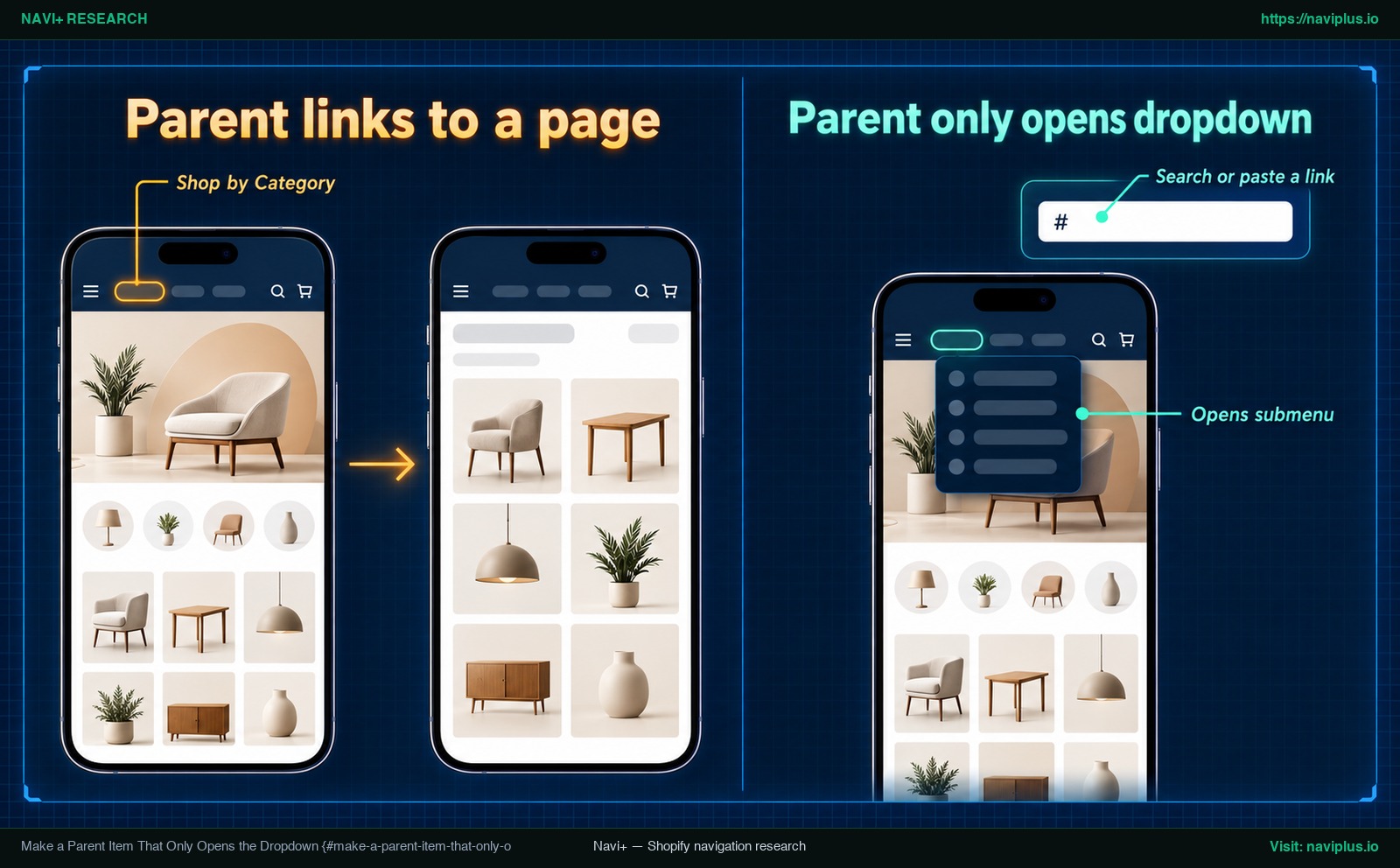
Figure 1: Concept illustration — Setting a non-clickable parent item with a hash link versus a direct page link.
How Many Levels Can a Shopify Submenu Have?
Merchants organizing large catalogs often ask: “How many levels of menus can Shopify have?”
In Shopify’s menu manager, the top-level item can have up to two levels of nested drop-down menus. That gives you three total tiers:
- Level 1 (Top level): The primary item in your header (such as “Men”).
- Level 2 (First nested submenu): The dropdown list beneath Level 1 (such as “Footwear”).
- Level 3 (Second nested submenu): A flyout branching from Level 2 (such as “Sneakers”).
While Shopify supports three tiers in your admin, your storefront theme determines whether all three display. Make sure that you update your theme so that it displays all three menu levels on your online store.
Location also matters. While themes display nested items as dropdowns in the main menu, only some themes will display nested items as drop-down menus in other locations, such as footers or sidebars.
To test your theme, nest a test Level 3 item under Level 2, save, and preview desktop and mobile views. If the third tier does not expand, your theme may not support it.
Keep your navigation to two levels whenever possible. Third-level flyouts are harder to use, especially with a mouse. For larger catalogs, read our guide on planning a multi-level Shopify menu to balance depth and ease of use.
How Submenus Work on Mobile
Phones have no mouse, so your submenu has to work by tap.
What shoppers see in the drawer
On mobile screens, your horizontal menu collapses behind a hamburger icon. Tapping it opens an off-canvas drawer:
- Parent items often show an expand indicator, such as a plus sign (
+) or downward chevron. - Tapping the parent usually expands the nested items in a list or opens a sub-panel; the exact behavior depends on your theme.
- When a parent uses a
#link, most themes open the list instead of loading a page.
Shopify recommends testing menus on mobile devices to confirm that drop-down menus expand as expected and ensure links are easy to hit.
Add a View all link
On desktop, shoppers can hover to view a submenu while still clicking the parent link to visit a collection. On touchscreens, hover does not exist. A tap either opens the dropdown or navigates to a URL—it cannot do both.
Adding a “View All” choice in mobile main navigation is a low-cost way for sites to meet this mobile user need, as documented by Baymard Institute. Yet Baymard’s benchmark research found that only 24% of sites implement this well.
To fix this:
- Under each parent category, add a child link titled “View all [Category]” pointing to the collection URL.
- Place this link at the very top of the nested list.
- Keep child lists concise so mobile shoppers do not have to scroll endlessly.
For more on mobile drawer ergonomics, consult our guide to mobile drawer menu best practices.
Submenu Not Showing? Troubleshooting Common Problems
If your submenu fails to appear after saving, use this troubleshooting matrix to find a quick fix:
| Symptom | Likely cause | Fix |
|---|---|---|
| Submenu does not appear anywhere on your live storefront | Theme Header section is connected to a different menu list | Go to Online Store > Themes > Customize, open Header, and verify the selected menu matches your edited menu. |
| Child items appear side-by-side on the main bar instead of in a dropdown | Items were saved without being indented under the parent row | In Content > Menus, click and hold the handle icon (⠿), drag each child row beneath the parent until it indents right, and save. |
| Third-level flyout links remain hidden on hover or tap | Active theme is outdated or does not support 3-level nesting | Update your theme to the latest release and check if your theme restricts nested menus to specific locations. |
| Dropdown flashes briefly and closes or refuses to open | Custom theme scripts, CSS overrides, or app code conflict | Test the menu in an unmodified theme preview or check the browser developer console for script errors. |
The theme uses a different menu
The most common issue is editing Main menu while your theme header uses a different list. Ensure the menu that has been selected to be your top main menu is the same one you just created. You can change the default main menu for most themes by editing the settings in the theme’s Header section. Go to Online Store > Themes > Customize > Header, check the Menu setting, select your edited menu, and save.
The item is not nested
If child items sit flush against the left margin rather than indented, Shopify treats them as top-level links. In Content > Menus, drag each child item under the parent and move your cursor slightly right until the row indents. Then save.
The theme hides the third level
If Level 3 items do not show, your theme may lack third-tier flyout support. Make sure that you update your theme so that it displays all three menu levels on your online store. Also remember that some themes will display nested items as drop-down menus in other locations, while others restrict dropdowns to the main header.
Custom code or an app conflicts
If dropdowns flicker or fail to open, custom theme edits or an app script may conflict with theme toggles. Duplicate your theme and test navigation on an unedited copy.
Keyboard and screen reader accessibility
Navigation must also work for shoppers using keyboards or screen readers.
W3C Web Accessibility Initiative (WAI) guidelines state that you should indicate navigation menu items with submenus visually and using markup. A downward chevron shows sighted users that a submenu exists, while ARIA markup informs screen readers.
W3C standards also specify that submenus should not open when using the tab key to navigate through the menu. The reason: keyboard users would otherwise have to step through every submenu item to reach the next top-level item.
Review our guide to accessible navigation menus for complete markup standards.
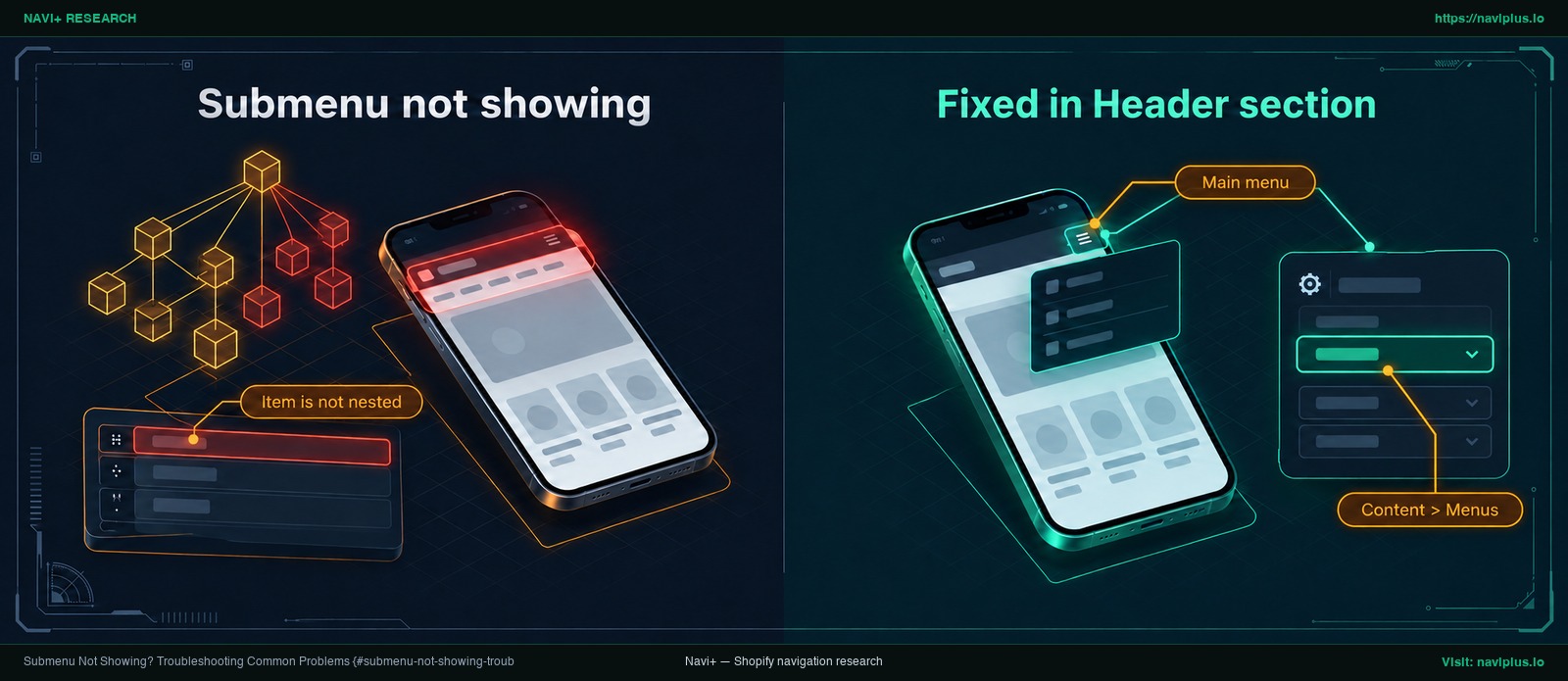
Figure 2: Concept illustration — Verifying the active menu in theme header settings and checking item nesting indentation.
Trade-offs: When Not to Add Another Submenu
Submenus help structure stores, but adding more dropdowns is not always the best choice. Extra tiers create browsing friction.
When dropdowns become too long, usability suffers. Nielsen Norman Group research warns: “Very long dropdowns that require scrolling make it impossible for users to see all their choices in one glance.” When shoppers must scroll within a dropdown, links at the bottom are easily overlooked.
Before creating another submenu, consider these alternatives:
- Consolidate small collections: If you have collections with only two or three products each, merge them into a single collection page.
- Clarify broad labels: Improve vague category names so shoppers find products without digging through deep menus.
- Use collection page filters: Let shoppers filter by size, color, or price on the collection page rather than listing every variation in your menu.
- Switch to a mega menu: When your catalog spans dozens of subcategories, a multi-column mega menu organizes links into clear columns with headings, letting shoppers scan all options at once without scrolling. This requires theme support or a menu app.
For more on native theme layout constraints, review our breakdown of Shopify theme menu limitations.
Where Navi+ Fits
Native Shopify menus work well for simple dropdowns. But as product catalogs grow, merchants often hit the limits of single-column theme lists. Long single-column lists can become hard to scan, and a theme’s default mobile menu may be simpler than your catalog needs.
When your catalog outgrows basic dropdowns, Navi+ offers flexible options:
- Desktop Mega Menus: Build mega menus with products, collections, images, icons, and flexible layouts. Group your subcategories into flexible layouts so customers can scan options without scrolling.
- Mobile Menus: Create mobile menus, drawer menus, and hamburger menus for easier store browsing on phones.
Navi+ menus are built in the Navi+ app with drag-and-drop editing and no coding required. They are separate from the menu in your Shopify admin, which is not replaced automatically.
If your submenu has grown into a long list, or you want images and grouped columns on desktop and a clearer drawer on mobile, you can try Navi+ Tab Bar & Mega Menu alongside your theme while your Shopify menu stays in place.
Pre-Publish Checklist for Your Submenu
Before launching your menu, run through this eight-point checklist:
- Theme header menu verified: Checked Online Store > Themes > Customize > Header to verify the active menu matches the menu edited in Content > Menus.
- Indentation confirmed: Ensured every child menu item is visibly indented below its intended parent row.
- Descriptive non-clickable parent: If using
#for the parent link, set a clear label like “Shop by Category”. - “View all” link provided: Added an explicit “View all [Category]” link at the top of nested lists for mobile shoppers.
- Tested on real mobile hardware: Verified that the submenu opens and the links are easy to tap on a real phone.
- Seven or fewer top-level items: Kept the primary navigation bar to seven or fewer items to avoid crowding.
- Visible submenu indicator present: Confirmed parent headers feature an arrow or chevron indicating expandable content.
- Menu changes saved: Clicked Save menu to ensure all edits are recorded before exiting.
FAQ
How do I add a submenu to a navigation menu in Shopify?
Go to Content > Menus in your Shopify admin, open your main menu, click Add menu item to create a child link, and drag the handle icon (⠿) below and slightly right of your parent item to nest it. Click Save menu to apply your changes.
How many levels can a Shopify menu have?
A top-level item can hold up to two levels of nested drop-down menus below it, allowing up to three total tiers. Your theme must also be updated to support and display all three levels on your storefront.
How do I make a parent menu item not clickable?
Enter # into the “Search or paste a link” field of the parent menu item, and give it a descriptive label such as “Shop by Category”. Most themes then treat the parent as a toggle button rather than a page link.
Why is my submenu not showing on my store?
The most common reason is that your theme’s Header section is assigned to a different menu list than the one you edited. It can also happen if the item was not dragged far enough to indent, or if your theme does not support that nesting level.
Do submenus work on mobile?
Yes. On phones, most themes show the menu behind a hamburger icon and open child items inside it. Always test your menu on a physical phone, and consider adding a “View all” link at each level so mobile shoppers can easily browse full categories.
Sources
- Shopify Help Center: Drop-down menus — Official instructions for creating nested dropdown menus and mobile verification.
- Shopify Help Center: Editing menus — Guidelines on dragging menu handles, change limits, and parent deletion rules.
- Shopify Partners Blog: Building Nested Navigations with Shopify Link List — Overview of nested navigation structures for catalog organization.
- Shopify Community: Nesting menu not showing — Merchant resolution verifying active theme header assignments.
- W3C Web Accessibility Initiative (WAI): Flyout Menus Tutorial — Accessibility standards for visual indicators and keyboard tab behavior.
- Baymard Institute: Have a “View All” Option in the Main Navigation at Each Level of the Mobile Product Catalog (Only 24% Get It Right) (2022) — Benchmark audit showing only 24% of sites implement mobile “View All” options effectively.
- Nielsen Norman Group: Dropdowns: Design Guidelines — Research on usability issues with long, scrolling dropdown lists.
- Shopify App Store: Navi+ Tab Bar & Mega Menu — App listing for mega menus and mobile menus.
- YouTube (Shopify Academy): How to create drop-down menus Shopify Help Center — Official video tutorial for creating nested menus.
- YouTube (Learn With Shopify): How to reorganize your Shopify Menu like a pro — Official tutorial on menu restructuring and visual hierarchy.
Explore the topics
This guide links out to focused articles — dive deeper on each.