Shopify Multi-Level Menu Architecture: Nested Taxonomies, Deep Navigation, and Storefront Wayfinding
Structuring navigation for a compact store is straightforward: a handful of clear links in the header guides shoppers directly to products. But as an ecommerce catalog expands across multiple departments, silhouettes, and technical specifications, navigation ceases to be a decorative design element. It becomes an engineering discipline of storefront wayfinding.
In native Shopify storefronts, merchants encounter a hard structural platform rule: menus support a top-level link plus up to two nested sub-levels. This three-level cap is not an arbitrary defect; it is an architectural safeguard. Effective stores do not attempt to bypass this ceiling by creating tangled hierarchies. Instead, they present the three tiers through scannable mega menus on desktop, use calm step-by-step navigation on mobile screens, and delegate granular attributes to collection filters.
Quick Answer: How Deep Can a Shopify Menu Go?
A Shopify menu can have three levels: a top-level item plus up to two levels of nested drop-down menus (Shopify Help Center). Most themes support that depth, but deep menus are hard to navigate. Group them into a mega menu on desktop and step-by-step panels or accordions on mobile.
- The 3-Level Platform Ceiling: Shopify permits one root link plus two nested drop-down tiers. Deeper product taxonomy belongs in collection facets, not navigation menus.
- The Steering Law Challenge: Nielsen Norman Group warns that cascading hover menus create fragile mouse tunnels. NN/g suggests considering two-dimensional mega menus on desktop instead.
- Mobile Pattern Balance: Vertical accordions risk endless scrolling when multiple branches expand, whereas drill-down panels keep screen height fixed but demand contextual back buttons.
| Delivery Model | Primary Viewport | Core Strength | Usability Risk | Best Fit Catalog Shape |
|---|---|---|---|---|
| Cascading Flyouts | Desktop Only | Compact header footprint | Diagonal pointer drift collapses submenu tunnel | Small boutiques with minimal sub-branching |
| Grouped Mega Menu | Desktop Only | Exposes 2D hierarchy at a glance | Touchscreen selection errors if reused on mobile | Multi-category stores and departmental catalogs |
| Nested Accordions | Mobile Handhelds | Preserves sibling context and quick tier jumps | Accordion sprawl pushes primary links off-screen | Catalogs with few sub-items per parent category |
| Drill-Down Panels | Mobile Handhelds | Fixed screen height, one tier at a time | Shoppers disoriented if back button is generic | Deep departmental retail with many child categories |
How Shopify Stores Multi-Level Menus
Shopify stores multi-level menus as hierarchical linklists within the store database. While older admin guides referenced Online Store > Navigation, current Shopify documentation routes menu management directly through Content > Menus. Understanding how the platform limits nesting and how themes parse these structures prevents costly front-end display errors.
Nesting Items in Content > Menus
To create a multi-level menu in Shopify, open your admin and go to Content > Menus. Open your main menu, add your navigation links, and drag child items horizontally below and slightly to the right of their parent item. Shopify documentation specifies that a top-level item can have up to two levels of nested drop-down menus, creating a hard platform ceiling of three levels total. A fourth tier cannot be constructed in the native admin.
Shopify Admin Native Menu Structure:
Level 1: Men (Top-level item)
  └── Level 2: Footwear (First nested drop-down)
        └── Level 3: Running Shoes (Second nested drop-down — hard ceiling)
              └── [Level 4: Trail Running] ◄── Not possible in Shopify admin
How Themes Read Nested Links (link.links)
Shopify Liquid templates traverse nested navigation using the link object. Specifically, the link.links attribute exposes the child links of any given link, while link.levels returns the number of nested tiers beneath it. Themes loop recursively through up to three levels of links:
<ul class="site-nav">

</ul>
Why Your Theme Hides the Third Level
Merchants frequently report that their carefully built third-level links fail to appear on their storefront. The Shopify Help Center notes that most themes support up to two levels of nested drop-down menus in standard dropdown headers. Some themes reserve the third level for multi-column mega menu layouts, so check your theme’s documentation before assuming the menu data is wrong.
On mobile screens, another common issue arises: tapping a top-level category immediately opens a collection page instead of revealing nested submenus. Shopify advises verifying in Content > Menus that the link field for parent items is set to # so tapping toggles the child items. Additionally, Shopify notes that some themes might require CSS adjustments to improve mobile usability.
Why Depth Is Hard: Steering, Scent, and Working Memory
Multi-tier navigation introduces psychological and mechanical friction. On desktop viewports, cascading flyout submenus force shoppers to steer their mouse cursor through narrow horizontal corridors. If the shopper moves the pointer diagonally toward an item in the third tier, the pointer clips outside the active hover boundary, collapsing the menu instantly.
The "Mouse Tunnel" Steering Trap in Cascading Flyouts:
┌──────────────┐
│ Category A   │
├──────────────┤
│ Category B   │──────┐
├──────────────┤      │  Shopper moves pointer diagonally
│ Category C   │      ▼  toward desired item...
└──────────────┘   ┌──────────────┐
                   │ Sub-item 1   │
                   ├──────────────┤ ◄── Pointer exits the narrow tunnel!
                   │ Sub-item 2   │     Submenu collapses instantly.
                   └──────────────┘
The Accot-Zhai Steering Law models this difficulty: navigating through constrained steering tunnels takes more time and is easy to get wrong. Nielsen Norman Group’s research on the steering law explicitly notes that hierarchical menus are inherently a difficult UI to design well due to steering law constraints. NN/g specifically advises to avoid hierarchical menus, particularly hierarchical menus that are more than two levels deep.
Furthermore, deep navigation places severe strain on information scent. Shoppers browse by evaluating scent cues—words and labels that signal whether they are getting closer to their target item. When a menu buries specific products beneath ambiguous or overlapping category layers, shoppers can lose their way.
Desktop: Cascading Flyouts vs Mega Menus
To solve the steering tunnel trap, Nielsen Norman Group advises: for navigation menus, consider mega menus as an alternative to pull-down menus. Unlike cascading flyouts that require precise pointer paths, a mega menu lays out all second- and third-level options across a stable, two-dimensional surface.
Effective mega menu hover interactions require precise timing mechanics. Nielsen Norman Group specifies that the pointer should remain stationary for 0.5 seconds before a mega menu opens, the menu should display within 0.1 seconds, and keep showing until the pointer has been outside both the navbar item and the drop-down for 0.5 seconds. These buffer delays prevent accidental menu triggers when a shopper merely passes the cursor across the header.
NN/g also instructs designers to chunk options into related sets. In a Shopify 3-level menu, this means using Level 2 items as bold column headers and listing Level 3 leaf items directly beneath them. For an architectural deep-dive into column grouping, consult our guide to mega menu best practices.
However, desktop mega menus cannot simply be copied to mobile devices. NN/g warns that tiny options inside mega menus cause selection errors on touchscreens. A desktop mega menu layout must transition into a dedicated handheld interface on mobile viewports.
Mobile: Accordions vs Drill-Down Panels
Designing mobile navigation requires understanding touchscreen biomechanics. Field research published by Steven Hoober in UXmatters—based on 1,333 observations of people using mobile devices—found that 49% of users hold their phone with a single hand. Test your menu one-handed on a real phone.
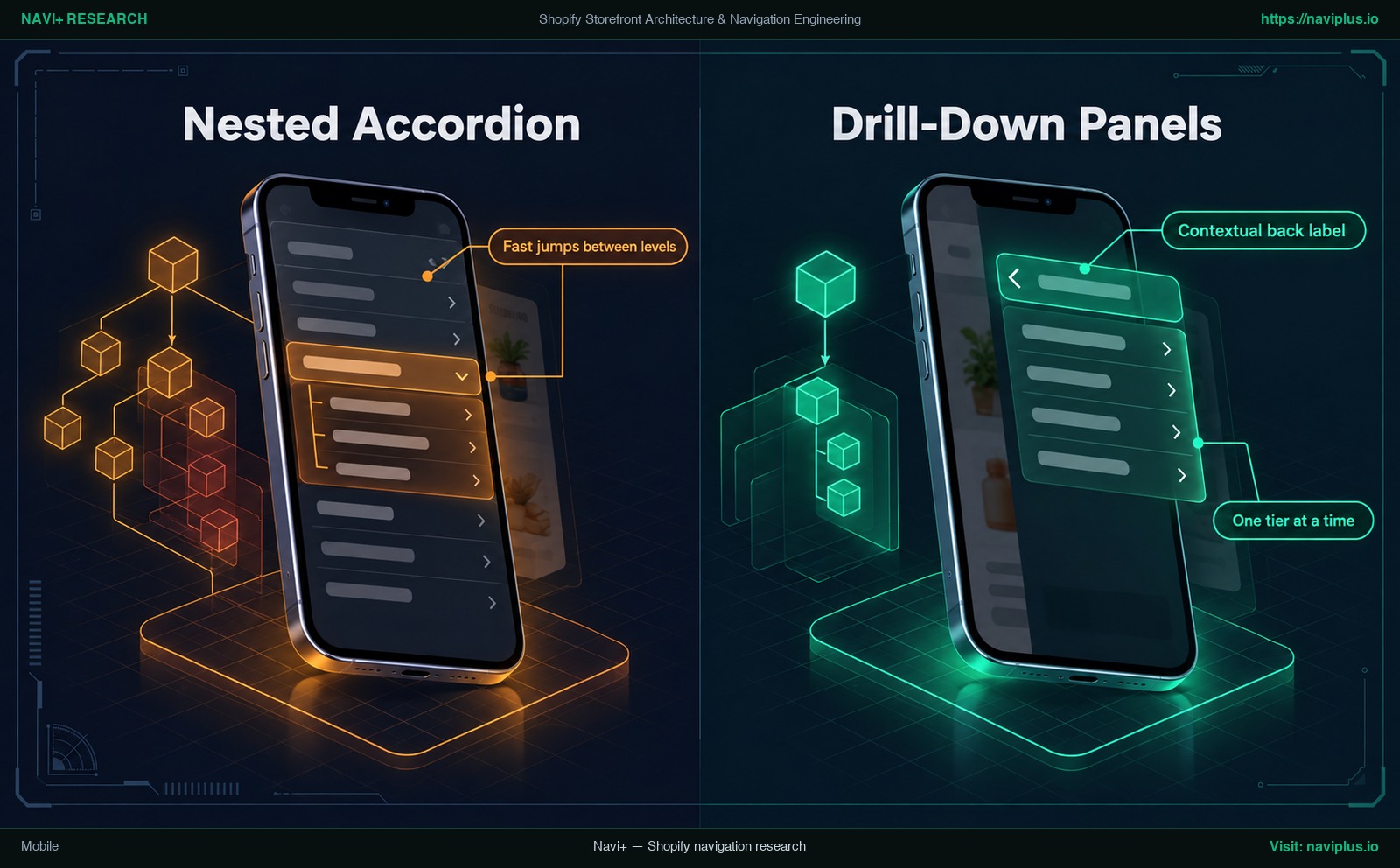
Figure 1: Concept illustration — Mobile: Accordions vs Drill-Down Panels
The Case for Accordions
Vertical accordions expand subcategories directly below the tapped parent item. An article in Smashing Magazine (Friedman 2022) says accordions work very well for multiple levels of navigation and are usually better than slide-in menus. Because sibling categories stay visible, shoppers can jump between levels quickly without losing page context.
The primary risk of accordions is “Accordion sprawl”. When a shopper taps into multiple categories successively, the drawer stretches over several screen heights, pushing primary navigation links out of view. To mitigate this sprawl, configure accordions to collapse open sibling panels automatically whenever a new parent item is tapped.
The Case for Drill-Down Panels
Drill-down panels replace the entire drawer viewport horizontally with each tap, presenting “One tier at a time”. This keeps the drawer height constant and groups subcategories cleanly into dedicated “Intent groups”, making it suitable for deep catalogs with extensive sub-branches.
The critical drawback of drill-down panels was identified by Smashing Magazine: it is not necessarily clear where the Back button will go. Smashing advises replacing a generic Back button with a “Contextual back label” (such as ‹ Men). We also suggest keeping a “Persistent back button” at the top of every panel. For structural implementation tips, explore our guide to mobile drawer menu design.
Taxonomy vs Filters: Where the Menu Should Stop
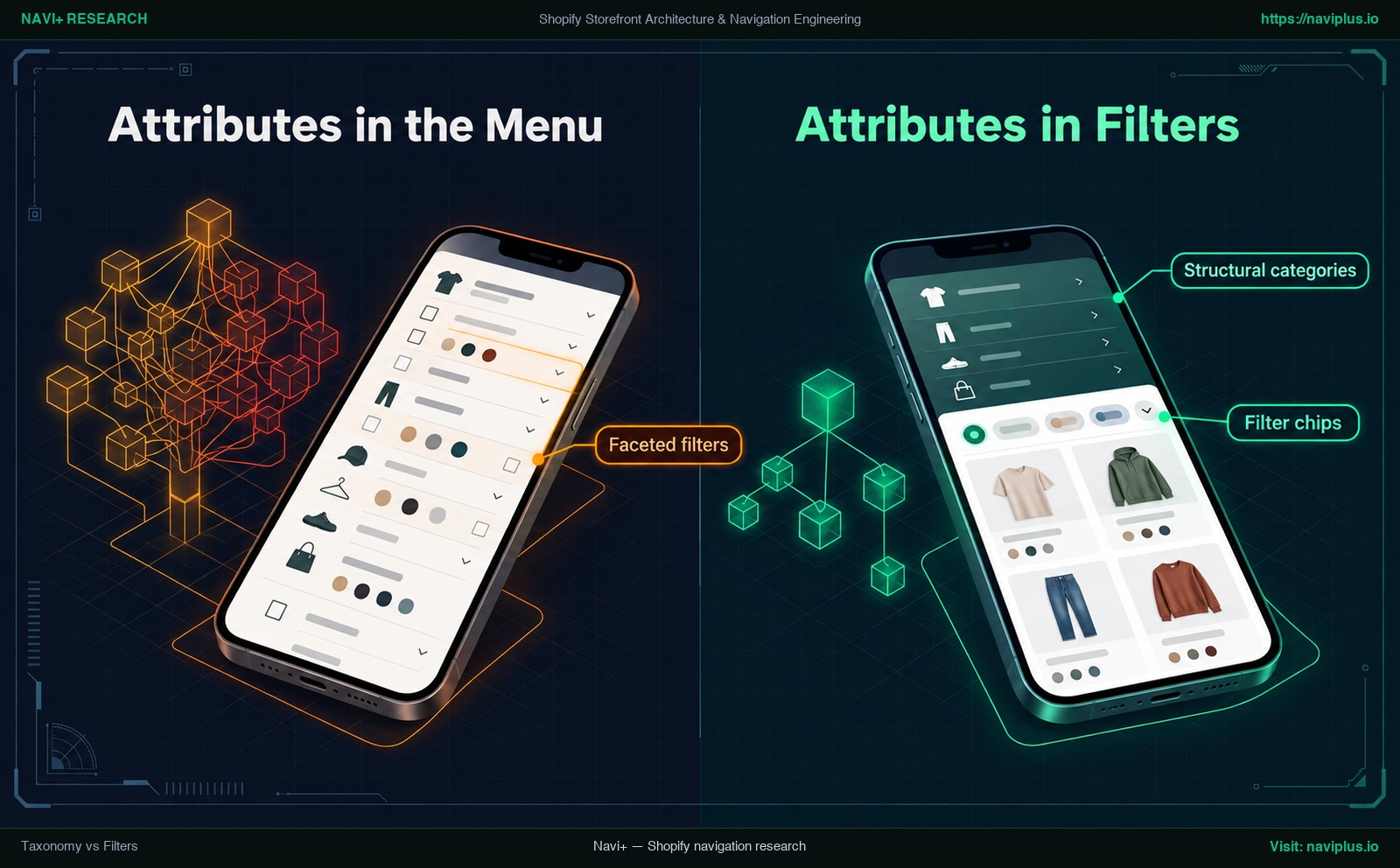
Figure 2: Concept illustration — Taxonomy vs Filters: Where the Menu Should Stop
When merchants feel constrained by Shopify’s 3-level menu limit, the root problem is rarely the navigation tool—it is taxonomy confusion. Menus should contain “Structural categories” that represent distinct, mutually exclusive buyer intents (such as Running Shoes versus Casual Sneakers). Conversely, product attributes belong in “Faceted filters” and “Filter chips” on collection pages.
| Dimension | Navigation Menu (Levels 1–3) | Collection Filters (Faceted) | Impact on Storefront |
|---|---|---|---|
| Structural Scope | Structural categories with distinct silhouettes | Cross-cutting product attributes and specifications | Separates high-level wayfinding from granular refinement |
| Examples | Men > Footwear > Running Shoes | Color, Size, Material, Price, Brand | Prevents catalog link duplication across branches |
| Storefront Location | Global header bar and mobile drawer | Collection page sidebar or horizontal filter drawer | Keeps global navigation scannable and uncluttered |
| Shopper Interaction | Broad categorization and initial landing | Refining search results to exact purchase preferences | Combines fast discovery with precise product filtering |
Stuffing product attributes like Red, Large, or a price range directly into navigation linklists creates massive, disorienting trees. By stopping your menu at Level 3 and letting collection page filters handle cross-cutting attributes, you keep navigation lean and scannable.
Performance and Accessibility of Deep Menus
Deep multi-level menus carry technical costs. In standard Shopify themes, nested Liquid loops pre-render every link server-side into the initial HTML document. Rich mega menus containing category descriptions, badges, and thumbnail images multiply this markup, shipping a large number of elements before the shopper interacts with the page.
Google Chrome Lighthouse documentation warns when the body element has more than ~800 nodes and reports an error when it exceeds ~1,400 nodes. Large DOM trees give the browser more work, so measure instead of guessing. You can inspect your header node count directly in Chrome DevTools Console by running: document.querySelector(‘header’).querySelectorAll(‘*’).length. For performance optimization strategies, review our article on how navigation affects page speed.
From an accessibility perspective, deep menus must comply with the W3C WAI-ARIA Authoring Practices Guide (APG). The APG disclosure pattern explicitly states that site navigation does not use the menu role because it does not provide the complex functionality required by application menus. Instead, disclosure buttons must toggle aria-expanded between false and true, hide inactive sub-panels from screen readers, and close on Escape: if a dropdown is open, closes it and sets focus on the button that controls that dropdown.
Trade-offs: When Not to Build a Deep Menu
Not every storefront requires three navigation levels. Boutique stores with small, highly focused catalogs create unnecessary friction by introducing multi-tier dropdowns. When a small catalog can be browsed on a single collection page, extra navigation layers merely force shoppers through redundant clicks.
Direct-to-consumer (DTC) brands driving high-intent paid social traffic directly to specialized landing pages also benefit from flatter navigation. For these stores, a lean single-tier menu or horizontal filter chips on collection pages can be a better fit than an elaborate desktop mega menu; test it on your own traffic.
Finally, luxury and editorial brands prioritize whitespace, brand imagery, and uncluttered aesthetics. For these storefronts, deep menus clash with brand positioning. Remember Nielsen Norman Group’s overarching steering law guidance: avoid hierarchical menus, particularly hierarchical menus that are more than two levels deep.
Decision Framework by Catalog Shape
To determine the appropriate navigation hierarchy for your Shopify store, align your catalog structure and shopper search modalities with the architectural framework below:
Multi-Level Navigation Decision Architecture:
┌─────────────────────────────────────────────────────────────────┐
│ Catalog Scale & Taxonomy Audit                                  │
└────────────────────────────────┬────────────────────────────────┘
                                 │
         ┌───────────────────────┴───────────────────────┐
         ▼                                               ▼
  [ Small, focused catalog ]                    [ Broad, multi-category ]
         │                                               │
         ▼                                               ▼
┌─────────────────────────────┐                 ┌─────────────────────────────┐
│ 1–2 Tier Flat Navigation    │                 │ Multi-Tier Structure Needed │
│ Single-line bar on desktop  │                 └──────────────┬──────────────┘
│ Clean 1-level mobile drawer │                                │
└─────────────────────────────┘         ┌──────────────────────┴──────────────────────┐
                                        ▼                                             ▼
                                [ Desktop Viewport ]                          [ Mobile Viewport ]
                                        │                                             │
                                        ▼                                             ▼
                         ┌─────────────────────────────┐               ┌─────────────────────────────┐
                         │ 2D Scannable Mega Menu      │               │ Drill-Down Panels / Drawer  │
                         │ Columns, intent groups      │               │ Step-by-step navigation     │
                         │ High scannability           │               │ Contextual "< Back" crumb   │
                         └─────────────────────────────┘               └─────────────────────────────┘
| Catalog Shape | Recommended Tiers | Desktop Pattern | Mobile Pattern | Taxonomy Strategy |
|---|---|---|---|---|
| Small focused catalog | 1 to 2 Tiers | Clean horizontal navbar | Single-tier slide drawer | Group by core product type; add a nested level only if needed |
| Few departments | 2 to 3 Tiers | Multi-column mega menu | 2-tier drawer with accordion | Department > Category; use visual badges to guide scanning |
| Many departments | 3 Tiers | Wide grouped mega menu | Drill-down panels or drawer | Department > Category > Silhouette; offload attributes to filters |
| Technical, search-heavy | 3 Tiers + search & filters | Grouped mega menu + prominent search | Drill-down panels + search filter | Discipline > Equipment > Spec; support browsing and direct search |
Catalog-size labels are rough guides, not measured thresholds.
Where Navi+ Fits
For Shopify merchants who need to present complex catalogs cleanly without custom Liquid coding, Navi+ offers a visual navigation builder for Shopify storefronts.
Theme Menu vs. Navi+ Menu Delivery:

Traditional Theme Liquid:
[Shopify Server] ──► [Loops every menu link in Liquid] ──► [All links in initial HTML] ──► Browser

Navi+:
[Shopify Server] ──► [Theme HTML without Navi+ menu links] ──► Browser
                               ▲
                               │ Menu config loaded by a script
                             [CDN]
                   (Menu stored as a JSON file)
Like Shopify’s native architecture, Navi+ menus adhere strictly to a maximum of 3 levels. Where Navi+ adds value is device-specific presentation: merchants can build a Desktop Mega Menu with organized columns, category groupings, and visual banners, while configuring a dedicated Mobile Menu (or bottom Tab Bar) tailored for smartphone ergonomics. A Mobile Menu can also embed your existing Shopify menu tree, refreshed with the Sync now button.
Architecturally, Navi+ stores menu configurations as JSON files delivered via CDN and drawn in the browser by a client script, keeping menu links outside the theme’s initial Liquid server template. Merchants should measure their storefront performance using PageSpeed Insights and Chrome DevTools to see the real effect on their own store.
If your theme’s built-in menu can’t give desktop and mobile shoppers different views of the same three-level structure, Navi+ lets you build a Desktop Mega Menu and a separate Mobile Menu visually — then run the checklist below on your own store.
For alternate mobile navigation patterns, explore mobile navigation beyond the hamburger and review our Navi+ setup guides for Shopify themes.
Action Checklist: Audit Your Multi-Level Menu
Execute this five-step audit to optimize your Shopify multi-level navigation hierarchy:
- Step 1: Separate Taxonomy from Attributes: Review every navigation link in a spreadsheet. Keep structural categories (such as Footwear and Outerwear) in your menu; move product attributes (such as Color, Size, and Price) to collection filters.
- Step 2: Reinforce Information Scent: Eliminate ambiguous marketing terms in favor of clear, recognizable customer terminology that matches actual search queries.
- Step 3: Test on a Real Smartphone: Open your store on a smartphone and navigate through to Level 3. Ensure the top-level parent link is set to # so it does not accidentally trigger page reloads, and confirm that back buttons provide clear context.
- Step 4: Audit Header DOM Nodes: Run document.querySelector(‘header’).querySelectorAll(‘*’).length in Chrome DevTools Console. Compare your header node count against the whole body and Lighthouse’s ~800 node warning threshold.
- Step 5: Verify Keyboard Navigation: Navigate through your entire menu using only Tab, Enter, and Escape. Confirm that Escape closes open dropdowns and returns focus to the trigger button.
FAQ
Frequently asked questions regarding Shopify multi-level menu architecture, platform limits, and mobile UX:
How many levels can a Shopify menu have?
A Shopify menu can have three levels: one top-level item plus up to two levels of nested drop-down menus, as stated by the Shopify Help Center.
How do I nest a menu item in Shopify?
In your Shopify admin, navigate to Content > Menus, select your menu, drag a menu item slightly to the right underneath its parent item, and save your changes.
Why does my theme not show my third-level links?
According to the Shopify Help Center, most themes support up to two levels of nested drop-down menus in standard headers. Some themes only render the third level in a multi-column mega menu layout, so check your theme’s documentation.
Why does my top-level link open a page on mobile instead of the drop-down?
Shopify advises verifying that the link field for the top-level parent item is set to # so tapping toggles the child menu rather than triggering a page navigation.
Is a mega menu better than a dropdown for a big catalog?
Nielsen Norman Group recommends considering mega menus over cascading pull-down menus for navigation and advises avoiding hierarchical menus more than two levels deep.
Accordion or drill-down on mobile?
Both patterns have valid use cases: Smashing Magazine notes accordions work well for multiple levels and are usually better than slide-in menus, but drill-down panels prevent vertical sprawl if paired with clear contextual back labels.
Sources
- Shopify Help Center: Set up drop-down menus in your online store. Official documentation on nested menu hierarchy and theme capabilities. help.shopify.com
- Shopify.dev: Liquid link object reference. Specifications for link.links child navigation arrays and link.levels properties. shopify.dev
- Nielsen Norman Group: Laubheimer, P. (2019). Accot-Zhai Steering Law: Implications for UI Design. Research on mouse steering tunnels and nested menu errors. nngroup.com
- Nielsen Norman Group: Nielsen, J. & Li, A. (2017). Mega Menus Work Well for Site Navigation. Guidelines on 2D visual chunking and hover timing (0.5 s / 0.1 s). nngroup.com
- Smashing Magazine: Friedman, V. (2022). Designing Navigation for Mobile: Design Patterns and Best Practices. Analysis of mobile accordions, slide-in menus, and contextual back labels. smashingmagazine.com
- Steven Hoober (UXmatters): How Do Users Really Hold Mobile Devices? (2013). Empirical field research with 1,333 observations; 49% held devices single-handed. uxmatters.com
- Chrome for Developers: Avoid an excessive DOM size (Lighthouse). Documentation on DOM node warnings (~800 nodes) and errors (~1,400 nodes). developer.chrome.com
- W3C Web Accessibility Initiative (WAI): WAI-ARIA APG - Disclosure Navigation Pattern. Accessible keyboard interaction and state requirements. w3.org
- Related reading: Mega Menu Best Practices, Mobile Drawer Menu Design, Navigation and Page Speed, Mobile Navigation Beyond the Hamburger, and Navi+ Setup Guides for Shopify Themes.
Explore the topics
This guide links out to focused articles — dive deeper on each.