- Five separate dimensions: "Menu size" is not one setting. It combines text size, item height, drawer width, icon size, and tap area.
- Touch target standards: Keep mobile interactive targets at least 24×24 CSS pixels under WCAG 2.2 AA (or 44×44 CSS pixels under AAA guidelines).
- Device-specific testing: Sizing adjustments must be verified on narrow screens (320 CSS pixels) to prevent unexpected label truncation.
Quick Answer: How to Adjust Menu Size in a Navigation App
Open the menu’s design settings and change five things separately: text size, item height, menu or drawer width, icon size, and tap-target spacing. Keep tap targets at least 24 by 24 CSS pixels, check on a narrow phone, and use custom CSS only when no setting exists.
To adjust your menu size, use these five steps:
- Select your menu type: Open your navigation app and choose the menu you want to adjust—a bottom Tab Bar, a slide-in Mobile Menu drawer, or a desktop Mega Menu.
- Adjust text size: Set typography scale separately for top-level links and nested sub-items to establish clear visual hierarchy.
- Set item height: Increase row padding or set minimum item height so links are easy to separate with a thumb.
- Tune width and icons: Widen the drawer or submenu panel so long titles fit neatly, then scale icons to match.
- Test on a narrow phone: Review the menu on a physical phone or at 320 CSS pixels to verify readability and tap comfort.
What “Menu Size” Actually Means: Five Dimensions
When a menu looks awkward on mobile, store owners often search for a single slider to make it bigger or smaller. In web design, however, “menu size” is not one setting. It is the combination of five separate geometric dimensions working together.
Changing one dimension affects the others. For example, making your text larger without widening your menu drawer causes longer category names to wrap awkwardly or get cut off. Increasing icon size without adding item height makes buttons feel jammed against each other.
| Dimension | What It Controls | Where to Change It | Watch Out For |
|---|---|---|---|
| Text size | Legibility of navigation labels | Menu typography settings | Larger text without wider containers causes words to truncate |
| Item height | Vertical spacing between rows | Minimum height (min-height) or padding |
Overly tall rows push key collections below the screen fold |
| Menu / drawer width | Horizontal space for drawer or submenu panels | Drawer width or submenu width settings | Very wide drawers completely hide the store background |
| Icon size | Dimensions of icons in bars or rows | Icon dimensions setting in menu design | Larger icons without taller bars create vertical crowding |
| Tap area | Active clickable boundary for thumbs | Combined icon/label size and surrounding padding | Small visual elements with tight padding cause mis-taps |
In web design, these measurements are expressed in CSS pixels (px). A CSS pixel is an abstract display unit used by web browsers. On high-density smartphone screens, one CSS pixel corresponds to multiple physical device pixels, ensuring visual consistency across different devices.
If you also need to adjust colors, fonts, hover states, or dropdown shadows, see our complete guide on how to change menu colors and fonts.
Why Theme Menus Often Look Too Small or Too Big on Mobile
A frequent point of confusion for Shopify merchants is where navigation settings live.
In standard Shopify store management, navigation links and nested menu trees are organized under Online Store > Navigation. However, the visual appearance, typography, and responsive layout of your mobile menu are configured in the Theme Editor, not in the Navigation section (fudge.ai).
Shopify Admin
 ├── Online Store > Navigation  --> Link hierarchy & URLs (Content)
 └── Online Store > Themes
      └── Theme Editor          --> Header layout & visual appearance (Display)
Many Shopify themes have no dedicated setting for mobile drawer size or row height, so answers on community forums are often custom CSS snippets. Which settings exist differs from theme to theme, so check your own theme editor first.
Desktop headers also behave differently from handheld menus. When horizontal desktop links collapse into a mobile hamburger drawer, font sizes that looked balanced on a laptop often appear either tiny or overwhelming on a smartphone screen. To understand these theme boundaries in detail, read our review of the limits of Shopify theme menus.
Adjust Tab Bar Size: Icon, Label and Bar Height
A bottom tab bar keeps primary destinations within natural thumb reach on mobile devices. However, if the bar is too thin or crowded, tapping becomes frustrating.
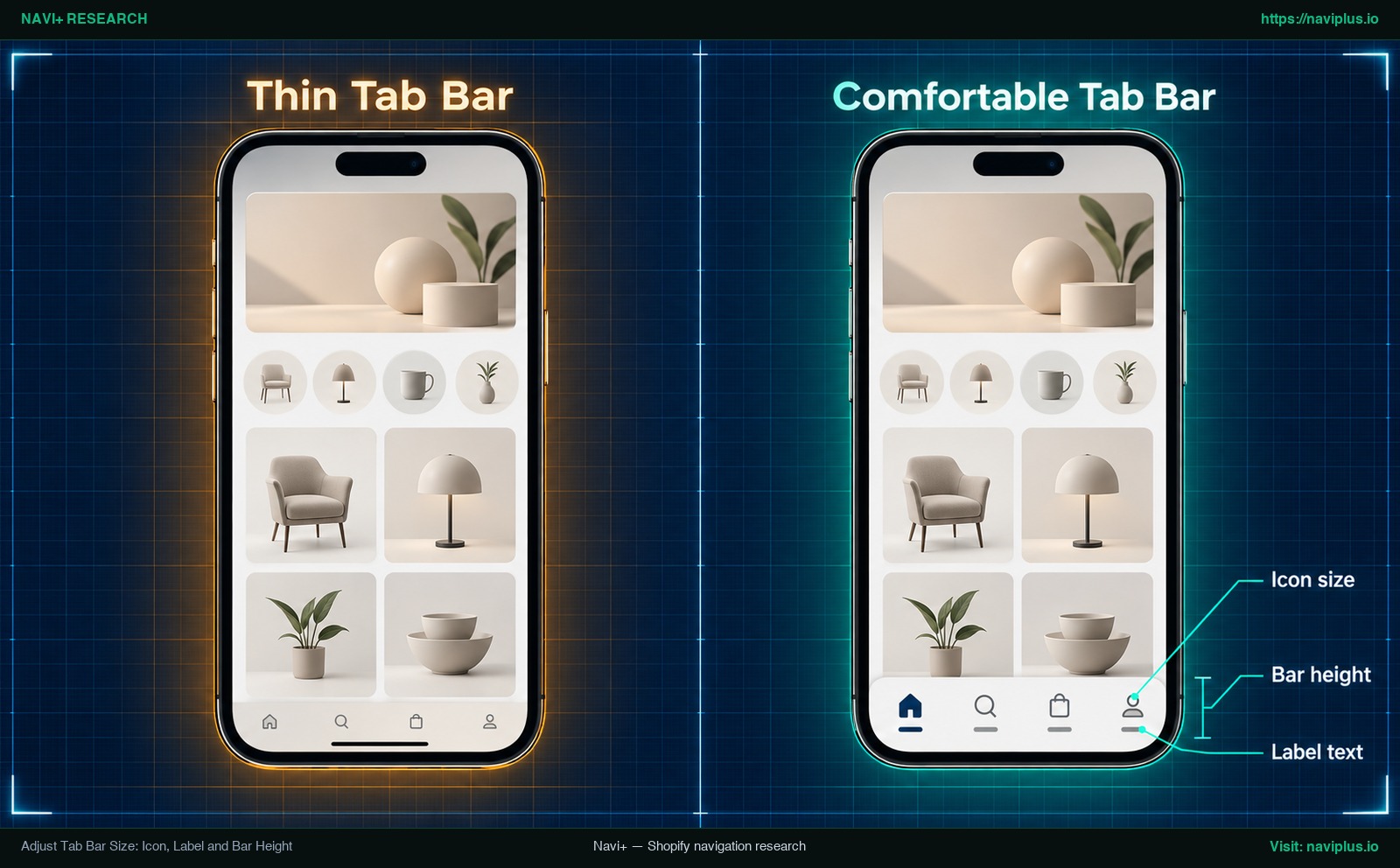
Figure 1: Concept illustration — Adjust Tab Bar Size: Icon, Label and Bar Height
When adjusting a tab bar in a navigation app, you balance three core settings:
- Icon size: The graphic symbol representing each section, controlled via dedicated icon dimensions settings.
- Label text size: The short text title positioned under or next to the icon.
- Bar height: The total vertical height of the sticky bar anchored to the bottom of the screen.
When you increase the icon size to make symbols clearer, you must also increase the overall bar height. If you enlarge icons while keeping the bar height unchanged, the icons and text crowd tightly against the container edges.
Keep text labels short—ideally one word like “Shop”, “Search”, or “Cart”. If a tab label is too long, it clips or crowds adjacent tabs. Every tab item needs a generous tap area so visitors can browse comfortably with one hand. To learn more about thumb ergonomics and bottom navigation, review our guide to tab bars and thumb-friendly navigation.
Adjust Mobile Menu (Drawer) Size: Text, Row Spacing and Width
The slide-out drawer menu is the standard mobile navigation pattern. Because it organizes catalog links into a vertical list, sizing requires balancing text scale, row spacing, and container width.
1. Multi-Level Text Size
Avoid using one font size for every link. Your top-level categories (Level 1) need larger text to anchor customer attention. Subcategories (Level 2) and child links (Level 3) should use slightly smaller text sizes to signal visual hierarchy clearly.
2. Row Spacing via Minimum Height and Padding
When menu links sit too close together vertically, visitors accidentally tap the wrong link. In your navigation app, use the Min Height (minimum row height) or vertical Item Padding controls. A minimum row height ensures each link has sufficient vertical breathing room, even if the label is short.
3. Drawer Width
Drawer width defines how much horizontal screen space the menu covers when opened. If your drawer is too narrow, multi-word collection names wrap onto several lines.
When you increase text size, widen the drawer proportionally so your longest titles fit on a single line. Always test your drawer on narrow screens at 320 CSS pixels (W3C Reflow). For off-canvas drawer guidelines, explore our deep dive on mobile drawer menu best practices.
Adjust Mega Menu Size on Desktop and Mobile: Columns, Headings, Images
Desktop mega menus display broad product catalogs in multi-column dropdown panels. Getting the size right means managing panel widths, column structure, and image assets.
Single-Column vs. Multi-Column Submenu Width
Navigation apps separate simple dropdowns from full mega panels:
- Single-column submenus: For simple vertical drop-down lists, use the Submenu Width setting to set the panel width (submenu width setting). This stops the dropdown from shrinking around short titles or stretching excessively wide.
- Full-expand multi-column panels: For broad mega menus containing multiple department columns, adjust the full-expand panel width so columns have adequate spacing between them.
Mega Menu Dimensions
 ├── Submenu Width (Single-column dropdown panels)
 ├── Full-Expand Panel Width (Multi-column category layouts)
 ├── Column Headings (Distinct visual scale above child links)
 └── Promotional Images (Constrained width to avoid layout overflow)
Hierarchy Between Headings and Child Links
In a multi-column mega menu, column headers guide shopper scanning. Make column headings larger and bolder than the child links below them. If sub-links are the same size as headings, the panel looks cluttered and hard to read.
Managing Featured Category Images
Many mega menus feature collection badges or promotional banner cards. Images occupy significant horizontal space. If your mega menu feels cramped, resize and constrain your promotional images before expanding the entire panel width.
Mobile screens are far narrower than desktop panels, so check the mobile version of a mega menu separately from the desktop one instead of assuming the desktop sizing carries over.
Pick a Size That Works for Thumbs: Tap Targets and Readability
When choosing menu dimensions, do not rely on guesswork. Web accessibility standards and user research provide clear, tested benchmarks for touch targets and legibility.
Under the World Wide Web Consortium’s Web Content Accessibility Guidelines (WCAG 2.2), Success Criterion 2.5.8 (Target Size Minimum, Level AA) requires pointer tap targets to be at least 24 by 24 CSS pixels, except where specific inline or spacing exemptions apply (W3C Target Size Minimum).
For enhanced accessibility and smoother touchscreen ergonomics, WCAG Success Criterion 2.5.5 (Target Size Enhanced, Level AAA) specifies a target size of at least 44 by 44 CSS pixels (W3C Target Size Enhanced). The W3C recommends meeting the minimum size requirement regardless of surrounding spacing, especially for primary interactive buttons.
User experience research supports these guidelines. Nielsen Norman Group research notes that the minimum physical size of a touch target should be approximately 1cm by 1cm (0.4in by 0.4in) (NN/g Touch Target Size). Furthermore, NN/g emphasizes that interactive elements must be big enough first, and then spaced well enough. Adding whitespace around a target that is physically too small does not solve mis-taps.
In addition to target size, text must remain readable under browser magnification. WCAG Success Criterion 1.4.4 (Resize Text) requires that text can be resized without assistive technology up to 200 percent without loss of content or functionality (W3C Resize Text). For a complete look at accessible design, see our navigation accessibility guide.
Test on a narrow screen and at larger text
Meeting accessibility standards requires validating your menu on small screens. Under WCAG Success Criterion 1.4.10 (Reflow), vertical scrolling content must remain fully usable at a width equivalent to 320 CSS pixels without horizontal scrolling (W3C Reflow).
When testing your resized menu:
- Open browser developer tools and set the viewport width to 320 CSS pixels.
- Open your mobile drawer and expand submenus to ensure category labels do not clip.
- Increase text zoom to check that labels remain legible and tap areas stay comfortable.
When You Still Need Custom CSS (and How to Test It Safely)
Most sizing adjustments can be handled through your navigation app’s visual settings. However, if your theme applies rigid styles or your app lacks a setting for a unique detail, you may need custom CSS.
Before editing code, keep Shopify’s platform rules in mind:
- Theme-wide scope: Shopify allows custom CSS in Theme Settings. Global CSS rules added here affect all pages in your online store except the Checkout page (Shopify Adding Custom CSS).
- Character limits: Shopify limits theme-wide Custom CSS to 1500 characters (Shopify Adding Custom CSS). Adding large blocks of CSS quickly exhausts this limit.
- Theme backups: Shopify explicitly recommends duplicating your theme before editing theme code or adding CSS (Shopify Duplicating Themes). A backup copy allows you to discard unwanted changes immediately.
- Theme-specific class names: CSS class names differ across Shopify themes. Copying code snippets blindly from community forums often leads to broken layouts or clashes with app scripts.
For a walkthrough of changing menu font size in a Shopify theme, watch this video:
Video: A walkthrough of changing menu font size in a Shopify theme.
Troubleshooting: Size Not Changing, Text Cut Off or Wrapping
When resizing your navigation, you may run into three common display problems. Here is how to diagnose and resolve each one:
1. Sizing Changes Do Not Appear
- Editing the wrong level: Check whether you modified Level 1 settings or nested Level 2/3 settings. Level 1 adjustments do not alter child items unless configured separately.
- Device preview mode: Ensure you are editing the right device view. If an app provides separate settings for mobile and desktop, desktop edits will not alter your mobile menu.
- Browser cache: Browsers cache stylesheet files. Test your store in an incognito window to verify changes.
- Theme CSS overrides: Your theme stylesheet may contain high-specificity rules that override app styles. Inspect the element in developer tools to see which rule takes priority.
2. Menu Text Is Cut Off (Truncation)
As noted in W3C accessibility guidance, words may be too wide to fit into the horizontal space available to them, causing them to be truncated (W3C Resize Text).
If labels are cut off at the container edge:
- Widen the container: Increase the drawer width or submenu width setting.
- Reduce font size: If text size was set too high, decrease it slightly to fit the container.
- Shorten the label: Replace verbose collection titles with concise navigation terms.
3. Text Wrapping onto Two Lines vs. Ellipsis
According to MDN Web Docs, creating a truncated label with an ellipsis (...) requires combining text-overflow: ellipsis with overflow: hidden and white-space: nowrap (MDN text-overflow).
If a label wraps onto a second line without an ellipsis, that is standard text wrapping. Wrapping is not an error—allowing text to wrap onto two lines is often better than cutting words off, as long as your row height accommodates the extra line cleanly.
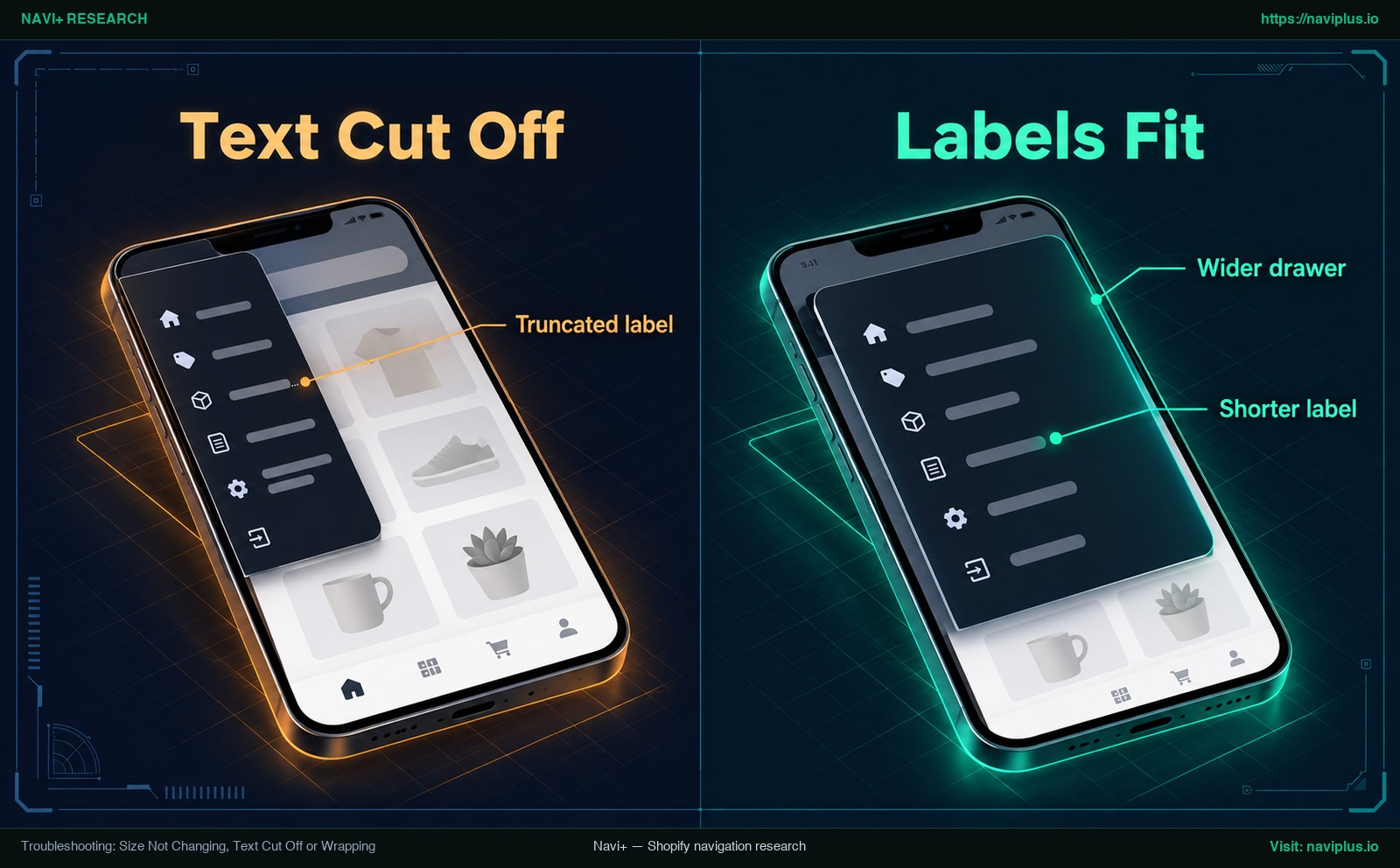
Figure 3: Concept illustration — Menu labels truncated with ellipsis in a narrow drawer versus neatly fitting on one line in an adjusted drawer.
Trade-offs: What Resizing Cannot Fix
Resizing improves legibility and tap comfort, but visual adjustments have practical trade-offs:
- Information density: Larger fonts and taller rows improve readability and tap accuracy, but they reduce the number of items visible on a single screen. Shoppers must scroll further to view all links.
- Catalog bloat cannot be solved by shrinking: If your store navigation includes dozens of unorganized collections, shrinking the text will not make it usable. It creates an illegible wall of text. Bloated menus require catalog restructuring, not smaller fonts.
- Loss of background context: Making a mobile drawer full-screen width ensures long labels fit, but it completely covers the storefront behind it. Keeping a small strip of visible background helps shoppers maintain orientation.
- Desktop vs. mobile ergonomics: Sizing that looks balanced on a desktop monitor rarely works on a handheld touchscreen. Test every dimension separately on both form factors.
Where Navi+ Fits
If your Shopify theme lacks dedicated settings for mobile drawer width or tab bar height, Navi+ Tab Bar & Mega Menu gives you visual controls for Tab Bar, Mobile Menu and Mega Menu.
Built-in sizing options include:
- Typography per level: Set Font Size (in px) separately for top-level links (Level 1) and nested sub-items (Level 2 and Level 3) (Navi+ level 1 design settings).
- Row height and padding: Configure Min Height (in px) and adjust vertical Item Padding per level for comfortable tap zones (Navi+ level 1 design settings).
- Icon dimensions: Set Icon Size (in px) for navigation icons across all levels (Navi+ level 1 design settings).
- Submenu and panel width: Adjust Submenu Width for single-column dropdowns (Navi+ layout settings) and full-expand widths for multi-column mega menus.
- Container dimensions: Set a menu height setting for bottom Tab Bars, and set the drawer width for Mobile Menus, for mobile and desktop.
- Responsive spacing syntax: Spacing inputs support a
mobile | desktopsyntax, allowing you to define distinct values for mobile and desktop in the same field. - Structured hierarchy: Supports up to 3 hierarchical levels to maintain clean, navigable menus.
If your theme has no setting for drawer width or tab bar height, Navi+ Tab Bar & Mega Menu lets you set text size, item height, icon size and menu width per menu level, then preview before publishing. Try it on a duplicate theme first.
Action Checklist
Use this eight-point checklist to size and test your navigation before publishing changes:
- Duplicate your theme: Create a backup copy of your active theme before editing menu code or CSS (Shopify Duplicating Themes).
- Set multi-level text size: Configure typography separately for top-level categories and nested child links.
- Set minimum row height: Configure item padding or minimum row height so rows are comfortable to tap.
- Calibrate container width: Adjust drawer width or submenu width to fit your longest collection names.
- Balance icon dimensions: Scale icon size in proportion to container height to prevent vertical crowding.
- Verify tap target size: Ensure clickable elements meet or exceed the 24×24 CSS pixel minimum (W3C Target Size Minimum).
- Test at 320 CSS pixels: Check your mobile drawer in responsive mode at 320 CSS pixels without horizontal overflow (W3C Reflow).
- Audit text truncation: Check category labels under 200% zoom to verify words do not clip unexpectedly (W3C Resize Text).
FAQ
How do I make the mobile menu text bigger without code?
Use your menu’s built-in font size settings in your theme or navigation app. While Shopify themes often leave mobile font sizing to code edits in stylesheets (fudge.ai), an app such as Navi+ provides a Font Size control for each menu level (Navi+ level 1 design settings).
How wide should a mobile menu drawer be?
There is no universal standard width. Your drawer should leave enough visible space so shoppers maintain context if they need to see the page behind it, while comfortably displaying labels without truncation at a screen width of 320 CSS pixels (W3C Reflow).
How big should menu tap targets be?
According to WCAG 2.2 AA standards, pointer tap targets must be at least 24 by 24 CSS pixels (W3C Target Size Minimum), while AAA recommends 44 by 44 CSS pixels for important controls (W3C Target Size Enhanced). The Nielsen Norman Group recommends a physical target size of approximately 1cm by 1cm (NN/g Touch Target Size).
Why is my menu text cut off?
Menu text gets truncated when a label is wider than the horizontal container space allocated for it (W3C Resize Text). You can resolve this by widening the drawer or submenu, reducing text size, shortening the label, or allowing text to wrap.
Do I need to duplicate my theme before adding CSS?
Yes. Shopify explicitly recommends making a backup copy of your theme before modifying theme code or global CSS so that you can easily discard unwanted changes (Shopify Duplicating Themes).
Sources
- W3C Web Accessibility Initiative: WCAG 2.2 Target Size (Minimum) — Success Criterion 2.5.8 standards for pointer inputs (Level AA).
- W3C Web Accessibility Initiative: WCAG 2.2 Target Size (Enhanced) — Success Criterion 2.5.5 benchmarks for touch target sizing (Level AAA).
- W3C Web Accessibility Initiative: WCAG 2.2 Resize Text — Success Criterion 1.4.4 guidance on resizing text up to 200 percent.
- W3C Web Accessibility Initiative: WCAG 2.2 Reflow — Success Criterion 1.4.10 standards for vertical scrolling at 320 CSS pixels.
- Nielsen Norman Group: Touch Target Sizes on Mobile Devices — Research by Aurora Harley on physical target dimensions and tap spacing.
- Shopify Help Center: Duplicating Themes — Documentation on creating backup theme copies before editing code.
- Shopify Help Center: Adding Custom CSS to Themes — Documentation on theme-wide custom CSS limits and scope.
- fudge.ai: How to Change the Mobile Menu in Shopify — Guide to configuring mobile menu appearance within Shopify Theme Editor.
- MDN Web Docs: text-overflow CSS Reference — Technical reference on text truncation, white-space, and overflow properties.
- Navi+ Help Center: Level 1 Design Settings — Documentation on Font Size, Icon Size, Min Height, and padding configuration.
- Navi+ Help Center: Layout Settings — Documentation on Submenu Width and multi-column mega menu panels.
Explore the topics
This guide links out to focused articles — dive deeper on each.