How to Change the Style of a Navigation Menu in a Shopify Menu App: Colors, Fonts, Hover, Dropdowns and Mobile
Changing the style of a navigation menu is simple once you know where each setting lives: Shopify menus hold the links, theme settings control your theme’s native interface, and your menu app controls its own visual presentation. Desktop and mobile menus should have distinct styles to match how shoppers browse.
Store owners often install a menu app to add multi-column dropdowns or improve mobile usability, only to find that changing colors in Content > Menus or the theme editor has no effect on the app’s menu. Understanding this separation of responsibilities saves time and prevents styling mistakes.
- Where settings live: Shopify admin stores your links and hierarchy, theme settings control the theme's native menu, and the menu app controls its own colors, fonts, and layout.
- App embed activation: A menu app only shows on your storefront once its app embed block is enabled inside the theme editor.
- Dedicated mobile styling: Mobile shoppers use touchscreens; your mobile drawer or bottom tab bar requires larger tap targets and different styling than your desktop bar.
Quick Answer: How to Change Menu Style in a Shopify Menu App
Edit the menu’s look inside the app, not in Content > Menus: Shopify menus hold the links, while the app (switched on through its app embed in the theme editor) holds the colors, fonts and layout.
- Open the menu in the app: Launch your menu app from the Shopify admin and open the menu you want to style.
- Set your color palette: Configure background, link text, hover, and active colors for your primary navigation bar.
- Set fonts and spacing: Select a font matching your storefront, set text size for hierarchy, and balance item spacing.
- Style dropdowns and mega menus: Define separate background colors for dropdown panels, set column layouts, and format section headers.
- Set a separate mobile style: Switch to mobile settings to configure a dedicated slide-in drawer or sticky bottom tab bar.
- Preview and publish: Test your changes in desktop and mobile previews, check contrast, and publish your menu.
Turn on the app embed in your theme editor if your menu app does not appear on your storefront after publishing.
Where Menu Style Lives: Shopify Menus, the Theme Editor, or the Menu App
When styling an online store, making changes in the wrong place is the main reason settings seem to fail. To style your navigation effectively, you must understand the three distinct layers governing your storefront.
Content > Menus controls links, not looks
In your Shopify admin, Shopify’s Help Center states that you view and change your online store menus from Content > Menus. This screen handles navigation structure: creating menu lists, adding link labels, attaching URLs to collections or pages, and dragging items to nest them.
Content > Menus does not manage colors, fonts, hover animations, or mobile layouts. It strictly manages your navigation’s link destinations and parent-child hierarchy.
Shopify Academy illustrates how links, titles, and nested hierarchies are organized in Content > Menus.
Theme settings control the theme’s own menu
Under Online Store > Themes > Customize, the theme editor provides global design settings. As documented in Shopify’s theme settings guide, your theme’s color settings control the colors used across your online store, and Typography settings manage global font families.
These settings govern your theme’s native header section and built-in menu links. If you use your theme’s default navigation bar, you change colors and fonts here. However, these global theme styles do not automatically cascade into third-party menu apps that render independent markup.
The menu app and its app embed control the app’s menu
Third-party menu apps manage their own styling engine. You customize background colors, font styles, item padding, and mega menu columns directly within the app’s dashboard.
To render on your storefront, the app uses Shopify theme app extensions. As outlined in Shopify developer documentation, app embed blocks are deactivated by default after an app is installed. You must open the theme editor, switch to the App embeds tab, turn on the app’s toggle, and save. As noted in Helium’s app embed documentation, this app embed allows you to enable or disable the app on a theme.
Some apps import your Shopify navigation list once during setup and do not automatically sync future changes. For example, Helium notes for Meteor Mega Menu that changes made to Navigation settings in Shopify will not be reflected in the app. If you change a link in Content > Menus and use an app with one-time import, you must update the item inside the app as well.
| Thing you want to change | Shopify Content > Menus | Theme editor | Menu app |
|---|---|---|---|
| Link URL and title | Edits native Shopify menu lists (some apps import once) | Selects which menu list the header displays | Edits app-specific link titles and URLs |
| Top-level colors and fonts | Not supported | Controls native theme header typography and palette | Sets custom colors and fonts for the app menu |
| Dropdown and mega menu layout | Nesting hierarchy only (up to two nested levels) | Basic theme dropdown layout | Custom column layouts, headers, badges, and backgrounds |
| Mobile menu presentation | Not supported | Theme mobile drawer linked to global theme palette | Dedicated mobile styles (drawer, sticky bottom tab bar) |
| Storefront visibility | Always active if assigned to a theme section | Toggles theme sections and app embed blocks | Activated when its app embed is enabled in theme editor |
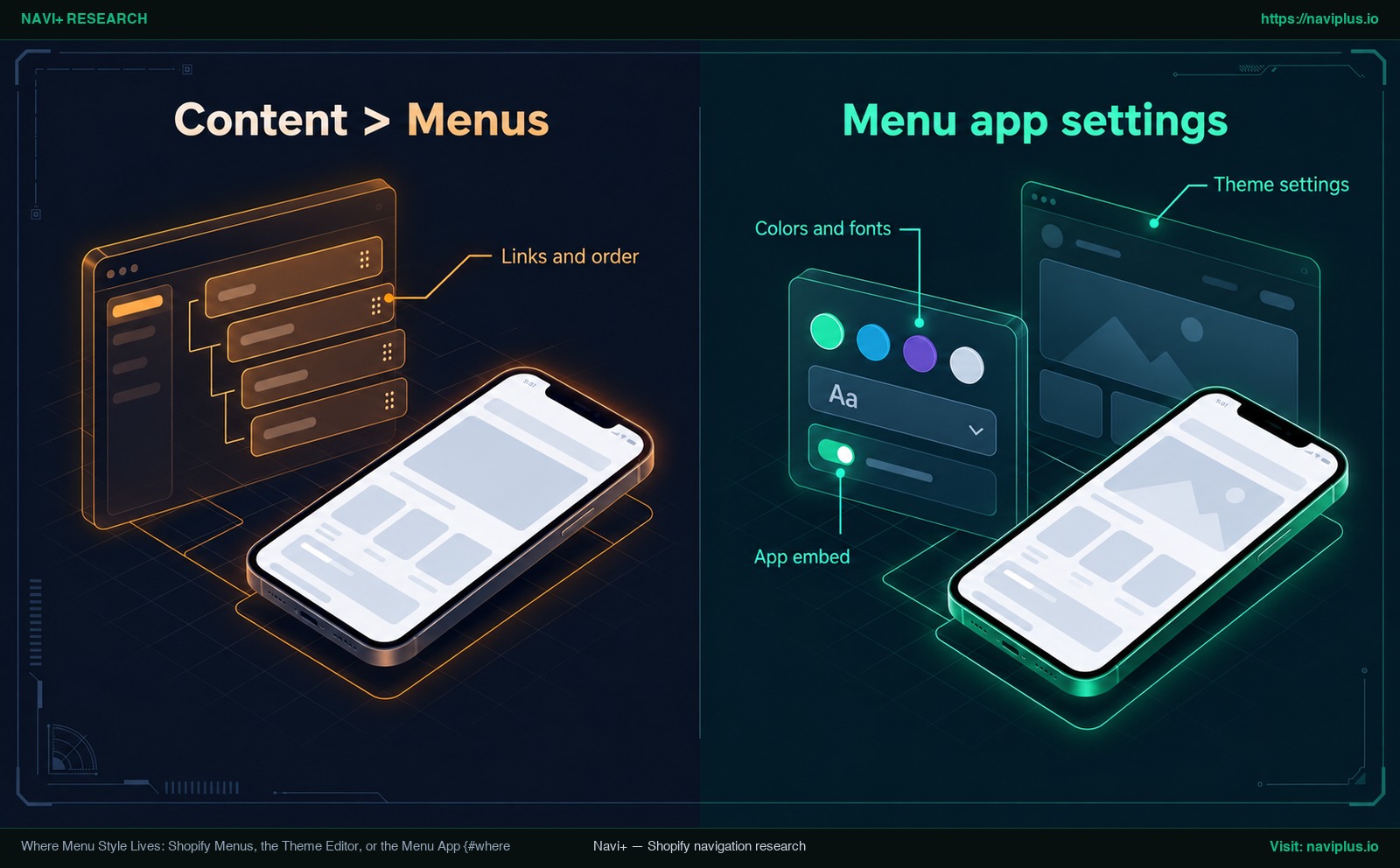
Figure 1: Concept illustration — Distinguishing link structure in Content > Menus from visual styling in the menu app and theme editor.
Change Colors: Background, Text, Hover and Active States
Color gives your navigation visual clarity and guides shopper orientation. Menu apps commonly organize color controls by interaction states. For example, EComposer’s documentation explains configuring link colors for different states — Normal, Hover, and Active — to enhance readability.
Configure each state with intention:
- Normal state: The default appearance of your links and bar when no pointer interacts with them.
- Hover state: Visual feedback displayed when a customer hovers over a link, such as a color shift, background tint, or underline accent.
- Active state: Styling applied to the link corresponding to the customer’s current page, reinforcing where they are in your catalog.
Always configure dropdown and submenu background colors separately from your main header. A common mistake occurs when a merchant sets a dark header with white text but leaves the dropdown background unconfigured. If the dropdown opens as a white panel with white text, child links become invisible. Learn how to coordinate your palette to make your menu match your brand.
Check contrast before you publish
Menu styling must remain readable for all shoppers, including those with visual impairments or those browsing in bright daylight.
The W3C Web Content Accessibility Guidelines (WCAG 2.2) define strict minimum contrast ratios:
- Normal text: Must achieve a contrast ratio of at least 4.5:1 against its background.
- Large text: Large-scale text must achieve a contrast ratio of at least 3:1.
Avoid low-contrast combinations like light grey text on white backgrounds. Test your selected hex codes with an accessible contrast checker before publishing.
Make hover and keyboard focus visible
Shoppers use mice, trackpads, touchscreens, and physical keyboards to browse. Under WCAG guidelines for focus visibility, any keyboard operable user interface must have a mode of operation where the keyboard focus indicator is visible.
Ensure that tabbing through navigation items with the Tab key displays a clear focus ring or outline. Never disable browser outlines with outline: none without providing an equally visible indicator. Noticeable hover states and keyboard focus indicators confirm that an item is interactive before a shopper clicks.
Change Fonts, Text Size, Spacing and Alignment
Typography establishes visual hierarchy across your store header. Global theme fonts are managed under the theme editor’s Typography settings, which apply across your entire store. Inside your menu app, you can choose to match your theme’s font or apply a specific menu font.
To build an intuitive typographic structure:
- Top-level items: Use clear, legible font sizes for primary categories. Semi-bold or medium weights anchor the top-level bar.
- Submenu items: Set child links slightly smaller than top-level labels. A subtle reduction in size or weight clarifies that child items sit subordinate to the parent category.
- Spacing and alignment: Maintain consistent horizontal padding between menu items. Crowding links together increases misclicks, while excessive padding causes items to wrap onto a second row on smaller laptop screens.
Keeping your app’s font family, font size, and padding close to your theme’s native styling offers an additional advantage. As Helium notes in its troubleshooting guide, matching your theme and app menu styling as closely as possible is the best way to reduce visual jumpiness if the theme header renders briefly before the app menu loads.
Style Dropdowns and Mega Menus: Columns, Headings and Images
Dropdowns and multi-column mega menus organize extensive catalogs without overcrowding the top-level bar.
In Shopify’s native menu manager, Shopify’s documentation on drop-down menus notes that a top-level item can have up to two levels of nested drop-down menus. That provides a three-tier hierarchy (Parent > Child > Grandchild).
When styling multi-column panels, apply established user experience principles:
- Clear column headings: In their research on mega menu usability, the Nielsen Norman Group recommends using concise, yet descriptive labels for each group. Style column headings with distinct weight or color so shoppers can scan categories quickly.
- Relevant imagery and icons: The Nielsen Norman Group also notes that mega menus make it easy to use pictures and icons when appropriate. Avoid purely decorative images that waste vertical space without helping shoppers choose.
- Brief hover delay: To prevent dropdowns from flashing open accidentally when a customer moves their cursor across the screen, the Nielsen Norman Group suggests that the mouse should remain stationary for about half a second (~0.5 seconds) before displaying hover-dependent content. Check your app’s settings for hover delay controls.
For detailed layouts, explore our guide on mega menu layout best practices.
Give the Mobile Menu Its Own Style (Drawer, Tab Bar)
A mobile menu is not a shrunken desktop menu. Mobile shoppers interact using thumbs on vertical screens, requiring dedicated layouts and styling.
Desktop multi-column mega menus do not fit on compact phone screens. On mobile, stores typically rely on a slide-in drawer, a sticky bottom tab bar, or a combination of both:
- Mobile drawer: Slides open from the side when tapped. It provides ample vertical space for accordion-style nested categories and store utility links.
- Sticky bottom tab bar: Keeps essential destinations fixed along the bottom edge within comfortable thumb reach.
UX research underscores the challenge of hidden navigation on mobile. The Nielsen Norman Group notes that hidden navigation is less discoverable than visible or partially visible navigation. Placing every link behind a top hamburger icon hides your core catalog. Pairing a bottom tab bar for top destinations with a slide-in drawer for full catalog browsing balances visibility with catalog depth.
When styling mobile navigation:
- Enlarge touch targets: Use generous row height and larger text so shoppers can tap links without hitting neighboring items.
- Distinct toggle icons: Ensure plus/minus or chevron expand icons for nested submenus are prominent and easy to tap.
- Refine mobile CSS when needed: In its documentation, Shopify notes that some themes might require CSS adjustments to improve mobile usability.
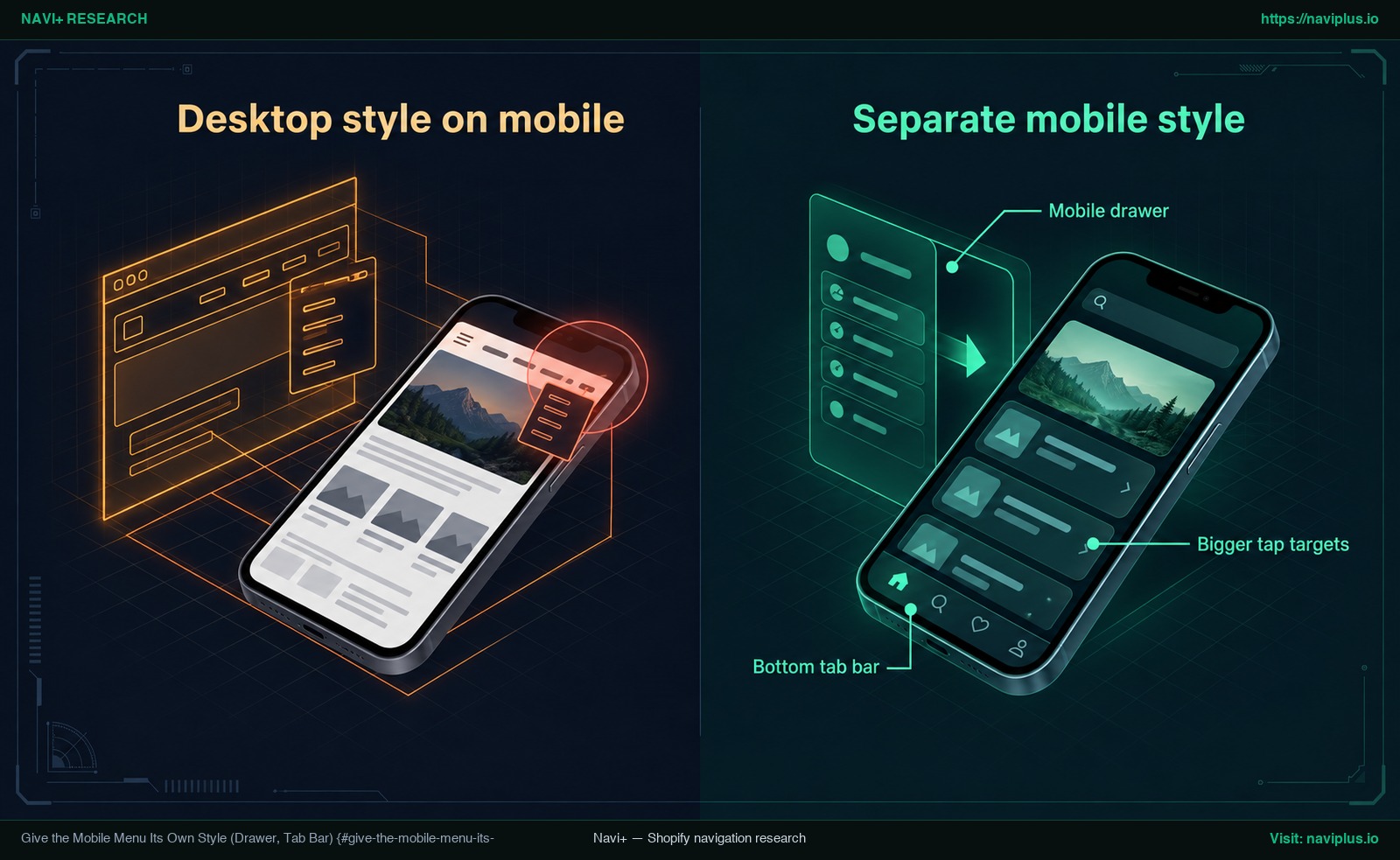
Figure 2: Concept illustration — Squeezing desktop dropdowns on mobile versus designing a dedicated mobile drawer and bottom tab bar.
For specific implementation patterns, explore our guides on mobile drawer menu design and building a bottom tab bar for Shopify.
Common Problems and Fixes
When styling a navigation menu through an app, merchants frequently encounter a few recurring technical issues. Use this table to diagnose and resolve them.
| Problem | Likely cause | Fix |
|---|---|---|
| Edited Content > Menus but the app menu did not update | Some menu apps import Shopify menu links once during initial setup and do not sync subsequent changes (Helium). | Open your menu app dashboard and edit the menu items, links, and hierarchy directly inside the app. |
| Theme’s menu flashes before the app menu shows | The theme’s native HTML renders in the browser before third-party app scripts finish loading (Helium). | Match your theme header background, font, and padding to your app menu styling so the transition is imperceptible. |
| App menu does not appear on the storefront at all | App embed blocks are deactivated by default upon app installation (Shopify Dev Docs, Helium). | Go to Online Store > Themes > Customize, open the App embeds tab on the left, enable the app’s toggle, and click Save. |
| Dropdown text is invisible or matches the background color | Submenu background and link colors were not configured separately from the top-level bar. | Open the app’s submenu styling panel, set an explicit background color, and verify that link text achieves at least a 4.5:1 contrast ratio (W3C WCAG). |
When You Need Custom CSS (and When App Settings Are Enough)
Many Shopify menu apps include graphical visual controls for colors, typography, margins, and borders. For standard styling needs, built-in settings are preferred: they update reliably, prevent syntax errors, and are easier to manage without technical assistance.
Custom CSS becomes necessary for specific visual details that app settings do not support, such as custom drop shadows, distinct hover transitions, or specialized badge placements.
In a real-world case on the Shopify Community, a merchant using the Sense theme asked how to adjust menu font size, style, and colors by adding CSS code directly into their theme’s Base.css file. While pasting CSS into theme stylesheet files can work, it introduces notable risks:
- Selector changes: Class names and selectors vary across themes, meaning code from community forums often fails on different themes.
- Theme updates: Future theme updates can overwrite custom changes made directly to theme stylesheet files.
Whenever possible, apply custom styling inside your menu app’s dedicated Custom CSS field. Many apps provide a scoped CSS box that attaches rules directly to the app’s own containers. This keeps your styling isolated and preserves it across theme updates.
Always test custom CSS rules on a duplicate draft theme before publishing changes to your live storefront.
Trade-offs: What Styling Cannot Fix
Refining colors and typography improves store polish, but visual styling cannot resolve underlying structural navigation flaws.
Styling cannot fix these fundamental issues:
- Confusing catalog structure: If menu labels are vague or categories are disorganized, attractive colors and fonts will not prevent shopper friction. Clear labeling always comes before styling.
- Script loading sequence: Because menu apps rely on client-side scripts, styling cannot completely prevent the brief flash where the theme header renders first (Helium).
- Administrative complexity: Adding an app introduces an extra settings screen to manage and audit whenever catalog structures change.
Before installing an app, understand the limits of the theme’s built-in menu. If your active Shopify theme already provides adequate color and typography settings, and your store only requires a simple single-tier dropdown, you do not need an app. Using native theme settings avoids extra configuration.
Where Navi+ Fits
If your catalog has outgrown basic theme dropdowns and you need comprehensive styling controls across devices, Navi+ offers a structured toolset.
Navi+ Tab Bar & Mega Menu allows merchants to build sticky bottom tab bars, mega menus, mobile drawer menus, icon menus, and floating buttons with drag-and-drop editing from pre-built templates. The app provides visual controls for background colors, text colors, font sizes, and custom typography for primary items and nested submenus across up to three hierarchical levels.
On desktop, you can choose distinct hover styles, such as background highlights or bottom underline indicators. For mobile screens, Navi+ lets you toggle desktop and mobile menus independently, ensuring your mobile drawer or sticky bottom tab bar receives dedicated styling without affecting your desktop header. The app also includes a scoped Custom CSS field for merchants who require fine styling adjustments.
If you want to set colors, fonts, hover and a separate mobile style in one place, you can try Navi+ Tab Bar & Mega Menu: start from a template, adjust the design, preview, then publish.
Action Checklist
Follow this checklist to audit and refine your menu styling:
- Verify link structure: Confirm that link destinations, labels, and hierarchy are organized in Content > Menus (or inside your menu app if it does not sync automatically).
- Enable app embed: Open Online Store > Themes > Customize, navigate to App embeds, and switch on your menu app.
- Set primary state colors: Configure background, text, hover, and active colors for your primary navigation bar.
- Check contrast ratios: Verify that text-to-background contrast meets WCAG standards (at least 4.5:1 for normal text and 3:1 for large text).
- Align typography and spacing: Set font family, text sizes, and item padding to match your storefront branding without crowding.
- Style dropdown panels: Assign explicit background colors, column widths, and heading styles to submenus.
- Configure dedicated mobile styles: Set up a mobile drawer or sticky bottom tab bar with comfortable touch targets.
- Preview and test: Review menu behavior, touch targets, and keyboard focus on desktop browsers and physical phones before publishing.
FAQ
I changed Content > Menus but my app menu didn’t change — why?
Some menu apps import your Shopify navigation list once during initial setup and do not automatically sync ongoing updates. For example, Helium notes that changes made to Shopify Navigation settings do not reflect in Meteor Mega Menu; you must update your menu links and hierarchy directly inside the app.
Why does the theme’s menu flash before the app menu shows?
This flash occurs because your theme’s native header HTML renders before third-party app scripts finish loading in the browser. Helium explains that this cannot be completely prevented; the best solution is to match your theme header styling and app menu styling as closely as possible.
Do I need CSS to change menu colors and fonts?
In most cases, no. Many menu apps and Shopify themes provide built-in visual settings for colors and typography. Custom CSS is only necessary for micro-adjustments that built-in settings do not support. When applying CSS, prefer your app’s built-in Custom CSS box over editing theme files directly.
Can the mobile menu look different from desktop?
Yes, provided your menu app supports separate desktop and mobile menu configurations. Because hidden hamburger menus are less discoverable than visible navigation, tailoring a dedicated mobile drawer or sticky bottom tab bar improves mobile usability.
What color contrast should menu text have?
According to WCAG 2.2 accessibility standards, normal menu text requires a contrast ratio of at least 4.5:1 against its background. Large-scale text requires a contrast ratio of at least 3:1.
Sources
- Shopify Help Center: Editing menus — Official guide on viewing, editing, and organizing navigation links in Content > Menus.
- Shopify Help Center: Theme settings — Documentation on global theme color and typography controls.
- Shopify Developer Documentation: App embed blocks configuration — Technical specifications explaining that app embed blocks are deactivated by default.
- Shopify Help Center: Drop-down menus — Guidance on nesting up to two levels of dropdown menus and mobile CSS adjustments.
- W3C Web Accessibility Initiative: Contrast (Minimum) (WCAG 2.2) — Standards for text contrast ratios (4.5:1 normal, 3:1 large).
- W3C Web Accessibility Initiative: Focus Visible (WCAG 2.2) — Requirements for visible keyboard focus indicators.
- Nielsen Norman Group: Mega Menus Work Well Anywhere Responsive Navigation Exists — UX research on concise group labels, purposeful visual cues, and hover delays.
- Nielsen Norman Group: Hamburger Menus and Hidden Navigation Hurt UX Metrics — Usability findings on hidden navigation discoverability on mobile.
- Helium Help Center: Common issues & fixes — Troubleshooting guide on navigation synchronization and theme menu flash.
- Helium Help Center: App embed settings — Instructions for enabling app embeds in the Shopify theme editor.
- EComposer Help Center: Menu element documentation — Guide on Normal, Hover, and Active link color states.
- Shopify Community: Change menu text style, size and color - SENSE — Community discussion regarding menu CSS edits in theme stylesheets.
- Shopify App Store: Navi+ Tab Bar & Mega Menu — App listing details for navigation layouts, typography, and styling controls.
Explore the topics
This guide links out to focused articles — dive deeper on each.