When merchants search for a menu builder app, they often find tutorials for restaurant food menus rather than ecommerce navigation—this guide focuses strictly on designing and launching navigation menus for an online Shopify store. Setting up a dedicated navigation app for the first time can feel risky on a live store, but learning it does not require coding.
Sketch your categories on paper, practice on a duplicate theme, focus on one menu type at a time, and verify touch targets on a physical phone before publishing.
- Practice on a duplicate theme: A backup theme keeps live sales stable while you build.
- Master one menu type first: Learn a single format—like a bottom tab bar or drawer—before adding others.
- Remember the app embed: You must enable the app embed in your theme editor before any menu appears.
Quick answer: how to get started with a Shopify menu builder app
To get started with a Shopify menu builder app, sketch your menu on paper first, pick one menu type to learn, turn on the app’s embed in the theme editor, build a few items, preview on a phone, then publish and test every link.
- Step 1: Sketch your menu structure: Outline collections on paper, then tidy native links in Content > Menus.
- Step 2: Pick one menu type to learn first: Choose a Tab Bar, Mobile Drawer, or Mega Menu based on shoppers.
- Step 3: Install the app and turn on the app embed: Enable the embed toggle in the theme editor and save.
- Step 4: Build your first menu: Add 4–5 core items with clear labels, icons, and destination links.
- Step 5: Match your brand: Match theme background colors, fonts, and screen alignment.
- Step 6: Preview on a phone and a desktop: Test touch targets on a duplicate theme using a real smartphone.
- Step 7: Publish, check every link, and fix common problems: Publish in the app and verify live links.
If you only have one hour, do Steps 1–3 and 6 on a duplicate theme.
Four terms to learn before you start
Before opening configuration screens, review these five recurring terms:
| Term | What it means | Where you see it |
|---|---|---|
| Menu | A structured list of links used to display and organize paths to products, collections, webpages, and blog posts (Shopify Help Center). | In Shopify Admin under Content > Menus, and in your header, footer, or drawer. |
| Menu item / link | An individual clickable element inside a menu pointing shoppers to a specific page, collection, URL, or anchor (#). |
Buttons, text links, or icon tabs. |
| Level | The nesting depth of navigation. In native Shopify menus, a top-level item can have up to two levels of nested drop-down menus below it (Shopify Help Center). | Dropdown lists, mega menu columns, and mobile accordions. |
| App embed | An app-provided element that floats or displays as an overlay in your theme without modifying template Liquid code (Shopify Help Center). | In the Shopify Theme Editor sidebar under App embeds. |
| Publish | The action making your menu visible to shoppers. Turning on an app embed enables the script, but some apps, including Navi+, also require clicking publish inside the app dashboard to push changes live. | Inside your menu builder app dashboard or theme settings. |
Step 1: Sketch your menu structure before you open the app
Do not open a menu app with an empty plan. Designing categories inside software settings leads to cluttered layouts and indecision. Prepare your content on paper first.
List the core destinations your customers need: featured collections, key product lines, essential pages (About, Shipping, Contact), and your blog (Shopify Help Center). Sketch your menu structure as a 2- to 3-level tree on paper. Identify 4–5 primary categories, then place sub-collections underneath.
Next, open Shopify admin and go to Content > Menus (Shopify Help Center). Tidy your default menus, remove outdated links, and confirm collection URLs. If a top-level parent item exists solely to group sub-items and should not link to a separate page, enter # in the link field (Shopify Help Center).
Keep your hierarchy disciplined: native Shopify navigation supports a top-level item with up to two levels of nested drop-down menus below it (Shopify Help Center). Tidying links in Shopify Admin first ensures smooth setup when connecting them into an app.
Shopify’s own video shows how to nest menu items:
Step 2: Pick one menu type to learn first
Menu apps offer bottom bars, mega menus, drawers, and floating buttons. Trying to build all of them during your first session creates confusion. Pick one menu type to learn first based on where your customers browse.
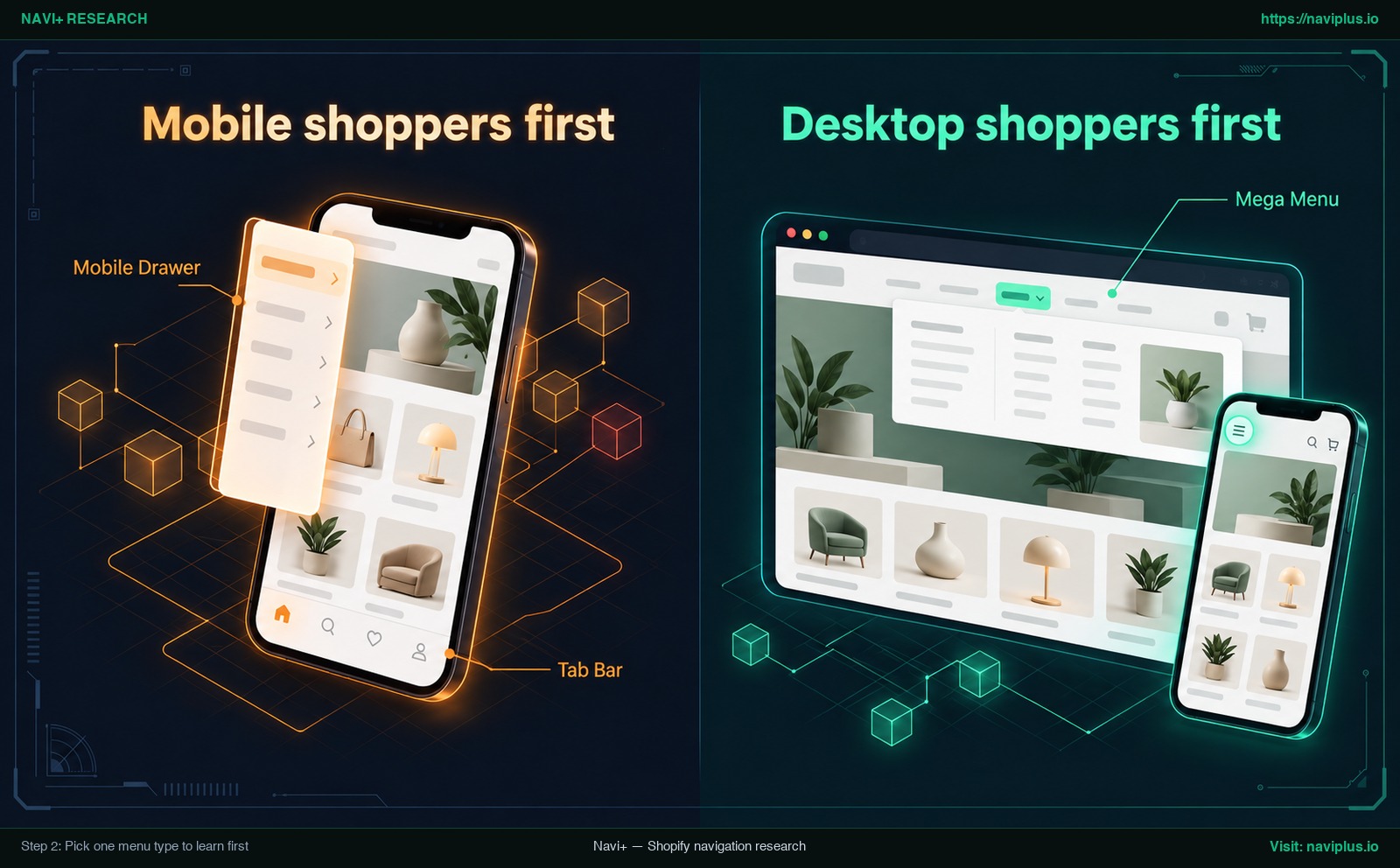
Figure 1: Concept illustration — Step 2: Pick one menu type to learn first
Mobile shoppers first
When most of your visitors browse on smartphones, a menu that is easy to find and tap on a phone matters most (see the Nielsen Norman Group quote below). For mobile-first stores, two formats are worth learning first:
- Tab Bar: A sticky navigation bar anchored to the bottom edge of the smartphone screen. It keeps core destinations (Home, Shop, Search, Cart) visible in one persistent bar.
- Mobile Drawer: A clean side panel that slides out when tapped, accommodating multi-level category trees and account links.
Desktop shoppers first
When you sell extensive catalogs on desktop screens where shoppers need an immediate overview, focus on:
- Mega Menu: A wide dropdown panel displaying multiple columns of categories and collections simultaneously.
| Menu type | Good fit when | Learn it first if |
|---|---|---|
| Tab Bar | High mobile traffic and focused primary actions (Home, Shop, Search, Cart). | Mobile shoppers first: most orders arrive through phones. |
| Mobile Drawer | Extensive catalog with multiple sub-tiers needing clean off-canvas browsing. | Mobile shoppers first: you want to replace a cramped native theme drawer. |
| Mega Menu | Large desktop catalog requiring an immediate visual breakdown of departments. | Desktop shoppers first: desktop computers represent your main sales volume. |
As the Nielsen Norman Group observed in their mobile research, “visual salience, information scent, context, tappability signifiers, and user expectations also affect navigation discoverability on mobile devices” (Nielsen Norman Group).
Review our guide on how to choose the right menu type for your store scale, and explore how merchants deploy tab bars and hybrid mobile navigation for better thumb reach. Pick one menu type today and build it thoroughly.
Step 3: Install the app and turn on the app embed
Install your selected menu builder app from the Shopify App Store. The app appears in Shopify Admin under Apps, but installing it does not immediately display anything on your storefront.
Modern Shopify apps rely on app embeds. As Shopify explains, app embeds are app-provided elements that float or display as an overlay in your theme (Shopify Help Center). They add visual components without modifying core Liquid template code.
To turn on the app embed:
- In Shopify Admin, go to Online Store > Themes.
- Find the theme you want to practice on—ideally a duplicate backup (see Step 6)—and click Customize.
- On the left sidebar, click the App embeds icon (Shopify Help Center).
- Locate your menu builder app and turn the toggle switch to On.
- Click Save in the top right corner.
- Preview your store to view the embedded app live (Shopify Help Center).
Shopify documentation notes that app embeds can be used with any theme version (Shopify Help Center). This does not mean every third-party app works with every theme layout automatically. Remember this maintenance rule: if you switch themes later, you must re-activate those apps in your new theme (Shopify Help Center).
For theme architecture details, read our guide on how app embeds work with your theme.
Step 4: Build your first menu: items, links, and icons
Open the app dashboard from Shopify Admin. Keep your first build small: create 4 to 5 top-level items based on your Step 1 sketch.
Follow these practical guidelines:
- Create clear top-level items: Use simple labels like “New In,” “Collections,” “Best Sellers,” and “Help.” Avoid vague slogans.
- Link to real destinations: Connect each item to an active, published collection or page URL. Never link to empty categories.
- Select intuitive icons: When building a mobile Tab Bar, pair each label with a recognizable icon (house for Home, grid for Categories, bag for Cart). Keep text labels visible alongside icons for accessibility.
- Add sub-items conservatively: Once top links look right, add child links where helpful. In native Shopify navigation, a top-level item can have up to two levels of nested drop-down menus below it (Shopify Help Center).
- Connect existing Shopify menus: Many menu apps allow connecting menus from Content > Menus directly. If your app supports this, use it to import collections rather than typing them manually.
Note: This tutorial focuses on building your first functional menu. Constructing complex multi-column mega menus with banner graphics is covered in dedicated advanced guides.
Step 5: Match your brand: colors, fonts, and position
An unstyled navigation bar looks out of place and damages customer trust. Customize your new menu so it blends naturally with your storefront design.
Configure three key styling elements:
- Colors: Check your active theme settings and copy hex codes for your background, header, buttons, and text. Apply matching hex values to your menu background, text, active indicator, and icons. Ensure strong contrast for mobile outdoor viewing.
- Fonts and sizing: Use the same font family as your theme body copy. Keep mobile font sizes legible and easy to tap.
- Positioning: Dock a Tab Bar at the bottom of the screen; align a Mobile Drawer to slide from the left edge; place a Mega Menu right under your main header.
Ensure your menu does not cover existing theme elements, such as a sticky “Add to Cart” button or a floating chat widget.
Read our guide on how to make navigation feel like your store for detailed branding techniques.
Step 6: Preview on a phone and a desktop before you publish
Never publish a new navigation menu directly to live customers without testing. Follow these three testing rules:
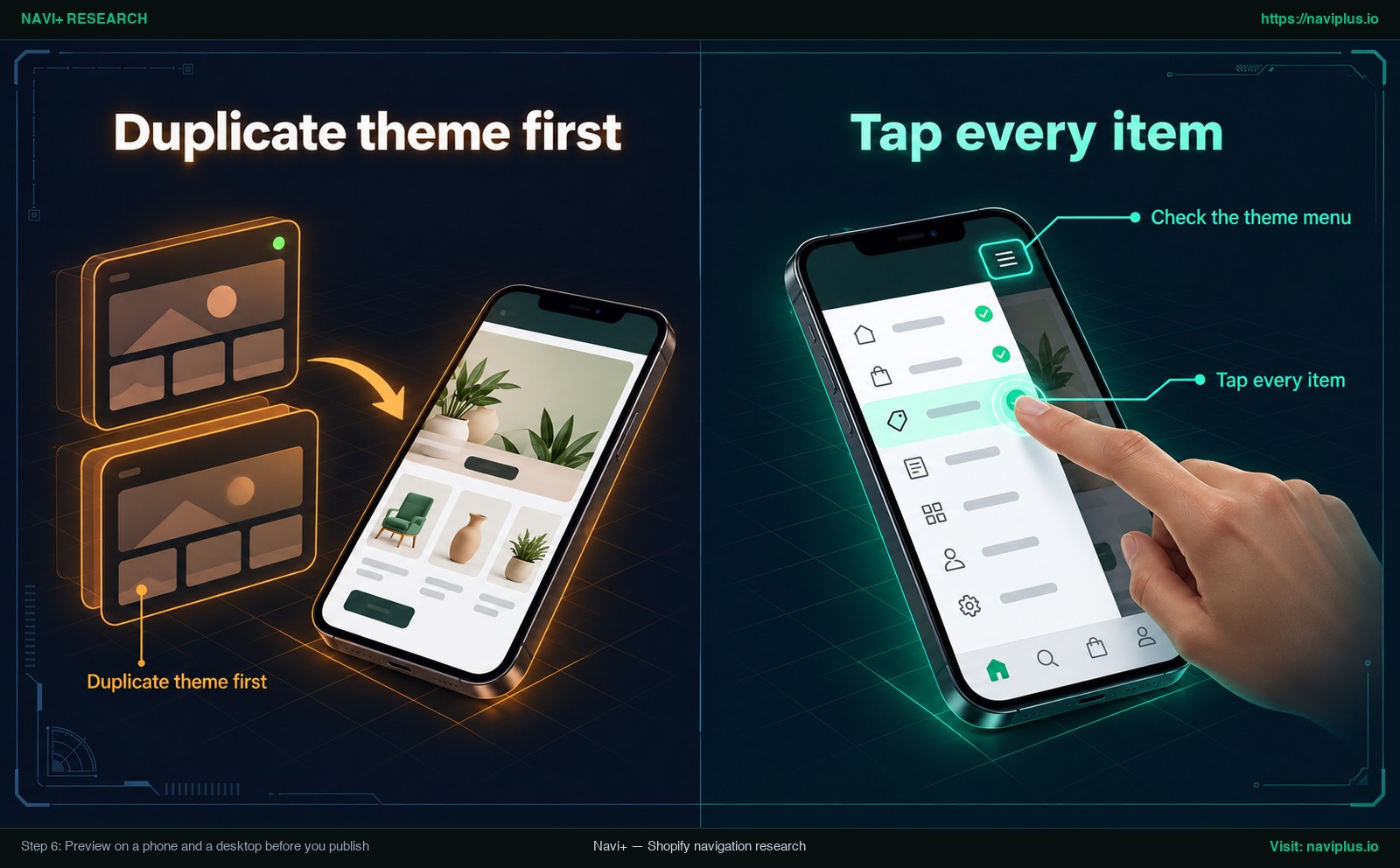
Figure 2: Concept illustration — Step 6: Preview on a phone and a desktop before you publish
- Duplicate theme first: Shopify recommends that before making changes, you “make a backup copy so that you can discard your changes and start again if you need to” (Shopify Help Center). Under Online Store > Themes, click Actions > Duplicate on your live theme. Turn on the app embed and build your menu on this unpublished copy so shoppers never see work in progress.
- Tap every item: Do not rely only on desktop browser simulation. Preview on a phone: open the preview link on a physical smartphone. Hold the device naturally and tap every item, tab, and accordion toggle to ensure responsive touch targets.
- Check the theme menu: Observe how your new menu interacts with your theme’s native header. Because the main menu and drop-down menus display in different locations depending on your theme (Shopify Help Center), check whether the theme’s default menu is still showing. You may need to hide the theme’s native header menu block to avoid duplicate navigation bars.
Also inspect the preview on a desktop monitor to verify wide-screen alignment.
Step 7: Publish, check every link, and fix common problems
In some menu builder apps, including Navi+, enabling the app embed in the theme editor only loads the script; you must also click an explicit publish button inside the app dashboard to push your menu live (Navi+ Help Center).
Check every link: After publishing, open an incognito window and click every link on your live storefront. If something looks wrong, use this troubleshooting table:
| Symptom | Common cause | Fix |
|---|---|---|
| Menu does not appear on storefront | App embed toggle is off, changes were not saved in the theme editor (Shopify Help Center), or the publish button was not clicked inside the app (Navi+ Help Center). | Go to Theme Editor > App embeds, turn on the toggle, click Save, then open the app dashboard and click publish. |
| Menu disappeared after theme change | App embed was not reactivated on the newly published theme (Shopify Help Center). | Open Online Store > Themes > Customize on your new theme, open App embeds, turn on the menu toggle, and save. |
| Two duplicate menus showing at once | The theme’s native menu block remains active in the header alongside the app menu (Shopify Help Center). | In your theme editor header section, hide the native menu block or assign the app menu to a different position (such as a bottom Tab Bar). |
If issues persist, consult the app developer’s official documentation or reach out to their support team.
Trade-offs: when you don’t need a menu builder app yet
A menu builder app is not mandatory for every Shopify store. Recognizing when native tools are sufficient saves time and overhead.
If your store has a compact catalog—such as a single product or just a few items—Shopify’s built-in navigation in Content > Menus is often enough (Shopify Help Center). Standard Shopify menus allow a top-level item with up to two levels of nested drop-down menus below it (Shopify Help Center), providing clean navigation without an extra app.
Adding any third-party app introduces trade-offs: another settings screen to manage, a slight learning curve, and an app embed to remember whenever you change themes (Shopify Help Center).
However, when your store expands and you need a sticky bottom tab bar for mobile shoppers, an off-canvas category drawer, or a desktop mega menu with images that your theme cannot build, installing a dedicated menu builder app is a smart operational upgrade.
Read our analysis of Shopify theme menu limitations to see if your store has outgrown default theme controls.
What to learn next: Icon Menu, Floating Button, and seasonal menus
Once your first menu runs smoothly on your live store, explore additional navigation patterns:
- Icon Menu: Add a row of visual category circles or image tiles on your homepage to help visual shoppers browse collections faster.
- Floating Button (FAB): Place a floating button in the bottom corner for quick access to support, order tracking, or rewards.
- Seasonal menus: Reorganize your navigation during holidays or major sales, pinning promotional collections right at the top.
Learn when an icon menu beats a text list for visual shopping, and track customer engagement with 5 metrics worth tracking after publishing.
Where Navi+ fits
If you want an app where you can practice all of these steps in one place, consider Navi+ Tab Bar & Mega Menu.
Navi+ is designed for Shopify merchants who want to build sticky bottom tab bars, mega menus, mobile drawer menus, icon menus, and floating buttons using a drag-and-drop editor (Shopify App Store). You can connect existing Shopify menus directly, use ready-made templates, and generate navigation faster with AI assistance (Shopify App Store).
Navi+ offers a free plan so you can build and practice without upfront cost (Shopify App Store). Publishing follows a clear two-step flow: enable the “Store Connector” app embed toggle in the Shopify theme editor, configure your menu, and click “Publish to website” inside the Navi+ dashboard (Navi+ Help Center).
Navi+ help documentation explicitly recommends: “The best practice is to create a duplicate Theme and test Navi+ on that version first” (Navi+ Help Center). This lets you test touch targets on a phone safely before customers see changes.
Action checklist: your first-session plan
Use this checklist for your first setup session:
- Sketch your menu structure: Outline 4–5 core categories and sub-collections on paper.
- Tidy Content > Menus: Clean up outdated links in Shopify Admin (Shopify Help Center).
- Duplicate theme first: Create a backup theme in Online Store > Themes for safe testing (Shopify Help Center).
- Pick one menu type: Choose a mobile Tab Bar, Mobile Drawer, or desktop Mega Menu.
- Turn on the app embed: Enable the embed toggle in the theme editor and save (Shopify Help Center).
- Build 4–5 core items: Assign clear labels, icons, and active collection URLs.
- Match colors/fonts: Align colors and typography with your theme branding.
- Tap every item on a phone: Preview on a real phone and verify touch targets.
- Publish and check every link: Click publish in the app dashboard and verify links on your live store (Navi+ Help Center).
- Re-check after theme changes: Re-activate the app embed if you switch themes (Shopify Help Center).
If you want to practice these steps in one app, Navi+ Tab Bar & Mega Menu has a free plan, ready-made templates, and can connect your existing Shopify menus — start on a duplicate theme and publish when you’re happy.
FAQ
Which menu type should I build first?
Start with the format that serves where most of your shoppers browse: choose a Tab Bar or Mobile Drawer if customers shop on phones, or a Mega Menu if you have a multi-category catalog on desktop.
Do I need to change my Shopify menus first?
Tidying Content > Menus first is recommended because it organizes your core links (Shopify Help Center); apps like Navi+ can also connect existing Shopify menus directly (Shopify App Store).
How do I turn on an app embed?
In the Shopify Theme Editor, click the App embeds icon on the left sidebar, switch your menu builder app toggle to On, and click Save (Shopify Help Center).
Why is my menu app not showing?
Common causes are an app embed toggle that was not turned on or saved in the theme editor (Shopify Help Center), an embed not reactivated after changing themes (Shopify Help Center), or not clicking publish inside the app dashboard (Navi+ Help Center).
Can I test without customers seeing it?
Yes. Duplicate your theme in Shopify admin, enable the app embed and build on the backup copy, and preview it privately before publishing to your live theme (Shopify Help Center; Navi+ Help Center).
How many levels can a Shopify drop-down have?
In native Shopify menus, a top-level menu item can have up to two levels of nested drop-down menus below it (Shopify Help Center).
Sources
- Shopify Help Center: Set up drop-down menus in your online store
- Shopify Help Center: Menus and links
- Shopify Help Center: App embeds and theme extensions
- Shopify Help Center: Duplicating themes
- Nielsen Norman Group: Mobile Navigation Discoverability
- Navi+ Help Center: Publishing on Shopify
- Shopify App Store: Navi+ Tab Bar & Mega Menu
Explore the topics
This guide links out to focused articles — dive deeper on each.