You open your Shopify store on your phone, tap the three-line hamburger icon to check a collection, and nothing happens. Or perhaps the drawer flickers open and instantly shuts, or your top-level links appear but your subcategories refuse to expand. If shoppers cannot open your navigation menu on mobile, browsing your store gets much harder.
- Three Distinct Problems: "Menu won't open" can mean a drawer hidden by CSS or broken theme markup, a hover rule conflicting with touch screens, or submenus that are not nested in your admin.
- Safety First: Always duplicate your theme before touching code, and test your navigation on a physical phone rather than relying only on desktop browser resizing.
- Maintenance Reality: Manual CSS edits in theme files often need to be re-applied whenever your theme updates, making dedicated menu apps an alternative when you want to avoid ongoing code maintenance.
Quick answer: why a Shopify mobile menu won’t open
Most Shopify mobile menus fail for one of three reasons: the drawer is hidden by CSS or broken theme markup, a hover-only dropdown fights with touch, or submenu links are not nested in Content > Menus. Duplicate your theme, check each cause in that order, and test on a real phone.
This guide is for Shopify themes; WordPress or Wix menus work differently. Work through each of the potential causes outlined below in order on a backup duplicate of your theme so your live storefront remains completely safe while you test.
Three different problems: menu won’t open, opens the wrong way, submenu won’t expand
When merchants say “my mobile menu is broken,” they are describing one of five common symptoms. Before changing any settings or editing code, identify which row describes your store:
| Symptom | Likely cause | Where to fix |
|---|---|---|
| Hamburger icon does nothing | Drawer hidden by CSS or broken theme markup | Check hidden drawer and theme markup |
| Menu opens then closes / dropdown flickers on tap | Hover-based dropdown on touch | Open on tap instead |
| Submenu items don’t show | Items not nested in Content > Menus, or theme collapses them | Check menu nesting and settings |
| Drawer covers the whole screen | Theme drawer style or width settings | Adjust drawer width and style |
| Menu works on desktop only | Theme mobile header settings configured separately | Review mobile header settings and drawer style |
Each symptom points to a different layer of your storefront. For instance, an unresponsive hamburger icon can point to an underlying script that failed or an off-canvas drawer that is hidden by CSS. In contrast, flickering submenus can stem from hover rules designed for mouse pointers that behave oddly on touch taps. Keep in mind that mobile and desktop headers can be configured separately in some themes.
Before you edit code: duplicate your theme and test on a real phone
Before modifying any theme code or template files, protect your live storefront by taking two critical precautions.
First, duplicate your active theme. As documented in the Shopify duplicating themes guide: “Before you customize a theme, it’s a good idea to make a backup copy so that you can discard your changes and start again if you need to.” In your Shopify admin, go to Online Store > Themes, click the three dots (...) next to your current theme, and select Duplicate. Conduct all troubleshooting and code tests inside this duplicate copy before publishing anything to live shoppers.
Second, test your navigation on a physical phone. Responsive mode inside desktop browser developer tools is useful for initial layout checks, but it is not the same as a real phone. Shopify explicitly advises merchants to test menus on mobile devices to confirm that drop-down menus expand as expected. A physical device can show touch problems that a desktop emulator may miss.
Finally, write down any apps, tracking tags, or custom snippets you installed recently. Third-party marketing apps, Google Tag Manager scripts, SEO tools, and page builders can add scripts to your theme that may interfere with navigation. Before touching Liquid or CSS files, check the Theme Editor first, because mobile menu behavior is controlled in the Theme Editor under the Header section in many themes.
Hamburger icon does nothing: hidden drawer CSS and broken theme.liquid
When tapping the hamburger icon produces zero response, your storefront is typically experiencing either a broken script that prevents the drawer toggle from running, or a CSS rule that keeps the opened drawer invisible.
Check the browser console and recent apps
Start by diagnosing JavaScript execution. Connect your mobile device to your computer via USB debugging, or open your store in a desktop browser, resize the window to mobile width, and open Developer Tools (F12 or right-click and choose Inspect).
Select the Console tab and tap the hamburger button. Look for red error messages. An uncaught script error—often labeled Uncaught TypeError or SyntaxError—can stop the rest of that script from running, which may prevent your theme’s navigation script from running its toggle event. If the error points to a third-party app or a recently embedded tracking script, temporarily deactivate the corresponding app embed under Online Store > Themes > Customize > App embeds to see if your hamburger icon resumes working.
Restore the top lines of theme.liquid
If the console shows general script failure across the storefront, inspect your theme’s root template file. The layout/theme.liquid file holds the page’s top-level HTML structure that theme scripts rely on.
In one case reported in a Shopify Community thread, a store’s mobile menu stopped working after the top two lines of theme.liquid were removed while someone was adding a Google Tag Manager tag. That thread names a likely cause reported by a store owner, not an officially confirmed fix, but it shows why missing lines at the top of the file are worth checking. Open Online Store > Themes > … > Edit code, open layout/theme.liquid, and compare the first lines against an unedited copy of the same theme to spot anything that was removed.
A CSS rule that forces the drawer visible (last resort)
In some instances, the theme’s JavaScript toggles the menu markup correctly, but CSS rules keep the drawer positioned off-screen or visually hidden.
For example, in a Shopify Community discussion regarding the Dawn theme, a merchant confirmed their hamburger drawer became visible after adding a media query to base.css:
/* Example reported in a Shopify Community thread for Dawn theme base.css */
/* Always test on a duplicate theme: selectors vary by theme and version. */
@media (max-width: 749px) {
  .menu-opening .menu-drawer {
    transform: translate(0);
    visibility: visible;
  }
}
In another community case on a different storefront theme, a merchant confirmed their menu worked after adding visibility: visible to their disclosure rule inside main.css (Shopify Community thread 389597):
/* Example reported in a Shopify Community thread for main.css */
/* Always test on a duplicate theme: selectors vary by theme and version. */
.main-menu__disclosure.is-open > .main-menu__content {
  opacity: 1;
  visibility: visible;
}
Similarly, another store owner found it helpful to use a selector targeting open details elements, such as .js details[open] > .menu-drawer (Shopify Community thread 395768).
Treat these CSS snippets strictly as community-reported examples for specific themes and versions, not universal fixes. Selectors differ significantly between theme architectures. Moreover, forcing CSS visibility merely masks symptoms if the root problem is corrupted markup or blocked JavaScript execution. When troubleshooting an unresponsive icon, keep three visual diagnostic markers in mind: visibility hidden, broken theme.liquid, and check the browser console.
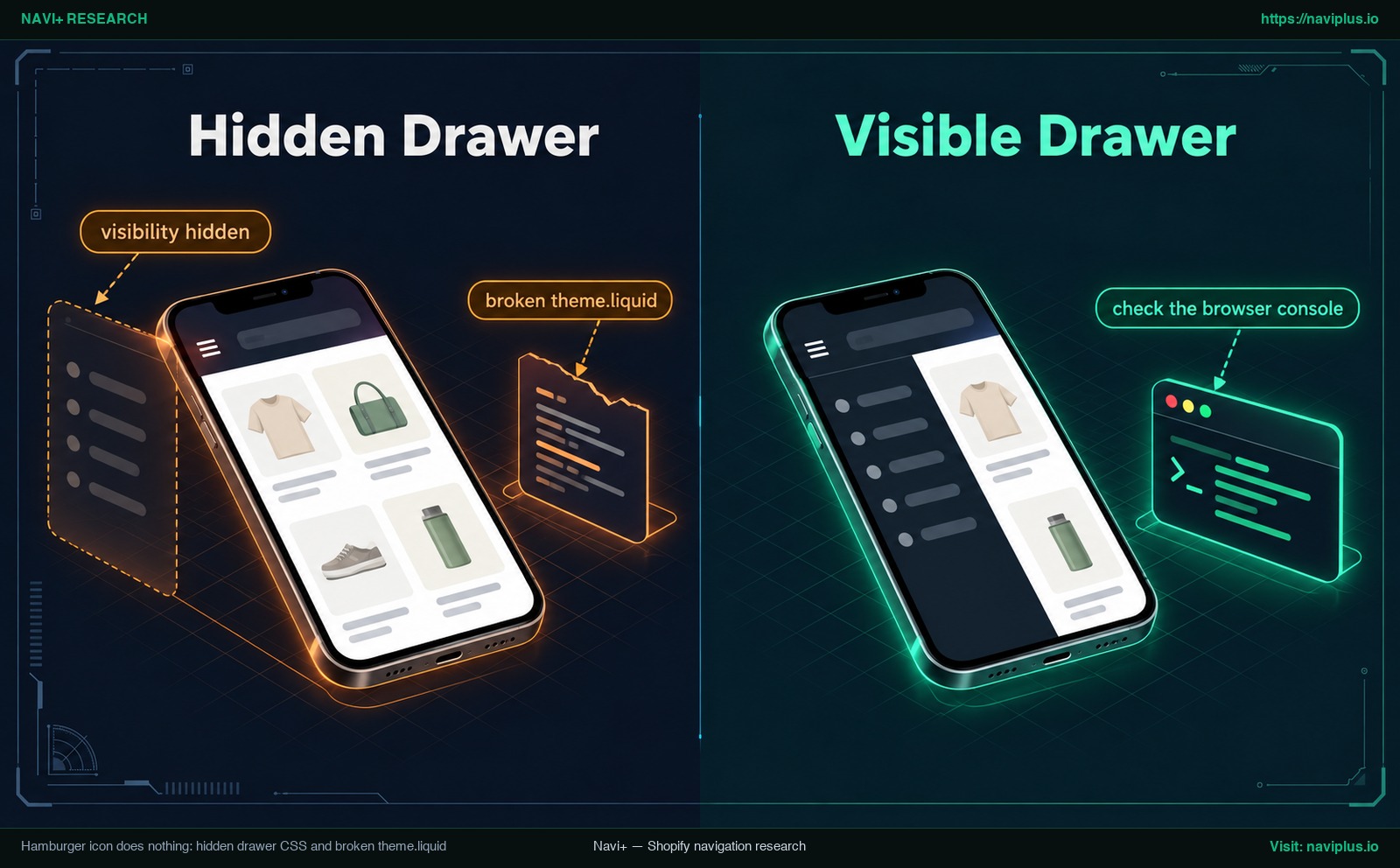
Figure 1: Concept illustration — Diagram of a Shopify mobile drawer hidden by CSS next to the same drawer made visible after checking markup and styles.
Hover dropdowns on touch screens: open on tap instead
If your mobile menu opens briefly and then snaps shut, or if dropdowns flicker wildly when you tap a category, a common trigger is a desktop hover rule.
According to MDN Web Docs, the @media (hover: none) media query describes an environment where “the primary input mechanism cannot hover at all or cannot conveniently hover (e.g., many mobile devices emulate hovering when the user performs an inconvenient long tap)” (MDN hover documentation). In contrast, @media (hover: hover) applies when “the primary input mechanism can conveniently hover over elements.”
When custom CSS or desktop theme styles bind submenu expansion to :hover without checking device capabilities, touch screens may try to emulate hovering. As a result, a dropdown can open and close at once on a tap, or the tap may not behave the way the hover rule expects.
To prevent this collision, open on tap instead by restricting hover expansion rules exclusively to devices with true pointer capabilities:
/* Restrict hover behavior to devices with true pointer hover capability */
/* Placeholder selectors for illustration only: replace them with your theme's own classes. */
/* Always test on a duplicate theme: selectors vary by theme and version. */
@media (hover: hover) {
  .header__menu-item:hover .header__submenu {
    display: block;
  }
}
By enclosing hover styles inside @media (hover: hover), phones and tablets fall back to the theme’s native tap toggles. Note that making a submenu open on hover is awkward on touch headers: in a Shopify Community thread on Dawn, a community helper wrote that they didn’t see a way to do hover-open with CSS only, so it likely needs JavaScript or keeping the theme’s default behavior.
Submenus that should expand: nesting, theme settings, and CSS
When top-level menu links appear inside your mobile drawer but child items refuse to show, the issue is usually structural rather than technical.
Start by verifying your menu hierarchy in your Shopify admin. Go to Content > Menus and select your main navigation list. As explained in the Shopify drop-down menus manual: “You can build drop-down menus by creating or moving menu items so that they’re nested below a top-level item.” A child item must be nested beneath its parent in the menu editor; an item that is not nested stays a top-level item.
Shopify also enforces a clear hierarchy boundary: “The top-level item can have up to two levels of nested drop-down menus.” This provides three tiers in total:
- Top-level item (e.g., Apparel)
- First nested submenu level (e.g., Women’s)
- Second nested submenu level (e.g., Jackets)
Many themes render parent items with nested children as disclosure buttons rather than direct page links on mobile. Tapping the parent label expands the child list rather than navigating away. If you need shoppers to access the parent category page itself, add a dedicated child link (such as “Shop all Apparel”) directly under the parent.
If your nesting structure is correct in the admin but submenus still fail to expand on mobile, your theme may require styling adjustments. Shopify notes that “some themes might require CSS adjustments to improve mobile usability.” If you write CSS to adjust submenu display or indentation, ensure the rules are strictly scoped within mobile media queries (such as @media (max-width: 749px)) and targeted specifically to drawer classes so you do not accidentally alter typography or navigation on desktop. For an in-depth look at organizing tiers and handles, read our complete Shopify menu guide.
Drawer opens full width or the wrong style
Sometimes a mobile menu opens, but in a way that hurts usability. Some merchants find that their navigation panel covers the whole phone screen and hides the storefront behind it.
In store discussions, some merchants say they prefer a drawer that does not cover the full screen (Shopify Community thread 275308). A drawer that fills the display edge to edge hides the page behind it, while a visible strip of the dimmed page can make it clearer that the panel can be closed.
Before modifying code, check your theme settings. In many themes, mobile menu behavior is controlled in the Theme Editor under the Header section. Some themes also let you control the header independently for mobile and desktop.
If your theme lacks a width setting for its mobile drawer, you can test capping the drawer width on a duplicate theme:
/* Example max-width constraint for a slide-out drawer on a duplicate theme; the value is only a placeholder, pick one that suits your design */
/* Always test on a duplicate theme: selectors vary by theme and version. */
@media (max-width: 749px) {
  .menu-drawer {
    max-width: 80vw;
  }
}
When adjusting drawer styling, ensure three critical design elements remain intact: Drawer opens full width should be tamed, the overlay stays visible so shoppers understand they can tap outside to dismiss, and an easy close button remains clearly accessible at the top. For drawer design patterns, see our guide on mobile drawer menu best practices.
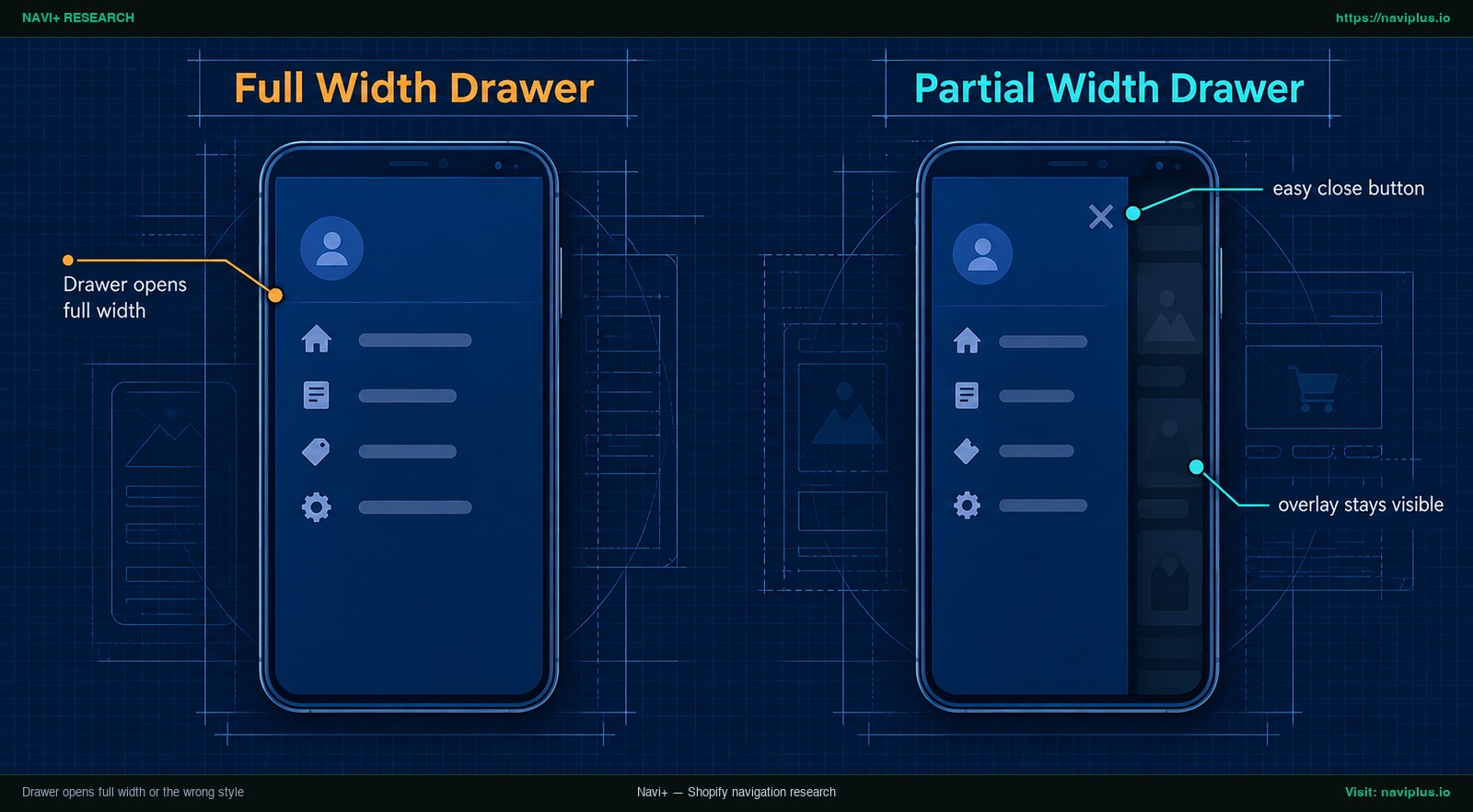
Figure 2: Concept illustration — Side-by-side phone mockups of a full-width Shopify mobile drawer and a partial-width drawer with the page visible behind.
Trade-offs: when code fixes stop being worth it
Editing CSS and Liquid files to fix mobile menu behavior can resolve immediate issues, but merchants must weigh the ongoing maintenance cost.
First, custom code often has to be re-added after an update. In a Shopify Community discussion regarding the Dawn theme, a merchant noted that updating to version 11.0 fixed their menu issue, but they would need to add back their custom changes (Shopify Community thread 259424). When you update your theme, custom rules you added to files such as base.css, main.css, or theme.liquid may need to be applied again.
Second, community code snippets are highly theme-specific. Notice how the selector in the main.css example (.main-menu__disclosure.is-open > .main-menu__content) bears little resemblance to the selector in the Dawn base.css example (.menu-opening .menu-drawer). Pasting CSS written for one theme into another may do nothing or introduce unexpected layout bugs. Stacking several patches also makes problems harder to diagnose.
However, an app is not always the answer. There are clear scenarios where you should NOT switch to an app:
- A single missing markup line: If your menu broke because the top lines of
theme.liquidwere removed while adding a tag or an app, restoring those lines may resolve the issue cleanly without adding overhead. - Native settings exist: If your theme already provides settings in the Header section for drawer width, mobile menu style, or submenu display, using those native options is usually the simpler choice.
- Added overhead: Installing an app introduces an additional component that must be configured and managed.
Where Navi+ fits
If your theme’s native mobile navigation lacks the layout controls you need, or if you are tired of maintaining custom CSS overrides across theme updates, Navi+ offers an alternative approach.
Navi+ Mobile Menu provides a dedicated navigation drawer configured entirely inside the app interface:
- Custom drawer width: Adjust the mobile drawer width in the app settings (new menus start with an 80% width preset) so your navigation does not have to cover the screen edge to edge.
- Flexible submenu styles: Choose whether nested menus slide into a new sub-panel or expand downward in place like an accordion.
- Backdrop and scroll lock: You can set a background overlay and page scroll locking while the drawer is open, and menus support up to three levels of navigation.
- Sticky Tab Bar: Complement your hamburger drawer with a persistent bottom navigation bar that stays visible while shoppers browse.
It is important to understand what Navi+ does and does not do: Navi+ does not repair damaged theme files or patch a broken theme drawer. Instead, it provides a separate, managed navigation system that replaces your theme drawer when you prefer not to touch code.
If you’ve re-applied the same menu fix after every theme update, you can try building the mobile drawer in Navi+ instead — set the drawer width and submenu style in the app, preview it on your phone, and keep your theme files untouched.
To evaluate which navigation pattern fits your store catalog, explore our guides on how to choose the right menu type and how to add a bottom tab bar on mobile.
Action checklist after the fix
Once you implement a fix on your duplicate theme, run through this seven-point verification checklist before publishing changes live:
- Bidirectional drawer toggle: Confirm the mobile drawer opens immediately upon tapping the hamburger icon, and closes cleanly via both the close button (
X) and a tap on the dimmed backdrop. - Submenu disclosure: Tap each parent category with nested items to ensure submenus expand smoothly without page flickering or navigation aborts.
- Touch target compliance: Verify all navigation links, chevron icons, and close buttons meet the WCAG 2.2 Success Criterion 2.5.8 minimum target size of at least 24 by 24 CSS pixels, with some exceptions (W3C target size standards), to prevent accidental mis-taps.
- Cross-device testing: Test the theme on both an iOS device (Safari) and an Android device (Chrome) to catch platform-specific touch behaviors.
- Document custom edits: Keep a clear record of any CSS rules or Liquid edits added so you can easily reference or re-apply them after future theme updates.
- Evaluate visible navigation: Remember that, as Nielsen Norman Group research indicates, “the hamburger menu is not so universal that everyone knows it or immediately looks for it” (NN/g mobile navigation research). Consider pairing your drawer with visible shortcuts, as outlined in our guide to navigation beyond the hamburger menu.
- Publish only a verified theme: After all tests pass on your duplicate theme, publish it to your live store.
FAQ
Why won’t my Shopify hamburger menu open?
Most commonly, the drawer element is hidden by an overriding CSS property or critical opening markup in theme.liquid was accidentally deleted while a tag or script was being added. Check your browser developer console for JavaScript errors and test recently added apps before modifying code.
How do I make a submenu open when I tap the parent item?
In your Shopify admin under Content > Menus, drag and nest child items directly beneath the parent item. Many themes render parent items with child items as tap-to-expand buttons; custom collapse or inline display behaviors may require theme settings or specific CSS adjustments.
How many submenu levels does Shopify support?
Shopify navigation supports a top-level item with up to two levels of nested drop-down menus beneath it, creating a total of three hierarchy tiers. Your active storefront theme may also need to support displaying all three levels.
Will my CSS fix disappear when I update my theme?
Often, yes. Custom code added directly to theme files like base.css or main.css often has to be re-added after you update to a new theme version. Always duplicate your theme before editing and keep a log of your custom code snippets.
Why do hover menus misbehave on phones?
Many touchscreens cannot hover conveniently; MDN notes that many mobile devices emulate hovering only on an inconvenient long tap. When a desktop :hover CSS rule is triggered by touch, a dropdown can open and close unexpectedly.
Can I change the width of the mobile drawer?
Depending on your theme, you can often adjust mobile drawer width directly in the Theme Editor under the Header section. If your theme lacks this setting, you can define a max-width media query in CSS or use a dedicated menu app that offers drawer width controls.
Sources
- Shopify Help Center: Drop-down menus (help.shopify.com)
- Shopify Help Center: Duplicating themes (help.shopify.com)
- MDN Web Docs: @media (hover) (developer.mozilla.org)
- W3C: WCAG 2.2 Target Size (Minimum) (w3.org)
- Nielsen Norman Group: Mobile Navigation Beyond the Hamburger (nngroup.com)
- fudge.ai: How to Change Mobile Menu Behavior in Shopify (fudge.ai)
- Shopify Community: Why isn’t my online store menu opening on mobile devices? (community.shopify.com)
- Shopify Community: Why is my menu not showing on mobile when I click the hamburger icon? (community.shopify.com)
- Shopify Community: Mobile menu is not working for my store (community.shopify.com)
- Shopify Community: Menu doesn’t work on mobile (community.shopify.com)
- Shopify Community: Why is the mobile menu not functioning on Dawn theme? (community.shopify.com)
- Shopify Community: How to fix a menu opening fully on mobile? (community.shopify.com)
- Shopify Community: Dawn theme header expand without clicking (community.shopify.com)
Explore the topics
This guide links out to focused articles — dive deeper on each.