Quick answer: how to change the z-index of a tab bar
To change the z-index of a tab bar, inspect the tab bar and the element it collides with, compare their z-index values, then set the tab bar’s value lower or higher in your theme’s Custom CSS or your tab bar app’s settings. The higher value appears in front.
Place the tab bar below slideout drawers and popups so customers can complete checkout, but above standard scrolling page content. After changing the layer integer, always verify the result on a physical mobile phone.
Why your tab bar covers (or hides behind) other elements
A mobile bottom tab bar uses fixed positioning to anchor navigation within thumb reach while store content scrolls underneath. Because it stays anchored as shoppers browse, it must sit on an elevated display layer above standard text and product grids.
Collisions occur because modern storefronts rely on multiple floating layers: cart drawers, search overlays, popups, chat widgets, and announcement bars. Each theme and app author assigns its own layer integers to its components, so there is no single number that works on every store.
This lack of coordination creates two common visual defects on mobile screens:
- The tab bar covers the cart drawer: The tab bar renders directly over the cart drawer footer, hiding the checkout button or subtotal because its layer number is higher than the drawer.
- The tab bar hides behind page content: The tab bar slips behind a promotional banner, video section, or slider because that section has a higher layer value or its own stacking context.
Understanding mobile tab bar architecture means recognizing that bottom navigation must coordinate with other floating storefront layers rather than competing with them.
How z-index and stacking contexts work, in plain terms
In CSS, the z-index property controls how elements stack along the virtual z-axis extending from the screen toward the user. Under MDN Understanding z-index, the property is expressed as an integer (positive, negative, or zero) and controls the stacking order during rendering, which lets you place elements in front of or behind other elements in the same stacking context.
The essential condition is in the same stacking context.
As defined by Google web.dev, “A stacking context is a group of elements that have a common parent and move up and down the z axis together.” Think of stacking contexts like cardboard boxes. If two cards sit inside the same box, the card with the higher integer sits in front. But if Card A sits inside Box 1, and Box 1 is stacked beneath Box 2, Card A can never appear in front of Box 2—no matter how large a number you give Card A.
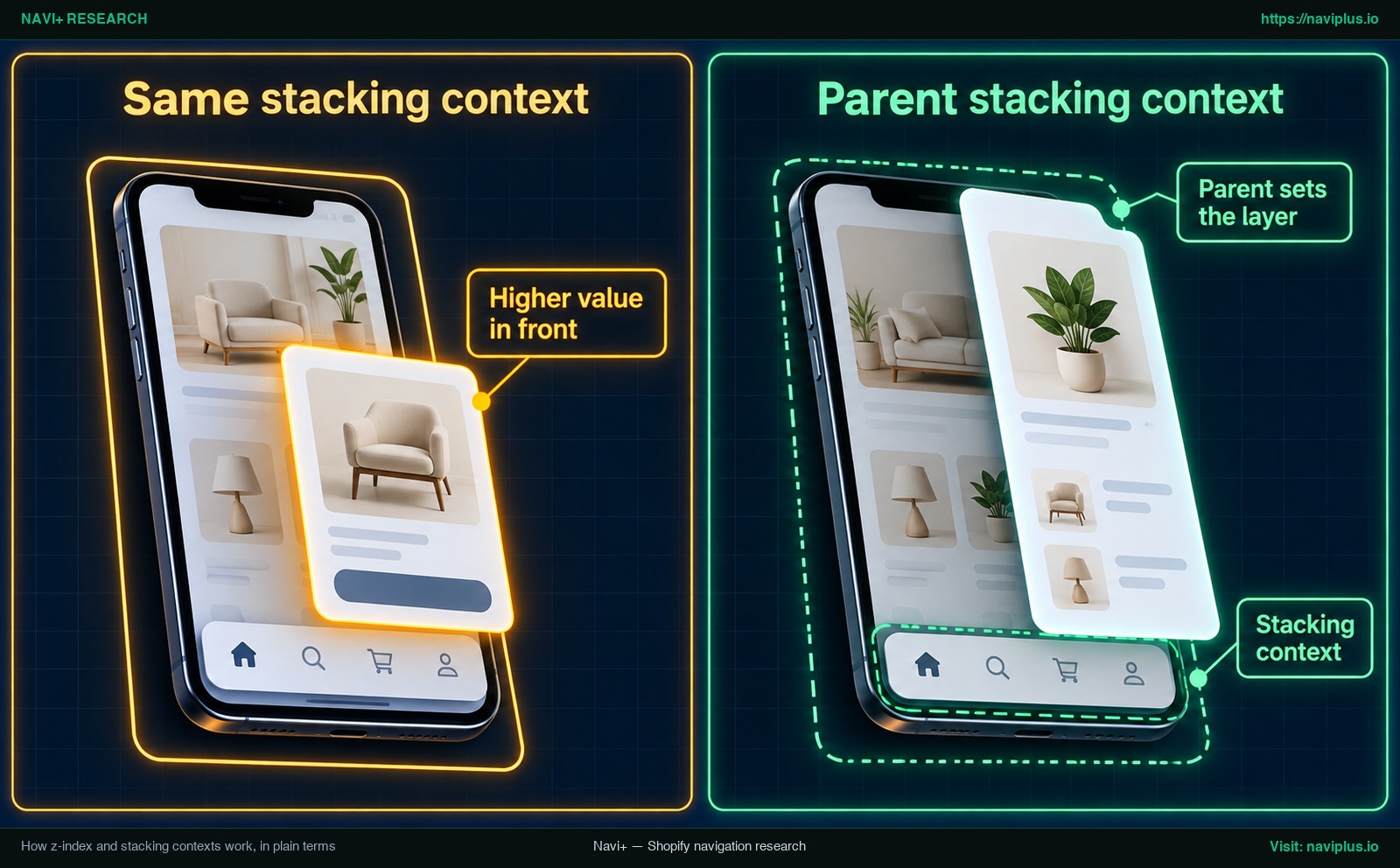
Concept illustration: A child element cannot break out of its parent stacking context; if the parent container sits lower on the z-axis, a higher child z-index still renders beneath sibling overlays.
When two elements are not direct siblings, stacking becomes more complex because each element may belong to a different stacking context. A browser creates a new stacking context whenever an element uses:
position: fixedorposition: stickyopacityless than1transform,filter, orperspectiveset to any value other thannone
Because bottom menus and sticky headers share these properties, similar stacking dynamics occur between sticky header and footer menus. If an app wrapper or theme container creates an isolated stacking context, increasing the child tab bar’s number has no effect against elements outside that container.
Find what’s overlapping with browser DevTools
Before changing code, inspect the colliding elements to read their current computed styles and parent containers.
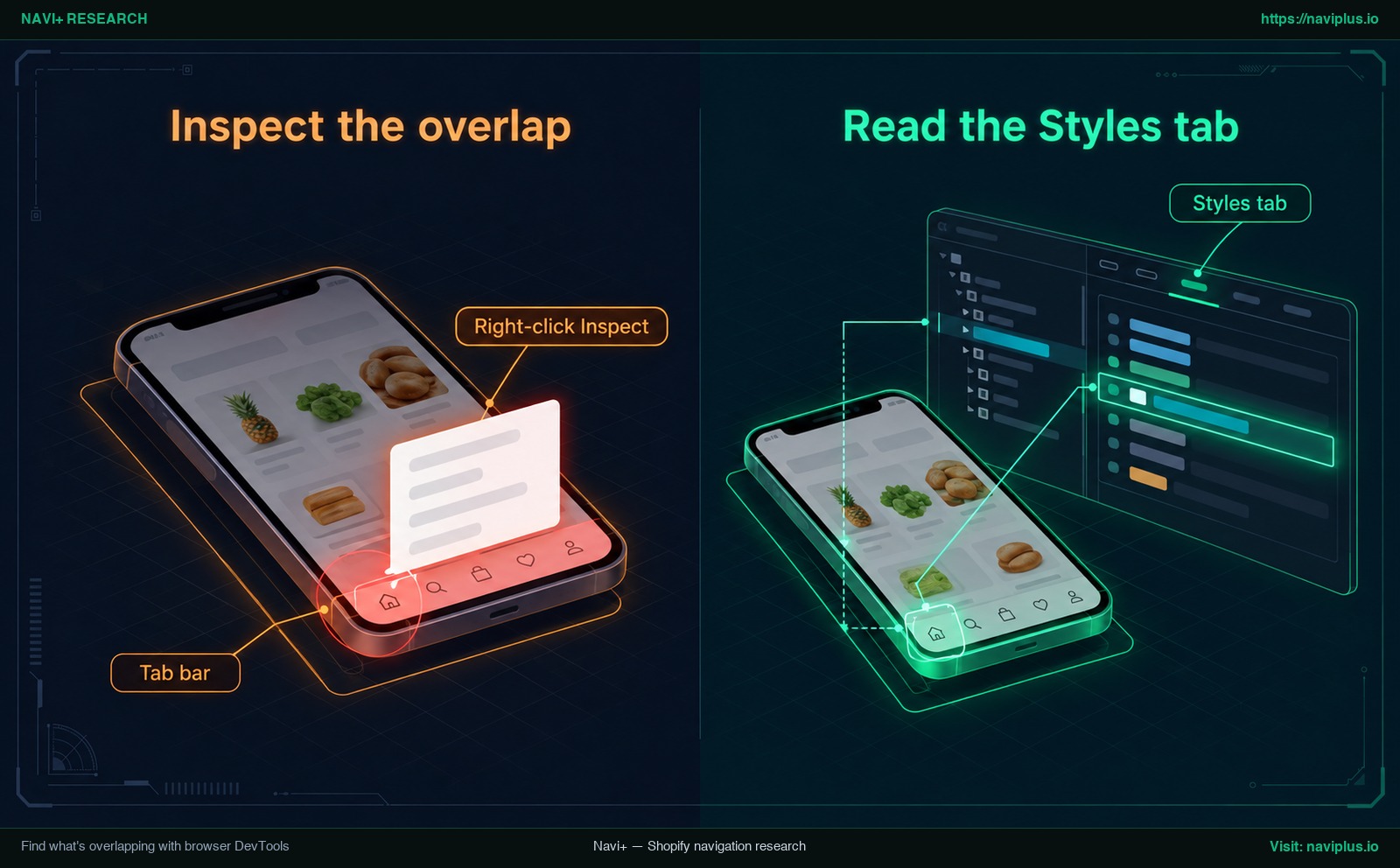
Concept illustration: Inspecting the outer tab bar container in browser DevTools to read its computed position and z-index declarations in the Styles tab.
Desktop Chrome
- Right-click the tab bar on your storefront and select Inspect.
- In the Elements DOM tree, locate the outermost wrapper of the tab bar (such as
.mobile-tab-baror a custom app wrapper). - Check the Styles tab on the right. As noted in the Google Chrome DevTools docs, the Styles tab lists the CSS rules applied to whatever element is selected in the DOM tree. Find
positionandz-index. - Open the colliding element (like your cart drawer or search modal), right-click it, select Inspect, and record its
z-indexandposition. - Walk up the DOM tree for both elements to see if any parent container has
transform,filter, oropacity < 1creating an isolated stacking context.
Checking the mobile view
Click the Toggle device toolbar icon to simulate a mobile viewport. While device emulation accurately tests media queries and DOM layouts, physical touch rendering can differ. Use DevTools to identify the numbers, then verify the final result on a physical phone.
Pick the right layer order for tab bar, cart drawer, popups and chat
Fixing layer collisions does not require guessing extreme numbers like 999999. Elements with higher layer integers overlap elements with lower layer integers in the same context, and the value can be any integer—positive, negative, or zero.
Organize your store around a deliberate visual hierarchy:
| Element | Should sit | Why |
|---|---|---|
| Page content and sections | Below the tab bar | Text, product cards, collections, and media banners must scroll smoothly beneath persistent navigation. |
| Mobile bottom tab bar | Above page content; below interactive overlays | Navigation must stay accessible during casual browsing, but yield visibility whenever a focused customer flow opens. |
| Cart drawer, search modal, popups, age gates | Above the tab bar | Critical conversion actions (adjusting quantities, clicking Checkout, submitting forms) must never be blocked by navigation. |
| Live chat widget | Adjusted alongside tab bar | Chat bubbles should remain accessible without covering tab bar destinations or primary checkout buttons. |
There is no universal standard number across Shopify themes. When reviewing how drawer menus are layered, the rule is relative: your tab bar’s layer integer must sit below your cart drawer’s value. Example numbers only: if your drawer’s value is 100, any tab bar value below 100 keeps the drawer in front. If you cannot find the drawer’s value, some app documentation suggests starting with a trial value of 50 and testing the storefront, adjusting downward if overlap persists.
Where to change the value: theme custom CSS vs. app settings
Once you know the required value, apply it using theme Custom CSS or your tab bar app’s configuration settings.
Theme settings Custom CSS
In Shopify Admin, navigate to Online Store > Edit theme > Theme settings > Custom CSS.
Under the Shopify Help Center, rules placed here affect the entire theme, with specific limitations:
- Character limit: Theme-wide custom CSS rules are limited to 1500 characters.
- Section scoping: CSS added to an individual section only applies to that section and is limited to 500 characters. For a global floating tab bar, use Theme settings.
- Theme updates: Updating your theme might cause custom CSS to stop functioning depending on the CSS selectors or classes used.
/* Example: Adjusting mobile tab bar z-index in Shopify Theme settings > Custom CSS */
/* Replace .custom-tab-bar-wrapper with your actual tab bar container selector */
@media (max-width: 749px) {
  .custom-tab-bar-wrapper {
    /* Example value: ensure this integer sits below your cart drawer */
    z-index: 40;
  }
}
Inside your tab bar app
If your tab bar comes from an app, check the app’s built-in z-index setting first; app vendors’ help pages typically point there, and the setting is stored with your menu rather than in your theme’s CSS. For background on why several apps can clash on a storefront, see how app embeds can conflict with your theme.
Why your z-index change does nothing
When changing a layer value produces no visible change, inspect these common root causes:
| Observed Symptom | Underlying Architectural Cause | Corrective Action |
|---|---|---|
| Value changes in CSS, but element does not move | Element is position static: z-index only sets the stacking order of positioned elements (relative, absolute, fixed, sticky) and flex/grid items. Static elements ignore z-index. |
Add an explicit position: fixed or position: relative rule to the targeted selector. |
| High number stays behind a lower number | Trapped in a parent stacking context: The tab bar sits inside a container with transform or opacity < 1. Under MDN Stacking context, child z-index values only have meaning within the parent’s context. |
Apply the z-index rule to the outermost parent container sharing an ancestor with the overlay. |
| Rule is struck through in Styles tab | Overridden by another rule: A more specific selector or !important rule is overriding your style. |
Use a more specific selector; use !important only as a temporary troubleshooting step. |
auto does not reset layers |
auto creates no context: The auto value does not establish a new local stacking context. |
Assign an explicit integer (0, positive, or negative) rather than auto. |
| Inner icons move, but background overlaps | Wrong selector targeted: Styling inner links or icons instead of the outer fixed container. | Target the root fixed container element in DevTools. |
Mobile-only fixes with a media query
Because bottom tab bars are designed for mobile screens, scope your CSS rules to mobile viewports so desktop navigation is unaffected.
Wrap the override in a media query matching your theme’s breakpoint:
/* Example: Scope tab bar layer order to mobile viewports */
/* 749px is only an example breakpoint; use your own theme's breakpoint */
@media screen and (max-width: 749px) {
  .theme-mobile-tab-bar-container {
    /* Example value: positioned above page content, below cart drawer */
    z-index: 45;
  }
}
Keep rules short to stay within Shopify’s 1500-character limit for theme Custom CSS. Always test both portrait and landscape orientations to ensure the layout remains stable when users rotate their phone.
Trade-offs: when a high z-index is the wrong fix
Setting an excessively high layer value introduces real trade-offs:
- Obscuring checkout: If the tab bar sits above your cart drawer, it can cover the subtotal and checkout button, making it hard for shoppers to check out.
- Blocking compliance gates: A tab bar painted over cookie banners or age verification modals prevents visitors from consenting or accessing the store.
- Escalating app conflicts: Entering arbitrary values like
2147483647invites an endless numbers race between third-party app embeds, and it can still lose if a parent stacking context traps the element. When another app causes the conflict, lowering that element or contacting its vendor is often the correct fix. - Theme update fragility: Custom CSS rules can stop functioning when you update your theme if class names change. A setting stored in your tab bar app is not part of your theme’s CSS.
Where Navi+ fits
If your tab bar is built with Navi+, you do not need to edit theme code or write custom CSS to adjust layer order.
Inside the Navi+ menu editor:
- Open your target menu from the Navi+ dashboard.
- Navigate to the Advanced tab in the menu settings.
- Locate the Z-index card (labeled “Z-INDEX: Set the menu layer order”).
- Review the current value in the Z-index field, and enter your target integer (accepts integers from
0to2147483647). - Click Save.
Your layer setting is stored in the menu configuration, not in your theme’s code.
As you explore mobile navigation beyond the hamburger menu, keeping bottom bars harmonized with drawers ensures smooth mobile shopping.
If your tab bar comes from Navi+, you don’t need to touch theme code: open the menu, go to Advanced, set the Z-index below your cart drawer, and save. If you’re unsure which value fits your theme, our support team can look at it with you.
Test checklist before you call it fixed
Complete this verification checklist before concluding your changes:
- Open the cart drawer: Add an item to the cart, open the slideout cart drawer, and confirm that all cart items, quantity selectors, and checkout buttons are fully visible and clickable without obstruction.
- Trigger the search overlay: Open your storefront’s search drawer or full-screen search modal; verify that the search input and suggestion list render cleanly above the tab bar.
- Test marketing and compliance popups: Trigger email newsletter forms, discount modals, cookie consent banners, and age verification gates to ensure they sit above navigation.
- Inspect live customer chat: Open your live chat widget; ensure the chat bubble does not collide with or block tab bar navigation destinations.
- Open the theme mobile drawer: Tap the theme hamburger menu to verify that the primary navigation drawer slides out smoothly without clipping behind the tab bar.
- Scroll past rich media sections: Scroll through homepage image carousels, background video banners, and promotional sliders to verify that the tab bar remains visible and anchored.
- Test on iOS Safari: Open the storefront on a physical iPhone using Safari, paying particular attention to the bottom gesture home indicator bar.
- Test on Android Chrome: Open the storefront on a physical Android phone in Google Chrome to verify tap target responsiveness.
- Rotate screen orientation: Rotate a mobile device between portrait and landscape modes to verify that media queries adapt without layout jumping.
- Clear cache and test incognito: Test in an incognito or private browsing window to ensure your browser renders the latest stylesheet rules rather than cached assets.
FAQ
How do I change the z-index of a tab bar?
Inspect the tab bar and the colliding element with browser DevTools to compare their layer values, then assign your tab bar a lower or higher integer in your theme’s Custom CSS or inside your tab bar app’s settings.
Why is my tab bar showing over the cart drawer?
Your tab bar has a higher z-index value than the cart drawer container within the same stacking context; lower the tab bar’s value so the cart drawer renders in front.
Why does my z-index change have no effect?
Your targeted element may have a default static position, or it may reside inside a parent container that creates an isolated stacking context, restricting child layer numbers to that parent.
Which z-index value should I use?
There is no universal standard value because each theme and app uses different integers; choose an integer that places the tab bar above standard page content but below interactive drawers, or test a starting value like 50 and adjust downward if collisions persist.
Where do I put the CSS in Shopify?
Place site-wide CSS in Shopify Admin under Online Store > Edit theme > Theme settings > Custom CSS, which applies across your entire theme up to a 1500-character limit.
Sources
- MDN Web Docs: Understanding CSS z-index
- MDN Web Docs: The Stacking Context
- MDN Web Docs: z-index Property Reference
- Google web.dev: CSS z-index and Stacking Contexts
- Google Chrome DevTools: View and Change CSS
- Shopify Help Center: Adding Custom CSS to Your Theme
- Hextom Help Center: My Bar Is Covering Another Element – How to Fix It
- Conversion Bear Support: Sticky Bar Is Covering the Side Cart
- Ninja Commerce Support: Resolving Sticky Bar Overlap and Push Down Issues
- MakeProSimp Support: How Does Z-index Affect the Popup and Cart Drawer?
Explore the topics
This guide links out to focused articles — dive deeper on each.