How to Create a Menu in Shopify Using a Navigation Menu App (Step-by-Step)
Setting up an intuitive storefront menu is an important foundation for store usability on Shopify. A menu app does not throw away your native Shopify navigation—it builds directly on a clean structure in your Shopify admin, adds the visual layouts your theme cannot provide on its own, and goes live only after you activate it in your theme’s App embeds.
If you have hit the ceiling of default drop-down lists, need multi-column panels with category thumbnails, or want a dedicated mobile drawer and sticky bottom bar, this guide walks through the entire process step by step without touching code.
Quick answer: how to create a menu with a Shopify navigation menu app
To create a menu with a Shopify navigation menu app, plan your links in Content > Menus, install the app and build the menu in its editor, add submenus or a mega menu, set up a mobile layout, turn the app on under App embeds in the theme editor and test on desktop and mobile.
Here is the five-step process:
- Plan your menu structure in Content > Menus: Organize your collections, products, and core pages in your Shopify admin before installing any third-party app.
- Install the navigation app and build your first menu: Add your chosen app from the Shopify App Store and configure your desktop menu container or start from a layout template.
- Add submenus, mega menu panels, and images: Group nested links under top-level items, format columns logically, and insert collection thumbnails to aid visual scanning.
- Build the mobile menu and preview it on a phone: Set up a dedicated slide-out drawer or sticky bottom tab bar to prevent handheld navigation clutter, then test on a physical smartphone.
- Publish via App embeds and troubleshoot: Activate the app’s embed toggle in your theme editor settings, save your changes, and verify positioning across both desktop and mobile viewports.
When Shopify’s built-in menu is enough (and when you need a menu app)
In Shopify, your native menus are managed centrally under Content > Menus in the Shopify admin, while your chosen theme settings dictate where those menus appear on your storefront.
For many smaller catalogs, Shopify’s built-in navigation handles everyday store browsing effectively. According to Shopify Help Center documentation, a top-level menu item can support up to two levels of nested drop-down menus. That three-tier ceiling (Top Item → First Tier → Second Tier) accommodates compact collections, standard policy pages, and straightforward product catalogs without requiring additional software.
However, as Baymard Institute research on navigation best practices emphasizes, in order to buy a product, your customers must be able to find it first. When a store grows to many subcategories, text-only drop-downs force shoppers to scroll through long, vertical lists. Depending on your theme, the built-in menu may not let you add category banners, product images, or multi-column grids without extra customization.
To understand the structural boundaries built into standard themes before deciding on third-party tools, read our detailed breakdown of Shopify theme menu limitations.
| Need | Built-in Shopify Menu | Navigation Menu App |
|---|---|---|
| Setup effort & cost | Included with your Shopify store; no extra app to install. | Requires app installation and design configuration. |
| Hierarchy depth | Supports up to two levels of nested drop-downs below top item. | Typically supports multi-tier nesting and column grouping. |
| Visual assets & imagery | Mostly text links; depends on theme capabilities unless customized. | Direct support for collection photos, product cards, and icons. |
| Multi-column layouts | Dependent on theme header support; often single-column. | Multi-column mega menus. |
| Mobile navigation control | Tied to default theme mobile hamburger drawer. | Options for custom slide-out drawers and sticky bottom tab bars. |
| Theme switching | Remains bound to standard theme header templates. | Embeds must be reactivated when switching published themes. |
If your catalog contains only a handful of items and customers reach products in one or two clicks, the native menu is not just enough—it is the simplest setup. But when visual guidance and ergonomic layouts are needed to help buyers navigate diverse catalog branches, a dedicated navigation app becomes practical.
Step 1: Plan your menu structure before you install anything
A clean menu starts with a clean Shopify catalog. Before opening the Shopify App Store or adding app blocks, take time to map out your structure.
First, verify that your destination assets exist in your Shopify admin. Create all necessary collections, ensure each collection has active products assigned, and confirm that core utility pages (About Us, Contact, Shipping, FAQ) are published. A menu cannot link to pages or collections that do not yet exist.
Next, sketch your navigation hierarchy on paper or in a document, aiming for no more than three logical tiers. Short, clear labels are easier to scan than clever or ambiguous marketing phrasing. Use familiar category terms such as “Men’s Outerwear” rather than vague phrases like “Winter Horizons.”
Then, build or tidy your primary linklist under Content > Menus in the Shopify admin. Many navigation apps can connect to or pull from this existing structure, saving you from retyping every URL from scratch. To explore how different structural patterns fit various inventory sizes, review our guide on how to choose the right menu type.
Shopify’s own walkthrough of drop-down menus:
Once your links and categories are verified in your admin, you are ready to configure the app.
Step 2: Install the app and build your first menu
Once you have selected a menu app from the Shopify App Store, click Install to add the application to your store admin. Apps built with Shopify’s theme app extensions do not require you to manually edit your theme code, so check that the app you choose works this way.
Inside the app dashboard, the first configuration step is choosing what type of menu you want to create:
- Desktop Mega Menu: A wide dropdown panel designed for desktop screens, displaying multiple columns of categorized links alongside promotional blocks.
- Mobile Drawer Menu: An off-canvas panel that slides in when shoppers tap a hamburger trigger on smaller viewports.
- Bottom Tab Bar: A persistent navigation bar anchored to the bottom edge of mobile screens for primary shopping destinations.
Depending on the app, you can start building from a pre-designed layout template or create a container from scratch. For example, some navigation apps allow you to connect with existing Shopify menus directly, pulling in your linklist structure so you do not have to rebuild parent-child relationships manually.
Within the app’s visual editor, add your primary navigation items (such as “Shop”, “New Arrivals”, or “Collections”) and assign each link to its corresponding Shopify destination using internal search pickers rather than hardcoding absolute URLs. Use the editor’s live preview mode to check typography, spacing, and link alignments before moving to visual enrichment.
Step 3: Add submenus, a mega menu, images and collection links
Once your primary navigation items are in place, expand complex catalog categories into multi-column mega menus. As Nielsen Norman Group research on mega menus notes, mega menus are an excellent design choice for accommodating a large number of options, because they keep everything visible at once.
To build an effective mega menu within your app editor:
- Group links by logical category: Arrange subcategories into vertical columns under clear section headings (e.g., “Tops”, “Bottoms”, “Accessories”).
- Limit depth within panels: Keep the links under each column heading to a single layer so customers can scan every option in a single glance.
- Incorporate visual wayfinding: According to Nielsen Norman Group’s usability findings, images in the mega menu can help users select the right option. Add representative collection thumbnails or featured product callouts next to your link columns.
- Link to collections and products: Select collections or products through your app’s built-in picker rather than typing URLs by hand. This reduces typos, but re-check your links whenever you rename or delete a collection or page.
For in-depth design recommendations on column spacing, visual hierarchy, and promotional card placement, refer to our comprehensive guide on mega menu best practices.
Does a menu app replace your Shopify navigation menu?
A frequent point of confusion among merchants is whether installing an app permanently overwrites their native Shopify navigation.
The answer is that your native menu stays in Content > Menus in your Shopify admin, where you keep managing your links. The app handles how its own menu is shown on your theme’s storefront.
Depending on the app and your chosen configuration, there are distinct placement mechanisms:
- Insert Before or Insert After: The app injects its menu container directly above or below an existing theme element using a CSS selector (such as your theme header or announcement bar).
- Replace Theme Menu: The app targets the theme’s native menu container using its CSS selector and replaces that specific element entirely with the app’s custom menu markup.
- Section or Block Placement: Some apps allow you to add menus directly as native sections or blocks in your theme template. For instance, in Navi+, section and block placement methods apply specifically to Mega Menus and Grid Menus.
Concept illustration: Inserting an app menu below the header versus replacing the theme menu with a CSS selector.
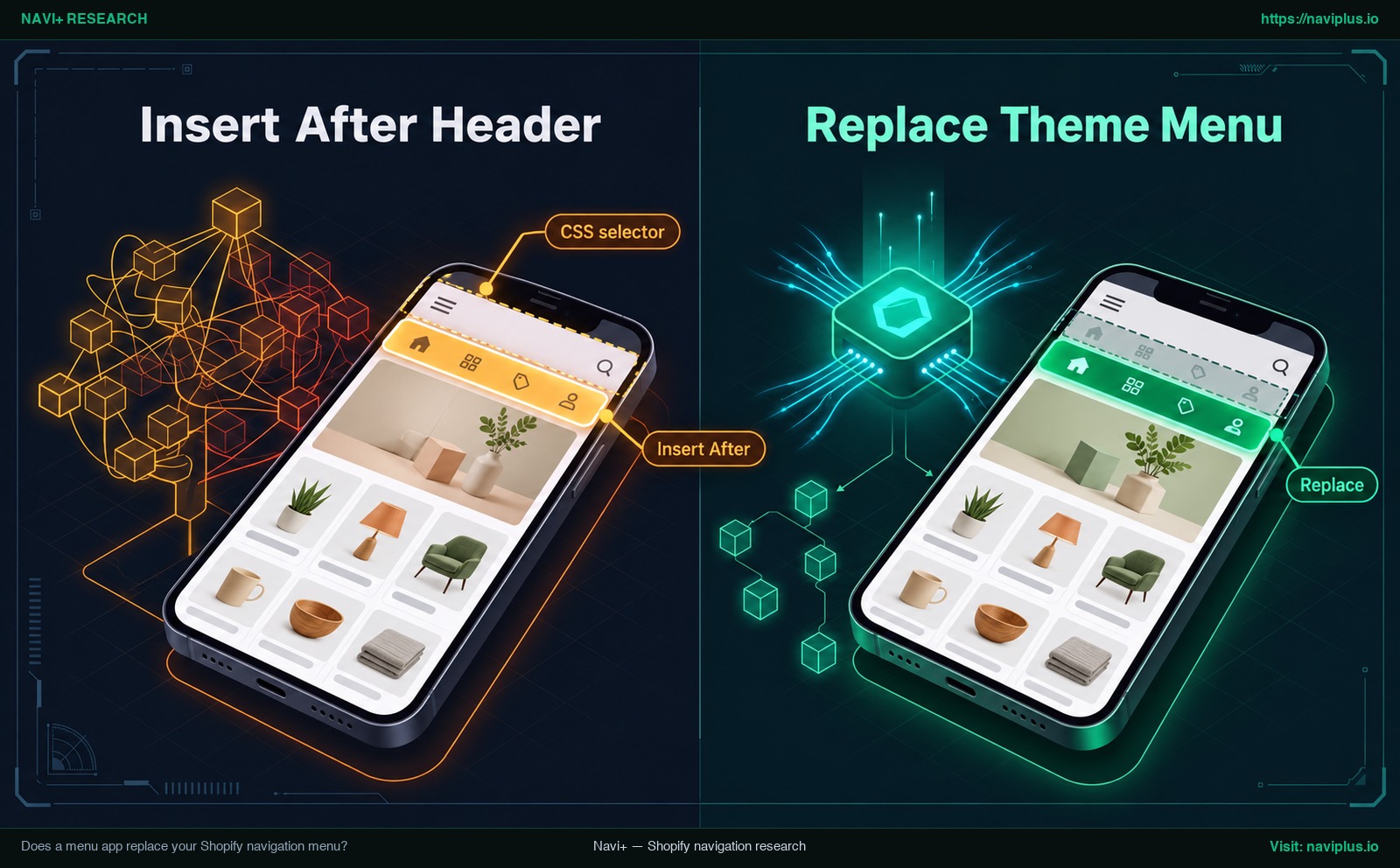
Figure 1: Concept illustration — Inserting an app menu below the header versus replacing the theme menu with a CSS selector.
Using your existing Shopify menu inside the app
Certain navigation apps can connect to your existing Shopify menus, pulling in your current link hierarchy as a starting foundation. However, you should check your app’s documentation to understand whether changes made in Content > Menus update dynamically or require you to click a manual sync button inside the app dashboard.
What happens when you change your theme
When you install or switch to a new theme, your app menu will not automatically appear on the newly published storefront. As Shopify Help Center documentation on app extensions notes, you need to re-activate those apps in your new theme as they will not be active by default.
Furthermore, because different themes use different HTML structures and CSS class names for their header elements, an app configured to replace a menu using a specific CSS selector may need its selector target updated in the new theme. For stores with active customer traffic, it is best practice to test the menu app on a duplicate theme version before publishing it live.
Step 4: Build the mobile menu and preview it on a phone
Desktop mega menus cannot simply be shrunk down to fit a mobile screen. Attempting to display wide multi-column layouts on a small display creates visual clutter and frustrates shoppers.
In usability studies conducted by Baymard Institute, some mobile test participants opened the main navigation only to quickly close it, overwhelmed and confused by the options provided to them. Furthermore, Shopify’s documentation on drop-down menus points out that some themes might require CSS adjustments to improve mobile usability.
When configuring mobile navigation in your app, consider two primary formats alongside responsive mode switching:
- Mobile Drawer Menu: An off-canvas menu that slides across the screen when triggered, using clean accordion rows that let shoppers expand subcategories without losing their place.
- Bottom Tab Bar: A persistent horizontal bar anchored to the lower edge of the screen, placing high-frequency destinations (such as Home, Search, Collections, and Cart) directly inside the natural thumb zone.
- Responsive Mode Switching: Some apps offer responsive fallback logic. For example, Navi+ by default switches desktop mega menus to mobile mode on any screen narrower than 768 pixels, and its Smart responsive feature embeds a live reference of the desktop menu into a mobile slide drawer.
Concept illustration: Comparing a mobile drawer menu with a bottom tab bar layout.
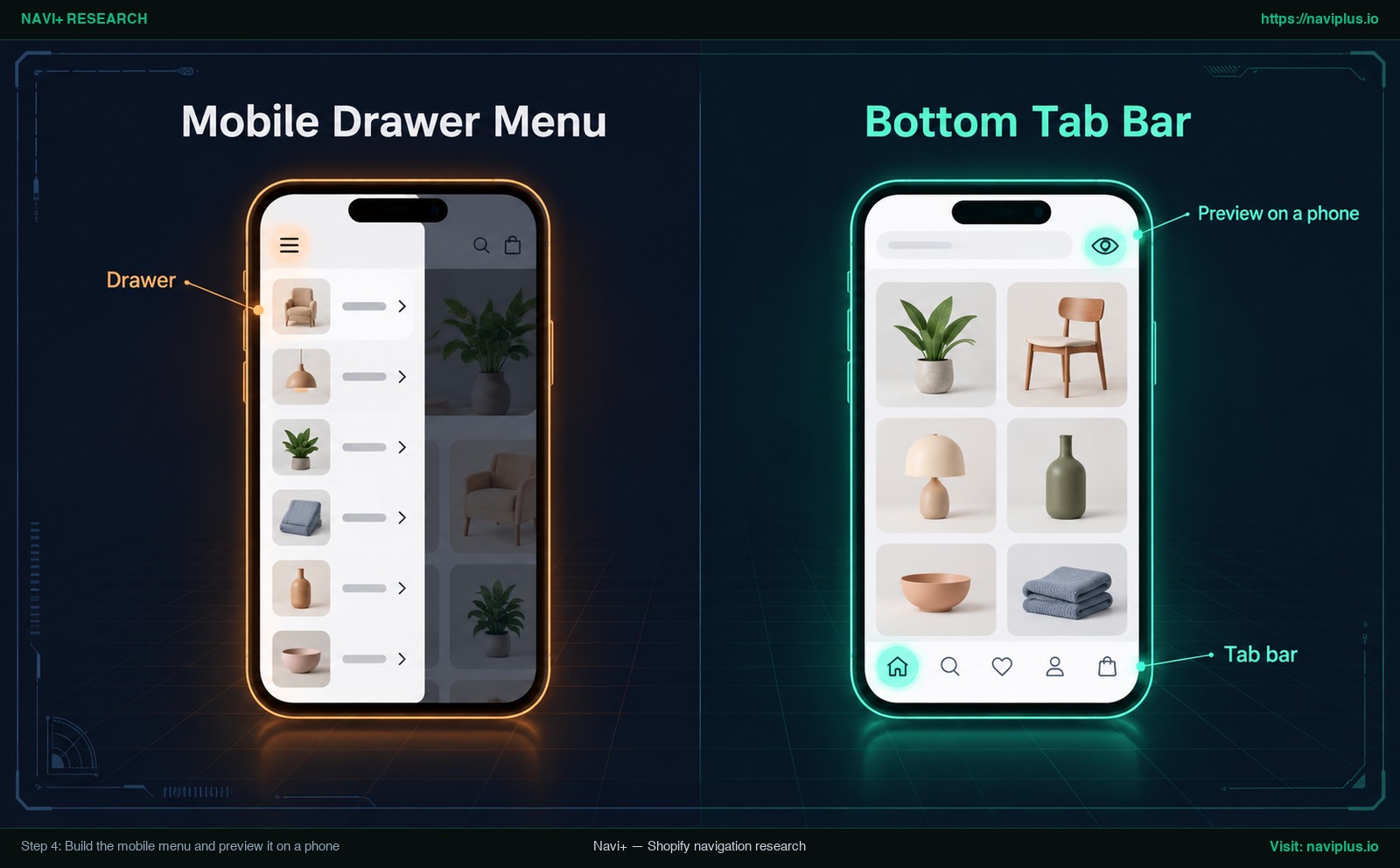
Figure 2: Concept illustration — Comparing a mobile drawer menu with a bottom tab bar layout.
Always preview your navigation on a physical smartphone rather than relying solely on desktop browser emulation. Testing on a physical device reveals whether tap targets are comfortably spaced and whether the menu responds smoothly to touch gestures.
To refine your mobile layouts further, consult our in-depth guides on the mobile drawer menu, configuring a thumb-friendly bottom tab bar, and broader mobile ergonomic principles in our analysis of mobile navigation beyond the hamburger menu.
Step 5: Publish on your storefront and fix common problems
Building your menu inside an app editor does not immediately push it live to your store visitors. Apps built with theme app extensions rely on App embeds, which let you switch the app on from the theme editor without manually editing your theme code.
Under Shopify developer guidelines for theme app extensions, app embed blocks are deactivated by default after an app is installed. Merchants must manually activate app embed blocks in the theme editor under Theme Settings > App embeds and click Save.
According to Shopify’s technical documentation on theme extensions, app embeds are app-provided elements that float or display as an overlay in your theme, and they can be used with any theme version. Because apps using theme app extensions inject elements this way, merchants do not need to manually edit their theme code.
To publish your menu:
- Open your Shopify admin and navigate to Online Store > Themes.
- Click Customize next to your active theme (or your duplicate test theme).
- In the left-hand sidebar, click the App embeds icon.
- Locate your navigation app’s embed toggle and switch it to On.
- Click Save in the top right corner.
| Problem | Likely Cause | Fix |
|---|---|---|
| Menu does not appear on storefront | App embed toggle is disabled in the theme editor, or you saved changes on a draft theme rather than your live theme. | Open the active theme in the theme editor, verify the app embed switch is turned on under App embeds, and click Save. |
| Both old theme menu and app menu appear | The app is set to “Insert Before” or “Insert After” instead of replacing the header element, or the CSS selector is incorrect. | Adjust the app’s display setting to “Replace”, or update the CSS selector to target your specific theme header navigation wrapper. |
| Broken navigation links (404 errors) | A linked collection or page was deleted or had its URL handle changed in the Shopify admin. | Reopen the app editor, reselect the target collection or page using the internal resource picker, and save. |
| Layout appears misaligned or broken on mobile | Desktop mega menu is attempting to render on mobile screens without a dedicated mobile drawer or tab bar configured. | Enable your app’s mobile-specific layout (such as an off-canvas drawer or bottom bar) and verify responsive breakpoint settings. |
Trade-offs: when you don’t need a menu app
While navigation apps provide creative flexibility, installing an app is not necessary for every Shopify business. Introducing third-party tools always comes with operational considerations:
- Simple catalogs do not require complex menus: If your store has only a few products organized under a couple of collections, Shopify’s native drop-down menus (supporting up to two nested levels) can provide a fast, clean browsing experience.
- Theme updates require extra verification: Whenever you change your published theme, app embeds do not activate automatically on the new theme, and element selectors may need adjustment.
- Some themes include a built-in mega menu: Certain themes offer a native multi-column header setting. If your current theme’s native option satisfies your design requirements, test that feature first before adding third-party apps.
Reserve navigation apps for situations where your catalog complexity, visual merchandising goals, or mobile usability requirements have outgrown what your theme can natively deliver.
Checklist: questions to ask before you install a menu app
Before committing to a navigation app, evaluate your options against these practical criteria:
- Native menu connectivity: Can the app connect to your existing Shopify linklists in Content > Menus, and does it clearly explain how link updates are synchronized?
- Dedicated mobile layouts: Does the app provide separate, ergonomic mobile options (such as an off-canvas drawer or sticky bottom tab bar) rather than forcing desktop panels onto mobile screens?
- No-code theme integration: Does the app publish strictly through Shopify App embeds and theme blocks without requiring manual modifications to Liquid code?
- Theme switching workflow: How straightforward is the process when you switch themes? Does the app support clean reactivation in App embeds?
- Safe testing on duplicate themes: Can you design, preview, and test the app menu on an unpublished duplicate theme before affecting live storefront traffic?
- Hierarchy limits: Does the app comfortably support your required category depth without exceeding practical scanning limits (aiming for three levels or fewer)?
- Responsive placement assistance: Does the app provider offer clear documentation or support if your theme uses non-standard header CSS selectors?
Where Navi+ fits
If you are looking for an intuitive way to implement this workflow on your store, Navi+ Tab Bar & Mega Menu provides a drag-and-drop builder for Shopify storefronts.
Navi+ allows merchants to build sticky bottom tab bars, multi-column mega menus, mobile drawer menus, icon menus, and floating action buttons using drag-and-drop editing. You can connect with existing Shopify menus to jumpstart your link structure.
To publish your navigation on your storefront, enable the “Store Connector” embed inside your theme’s App embeds settings. From there, you can choose whether to insert the menu before or after existing elements, or use Replace mode to swap your theme’s default header navigation with Navi+ using CSS selectors. For Mega Menus and Grid Menus, section and block placements are also supported.
To safeguard your live customer experience, Navi+ recommends that stores with existing traffic test the menu on a duplicate theme version first. If you want to try this workflow, Navi+ Tab Bar & Mega Menu has a free plan: build the menu, test it on a duplicate theme, and turn it on only when you’re happy with it.
FAQ
Does a menu app replace my Shopify navigation menu?
It depends on your app configuration and placement settings. A menu app can insert a new menu above or below your theme header, or replace the theme’s menu element entirely using CSS selectors, while your original link structure remains intact in Content > Menus.
What happens to my menu app if I change themes?
App embeds do not carry over automatically to newly published themes. You must re-activate the app embed in your new theme’s editor settings and verify that any CSS selectors used for menu replacement match the new theme’s markup.
How many levels can a Shopify drop-down menu have?
According to official Shopify documentation, a top-level menu item in Shopify’s native navigation can have up to two levels of nested drop-down menus, creating a maximum depth of three tiers.
Do I need to edit theme code to use a menu app?
Not if the app is built with Shopify’s theme app extensions: you can publish and configure menus directly from the theme editor without manually editing theme code. Check that the app you choose works this way.
When do I need a mega menu instead of a drop-down?
A mega menu is beneficial when you have a large number of categories that shoppers need to scan simultaneously, or when visual elements like collection images help customers choose the correct department.
How do I make my menu work on mobile?
Design a dedicated mobile layout—such as a slide-out drawer or sticky bottom tab bar—or use an app with responsive mode switching, and always verify touch usability by testing on a physical mobile device.
Sources
- Shopify Help Center — Menus and links. help.shopify.com/en/manual/online-store/menus-and-links
- Shopify Help Center — Drop-down menus. help.shopify.com/en/manual/online-store/menus-and-links/drop-down-menus
- Shopify Help Center — Apps and theme structure. help.shopify.com/en/manual/online-store/themes/theme-structure/extend/apps
- Shopify Developer Documentation — Theme app extension configuration. shopify.dev/docs/apps/build/online-store/theme-app-extensions/configuration
- Shopify Developer Documentation — Theme app extensions overview. shopify.dev/docs/apps/build/online-store/theme-app-extensions
- Nielsen Norman Group — Mega Menus Work Well for Site Navigation. nngroup.com/articles/mega-menus-work-well
- Baymard Institute — Homepage & Navigation UX Best Practices. baymard.com/blog/ecommerce-navigation-best-practice
- Navi+ Help Center — Publishing Mega Menu on Shopify. help.naviplus.io/docs/usage/mega-menu-desktop/publishing-on-shopify
- Navi+ Help Center — Mega Menu Desktop FAQ. help.naviplus.io/docs/usage/mega-menu-desktop/faq
- Shopify App Store — Navi+ Tab Bar & Mega Menu. apps.shopify.com/pronavi-navigation-design
Explore the topics
This guide links out to focused articles — dive deeper on each.