A desktop navigation menu built in a menu app is only as good as the plan behind it. Sketch a three-level tree, build columns rather than lists, choose hover or click on purpose, and publish the bar in the right spot under your header to make your store catalog simple to explore.
For merchants with expanding inventories, a clear horizontal bar gives shoppers instant orientation. Customers should never have to guess where products live. Clean columns beneath your header give them direct visual access to your collections on desktop.
Quick answer: how to create a navigation menu for desktop in a Shopify menu app
To create a navigation menu for desktop in a Shopify menu app, sketch a menu tree of up to three levels, enable the theme app embed, build level-1 items and dropdown columns, choose hover or click, publish beneath or in place of your header, and test every screen width.
- Plan the menu tree: Map up to three levels on paper before touching app settings.
- Turn on the app embed: Enable Store Connector in your Shopify theme editor.
- Add level-1 items: Create a Desktop Mega Menu and set primary horizontal links.
- Build dropdown columns: Turn on multi-column mode and set column grid widths.
- Publish under the header and test: Select Insert After or Replace and verify desktop widths.
The rest of this guide walks through each step in Navi+, with the problems that usually show up.
What a menu app adds to Shopify’s desktop menu
Shopify offers dependable menu tools, but layout options depend on your theme. According to the Shopify Help Center, a top-level item can have up to two levels of nested drop-down menus, and menu placement varies across themes.
Some themes include built-in mega menu settings. If your theme provides the layout you need, native settings are the simplest path. The walkthrough below shows how theme menus work:
If your theme already has a mega menu, this walkthrough shows the theme-only route.
When a product catalog grows, native theme menus can feel restrictive. A dedicated menu app adds practical layout controls:
- Custom column widths configured across a flexible 12-column grid.
- Collection visual tiles placed directly inside dropdown panels.
- Deliberate control over hover versus click triggers.
- Precise mounting controls to position the bar above, inside, or below your header.
Usability research from the Nielsen Norman Group shows two-dimensional mega menus help visitors see choices at once rather than memorizing items in deep cascading lists. To see where theme options end, read our review of the limits of the built-in Shopify theme menu.
Plan the menu tree first: level 1, columns, and links
Before configuring an app, sketch your navigation hierarchy on paper or in a spreadsheet. A clear desktop mega menu follows a three-level tree:
- Level 1 (Top-level bar): Horizontal items on your header. Aim for five to seven items so the bar fits on standard laptop screens without breaking into two rows.
- Level 2 (Columns): Column headings inside each dropdown. Group these by shopping patterns: product category, target audience, or occasion.
- Level 3 (Links): Individual collection, product, or page links beneath each column heading.
Be selective when planning these tiers. Usability research from the Nielsen Norman Group advises that navigation menus must be pruned even more ruthlessly than full pages. Keep column titles concise and use visual cards only when they represent actual choices, such as collection tiles.
Here is an architectural example of a balanced three-level tree:
Women (Level 1)
├── Clothing (Column - 3/12)
│   ├── Dresses (Link)
│   └── Tops (Link)
├── Shoes (Column - 3/12)
│   ├── Boots (Link)
│   └── Sneakers (Link)
├── Accessories (Column - 3/12)
│   ├── Handbags (Link)
│   └── Jewelry (Link)
└── Featured (Column - 3/12)
    └── [New Season Collection Tile]

Men (Level 1)
├── Apparel (Column - 4/12)
│   ├── Shirts (Link)
│   └── Pants (Link)
└── Footwear (Column - 4/12)
    └── Casual Shoes (Link)

Accessories (Level 1)
├── Bags (Column - 6/12)
└── Belts (Column - 6/12)

Sale (Level 1)
For more layout patterns, review our guide on mega menu best practices for layout and grouping.
Step 1: Install Navi+ and turn on the app embed
Install Navi+ from the Shopify App Store.
Navi+ loads through a theme app embed, so you must turn it on before any menu you build can display on your storefront.
- In your Shopify admin, go to Online Store > Themes.
- If your store has live traffic, duplicate your theme to test safely.
- Click Customize on your theme to open the theme editor.
- On the left sidebar, click the App embeds icon, as detailed in the Shopify Help Center guide to theme app extensions.
- Find Store Connector in the list and toggle it to On.
- Click Save in the top-right corner.
App embeds are tied to specific themes. If you switch themes or upgrade later, remember to open the theme editor and enable Store Connector in that new theme.
Step 2: Create a Desktop Mega Menu and add level-1 items
With the app embed active, open the Navi+ dashboard.
- Create a new menu and choose Desktop Mega Menu as your menu type.
- If starting from a template, delete sample items that do not fit your tree.
- Add your level-1 items one by one based on your plan.
- Drag and drop items up, down, left, or right to organize display order and parent-child hierarchy.
- Assign a valid destination URL to every level-1 item so clicking the main heading opens a useful collection.
Step 3: Build dropdown columns, links, and images
Now organize long lists into clear, scannable columns.
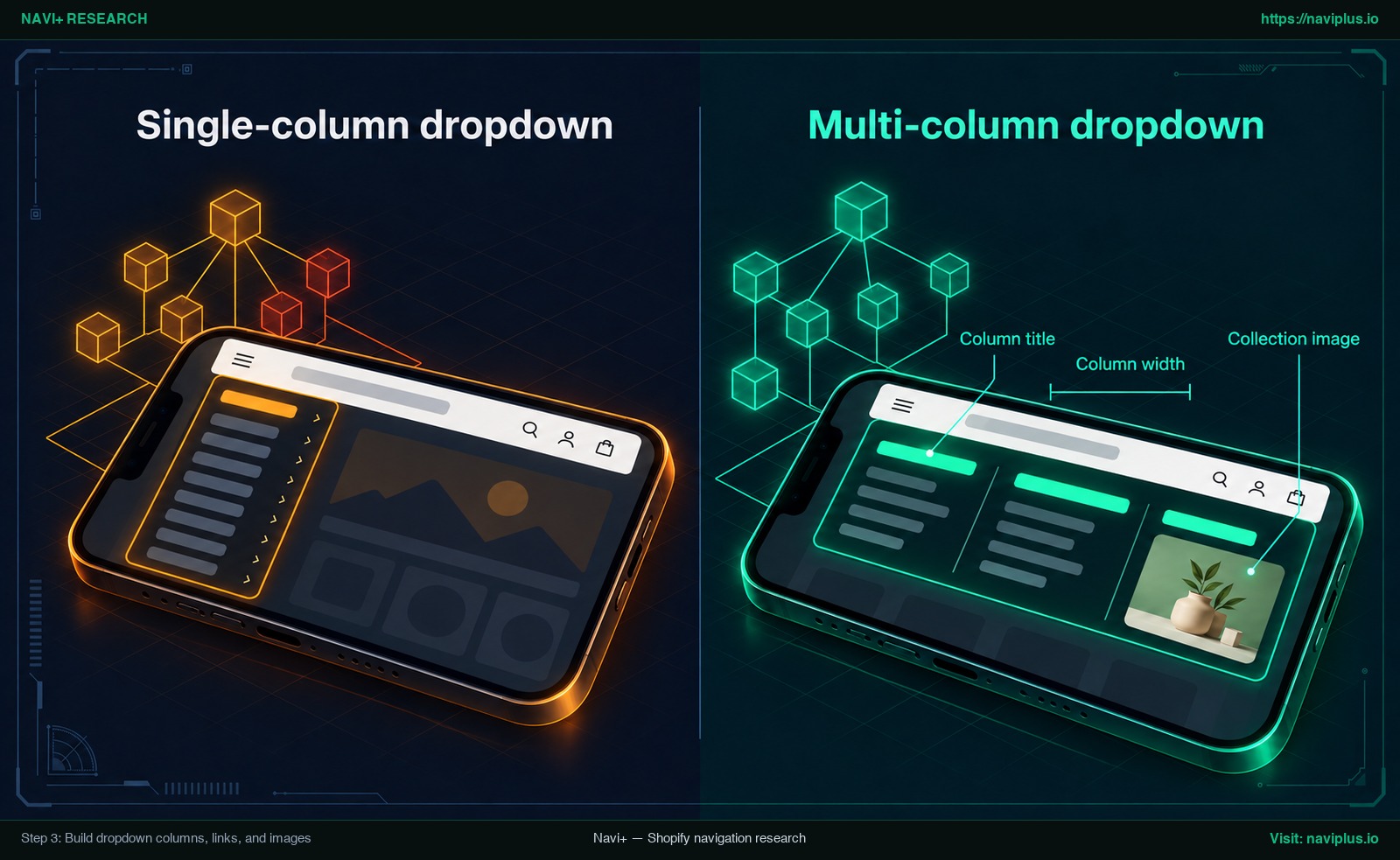
Figure 1: Concept illustration — Step 3: Build dropdown columns, links, and images
- Select a level-1 item and enable Is Multi-Column menu item to turn level-2 child items into column headers.
- Under each column header, add your level-3 destination links.
- Set column widths using the 12-column grid, such as 3/12 for four columns or 6/12 for two columns.
- Adjust the width of multi-column submenus setting to prevent excess whitespace, or use a standard single-column dropdown for three or four links.
- Add an actionable collection image tile in the rightmost column that links directly to a collection.
Step 4: Choose hover or click and style the bar
Next, choose how shoppers open dropdowns and style the bar to match your store branding.
Merchants often debate whether desktop dropdowns should open on mouse hover or on click. Usability research highlights clear trade-offs:
| Interaction Pattern | Prevalence & Usability Evidence | Practical Advantages | UX Risks & Failure Modes |
|---|---|---|---|
| Hover trigger | Found on 74% of desktop sites in Baymard benchmarks; 60% implement hover poorly. Baymard advises a 300–500 ms delay; NN/g recommends waiting until cursor remains stationary for 0.5 seconds. | Fast browsing for mouse users when tuned with proper timing delays. | Accidental triggering across the header; panels vanish if cursor slips outside hit targets. |
| Click trigger | Recommended by Smashing Magazine (Vitaly Friedman, 2021) to avoid hover traps. Shopify Dawn chose click-based disclosure because hover failed accessibility standards. | Deliberate, stable interaction across desktop mice and touch laptops; fewer accidental panel openings. | Requires an explicit click for each category; slightly slower for shoppers scanning departments. |
In Navi+, selecting your interaction model requires one toggle. In layout settings, use Show submenu on hover to choose your behavior: On opens submenus on hover; Off requires visitors to click.
After selecting your trigger model, configure styling:
- Set background and text colors that harmonize with your store header.
- Define subtle hover colors or underline indicators to give users clear feedback as they browse.
- Adjust font sizes and horizontal item spacing so the entire bar sits naturally alongside your logo and header utility icons.
Step 5: Publish under the header and test every screen width
Your configured menu only appears on your storefront after publishing in the app.
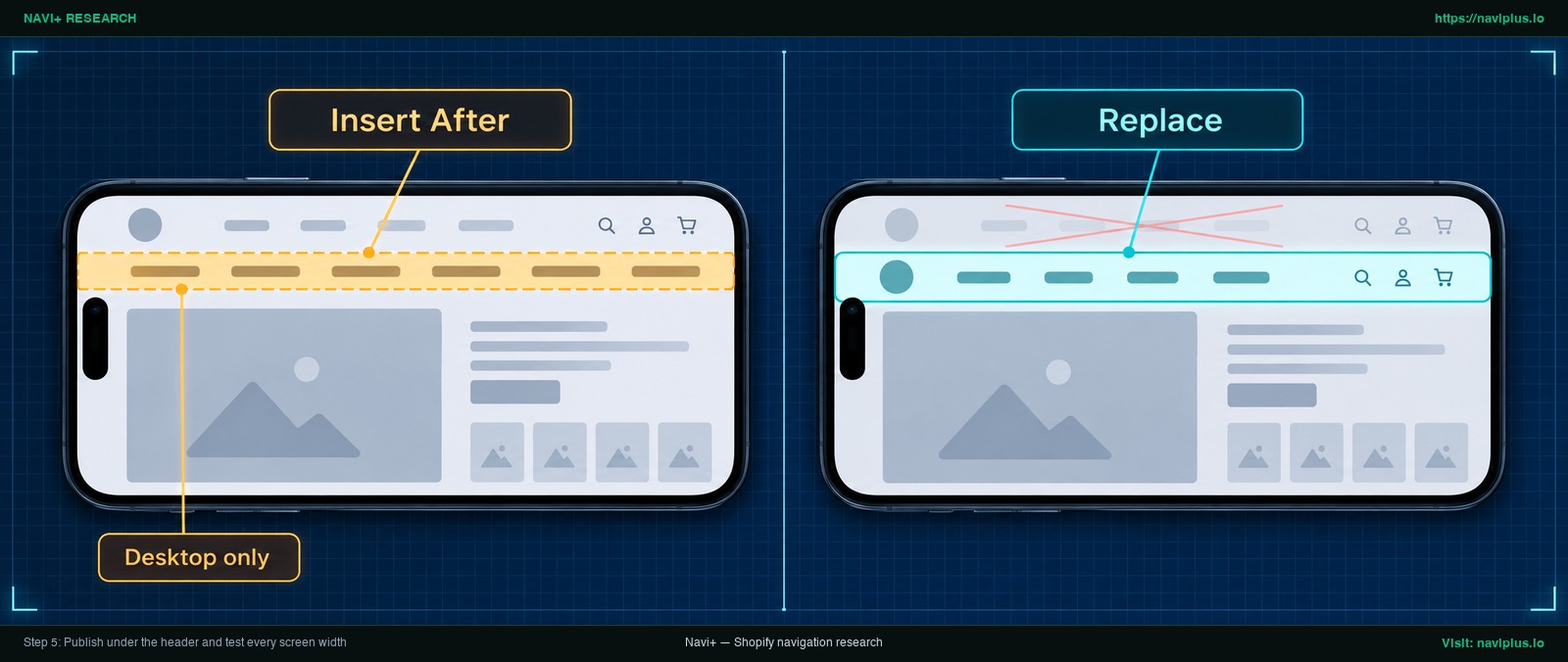
Figure 2: Concept illustration — Step 5: Publish under the header and test every screen width
In the Navi+ editor, click Publish to website and enable the Insert/Replace toggle.
| Publishing Method | Target Selector Example | Storefront Placement |
|---|---|---|
| Insert After | header |
Mounts the mega menu bar directly beneath the theme header; most common choice for Desktop Mega Menu. |
| Replace | .header-menu (Dawn) |
Hides theme navigation and renders Navi+ in its exact location. |
| Insert Before | main |
Mounts the menu immediately above the selected element, for example above the page’s main content area. |
To restrict these rules strictly to desktop viewports, append the suffix (D) to your selector, such as header(D).
By default, any screen narrower than 768px switches the menu into mobile mode.
Test storefront rendering on an ultra-wide monitor, standard laptop, and tablet in landscape mode. Verify that items stay on one row and panels align neatly.
- Use keyboard navigation (
Tab) to verify focus outlines move sequentially across all items. - Confirm that focus indicators remain distinct on parent buttons and dropdown links.
- Press
Escapewhile a dropdown is open to ensure the panel closes and returns focus to the parent button (W3C recommendations).
To view setup steps for specific templates, read our guide on how to add a mega menu to the Dawn theme and browse Navi+ menus on popular Shopify themes. For visual instructions, consult the official full publishing guide with screenshots.
If your store also needs mobile navigation, Smart responsive embeds a live reference of your desktop hierarchy into a mobile slide drawer, explained below.
Common problems: menu not showing, covered by the header, wrapping to two lines
When publishing a third-party desktop menu, merchants occasionally encounter display issues. Use this troubleshooting matrix to resolve them quickly:
| Observed Problem | Likely Cause | Recommended Fix |
|---|---|---|
| Menu does not appear on storefront | App embed is disabled, menu is not published, or selector is invalid. | Verify Store Connector is On in theme App embeds, ensure menu is published in Navi+, and check target selector. |
| Dropdown is covered by sticky header | Theme header has a higher stacking context (z-index) than the app dropdown. | Increase Z-Index in Navi+ layout settings so the mega menu panel renders in front of sticky theme headers. |
| Menu items wrap onto two lines | Too many level-1 items or labels are too long for standard laptop viewports. | Prune level-1 items to 5–7 categories, shorten labels, or enable overflow arrows to keep items on one line. |
| Desktop menu switches to mobile on small laptop or tablet | Viewport width falls below the default 768px desktop breakpoint. | Lower desktop breakpoint in layout settings and enable overflow arrows to preserve horizontal bar on small screens. |
| Old theme menu flashes briefly during initial load | With Replace, Navi+ waits until the old menu is displayed and then swaps it, so the old menu can appear for a moment. | Follow section I.5 of the publishing guide, which hides the old menu and shows a loading effect instead. |
| Dropdown links lead to 404 errors or wrong destinations | URLs were typed incorrectly or point to unpublished collections. | Click every menu link in live preview to verify that collections, pages, and products resolve accurately. |
For additional configuration tips and detailed edge cases, visit the Desktop Mega Menu FAQ.
Trade-offs: when a simple dropdown beats a mega menu
A multi-column mega menu is a powerful tool, but it is not necessary for every Shopify store. Consider these trade-offs before building a complex layout:
- Compact catalogs: If you have few products or 2–3 collections, theme menus or a single-column dropdown are simpler. Native Shopify menus support two nested levels.
- Maintenance overhead: Mega menus require ongoing curation. As collections, promotions, and inventory shift, every column and image card must be updated manually.
- Interaction pitfalls: Hover mega menus risk frustrating shoppers without proper delay controls or when used on touch-enabled laptops.
- Theme dependencies: A third-party app introduces an app embed layer that must be re-checked whenever you switch themes.
A desktop mega menu is worth the investment when you have deep product collections, need multi-column category groupings, or want visual collection tiles in top navigation. To evaluate what fits your store, read our guide on how to choose the right menu type for your store.
Where Navi+ fits
Navi+ Tab Bar & Mega Menu is designed to bridge the gap between rigid theme templates and complex custom code.
For desktop storefronts, Navi+ provides a Desktop Mega Menu builder centered around a three-level navigation tree. You can customize column widths across a 12-column grid, toggle hover or click with a single setting, and position the bar using Insert After or Replace selectors with desktop targeting.
To keep the bar tidy on smaller laptop viewports, Navi+ includes a breakpoint setting and an overflow arrow button that tucks extra top-level items behind an arrow instead of wrapping them. Smart responsive embeds a live reference of your desktop tree into a mobile slide drawer, so you do not build a second tree.
If you want to test this on your store, Navi+ Tab Bar & Mega Menu lets you build this Desktop Mega Menu, test it safely on a duplicate theme, and turn it off anytime.
Action checklist before you publish
Review this step-by-step checklist before making your new desktop navigation menu visible to live shoppers:
- Menu tree sketched: Planned a maximum of three levels on paper (top-level bar, columns, links).
- App embed active: Store Connector enabled and saved under Theme Editor > App embeds.
- Level-1 items balanced: Five to seven categories fit on a single horizontal row on standard laptop screens.
- Columns structured and sized: Level-2 items configured as column headers with balanced grid widths.
- Images vetted: Collection tiles used strictly for distinct choices rather than passive decorative clutter.
- Trigger model chosen: Deliberately selected hover with proper delay or click-based disclosure.
- Publishing selector verified: Configured Insert After or Replace using correct header selector and
(D)desktop suffix. - Multi-width verified: Tested storefront layout across ultra-wide, standard laptop, and tablet viewports.
- Keyboard navigation audited:
Tabnavigates items logically;Escapecloses active panel and returns focus (W3C recommendations). - Links validated: Clicked every link once to confirm URLs resolve to active collections and pages.
If you want to test this on your store, Navi+ Tab Bar & Mega Menu lets you build this Desktop Mega Menu, test it safely on a duplicate theme, and turn it off anytime.
FAQ
How many levels can a desktop menu have?
Shopify drop-down menus allow two nested levels under a top-level item. A Navi+ Desktop Mega Menu tree uses three levels: top-level bar, column headers, and links.
Should a mega menu open on hover or on click?
Both work when configured properly: hover needs a short 300–500 ms delay to prevent flashing, while click is more accessible. Toggle between them via “Show submenu on hover”.
Where does the menu appear on my header?
Insert After with selector header places the menu below the header. Replace hides the theme menu and puts Navi+ in its place.
Why is my menu not showing after I install the app?
Usually the app embed is disabled or the menu is unpublished. Enable Store Connector in your theme editor, verify your selector, and adjust z-index if covered.
Why does my desktop menu switch to the mobile version on a tablet or small laptop?
Screens narrower than 768px switch to mobile by default. Lower the breakpoint threshold in layout settings and enable overflow arrows to keep the horizontal bar.
Can the same menu show on mobile?
Yes, Smart responsive embeds a live reference of the desktop menu into a Slide menu without rebuilding a second tree.
Sources
- Shopify Help Center: Drop-down menus
- Shopify Help Center: App embeds in themes
- Nielsen Norman Group: Mega Menus Work Well
- Nielsen Norman Group: Mega Menus Gone Wrong
- Baymard Institute: Dropdown Menu Flickering Issue
- Smashing Magazine: Frustrating Design Patterns: Mega-Dropdown Hover Menus
- Shopify Dawn Theme PR #1316
- W3C WAI-ARIA APG: Disclosure Navigation Example
- Navi+ Help: Publishing on Shopify
- Navi+ Help: Desktop Mega Menu FAQ
- Navi+ Help: How to Use Desktop Mega Menu
- Navi+ Help: Setting Layout
Explore the topics
This guide links out to focused articles — dive deeper on each.