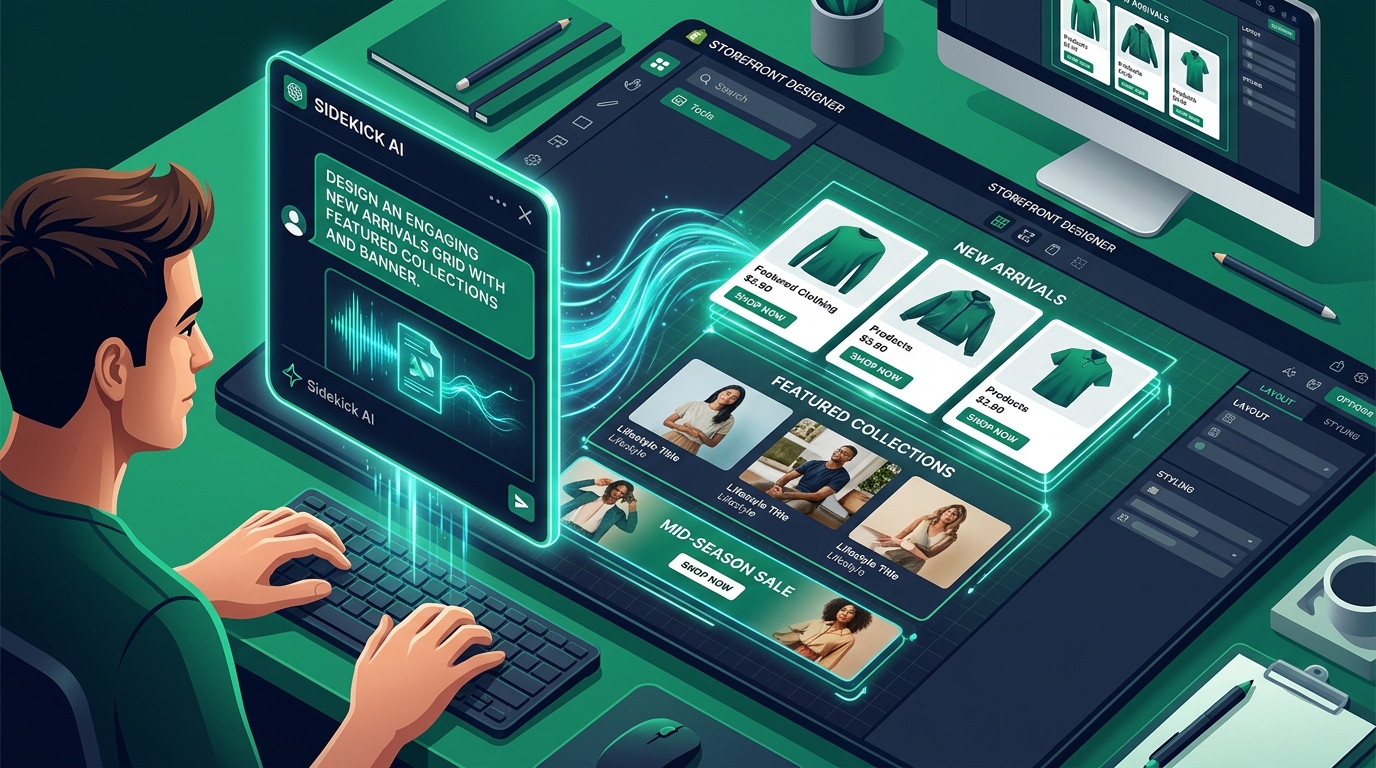
Shopify Canvas transforms store editing from a menu-driven checklist into an interactive conversation with Sidekick AI. However, getting predictable, clean, and high-converting results requires more than typing vague requests like “make this page look cool.”
In this comprehensive guide, we walk you through the practical mechanics of using Shopify Canvas—from requesting Early Access to deploying production-ready sections without crashing your storefront.
- Eligibility: Requires desktop browser, Sidekick active in Admin, and a first-party theme (Dawn, Horizon).
- Prompt engineering: Specificity is everything. Always provide role, layout hierarchy, color tokens, and responsive instructions.
- The golden rule: Always edit on a duplicated theme, never live on production.
Part of the Topic HubExplore the Shopify Canvas Spotlight Hub with all 10 technical deep-dives →
1. What Shopify Promises
Shopify promises that Canvas makes store design as intuitive as sketching on a whiteboard:
- Frictionless Entry: Click “Open in Canvas” from your Shopify Admin, and you are immediately immersed in an unconstrained workspace.
- Conversational Co-Pilot: Sidekick understands your business context. If you sell luxury watches, asking for a hero banner will automatically tailor typography, contrast, and visual rhythm to suit your catalog.
- No Coding Required: Shopify asserts that any merchant can build complex layouts—including image sliders, countdown timers, and animated product cards—without writing a single line of Liquid or CSS.
- Seamless Responsive Adaptation: Elements placed on Canvas are promised to adapt smoothly to tablets and smartphones with zero manual configuration.
2. Hands-on Reality & Technical Evaluation
We put these claims to the test by building a complete product launch landing page from scratch. Here is our step-by-step testing experience:
Step 1: Launching the Canvas Environment
- In the Shopify Admin, navigate to Online Store → Themes.
- On your draft theme, click Customize.
- In the top header bar, look for the Canvas Mode toggle (sparkle icon with spatial grid).
- Clicking this expands the view into an infinite canvas with zoom controls (
Cmd +/Cmd -) and a floating Sidekick prompt bar.
Step 2: Testing Sidekick Prompts
Vague prompts yielded generic, often mismatched blocks. However, when we used structured, declarative prompts, the results were remarkably accurate.
The High-Performing Prompt Formula:
[Role] Act as a senior ecommerce UI designer.
[Target Section] Build a 3-column feature comparison section for our flagship skincare serum.
[Visual Style] Clean minimalist aesthetic, light cream background (#FAF8F5), rounded corners (12px), subtle shadow.
[Content] Include icon, headline, 2-line description, and a 'Learn More' link.
[Mobile Rule] Stack vertically on screens under 768px with 16px horizontal padding.
Sidekick generated a pristine Liquid section in 11 seconds. The markup was well-structured, CSS flexbox handled alignment cleanly, and the mobile breakpoint worked as instructed.
Step 3: Direct Spatial Manipulation
Dragging elements across the canvas felt responsive. We could scale image containers with corner handles, adjust margins by dragging edge handles, and reorder elements visually. However, micro-adjusting typography line-heights still required opening the code editor.
3. Community & Industry Reactions
Early feedback from beta testers highlights both excitement and a steep learning curve:
The “Prompt Fatigue” Dilemma
“If you don’t know basic design terminology like padding, flex-wrap, or semantic headings, Sidekick gives you unpredictable results. You end up spending 20 prompts trying to get a button to align properly.”
— Shopify Partner & Theme Specialist (X / Twitter)
Designers note that while non-coders can use it, merchants with a basic grasp of design vocabulary get vastly superior output.
The “Silent Failure” Bug
Several merchants on the Shopify Community forums reported that when Sidekick encounters syntax errors during complex Liquid generation, it occasionally fails silently, leaving an empty section container on the canvas that cannot be deleted without refreshing.
4. Navi+’s Strategic Verdict & Architecture Impact
While Canvas is an exceptional tool for building visual content sections (heroes, banners, trust badges), it is not designed to manage your store’s global navigation architecture.
The Navigation Blindspot
- Global Header/Footer Constraints: Canvas allows you to style body sections freely, but it cannot restructure complex multi-tiered menus, nested collections, or sticky mobile headers without causing theme conflicts.
- The Mobile Cart & Search Flow: Canvas does not provide an integrated solution for bottom-anchored thumb controls—the proven #1 driver of mobile engagement.
Does This Replace Navi+? How Navi+ Powers Your Conversion Engine
Shopify Canvas CANNOT replace Navi+. On the contrary, pairing Canvas for visual layouts with Navi+ for navigation creates an unbeatable ecommerce architecture:
- Canvas designs in-page sections; Navi+ powers storewide conversion: Canvas helps you assemble page-level banners, grids, and content blocks. But Canvas is not a global navigation system. It cannot provide persistent bottom tab bars, multi-tier mega menus, or instant multi-market currency switchers.
- Why Navi+ gives your store the winning edge:
- Thumb-Zone conversion architecture: Over 75% of ecommerce purchases happen on mobile devices. Navi+ anchors a Sticky Bottom Tab Bar right in the natural thumb zone, allowing shoppers to access home, live search, categories, and one-tap cart anywhere without scrolling back to the top.
- Instant sub-16ms edge delivery: Navi+ renders directly from Cloudflare R2 / BunnyCDN edge nodes in under 16ms, completely free of bulky theme liquid code.
- Limitless zero-code customization: Out of the box, Navi+ offers 6 distinct menu formats (Tab Bar, Mega Menu, Slide Drawer, Grid, Floating Action Button, Sticky Header) that adapt to any merchant need.
- Immunity to theme swaps and AI rewrites: No matter how many times Sidekick refactors or rewrites your theme sections in Canvas, your Navi+ navigation remains 100% stable, secure, and operational.
5. Actionable Merchant Preparation Checklist
Before you launch your first Canvas editing session, ensure you have these prerequisites in place:
- Theme Backup: Duplicate your theme and name it
[Backup] Canvas Test - YYYY-MM-DD. - Brand Style Guide: Have your hex color codes, typography pairings, and button radius values ready to paste into Sidekick prompts.
- Structured Prompt Templates: Save proven prompt formulas in a text file so your team uses consistent design instructions.
- Independent Navigation Layer: Install Navi+ from the Shopify App Store to ensure your store’s core mobile navigation remains decoupled and protected from experimental theme edits.
- Quality Assurance on Multiple Devices: Test your new Canvas sections on an actual iPhone and Android device, not just the desktop simulator.
Next in the SeriesPart 3: 5 Critical Limitations of Shopify Canvas Nobody Is Talking About →