How to Match a Navigation Menu to Your Shopify Store Theme (Colors, Fonts, Mobile Menu)
A navigation menu should never look like an afterthought. When shoppers browse your catalog, the typography, colors, padding, and corner rounding of your menu links should blend seamlessly with your storefront. Yet many Shopify merchants find that while their homepage banners look polished, their menu feels out of place—displaying generic fonts, mismatched background tones, harsh borders, or an unstyled mobile drawer.
The core principle is simple: a menu matches your theme when it reuses the values your theme already uses. Instead of inventing new hex colors or picking different fonts on the fly, read your theme’s design tokens first, write them on one sheet, and apply that same sheet to your desktop header, mobile drawer, and any app-based navigation.
- Design Token Continuity: Rather than choosing separate colors, reuse the active color scheme and typography settings your theme already applies to headers and buttons.
- CSS Variable Safety: Reference native theme custom properties like
var(--font-heading-family)in custom CSS so that your menu updates dynamically whenever you adjust theme settings. - Dual-Viewport Consistency: Because mobile drawer menus often use separate markup from desktop bars, styling rules must cover both horizontal header links and slide-out mobile containers.
Quick Answer: How to Match a Navigation Menu to Your Store Theme
To match a navigation menu to your store theme, copy the values your theme already uses: its color scheme, fonts, corner radius and spacing. Apply them through the header settings first, then close gaps with small custom CSS on a duplicate theme, and check the mobile drawer too.
Follow these five practical steps:
- Read theme design tokens: Check Theme Settings for active colors, typography font families, and button corner radiuses.
- Use native header settings: Choose your menu, assign the matching header color scheme, and test built-in layout options.
- Close gaps with custom CSS using theme variables: Add concise CSS rules to the Header section referencing theme variables instead of static values.
- Match the mobile drawer: Align the slide-out drawer’s background, link typography, divider lines, and hamburger icon.
- Match app menus: Apply the same values to any third-party bottom tab bars or mega menus in their design settings.
Keep in mind that changes made in the global Theme Settings section apply to your entire online store, so changing only the navigation menu requires section-level custom CSS or dedicated menu app settings.
What “Matching Your Theme” Means: The Theme Match Sheet
Visual cohesion makes a store feel finished. Our guide to menu design and brand identity covers the brand principles behind this; the guide you are reading is the hands-on, technical part. A theme-matched menu does not simply work; it feels native to the storefront.
To achieve visual harmony without guessing, compile a Theme Match Sheet. This reference sheet captures the seven core styling properties defined in your theme and outlines where to apply each one to your navigation:
| What to match | Where to find it in your theme | Where to apply it on the menu |
|---|---|---|
| Colors | Theme settings > Colors (active color scheme) | Header background, link text, active underline, and drawer surface |
| Fonts | Theme settings > Typography (Heading and Body families) | Top-level menu items, nested dropdown labels, and category headers |
| Text size | Theme settings > Typography (size options, if your theme offers them) | Base link labels, badge callouts, and secondary flyout items |
| Spacing | Your theme’s layout and section padding settings, if it has them; otherwise measure link and button spacing in DevTools | Horizontal padding between menu links, dropdown item padding, and row gaps |
| Corner radius | Theme settings, in the button or card settings (setting names vary by theme) | Dropdown container borders, highlighted promo badges, and menu action buttons |
| Hover and focus states | Watch how links and buttons react in your live store; the related color and button settings vary by theme | Mouse hover color shifts, underline animations, and accessible keyboard focus rings |
| Mobile behavior | Open the mobile menu on your store and check the Header section settings; options vary by theme | Mobile slide-out drawer background, hamburger toggle icon, and divider borders |
When applying this sheet to your navigation, focus on four specific actions:
- Copy theme colors: Extract the exact color scheme assigned to your header section rather than selecting random palette tones.
- Reuse theme fonts: Apply your theme’s established heading or body font family directly to your menu links.
- Match corner radius: Ensure dropdown cards, badges, and menu buttons mirror the curvature of buttons on your storefront.
- Mobile menu match: Extend your color scheme, font family, and dividers to the mobile drawer so smartphone shoppers experience the same visual style.
Step 1: Read Your Theme’s Design Tokens
A “design token” is simply a named design decision—a stored value for a specific color, font, spacing unit, or corner radius. Instead of typing hex codes into multiple style rules, themes store decisions under reusable names. Gathering these tokens directly from your Shopify theme ensures your menu matches perfectly.
Colors and color schemes
In your Shopify admin, go to Online Store > Themes, click Customize, and open Theme settings. Open the Colors panel.
Shopify themes organize palettes using a Color scheme—a preset grouping of background, text and button colors. In the Shopify theme editor, you can maintain up to 21 color schemes. Identify which color scheme is currently assigned to your Header section, and note its exact background and text shades.
Fonts and text size
Next, open Theme settings > Typography. Here you will see the active font families and weights for Headings and Body copy.
Write down these selections. Shopify Help explains that changes that you make in the Theme Settings section apply to your entire online store. If you alter typography here, every heading or paragraph across your store updates as well. Shopify’s documentation also suggests considering system fonts for your typography.
Corner radius and spacing
Look through the button, card and input settings in Theme settings. Many themes include a corner rounding setting, often called Button radius; the exact name varies by theme.
Check whether your buttons have sharp corners, slight rounding or a fully rounded pill shape. When dropdown menus and promo badges share this same curve, the menu feels unified. Likewise, look at the spacing around your buttons and sections to decide whether link spacing should be compact or generous.
Reading CSS variables in your browser
To inspect how your theme stores these values under the hood, open your browser’s developer tools:
- Open your live storefront or preview in Chrome, Firefox, or Safari.
- Right-click your navigation header and select Inspect.
- Select the
<html>or<body>element and view the Styles pane.
Modern Shopify themes like Dawn declare theme customizer settings as CSS variables directly in theme.liquid. Dawn maps customizer settings to variables such as:
--font-body-family: reflects the chosen body font.--font-heading-family: reflects the primary heading font.--color-foreground: reflects the active text color, stored as red, green and blue numbers, so it is used asrgb(var(--color-foreground)).--buttons-radius: reflects the button corner radius value from theme settings.
By identifying the tokens for Color scheme, Typography, and Button radius, you can reference the theme’s existing system instead of hard-coding static values. Variable names differ across themes, so always verify your theme’s exact names in DevTools.
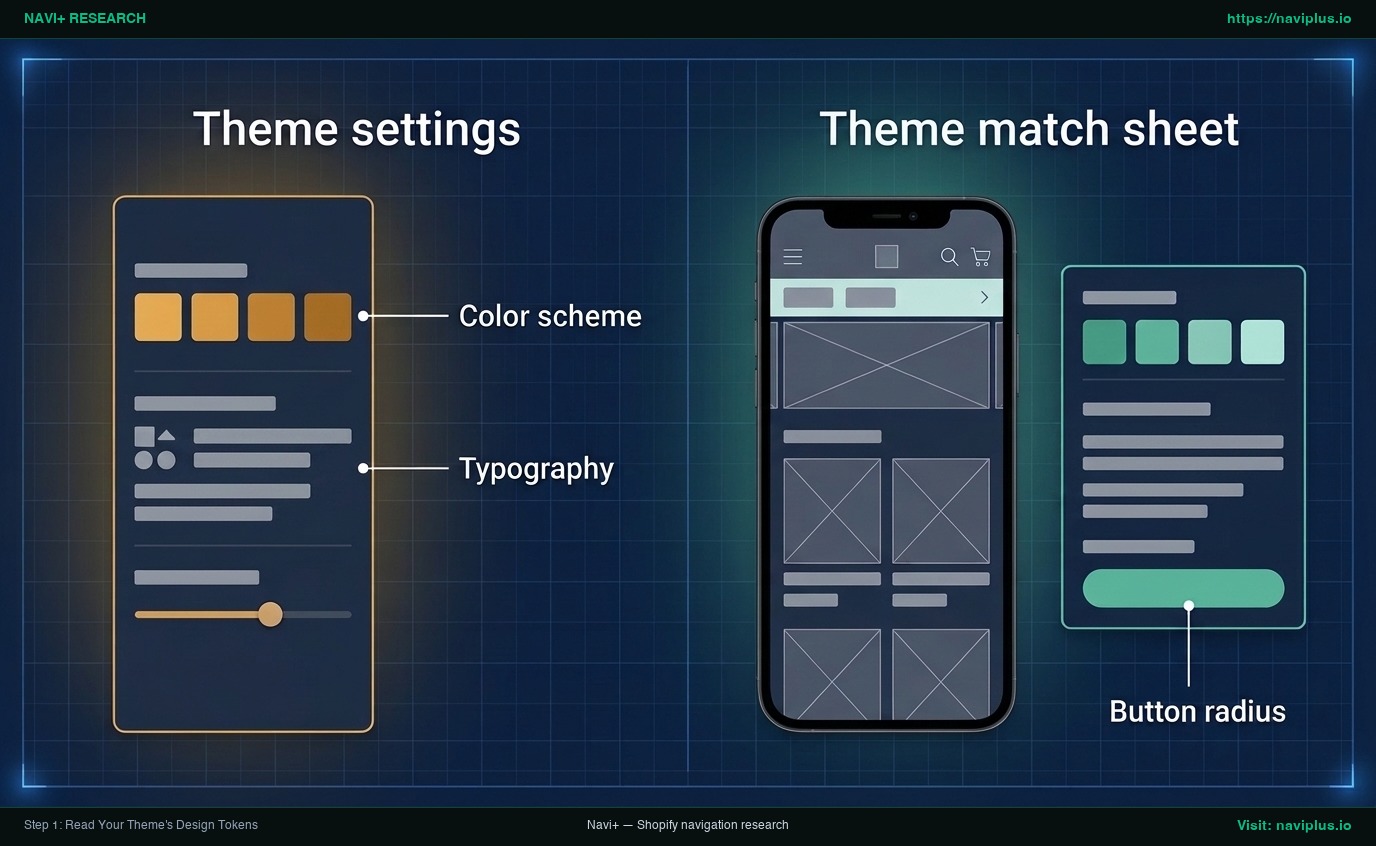
Concept illustration: Theme settings panel next to a theme match sheet listing the color scheme, typography and button radius to copy into the menu.
Step 2: Use the Header Settings Your Theme Already Has
Before writing custom code or installing apps, explore the native configuration options already available in your Shopify theme customizer.
Connecting your menu and color scheme
- In the theme customizer, open the Header section.
- Find the menu setting (its label varies by theme) and confirm your primary menu list is selected. Shopify menus are created in Online Store > Navigation, where you can nest links up to three levels deep.
- Look for a color scheme setting in the Header section controls (the label varies by theme). Select the scheme you recorded on your Theme Match Sheet.
- Check the preview: depending on your theme, the header and menu may now pick up the background and text colors of that scheme.
Evaluating header menu layouts
Shopify themes offer different ways to display navigation links. According to Shopify documentation, the main menu and drop-down menus display in different locations in your online store depending on your theme, and a top-level item can have up to two levels of nested drop-down menus.
Depending on your theme, you can configure:
- Menu style: Standard dropdown lists, multi-column mega menus, or slide-out drawers.
- Desktop position: Top-left, centered above the logo, or inline beside the search bar.
- Sticky behavior: Keeping the navigation bar fixed at the top as shoppers scroll down.
Native customizer boundaries
Native header controls provide a clean start, but they have limits:
- Setting labels and layout controls vary between themes; some themes offer link padding sliders, while others provide none.
- Because typography settings in Theme Settings apply store-wide, you cannot change only the menu link font family using native settings without modifying your entire storefront.
When native settings leave gaps between your menu and your theme match sheet, move to targeted custom CSS.
Step 3: Close the Gaps with Custom CSS That Reuses Theme Variables
Custom CSS lets you refine your navigation links without modifying theme template files. Writing concise, resilient rules ensures your styles remain easy to maintain.
Duplicate the theme first
Before adding custom CSS, create a backup copy of your theme.
Official Shopify Help documentation on duplicating themes advises that making a backup copy allows you to discard your changes and start again if you need to. In your Shopify admin under Online Store > Themes, open the actions menu beside your active theme and select Duplicate. Make your styling adjustments in this duplicate copy first, verify the result, and publish when ready.
Where custom CSS goes and its limits
Shopify provides built-in inputs for custom CSS in the theme editor:
- Theme-wide CSS: In Theme settings > Custom CSS, affecting the entire storefront.
- Section CSS: At the bottom of the section properties panel, in Custom CSS (for example, in the Header section).
Be aware of Shopify’s technical boundaries:
- CSS rules that affect the entire theme are limited to 1500 characters.
- CSS rules that affect a specific section are limited to 500 characters.
- If you add custom CSS to a section, the CSS is scoped strictly to that section.
- Theme-wide custom CSS does not apply to the checkout page.
Because menu links sit within the Header, placing short rules inside the Header section’s Custom CSS box is the cleanest and safest choice.
Use var() instead of hard-coded values
Avoid typing static hex codes or font family names directly into your CSS rules. If you change your brand palette later, hard-coded rules will break. Instead, access theme custom properties using the var() function, as documented by MDN:
.header__menu-item {
  font-family: var(--font-heading-family);
  color: rgb(var(--color-foreground));
}
(Note: class and variable names follow Dawn; check yours in DevTools).
By using var(--font-heading-family) and rgb(var(--color-foreground)), your menu links follow your theme when you update colors or typography in Theme Settings. To undo your changes, simply delete the CSS snippet or publish your duplicate theme backup.
Step 4: Make the Mobile Menu Match, Not Just the Desktop Menu
A common mistake is styling the desktop header carefully while leaving the mobile drawer plain or mismatched.
Why mobile drawers diverge
In many Shopify themes, desktop and mobile menus do not share the same HTML structure. Desktop links are often arranged horizontally in the header, while mobile navigation is rendered inside a hidden slide-out drawer or overlay.
Because the mobile drawer is often a separate element, CSS rules written for desktop links may not reach drawer links. In addition, the hamburger icon color is often inherited from the header text color, so the drawer itself may need its own background, text and divider styling.
Aligning drawer styling
To give mobile shoppers a cohesive experience, ensure your mobile drawer uses:
- Same font family: Drawer links should match the font family used on your desktop header.
- Same text color: Category titles and sub-links should follow your active header text scheme.
- Same divider style: Horizontal lines separating mobile links should match the subtle border colors used on your product cards.
Usability research by the Nielsen Norman Group (Pernice & Budiu, 2016) shows that hidden navigation (such as hamburger menus) is less discoverable than visible navigation. Because mobile menus require an extra tap to reveal categories, the visible triggers and drawer surfaces must be clear, readable, and visually aligned with your brand.
For structural tips on organizing mobile links, read our guide on mobile drawer menu best practices. Always test your drawer on a physical smartphone rather than relying only on desktop browser emulation.
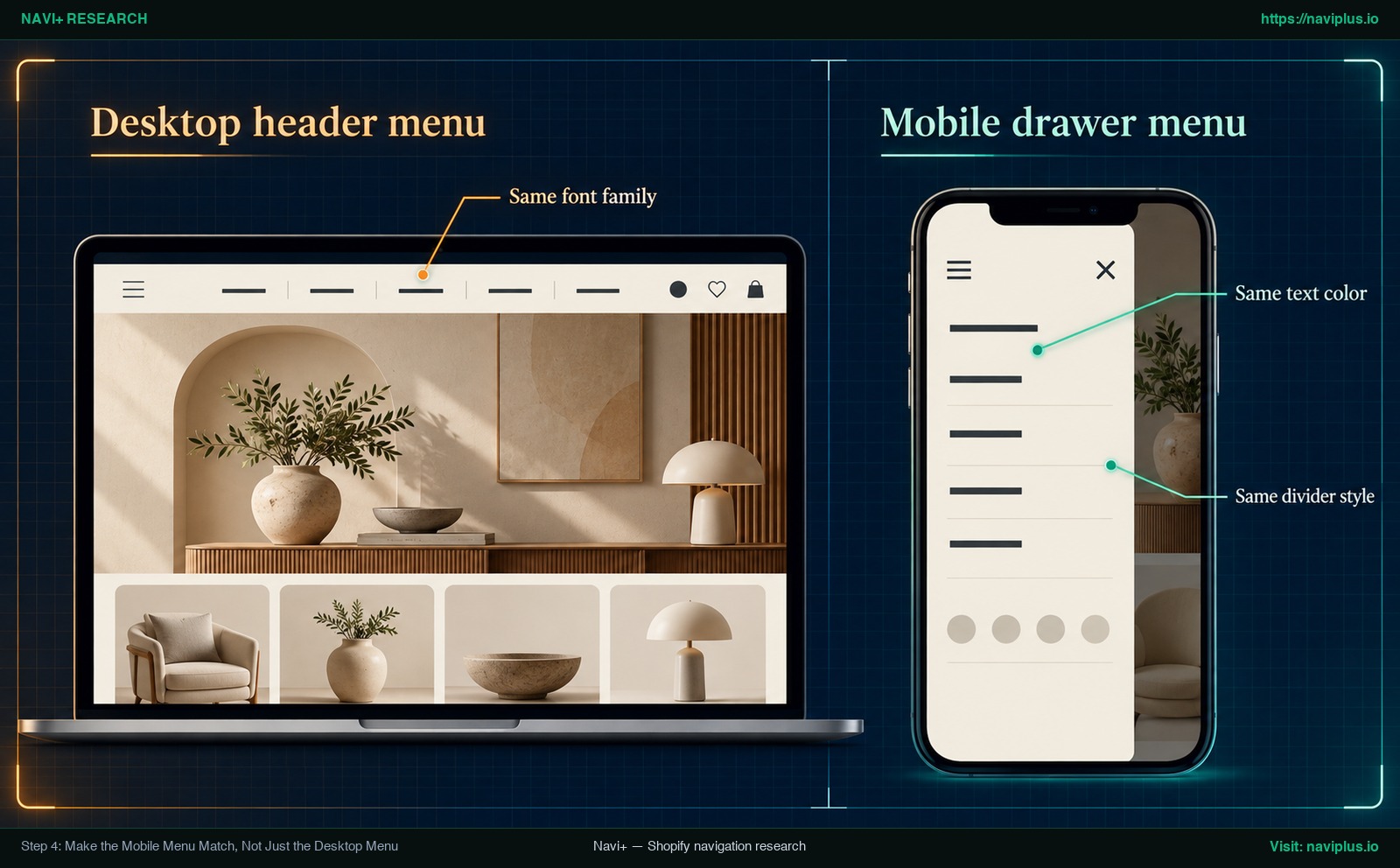
Concept illustration: Desktop header menu and mobile drawer menu using the same font family, text color and divider style from the store theme.
Step 5: Match a Menu Added by an App (Tab Bar, Mobile Menu, Mega Menu)
When your catalog outgrows standard dropdowns, you might use a Shopify menu app to add a mobile sticky tab bar, multi-column mega menu, or floating navigation button.
Because app menus are added to your store separately from your theme, they may not follow your theme’s color and font settings automatically. If left unconfigured, an app menu may look different from the rest of your store.
Applying your theme match sheet to app settings
Instead of picking colors at random inside an app dashboard, use your Theme Match Sheet:
- Typography: Choose the exact font family and weight used in your theme’s headings or body text.
- Colors: Enter the exact hex codes from your header color scheme for backgrounds, text labels, and active highlight states.
- Corner radius: Match corner rounding on menu containers and buttons to your theme’s button radius.
- Dividers: Set border weights and colors to match your theme’s card borders.
Keeping custom CSS inside the app
If an app menu requires custom CSS for minor adjustments, enter the CSS directly into the app’s dedicated custom CSS input rather than editing theme files.
If the app stores its CSS outside your theme files, upgrading your theme or switching to a new one does not remove that styling. Check how your app handles this before relying on it.
If you are setting up third-party navigation for the first time, check out our guide on how to get started with a menu builder app.
Common Mismatches and How to Fix Them
When auditing your navigation, use this diagnostic table to troubleshoot common visual mismatches:
| Symptom | Likely cause | Fix |
|---|---|---|
| Menu font clashes with page typography | Theme typography settings apply store-wide and cannot isolate the menu; or a menu app defaulted to generic fonts. | Use section-level custom CSS referencing var(--font-heading-family), or select your theme’s exact font family in your menu app’s settings. |
| Menu text difficult to read on header background | Low color contrast between link text and header background fails accessibility standards. | Check colors against the WCAG contrast minimum guideline (at least 4.5:1 for normal text, 3:1 for large text). Adjust your header color scheme in Theme Settings. |
| Dropdown or mega menu clashes with header | Dropdown container uses a default light or dark color scheme rather than the parent header background. | In the theme customizer Header section, set dropdown containers to the matching color scheme if your theme offers that option, or style the container background using CSS variables. |
| Mobile drawer looks completely different from desktop | Mobile drawer is often a separate container with its own styles; the hamburger icon inherits header text color while the drawer body uses its own background. | Inspect drawer classes in DevTools. Apply background, typography, and divider styles that match your desktop header color scheme. |
| Custom CSS lost after changing or upgrading theme | CSS was stored inside the old theme’s settings or asset files, which do not carry over to newly published themes. | Back up CSS snippets before switching themes. Re-enter rules into the new theme’s Custom CSS field, or manage styles inside an app that stores CSS independently. |
Trade-offs: When Not to Restyle the Menu
Adjusting colors and fonts improves presentation, but restyling is not always the right solution. Consider these limitations before spending time on visual tweaks:
Structural catalog problems
If customers cannot find items because your catalog navigation is disorganized or overcrowded, changing fonts and colors will not solve the issue. Styling cannot fix a confusing category hierarchy. If catalog complexity exceeds basic navigation structures, review the limits of Shopify theme menus to see whether you need category restructuring rather than styling changes.
Ongoing maintenance and character limits of theme CSS
Adding custom CSS inside your theme creates technical debt. Theme-wide custom CSS is capped at 1500 characters, and section CSS is limited to 500 characters. When your theme developer releases a major update, theme-embedded CSS must be audited and migrated manually.
Store-wide typography side effects
Changing typography in Theme Settings alters fonts across every product card, collection title, and paragraph on your store. Shopify’s documentation suggests considering system fonts, so adding a separate font only for menu links is worth a second thought.
Where Navi+ Fits
If your active Shopify theme lacks advanced navigation formats—such as a mobile tab bar, multi-column mega menu, slide-out mobile drawer, icon menu, or floating button—Navi+ provides a dedicated toolset to build them.
Inside the Navi+ dashboard, the Design tab provides visual controls for background colors, typography (font family selection and font size), and icon or image styling. Merchants can transfer the exact values from their Theme Match Sheet directly into these settings.
In addition, Navi+ includes a built-in Custom CSS editor where rules are automatically prefixed per menu component and stored independently of your Shopify theme files. Because menu styles are kept outside theme assets, upgrading or changing your theme will not affect your Navi+ menus.
Keep our technical boundaries in mind:
- Navi+ menus support hierarchical navigation up to 3 levels deep.
- The Design tab provides styling controls for 2 levels of your menu tree.
- Setting separate font sizes or icon dimensions for levels 2 and 3 requires adding small CSS rules in the app’s custom CSS panel.
If your theme doesn’t have the menu type you need, such as a bottom Tab Bar or a mega menu, Navi+ lets you build one and set its fonts and colors from your theme match sheet in the Design tab — you can try it on a duplicate theme first.
Action Checklist Before You Publish
Review this 10-point checklist before making navigation changes live:
- Duplicate your theme: Created a backup copy of your active theme to discard changes and start again if needed.
- Fill out the Theme Match Sheet: Recorded active color scheme, typography font families, weights, and button corner radiuses.
- Assign Header Color Scheme: Verified that the Header section in your theme editor uses the correct brand color scheme.
- Match Font Families: Confirmed that menu links share the exact heading or body font family from Theme settings > Typography.
- Verify WCAG Contrast: Checked that text-to-background contrast ratios reach at least 4.5:1 for standard text and 3:1 for large text.
- Align Corner Radiuses: Ensured dropdown containers, promo badges, and menu buttons match storefront button curvature.
- Check Hover and Focus States: Confirmed that desktop links provide clear hover feedback and accessible keyboard focus outlines.
- Test Mobile Drawer on a Physical Phone: Verified hamburger icon visibility, drawer background color, divider borders, and touch responsiveness on an actual device.
- Synchronize App Menus: Entered theme match sheet values into third-party tab bars, mega menus, or drawer apps.
- Keep Custom CSS Scoped and Resilient: Maintained short CSS rules (within 500/1500 character limits) that reference theme CSS variables using
var().
FAQ
Can I change only the menu font without changing my whole store’s font?
Theme typography settings apply store-wide across all headings and body text. To change only the menu font, add a scoped custom CSS rule to the Header section in the theme editor or adjust the typography setting inside your dedicated menu app.
Where do I add custom CSS in Shopify?
In the theme editor, you can add custom CSS either for the whole theme or for an individual section; theme-wide CSS is limited to 1500 characters and section CSS to 500 characters. Section-level CSS is scoped strictly to that section, and theme-wide CSS does not apply to checkout pages.
Why does my mobile menu look different from my desktop menu?
Themes often build the drawer as a separate element in the HTML markup, so a desktop style rule may not reach it. The hamburger icon often inherits the header text color, but the slide-out drawer container requires its own background, typography, and divider styling.
How do I keep my menu matching after I change theme colors later?
Reference your theme’s native CSS variables with the var() function (such as var(--font-heading-family) or var(--font-body-family)) instead of hard-coding static hexadecimal values. When you update colors or fonts in Theme Settings later, your menu follows them.
What contrast should menu text have?
Under the Web Content Accessibility Guidelines (WCAG 2.1), menu text must maintain a contrast ratio of at least 4.5:1 for normal text and at least 3:1 for large-scale text against its background color.
Should I edit CSS or use an app?
Use your theme’s built-in header settings first, and apply small custom CSS snippets for minor styling adjustments. When you need a menu type your theme does not support—such as a mobile tab bar or multi-column mega menu—use a menu app, and check whether it keeps its styles outside your theme files so they survive theme changes.
Sources
- Shopify Help Center: Customizing Theme Settings
- Shopify Help Center: Adding Custom CSS to Your Theme
- Shopify Help Center: Duplicating Themes
- Shopify Help Center: Set up Drop-Down Menus in Your Online Store
- Shopify Developer Documentation: Navigation and Search Architecture
- W3C Web Accessibility Initiative: WCAG 2.1 Understanding Contrast (Minimum)
- MDN Web Docs: Using CSS Custom Properties (Variables)
- Nielsen Norman Group: Hamburger Menus and Hidden Navigation (Pernice & Budiu, 2016)
- Shopify Dawn Theme Repository: theme.liquid layout configuration
- Navi+ Help Center: Using Built-in Settings or Custom CSS
- Fudge: How to Change the Mobile Menu in Shopify
Explore the topics
This guide links out to focused articles — dive deeper on each.