Shopify Header Navigation Architecture: Layout Models, Space Allocation, Utility Menus, and Breakpoint Engineering
A desktop header operates within a fixed horizontal budget, balancing brand identity, product categories, utility tools, and checkout paths.
Treating the header as an unmanaged flex container causes links to collide with search, wrap onto second lines, or collapse into mobile drawers. Reliable navigation requires deliberate layout selection, space budgeting, and responsive verification.
Quick Answer: Which Shopify Header Layout Fits Your Store?
There is no single best Shopify header layout. Catalog stores usually do best with a left logo and inline category links, small boutiques can use a centered logo with split links, and large multi-department stores need a two-tier header with a separate utility bar. Avoid hiding desktop navigation behind a hamburger.
Selecting the right desktop header architecture depends on four core layout models:
- Left Logo + Inline Navigation: Anchors the logo on the left with category links flowing rightward, offering the widest horizontal runway for catalog categories while grouping utilities on the right.
- Centered Logo + Split Navigation: Centers the logo, flanked by category links on both sides. Suits small catalogs, but splits the horizontal space into two shorter runs.
- Two-Tier Stacked Navigation: Divides navigation across two horizontal bars. A slim top strip houses utilities, reserving the lower bar for product categories.
- Hidden Desktop Drawer: Conceals links behind a hamburger icon. While visually minimal, Nielsen Norman Group advises against hidden navigation in desktop interfaces.
- The Laptop Viewport Hazard: Display scaling can reduce the effective CSS viewport on a laptop well below that of a desktop monitor. Review your store analytics and test your navigation at laptop widths.
- The Split Navigation Hypothesis: Centering a logo is a layout idea, not a proven pattern, and we found no published study that tests it. Verify engagement with your own click maps or heatmaps.
- Isolate Utilities from Categories: Utility links are secondary actions and tools. Keeping them out of the category row leaves the primary bar for product categories.
Why Header Space Runs Out on Laptop Screens
Designers often review templates on wide monitors, but shoppers frequently browse on laptops where display scaling reduces available CSS pixels.
As an illustration (a calculation, not a statistic): a 1920px-wide screen at 150% Windows scaling gives an effective CSS width of 1280px (1920 / 1.5 = 1280). Check your store analytics for the viewport sizes your own customers actually use.
When header elements exceed the horizontal width, navigation can break in three distinct ways:
+-------------------------------------------------------------------------------+
|  Wide Viewport - Illustration                                                 |
|  [Brand Logo]   Women   Men   Accessories   Footwear   Sale   [Search] [Cart] |
+-------------------------------------------------------------------------------+

+-------------------------------------------------------------------------------+
|  Laptop-Width Viewport - Unplanned Wrapping Illustration                      |
|  [Brand Logo]   Women   Men   Accessories   Footwear                          |
|  Sale   [Search] [Cart]  <-- Wraps onto second line, shifting content downward|
+-------------------------------------------------------------------------------+
- Unintended Flexbox Wrapping: Flex containers push trailing categories or search inputs to a second line, increasing header height and displacing hero merchandising.
- Horizontal Overflow and Clipped Utilities: Flex containers with nowrap push utilities past the viewport edge, hiding cart triggers off-screen or causing horizontal scrollbars.
- Premature Desktop Drawer Collapse: Theme media queries switch to the mobile hamburger menu on laptop viewports when horizontal space is unmanaged.
Per web.dev Cumulative Layout Shift (CLS) guidelines, “a layout shift occurs any time a visible element changes its position from one rendered frame to the next”. A header that wraps on first render is not by itself a layout shift. Shifts occur when the header changes after rendering, such as when late fonts or scripts shift height. Layout shifts within 500 milliseconds of user input are excluded from CLS.
What Research Says About Header Scanning, Search, and Utility Links
Published usability research establishes practical baseline expectations for e-commerce header design, distinguishing empirical findings from design inferences.
Visible vs Hidden Navigation on Desktop
In the Nielsen Norman Group study by Pernice & Budiu (2016), “on desktop, people used the hidden menus in only 27% of the cases”, while visible and combo navigation were used in 48% and 50% of the cases, respectively. NN/g’s guidance is direct: “Do not use hidden navigation (such as hamburger icons) in desktop user interfaces.”
Scanning the Top-Left and the Split-Navigation Hypothesis
NN/g’s article on the F-shaped pattern (Pernice, 2017) describes “many fixations concentrated at the top and the left side of the page”. A left-aligned logo with category links sits in that area.
Centered-logo split navigation is a hypothesis, with no published study testing it. If attention starts at the top left, shoppers scanning the left flank must jump across the center logo to reach categories on the right flank, potentially reducing engagement. Merchants using split headers should verify performance with click maps or heatmaps.
Search Box Placement and Sizing
NN/g guidance on search (Nielsen, 2001) notes that “on homepages, search should be a type-in field and not a link”, placed at the top of the page, usually in the right-hand corner, and “wide enough to contain the typical query”. Boutiques using expanding icons should test that trade-off directly.
Product Categories as Top-Level Items
Baymard Institute (2023) found that “33% of mobile sites fail to make the product categories the top-level items”, and notes that “having the product categories as top-level items on desktop sites matches the ideal mobile implementation”. Our inference: if “About Us”, “FAQ”, or “Track Order” sit in the category row, they compete with categories for limited space and attention. That is a design judgement, not a measured result.
Four Header Layout Models Compared
Merchants should evaluate header architecture against catalog breadth, search requirements, and operational utility overhead.
| Header Layout Model | Fits Which Store Type | Search Implementation | Utility Links | Main Risk |
|---|---|---|---|---|
| Left Logo + Inline Navigation | Single-department catalog retail | Compact input or expand-on-click icon | Grouped in right utility cluster | Wrapping when labels outgrow the available width |
| Centered Logo + Split Navigation | Small boutique or luxury lifestyle brands | Minimalist modal overlay icon | Split between left and right flanks | Unverified: right-flank categories may get less attention |
| Two-Tier Stacked Navigation | Multi-department catalog and international stores | Wide, prominent persistent text input field | Isolated in dedicated upper utility bar | Added vertical height above the fold |
| Hidden Desktop Drawer | Editorial-first or non-catalog portfolio brands | Hidden inside off-canvas panel | Nested inside off-canvas panel | NN/g advises against hidden desktop navigation |
Note: This comparison is an architectural pattern summary, not a measured audit of specific stores.
Left-aligned inline navigation provides a clean e-commerce baseline, anchoring the logo on the left and flowing links rightward for an uninterrupted category span.
Centered-logo split navigation offers visual symmetry for boutique stores, though adding categories or localization selectors quickly causes horizontal collisions.
Two-tier stacked navigation separates concerns vertically: branding, search, and utilities sit on top, reserving the lower bar for categories. Category depth can move into a mega menu: Baymard reports that “hover-based drop-down menus (aka ‘mega menus’) are currently used as the main navigation at 88% of all top US e-commerce” sites in its main navigation benchmark, drawn from a benchmark of 344 e-commerce sites. For panel design, see our guide to Shopify mega menu best practices.
For accessibility, the W3C WAI ARIA Authoring Practices Guide notes that “a menu that is visually persistent is a menubar”.
Separating Utility Menus from Catalog Navigation
Utility navigation covers tools assisting customer tasks outside the product catalog—such as account login, order tracking, currency switchers, and customer support. NN/g notes that “Utility navigation consists of secondary actions and tools”.
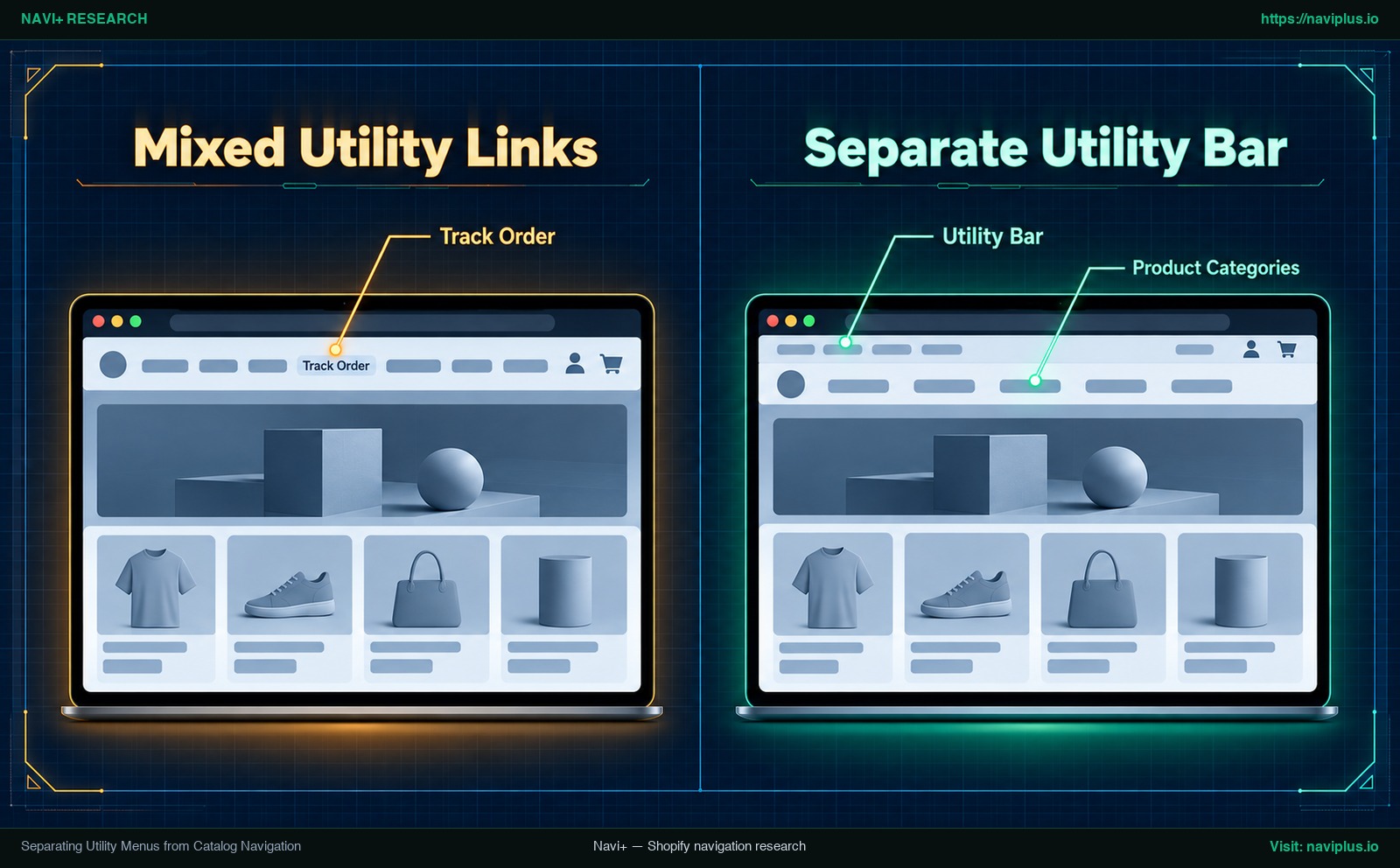
Figure 1: Concept illustration — header with utility links mixed into the main menu compared with a header that moves them into a utility bar.
Per Nielsen Norman Group (Farrell, 2015), utility links can take “a secondary (less prominent) visual placement” relative to primary navigation.
In Shopify storefronts, merchants typically have three methods to separate utility links from the primary row, depending on theme support:
- Secondary menu settings in the Header section: Some themes offer a secondary menu setting or utility strip above the main bar. Review theme settings to inspect built-in options.
- Dedicated top utility bar: Themes supporting a top strip can isolate currency pickers, customer accounts, and order tracking, keeping the main bar dedicated to product categories.
- Footer reallocation: Relocating institutional links such as “About Us”, “Press”, and “FAQ” to the footer streamlines the header while keeping essential information accessible.
For streamlining navigation in checkout flows, see our guide to checkout header navigation.
Breakpoint Engineering: Testing Your Header at Laptop Widths
Plan storefront navigation against an explicit horizontal pixel budget rather than relying on widescreen visual inspection.
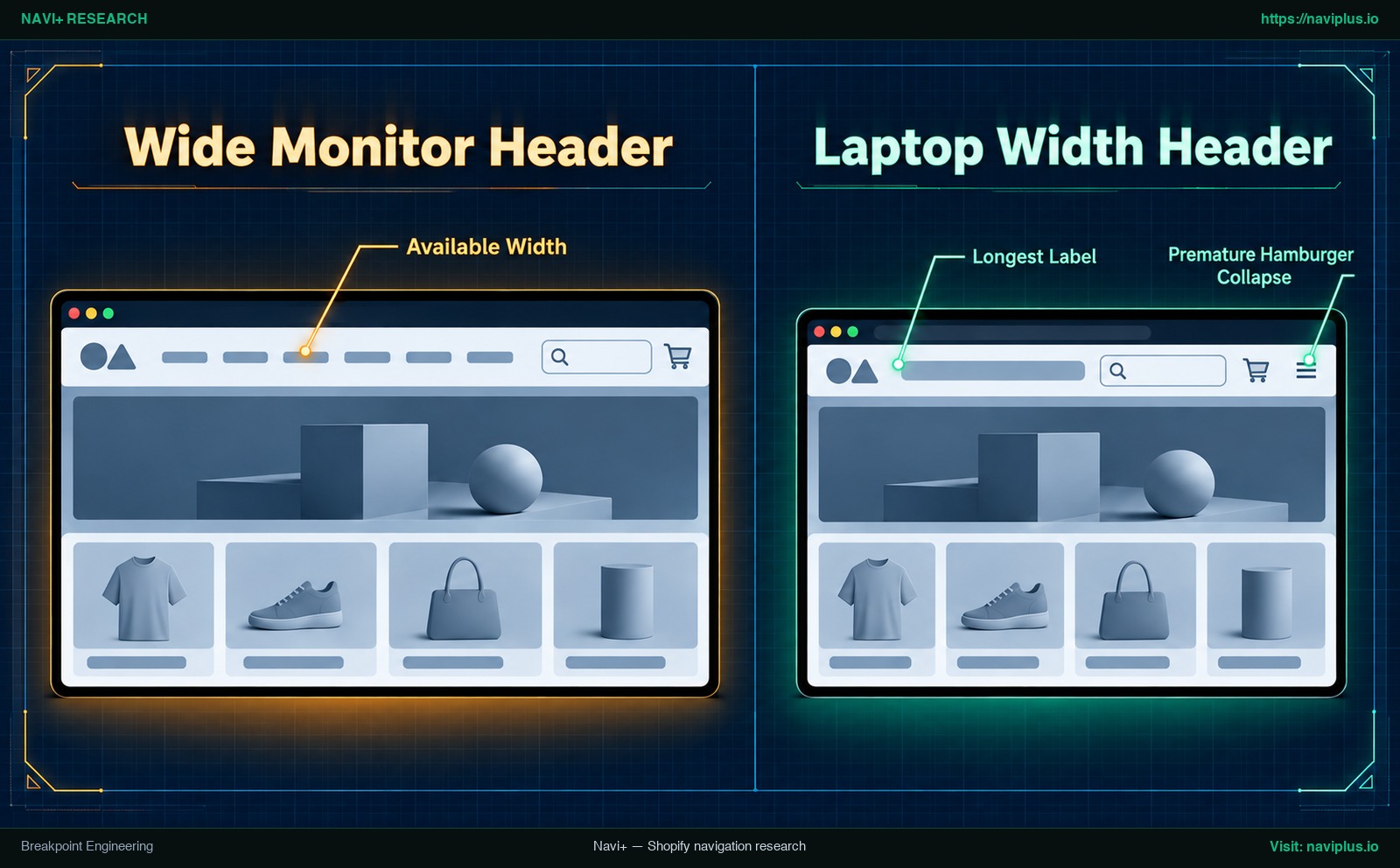
Figure 2: Concept illustration — a Shopify header tested at a wide monitor width and at a narrower laptop width where the menu needs a plan.
The Available Width Formula
Estimate available horizontal space for primary category links using this practical formula:
Available Width = Viewport Width - (Logo Width + Utility Cluster Width + Container Padding & Margins)
Max Width Per Item = Available Width / Number of Primary Links
A hypothetical structure (no real measurements): measure your own logo, utility cluster, and margins, subtract them from the viewport width to get Available Width, then divide by the number of category links to get a per-link budget. Compare that budget with the widest label you measure in your own store.
Measuring Real Label Widths in DevTools
Audit rendered label widths directly in browser developer tools to verify navigation fit:
- Open Chrome DevTools (
F12) and toggle Device Mode. - Set responsive viewport width to the effective laptop width from the scaling example above or a width from your store analytics.
- Inspect the longest navigation label in the Computed tab, recording rendered width including padding and margin.
- Multiply the longest label width by total link count. If the total exceeds Available Width, the menu will likely wrap or clip.
Architectural Rules of Thumb
These architectural guidelines are design judgements rather than measured thresholds. Always verify fit using the width calculation above.
- Small Catalog Store: With few primary categories, left logo inline or centered split layouts fit laptop viewports easily.
- Medium Catalog Store: Left logo inline functions well when utility links use compact icons and concise labels.
- Large Multi-Department Store: With numerous categories, inline headers easily collide on laptops; consider a two-tier layout or mega menu.
- International Store: Localization selectors consume horizontal space; relocate them to an upper utility bar or footer.
When navigation exceeds available width, merchants have three remediation paths: prune primary links, shorten label text, or migrate to a two-tier layout. Avoid prematurely collapsing desktop navigation into an off-canvas drawer.
Shopify-Specific Pitfalls: Markets Selectors, Header DOM Size, and Uppercase Labels
Shopify storefronts present specific technical considerations when engineering header navigation.
Shopify Markets Currency and Language Selectors
Multi-region stores frequently add currency, country, or language selectors to the header. Depending on the theme, these selectors render as wide buttons with currency codes or flags. In single-row headers, wide selectors crowd category links and trigger laptop wrapping. Consider relocating Markets selectors to an upper utility bar or the footer.
Header DOM Size and Liquid Overhead
Rendering multi-level dropdowns directly in Liquid adds markup to every response. Per Google Chrome Lighthouse DOM size guidelines, Lighthouse “warns when the body element has more than ~800 nodes” and “errors when the body element has more than ~1,400 nodes”. A heavy header consumes this budget early. See our guide on navigation and Core Web Vitals.
Uppercase Typography and Letter Spacing
Brand typography often specifies uppercase styling with expanded letter spacing for navigation links. Setting text to uppercase (text-transform: uppercase) and adding letter-spacing widens rendered link dimensions. Always re-measure label widths after updating storefront typography.
Native Shopify Menu Nesting Limits
According to Shopify Help Center documentation on drop-down menus, “the top-level item can have up to two levels of nested drop-down menus”, setting a platform ceiling of three navigation levels. Configure menus in Shopify admin and connect them to themes such as Horizon or other options in our Shopify themes hub.
Trade-offs: When Not to Use Each Header Model
Every header layout involves trade-offs across aesthetics, space efficiency, and category discoverability.
| Header Layout Model | Do Not Use When | Better Alternative |
|---|---|---|
| Left Logo + Inline Navigation | Single-product brands with very few links | Centered brand logo with minimal navigation |
| Centered Logo + Split Navigation | Your catalog keeps adding categories, collections, or selectors | Two-tier stacked layout or left-aligned inline navigation |
| Two-Tier Stacked Navigation | Mobile-first storefronts where desktop accounts for little traffic | Streamlined single-row inline navigation |
| Hidden Desktop Drawer | Catalog stores that depend on product browsing | Visible inline or two-tier navigation bars |
Single-product brands using inline headers risk awkward empty gaps between logo and cart. Conversely, centered split layouts rapidly run out of space when expanding collections or adding localization selectors.
Two-tier stacked headers increase vertical height and push hero merchandising downward. Measure the combined height of announcement, utility, and primary navigation bars. Where mobile shoppers represent most traffic, extra desktop height may be unnecessary.
Finally, hidden desktop drawers conflict with NN/g guidance and its finding that desktop users used hidden menus in only 27% of cases versus 48% for visible navigation. While off-canvas drawers suit mobile screens, desktop viewports provide ample space for visible links. For mobile drawer architecture, read our guide to mobile drawer menu design.
Action Checklist: Audit Your Shopify Header
Audit your Shopify storefront navigation with this practical six-step checklist:
- Step 1: Conduct Laptop-Width Viewport Audit — In DevTools, test storefront layouts at the effective laptop width from the scaling example and at widths from analytics, verifying categories do not wrap or trigger a desktop hamburger.
- Step 2: Move Non-Commerce Utilities Out of the Catalog Row — Relocate “Track Order”, “About Us”, and “FAQ” from the category row into an upper utility bar, account dropdown, or footer.
- Step 3: Set a Header Height Budget — Measure combined vertical height across announcement, utility, and primary navigation bars to preserve laptop merchandising space.
- Step 4: Audit Navigation Typography and Phrasing — Shorten verbose labels and inspect whether uppercase styling or letter spacing expands rendered link widths.
- Step 5: Verify Click and Touch Target Sizing — Ensure header targets meet W3C WCAG 2.2 Success Criterion 2.5.8 Target Size (Minimum): at least 24 by 24 CSS pixels, or sufficient spacing.
- Step 6: Validate Keyboard Navigation and Focus Management — Verify Tab navigation moves logically, and confirm Escape closes open menus and returns focus per the W3C WAI ARIA Menubar Pattern.
Where Navi+ Fits
When a catalog outgrows what the theme header can accommodate, one path is custom Liquid development. Navi+ offers a Shopify app to build separate navigation without modifying theme header code.
- Separate Desktop and Mobile Menus: Build a Desktop Mega Menu for desktop shoppers, and configure a Mobile Menu (drawer), Tab Bar (see our guide to mobile tab bar architecture), Icon Menu, or Floating Button for mobile devices.
- Up to 3 Levels: Like Shopify’s native menus, Navi+ menus go up to three levels. A Desktop Mega Menu can hold category depth in a panel instead of in the header bar.
- Theme App Embed: Navi+ activates via a standard Shopify theme app embed. Menus are stored as configuration and drawn in the browser by app scripts without editing Liquid theme files.
We make no speed claims here. Measure the effect on your own storefront with Google PageSpeed Insights.
When Not to Use Navi+: Single-product brands or stores with a very small catalog rarely need a third-party navigation app. For these stores the theme’s own header settings may be enough. Our Navi+ setup guides for Shopify themes cover popular themes if you want to compare.
If your theme’s header has run out of room, you can try Navi+ to build a separate Desktop Mega Menu and Mobile Menu without editing theme code — then re-run the laptop-width check from the checklist above.
FAQ
How do I change the header menu in Shopify?
Open your theme in the theme editor and select the Header section. Per Shopify Help Center, you can change the default main menu for most themes by editing the settings in the theme’s Header section.
How many levels can a Shopify drop-down menu have?
Per official Shopify documentation, a top-level item can have up to two levels of nested drop-down menus, which gives a maximum of three navigation levels.
Should I use a hamburger menu on desktop?
Nielsen Norman Group advises against it: “Do not use hidden navigation (such as hamburger icons) in desktop user interfaces.” In its test, desktop users used hidden menus in 27% of cases versus 48% for visible navigation.
Where should the search box go in the header?
NN/g recommends a type-in field rather than a link, placed at the top of the page (usually the right-hand corner) and wide enough to contain the typical query.
Where should account, order tracking and currency links go?
These are utility navigation: secondary actions and tools. NN/g notes they can take a secondary, less prominent placement, so a top utility bar or the header’s right side works, separate from the catalog categories.
How big should header links and icons be?
Under W3C WCAG 2.2 SC 2.5.8, the target size for pointer inputs is at least 24 by 24 CSS pixels, unless an exception applies, such as sufficient spacing around the target.
Sources
- Nielsen Norman Group: Pernice, K. & Budiu, R. (2016). Hamburger Menus and Hidden Navigation Hurt UX Metrics. nngroup.com/articles/hamburger-menus
- Nielsen Norman Group: Nielsen, J. (2001). Search: Visible and Simple. nngroup.com/articles/search-visible-and-simple
- Nielsen Norman Group: Pernice, K. (2017). F-Shaped Pattern of Reading: Misunderstood, But Still Relevant. nngroup.com/articles/f-shaped-pattern-reading-web-content
- Nielsen Norman Group: Farrell, S. (2015). Utility Navigation: What It Is and How to Design It. nngroup.com/articles/utility-navigation
- Baymard Institute: ‘Main Navigation’ Design Examples. baymard.com/homepage-and-category-usability/benchmark/page-types/drop-down-menu
- Baymard Institute (2023): Make Product Categories the Top-Level Navigation Items on Mobile Sites (33% Don’t). baymard.com/blog/main-navigation-product-categories
- Shopify Help Center: Set up drop-down menus in your online store. help.shopify.com
- W3C Web Accessibility Initiative: Understanding SC 2.5.8: Target Size (Minimum). w3.org/WAI/WCAG22/Understanding/target-size-minimum.html
- W3C WAI ARIA: Menu and Menubar Pattern. w3.org/WAI/ARIA/apg/patterns/menubar
- Google web.dev: Cumulative Layout Shift (CLS). web.dev/articles/cls
- Google Chrome Lighthouse: Avoid an excessive DOM size. developer.chrome.com
- Navi+: Setup guides for Shopify themes. naviplus.io/shopify-themes
Explore the topics
This guide links out to focused articles — dive deeper on each.