How to Add a Menu Built in a Menu App to Your Shopify Store (Theme Embed, Placement & Troubleshooting)
You built navigation in a menu app, but it does not appear on your storefront. Adding an app menu to Shopify requires one fundamental rule: the menu lives in the app, not your theme. It appears only after turning on the theme app embed, publishing in the app, and setting placement.
Quick answer: how to add a menu from a menu app to your Shopify store
An app menu lives in the app, not in Shopify Content > Menus, appearing only once bridged to your theme. Turn on the app embed, save, publish in the app, choose placement, hide the theme menu, and check the live storefront.
Follow these five steps:
- In Shopify admin, open Online Store > Themes > Customize, open Theme settings > App embeds, toggle your app on, and click Save.
- In your menu app dashboard, click publish to release your menu.
- Choose placement: floating overlay, CSS selector (insert/replace), or an app block.
- Hide or unassign your theme default header menu to prevent duplicates.
- Preview desktop and mobile layouts, then verify your live store in an incognito window.
If you have not built navigation yet, start with our beginner walkthrough of a menu builder app.
Why a menu built in an app doesn’t appear on its own
In Shopify, you manage links from Content > Menus, and themes display them automatically through Header settings.
Menu apps keep their menus inside the app. According to Shopify developer documentation, app embed blocks are deactivated by default after installation, and themes do not automatically include app blocks. Installing an app does not, on its own, put its menu on your storefront. Your menus in Content > Menus stay where they are.
Shopify built-in editor allows a top-level item to have up to two levels of nested drop-down menus. For layouts beyond native capabilities, merchants build the menu itself in a navigation menu app.
This official Shopify video shows the built-in menu editor, which is separate from your menu app.
Step 1: Turn on the app embed in the theme editor
The first step is activating your theme app embed. According to Shopify, app embeds are app-provided elements that float or display as an overlay in your theme.
To activate the app embed:
- In Shopify admin, open Online Store > Themes.
- Click Customize on the theme you want to edit.
- In the sidebar, open Theme settings > App embeds.
- Locate your menu app in the list.
- Beside the app embed, click the toggle to activate it.
- Click Save.
Before editing, duplicate your theme. The Shopify Help Center notes that duplicating your theme lets you discard changes if needed, and Helium also advises duplicating your live theme first.
App embeds work on vintage and Online Store 2.0 themes. Enabling an embed affects only the edited theme; draft themes do not update the live store until published.
Step 2: Publish the menu inside the app
Saving the theme app embed loads the app script; you must still release the menu in the app dashboard.
Menu apps separate embed activation from publishing. For example, Navi+ documentation notes that after activating the store connector embed, “the process is not yet complete.” You must open the app and click Publish to website (or your app’s publish button).
Before publishing, check the targeting rules your app offers (for example, in Navi+):
- Device targeting: Display on mobile, desktop, or both viewports.
- Page group rules: Show the menu on all pages or only on specific groups of pages.
- URL keyword filtering: Match or exclude specific terms in the address bar.
If a rule excludes a page, your menu will not display there even with the embed active.
Step 3: Choose where the menu appears (embed, CSS selector or app block)
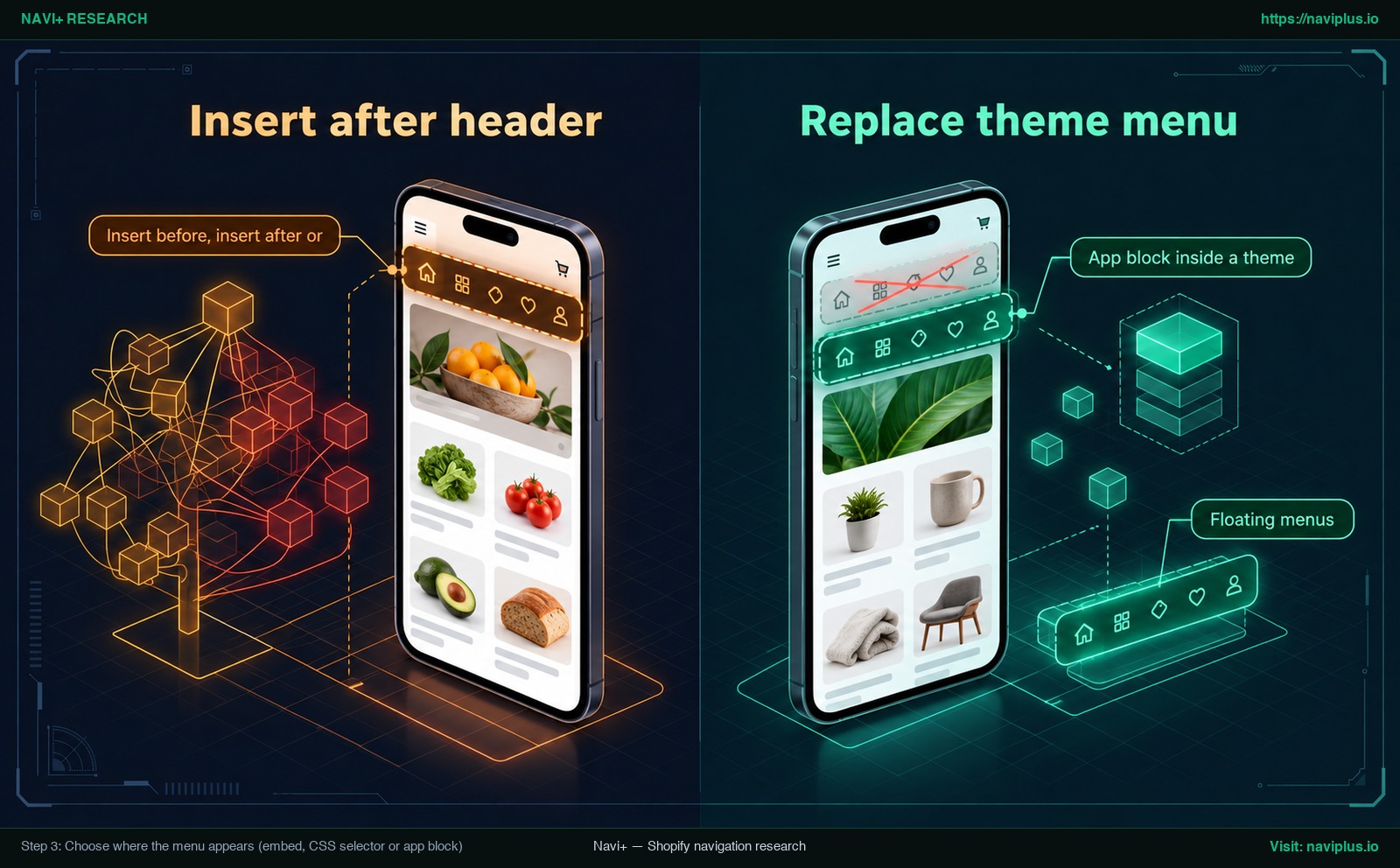
Concept illustration: inserting an app menu below the header versus replacing the theme menu with a CSS selector.
Once your embed is active and your menu is published, choose how it connects to your theme layout.
Floating menus (tab bar, floating button, drawer)
App embeds float or display as an overlay in your theme. For mobile tab bars, floating buttons, or drawers, you only need the embed active and the menu published. Because elements float over pages, no theme header anchor is required.
Insert before, insert after or replace
For desktop headers or mega menus, the app attaches using a CSS selector identifying a theme element.
Some apps, like Navi+, offer three modes:
- Insert Before: Places the menu directly above the selected element.
- Insert After: Renders the menu directly below the selected element.
- Replace: Replaces the selected element entirely with the app menu.
Navi+ also allows a suffix so the selector targets mobile, desktop, or both.
App block inside a theme section
The third method adds an app block into a theme section. App blocks require compatible themes, and Shopify describes app block support for sections that are part of a JSON template. In Navi+, the “Menu in Section” block applies to Mega Menus and Grid Menus only, not Tab Bars or Floating Buttons.
| Method | Best for | Watch out for |
|---|---|---|
| Floating overlay (App embed) | Mobile tab bars, floating buttons, drawers | Publish menu in app with matching display rules |
| CSS selector (Insert/Replace) | Desktop headers, mega menus replacing theme links | Markup differences across themes; header classes vary |
| App block (In-section block) | In-page grid menus, category showcases | Requires compatible themes with JSON templates |
Step 4: Hide the theme’s default menu so you don’t see two
Adding an app menu can cause duplicate navigation if native header links remain visible. Because installing an app does not hide theme code, you must hide or replace the native menu.
Eliminate duplicate menus in two ways:
- Use Replace mode: Where supported, Replace swaps the selected theme element automatically.
- Change theme settings: In the theme editor, open Header. Shopify notes you can change the default main menu for most themes by editing settings in the Header section, so unassign the menu there.
Never delete linklists in Content > Menus; keeping them preserves footer links and provides a fallback.
When using Replace mode, a brief flash of the original menu can occur while the app script initializes. On mobile, hide the theme hamburger button if your app provides its own drawer.
Step 5: Preview on desktop and mobile, then check the live store
Previewing inside the Shopify theme customizer is not enough. Helium documentation notes that menus do not always load correctly in the customizer, requiring live storefront testing.
To verify your navigation:
- Open your live store URL in a private incognito window to view pages as shoppers do.
- Test on desktop screens, checking drop-downs, mega menu panels, and hover states.
- Test on a smartphone, inspecting touch targets, mobile drawers, and bottom tab bar clearance.
- Click navigation links to ensure categories and products open properly.
If you configured separate desktop and mobile menus, ensure each viewport triggers only its dedicated menu. If testing on a duplicate theme, publish it once verified.
App menu not showing? A diagnostic checklist
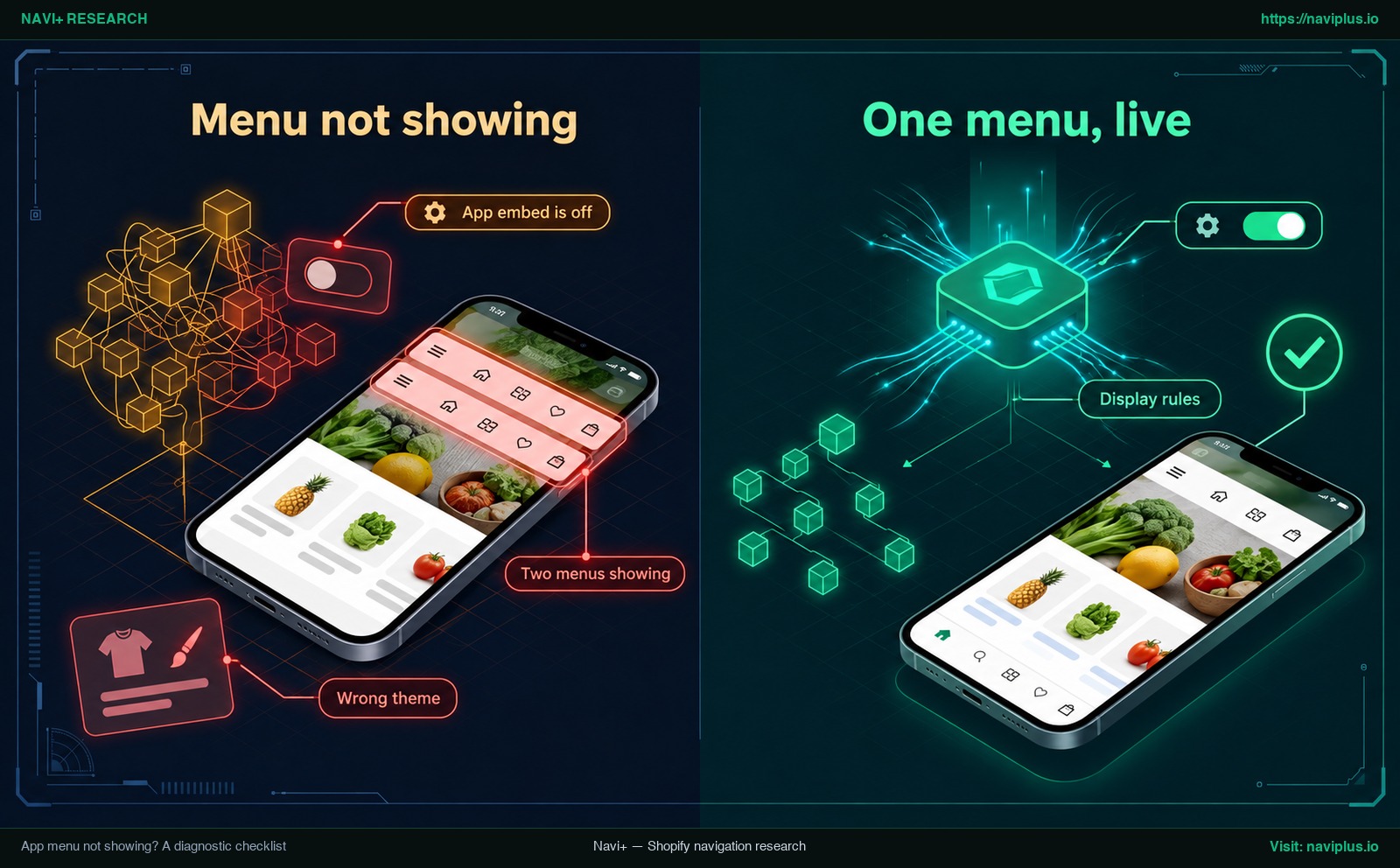
Concept illustration: a menu that is not showing (app embed off, wrong theme, two menus) versus one correct app menu live on the store.
When an app menu fails to appear, check this diagnostic checklist:
| Symptom | Likely cause | What to check |
|---|---|---|
| No app menu on store | Embed inactive or unsaved | In Theme settings > App embeds, toggle on and click Save. |
| Embed on, live unchanged | Saved on draft theme | In Themes, enable embed on live theme or publish draft. |
| Embed saved, menu absent | Not published in app | In app dashboard, click Publish to website. |
| Missing on mobile or desktop | Viewport rules active | In app settings, enable mobile and desktop viewports. |
| Missing on specific pages | Page or URL rules active | Review display rules to ensure pages are not excluded. |
| Two menus showing | Selector mismatch | Inspect header markup, verify selector, or select Replace. |
| App block unavailable | Incompatible template | Confirm theme is Online Store 2.0 with a .json template. |
| Embed or block missing | Created in Canvas | Canvas lacks app extension support; see Shopify Canvas and app embeds. |
| Shows in editor, not live | Draft theme or cache | Check live theme, review display rules, and reload incognito. |
If your menu still fails to load, reach out to your menu app support team to investigate app-specific display problems.
When you change or update your theme
When you switch themes or update versions, app menus do not transfer automatically. As noted in the Shopify Help Center guide to theme apps, apps are not active by default on new themes, requiring re-activation.
Follow this sequence when changing or upgrading themes:
- Re-enable app embed: In the new theme editor, open App embeds, toggle your app on, and click Save.
- Re-add app blocks: Re-insert section blocks, as new themes do not include app blocks automatically.
- Audit CSS selectors: Header classes vary across themes; update your selector, or check Navi+ menus on popular Shopify themes.
- Hide default menu: In Header settings, unassign the default menu to prevent duplicate navigation.
- Test on duplicate theme: Configure adjustments on a duplicate theme before publishing live.
Trade-offs: when the theme’s own menu is enough
Third-party menu apps provide visual flexibility, but they are not required for every store. If your catalog is simple, Shopify built-in editor in Content > Menus is often the most practical choice. Native menus support up to two levels of nested drop-down menus, which can be enough for a focused catalog. Native menus do not depend on app embeds, leaving nothing to re-enable when updating themes.
Using a third-party menu app introduces specific considerations:
- Maintenance: Theme changes require re-enabling embeds and checking CSS selectors.
- Initial page load: CSS selector replacement can occasionally cause a brief flash of the original menu while the script initializes.
- Platform limits: Environments like Shopify Canvas do not support theme app extensions yet.
Review our guide to choose the right menu type to decide whether your store needs an app layout or native navigation.
Example: putting a Navi+ menu live
To see these steps in action, consider publishing menus in Navi+. Navi+ supports mobile Tab Bars, slide-out Mobile Menus, Floating Buttons, and Desktop Mega Menus using standard Shopify theme app extensions.
For a mobile Tab Bar, Mobile Menu, or Floating Button:
- In Shopify admin, open Online Store > Themes > Customize.
- In the sidebar, open App embeds, turn on Store Connector, and click Save.
- In Navi+, open your menu and click Publish to website.
- Configure display rules by device, page group, or URL keywords.
For a Desktop Mega Menu:
- In Navi+, choose Insert Before, Insert After, or Replace.
- Enter the header CSS selector, adding a mobile or desktop suffix if needed.
- On Online Store 2.0 themes with JSON templates, you can alternatively use the Menu in Section app block (for Mega Menus and Grid Menus).
If your store receives traffic, test on a duplicate theme first to verify layouts safely.
The Navi+ publishing guide for each menu type walks through these steps with screenshots. Explore the Navi+ Tab Bar publishing documentation or Navi+ Mega Menu publishing guide to get your layout live with confidence.
Action checklist
Use this quick checklist to ensure your app menu launches smoothly:
- Duplicate your active theme for safe testing.
- In Theme settings > App embeds, toggle your app on and click Save.
- Return to your menu app dashboard and click publish.
- Verify device targeting and page group rules.
- Select placement: floating overlay, CSS selector (insert/replace), or app block.
- Hide or unassign the default menu in Header settings.
- Preview navigation across desktop and mobile screens.
- Test your live storefront in an incognito window.
- Click category and product links to verify destinations.
- Document CSS selectors to re-apply after theme updates.
FAQ
Do I need to enable an app embed?
Yes, in most cases. Shopify specifies that app embed blocks are deactivated by default after an app is installed, so you must activate them in the theme editor from Theme Settings > App embeds and click Save.
Why is my app menu not showing after I created it?
The most frequent reason is that the app embed has not been activated and saved on your current live theme, or the menu has not yet been published inside the app dashboard; check our diagnostic table to verify display rules and selector settings.
Does a menu app delete my Shopify navigation menu?
No. Your native navigation links remain untouched in Content > Menus in your Shopify admin, and your theme’s Header section simply selects which menu list to display.
Will my app menu still work if I change themes?
You will need to re-activate the app embed in your new theme because apps are not active by default on newly published themes, and you may need to update CSS selectors if your new theme has a different header structure.
Can I use a menu app on a vintage theme?
Yes, app embeds are supported on both vintage themes and Online Store 2.0 themes, although app blocks can only be used on compatible themes with JSON templates.
Why can’t I find the app embed in my theme?
If your theme was created or duplicated in Shopify Canvas, theme app extensions—including app embeds and app blocks—are not supported yet.
Sources
- Shopify Help Center: Apps and theme architecture
- Shopify Developer Documentation: Theme app extension configuration
- Shopify Help Center: Menus and links
- Shopify Help Center: Drop-down menus
- Shopify Help Center: Duplicating themes
- Shopify Developer Documentation: App blocks
- Shopify Developer Community: Meet Canvas and theme app extensions
- Shopify Community: Qikify Mega Menu for Prestige theme thread
- Helium Dev Help Center: Installing Meteor on your storefront
- Navi+ Help Center: Tab Bar publishing on Shopify
- Navi+ Help Center: Mega Menu desktop publishing on Shopify
- Navi+ Help Center: Why does Navi+ not display FAQ
Explore the topics
This guide links out to focused articles — dive deeper on each.