Create a Shopify Menu Bar with Home, Catalog and About Links for Desktop and Mobile
A store’s first menu needs only three well-chosen links — Home, Catalog and About — built once in Content > Menus, shown in the desktop header and the mobile drawer, and pinned to a bottom tab bar on phones when you want them always in reach.
- Three core links: Home returns to the store root, Catalog displays your merchandise, and About builds buyer trust.
- Dual display: The same menu renders in your desktop header and mobile drawer.
- Mobile reach: A bottom tab bar keeps these three primary links always visible on phones, one tap away.
Quick answer: how to create a menu bar with Home, Catalog and About links
Create an About page in Online Store > Pages, open Content > Menus, select your main menu, and add Home (Home page), Catalog (/collections/all or a collection), and About (your page). Save, and your theme displays the menu in the desktop header and mobile drawer. Add a tab bar for phones.
Here is the five-step setup:
- Create the About page in Online Store > Pages and publish it.
- Open Content > Menus in Shopify admin and select your main menu.
- Add the three links: Home (link type Home page), Catalog (
/collections/allor a collection), and About (your page). - Save your menu and confirm your theme header points to this menu.
- Test on mobile: check links in the mobile drawer, and add a bottom tab bar if you want them always in reach.
What goes in a Home, Catalog and About menu bar
Starting an online store does not require a complex navigation tree. A focused three-link menu provides clear paths without cognitive clutter:
- Home: Anchors shoppers to your starting point, returning them to the storefront root at any time.
- Catalog: Serves as the central merchandise hub where shoppers browse products, inspect collections, and find items to purchase.
- About: Explains your brand story and legitimacy, giving first-time visitors a concrete reason to trust your business.
Keeping your initial menu to three links ensures high readability across screens. Research from Nielsen Norman Group highlights that visible navigation works best when you have 4 to 5 top-level choices. Sticking to three links keeps every choice immediately readable on small displays while leaving space to add contact details or an FAQ link later.
Step 1: Create the About page and choose your Catalog link
Before building your menu, prepare destination pages so each navigation entry connects to a published target.
Create the About page
In Shopify admin, go to Online Store > Pages and click Add page. Title it About Us or About. Write a concise brand story covering your business, products, or customers to motivate buyers. Official Shopify documentation on pages notes that pages store information that rarely changes, and Shopify’s About us guide emphasizes inspiring shopper trust. Set visibility to Visible and save. Note that creating an About page does not automatically place it in navigation; you must add a link to it in a menu.
Pick a Catalog destination
Decide where your Catalog link directs shoppers:
| Destination | Selection | Best suited for |
|---|---|---|
All products (/collections/all) |
your-store.com/collections/all |
Lists visible products; default alphabetical order. |
| Specific collection | Chosen collection | Curated catalog or featured product lines. |
Per Shopify Help Center catalog documentation, all stores have /collections/all listing visible products alphabetically by default. To change the order, create a collection with the handle all, or point your menu link to a specific collection.
Step 2: Build the menu in Content > Menus
Once destination pages are published, assemble the menu inside your admin.
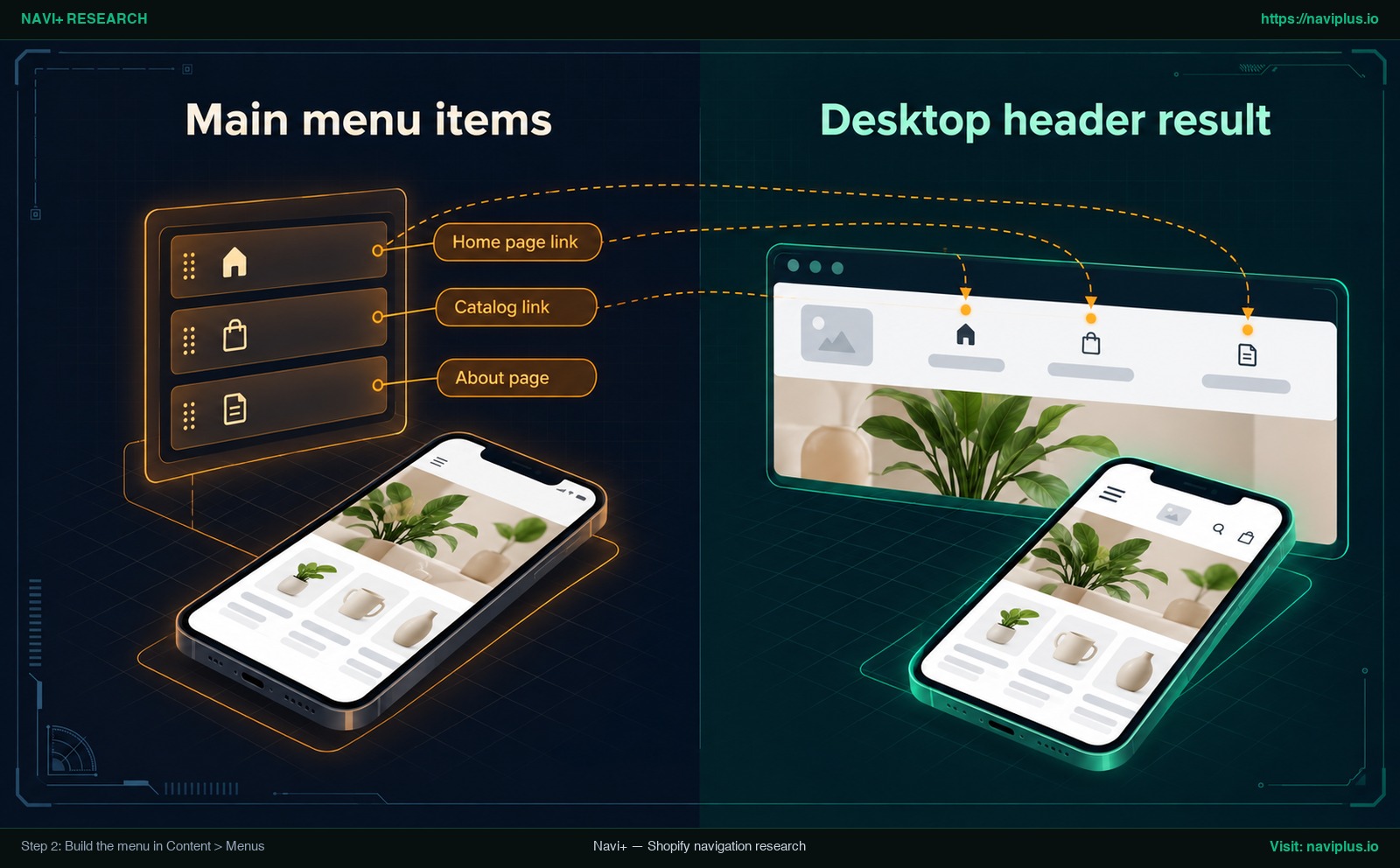
Figure 1: Concept illustration — Step 2: Build the menu in Content > Menus
Add Home
In Content > Menus, select your main menu and click Add menu item. Name it Home. Under Link, choose Home page. When selecting the Home page link type, Shopify sets the destination automatically to your store root.
Add Catalog
Click Add menu item and enter Catalog (or Shop). Under Link, pick a collection from the list, or use the all-products page at /collections/all. Official Shopify documentation on editing menus warns that linking to a URL instead of selecting a page directly can disrupt the connection to the menu item and lead to a 404 error. Pick from the list whenever the destination is there.
Add About
Click Add menu item and enter About (or About Us). Under Link, select Pages, and choose the About page you published in Step 1.
Save and set the order
Review your items in the menu editor list:
| Link name | Link type | Destination | Note |
|---|---|---|---|
| Home | Home page | Online store root (/) |
Set automatically. |
| Catalog | Collections / URL | /collections/all or specific collection |
Lists products. |
| About | Pages | Your published About page | Shares brand story. |
Drag items using the handle icons on the left to arrange them in order: Home, Catalog, About. The order on your storefront reflects this list. Shopify limits unsaved changes to 200 edits before requiring a save, so click Save menu frequently. You can also include emojis directly in item names for visual flair.
Step 3: Show the menu in your header on desktop
Creating a menu in admin does not automatically render it on your live site; menu display locations are controlled by theme settings.
To attach your menu to the desktop header, go to Online Store > Themes and click Customize on your active theme. Select the Header section in the left sidebar. Then choose the menu you created. Setting names vary by theme, so look for the menu option in that section.
On desktop screens, ensure your theme displays full links horizontally rather than collapsing them behind an icon. Nielsen Norman Group usability research on desktop navigation indicates that navigation options should be fully visible on wide screens, because hidden menus reduce discoverability. Confirm your Desktop header menu displays all three links clearly across widescreen displays.
How the same menu appears on mobile
While desktop headers show links horizontally, smartphones present a different browsing dynamic due to limited display width.
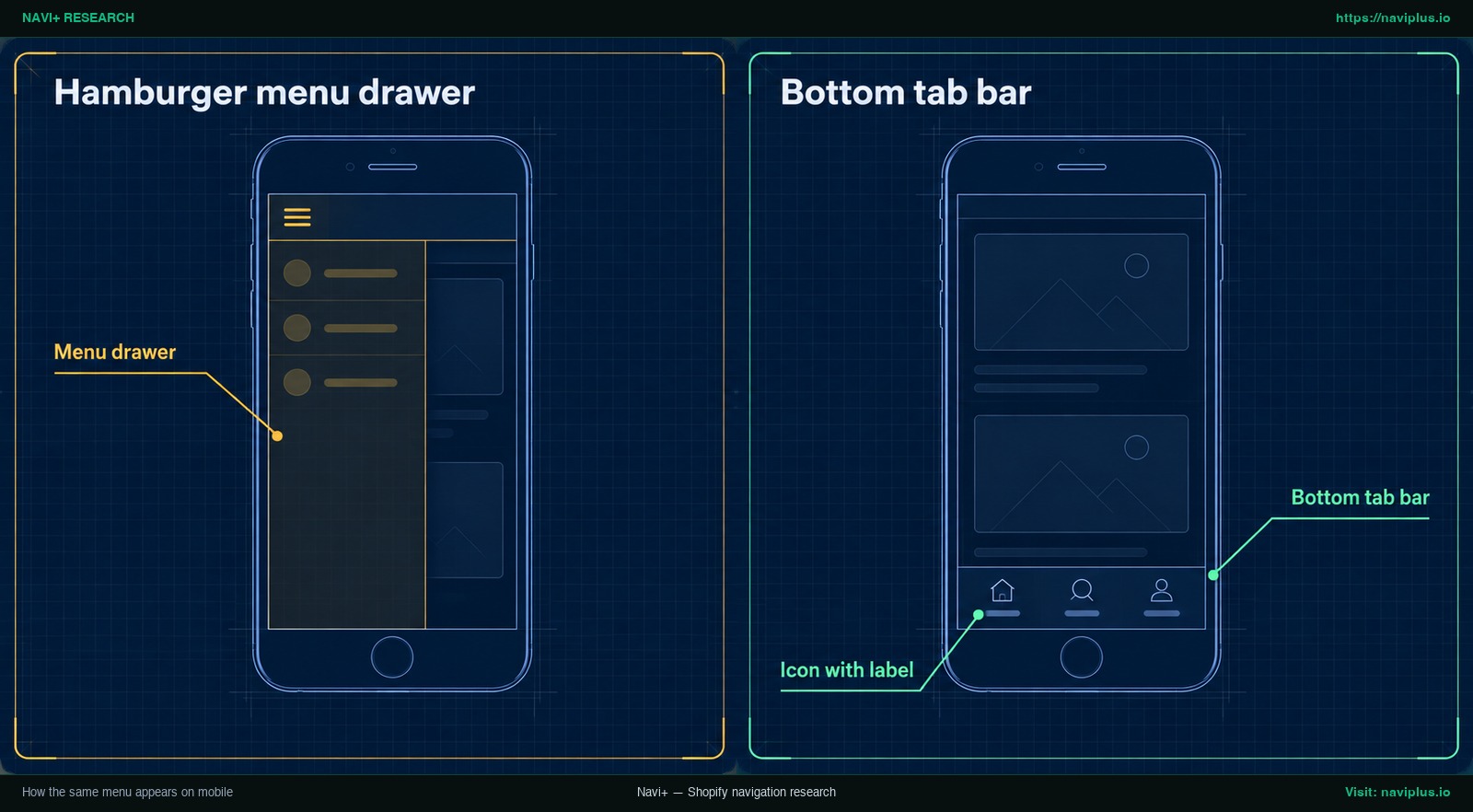
Figure 2: Concept illustration — How the same menu appears on mobile
Most Shopify themes automatically collapse the header on phones, moving navigation links inside a slide-out Menu drawer accessed via a hamburger icon. NN/g research on mobile navigation highlights that hidden navigation lowers content discoverability compared to visible items. Because three links require very little horizontal space, keeping them accessible without an extra tap improves mobile usability.
If you need a different navigation structure on mobile than on desktop, you can show a different menu on desktop and mobile.
| Navigation pattern | Always visible? | Extra tap required? | Best suited for |
|---|---|---|---|
| Desktop header menu | Yes (on desktop) | No | Wide desktop screens. |
| Mobile Menu drawer | No (hidden behind icon) | Yes (tap hamburger) | Long secondary link lists. |
| Mobile tab bar | Yes (pinned to bottom) | No (one tap directly) | A few core destination links. |
Step 4: Add a bottom tab bar for mobile
If many of your shoppers browse on smartphones, a hamburger button keeps your links hidden until they tap it.
A Bottom tab bar pins primary links to the bottom of the screen. NN/g mobile navigation research notes that tab bars are persistent: they stay visible whether or not the user scrolls the page.
Most Shopify themes do not include a fixed bottom tab bar out of the box, so you usually need an app or custom code. When setting up a bottom bar, reuse the exact same three links (Home, Catalog, About) with identical destination URLs as your desktop navigation. Consistent destinations prevent shoppers from feeling disoriented when switching between desktop and mobile devices.
Add icons and test on every screen size
Adding visual cues makes mobile navigation faster to recognize, but icon design requires careful usability considerations.
While Shopify item names can contain emojis directly in admin text fields, dedicated SVG or graphical icons require theme support or an app. Usability findings from Nielsen Norman Group emphasize using an Icon with label rather than standalone icons, as ambiguous pictograms confuse shoppers. If you use an app, refer to our tutorial on how to set an icon for each menu item.
Ensure all interactive targets meet accessibility standards. W3C WCAG 2.2 Success Criterion 2.5.8 sets a minimum target size of 24×24 CSS pixels (with some exceptions).
Test your menu thoroughly before launch:
- Desktop screen: Verify links span horizontally in the header without wrapping awkwardly.
- Tablet screen: Check breakpoint transitions between horizontal links and hamburger icon.
- Mobile portrait: Verify hamburger drawer opens smoothly and displays all three links.
- Mobile landscape: Confirm links remain accessible without crowding the viewport.
- Interactive check: Tap each link to confirm it navigates to the intended destination.
Common problems and fixes
If your menu behaves unexpectedly, check these common fixes alongside our guide to fix broken links in your navigation menu:
Link leads to a 404 error page
If Catalog or About produces a 404 error, the menu item likely contains a manually typed URL with an incorrect handle. Edit the item in Content > Menus and select the destination directly from Shopify’s dropdown list.
About page does not appear in menu
You created the page, but it does not appear in your storefront header. Pages created in Online Store > Pages do not automatically enter menus. Add the link in Content > Menus, and verify page visibility is set to Visible.
Catalog link shows unexpected product order
Your Catalog link opens, but products appear in an unexpected sequence. Shopify’s /collections/all lists products alphabetically by default. To change the order, create a collection with the handle all.
Header menu does not update on storefront
You saved menu edits, but the live site still shows older navigation items. In Online Store > Themes > Customize, open the Header section and confirm it points to your updated menu.
Clicking a parent menu item does not navigate
If you nest items under Catalog and clicking Catalog does nothing, check your theme design. Most themes implement drop-down headers as toggle buttons rather than clickable links.
Trade-offs: when a three-link menu is not enough
A three-link menu provides an effective starting foundation, but growing stores eventually encounter structural limitations.
Expanding beyond three links
When your inventory expands across multiple departments, a single Catalog link becomes restrictive. In that situation, you can add a submenu under Catalog. In Shopify, top-level items support up to 2 levels of nested drop-down menus. For extensive collections on desktop, you can also turn Catalog into a mega menu to display multi-column categories with promotional images.
If you decide to expand your store catalog into nested categories, watch this official tutorial from Shopify Academy demonstrating how to structure drop-down hierarchies:
Limitations of mobile bottom tab bars
While a bottom tab bar provides immediate phone access, NN/g research notes that tab bars are well suited only for sites with relatively few navigation options. If you add more than 4 to 5 choices, the tab bar becomes crowded. Furthermore, bottom bars occupy vertical screen space. If your shoppers purchase almost entirely on desktop, a mobile bottom bar may not be necessary.
Where Navi+ fits
Setting up basic Home, Catalog, and About links in Shopify admin is straightforward, but standard theme settings offer limited control over mobile presentation.
If you want Home, Catalog and About pinned to the bottom of every phone screen, with an icon and label on each tab, Navi+ Tab Bar lets you set that up without editing theme code. Keep your Shopify main menu for the desktop header and use the same three links in the tab bar.
As your store requirements expand, Navi+ supports your growth:
- Navi+ Mobile Menu: When you want a custom mobile drawer styled independently from your theme, pull your Shopify menu in and manually re-sync whenever your links change.
- Navi+ Desktop Mega Menu: When your catalog requires multi-column category grids and banner imagery, organize products into clean mega menu layouts (supporting up to 3 levels of navigation depth).
To explore which navigation structure best fits your store catalog, read our guide on how to choose the right menu type for your store.
Action checklist
Use this checklist to audit your store’s three-link navigation bar:
- Publish About page: Confirm About page is created and marked Visible in Online Store > Pages.
- Set Catalog target: Choose between default
/collections/allor collection handleall. - Open menu editor: Navigate to Content > Menus and select your main menu.
- Add Home: Select Home page link type so destination is assigned automatically.
- Add Catalog: Select catalog destination directly from the dropdown list.
- Add About: Select published About page from the internal Pages list.
- Reorder and save: Drag items into preferred sequence and click Save menu.
- Connect theme header: In Online Store > Themes > Customize, ensure Header uses your menu.
- Check mobile drawer: Preview on a smartphone to inspect links in drawer.
- (Optional) Configure tab bar: Pin 3 text-labeled icons to mobile bottom for fast access.
- Verify live links: Tap each link on desktop and mobile devices to verify error-free loading.
FAQ
Where should the Catalog link point?
Shopify stores have a built-in page at /collections/all listing visible products in alphabetical order. To change the order, create a collection with the handle all or point directly to a curated collection.
Why doesn’t my About page show in the menu?
Creating a page in Online Store > Pages does not add it to storefront navigation automatically. You must open Content > Menus, select your menu, and add the published page from the Pages list.
Will the same menu show on mobile?
Yes, most themes reuse your desktop header menu inside the mobile drawer accessed via a hamburger icon. Because styling depends on your theme, test on a phone to verify drawer behavior.
Do I need an app for a bottom tab bar?
Most Shopify themes provide a header and drawer but do not include a fixed bottom bar. Adding one typically requires an app or custom code, and tab bars suit a small number of core links.
Can I add icons to menu links?
Item names can include emojis directly in admin text fields. For graphical SVG icons, you need theme settings or a navigation app, and you should always include a text label alongside the icon.
Why did my menu link break with a 404?
Pasting a raw URL instead of selecting from Shopify’s dropdown can break connections if handles change, causing a 404 error. Picking targets directly from the list keeps links stable.
Sources
- Shopify Help Center: Editing menus
- Shopify Help Center: Menus and links
- Shopify Help Center: Drop-down menus
- Shopify Help Center: Add and edit pages
- Shopify Help Center: Change catalog page
- Shopify Help Center: About us page
- Nielsen Norman Group: Mobile navigation patterns
- Nielsen Norman Group: Visible navigation on mobile
- Nielsen Norman Group: Desktop navigation not hamburger
- Nielsen Norman Group: Hamburger menus and discoverability
- Nielsen Norman Group: Icon usability
- W3C: WCAG 2.2 Target Size (Minimum)
Explore the topics
This guide links out to focused articles — dive deeper on each.