Fix Links in Your Shopify Navigation Menu: Broken, Missing and Unclickable Links
Few moments during store management cause more sudden confusion than discovering a navigation link that fails when tapped. You click a primary category in your storefront header expecting to view a curated catalog, but nothing happens. Or worse, a shopper taps an item on mobile and lands on a blank 404 page.
Understanding the difference between a Broken Menu Link and a Fixed Menu Link begins with diagnosing where the connection failed. In most stores, broken navigation links are not caused by complex bugs hidden deep inside Liquid templates. Instead, most fall into four distinct operational symptoms: dead links pointing to deleted resources, links directing shoppers to the wrong destination, top-level parent headers that open dropdown menus without navigating, or admin edits that fail to display on the live storefront.
Each symptom has a clear, methodical solution that starts right inside your Shopify admin under Content > Menus, rather than through risky custom code edits. This guide walks you through diagnosing the exact failure mode affecting your store, fixing broken destinations safely, and making dropdown headers clickable across both desktop and mobile screens.
Quick answer: how to fix links in a Shopify navigation menu
To fix links in a Shopify navigation menu, open Content > Menus, find the item, click the x next to its link field and pick the correct collection, page or product, then save the menu (Shopify Help Center). If a dropdown parent won’t click, that’s usually by design: most themes render drop-down headers as buttons, not links (Shopify Help Center).
Follow these five steps to repair a malfunctioning menu link:
- Open Content > Menus in your Shopify admin to access your store navigation lists (Shopify Help Center).
- Open the menu assigned to your header (such as “Main menu”) and locate the specific item that is failing.
- Click the x next to the link field to detach the old destination, then search or select the correct collection, page, or product resource (Shopify Help Center).
- Save menu by clicking the save button in the top or bottom action bar.
- Test the link in an incognito or private browsing window on both desktop and mobile devices to verify the destination loads properly.
If your link is a top-level category header that holds subcategories and refuses to load a page when clicked, that behavior is governed by your theme layout. Review the section below on why a parent menu item with a dropdown isn’t clickable to choose the right fix.
Identify your symptom: dead, wrong, unclickable or not updating
Before adjusting menu settings or touching template files, you need to Identify your symptom accurately. Different storefront failures originate in completely different parts of the Shopify platform. Treating an unclickable parent dropdown as a dead resource link will only create extra confusion.
Use the diagnostic table below to match what you observe on your storefront with its underlying cause:
| Symptom | Likely cause | Where to fix | Section |
|---|---|---|---|
| Dead link / 404 error | Destination resource was deleted or collection handle was changed (Shopify Help Center, Shopify URL Redirects) | Content > Menus & Navigation Redirects | Fix a broken or wrong link & Redirect old URLs |
| Wrong page | Link field points to an unintended collection, page, or outdated URL (Shopify Help Center) | Content > Menus | Fix a broken or wrong link in Content > Menus |
| Unclickable parent | Theme renders dropdown header as a button instead of a hyperlink (Shopify Help Center, Shopify Community) | Theme Header settings or Content > Menus | Why a parent isn’t clickable & Make parent clickable |
| Not updating | Theme header uses another menu list, or admin sync lag occurs (Shopify Community) | Theme Editor (Header) or Content > Menus | Menu changes not showing on your storefront |
| Dropdown closes too early | Layout gap caused by a border breaks mouse hover bridge (Shopify Community) | Theme CSS or App Embeds | Dropdown closes too early on desktop |
When inspecting your store, pay attention to the specific visual behavior. A Dead link generates a platform 404 “Page Not Found” screen. An incorrect route simply requires an Updated destination selected in the admin picker. Meanwhile, an element configured as a Parent as button behaves very differently from a standard Parent as link, because its click event is captured exclusively by the browser to show or hide nested items.
Fix a broken or wrong link in Content > Menus
When a menu link leads to a 404 page or opens the wrong category, the core fix belongs in your navigation settings. In your Shopify admin, you can view and change your online store menus from Content > Menus (Shopify Help Center).
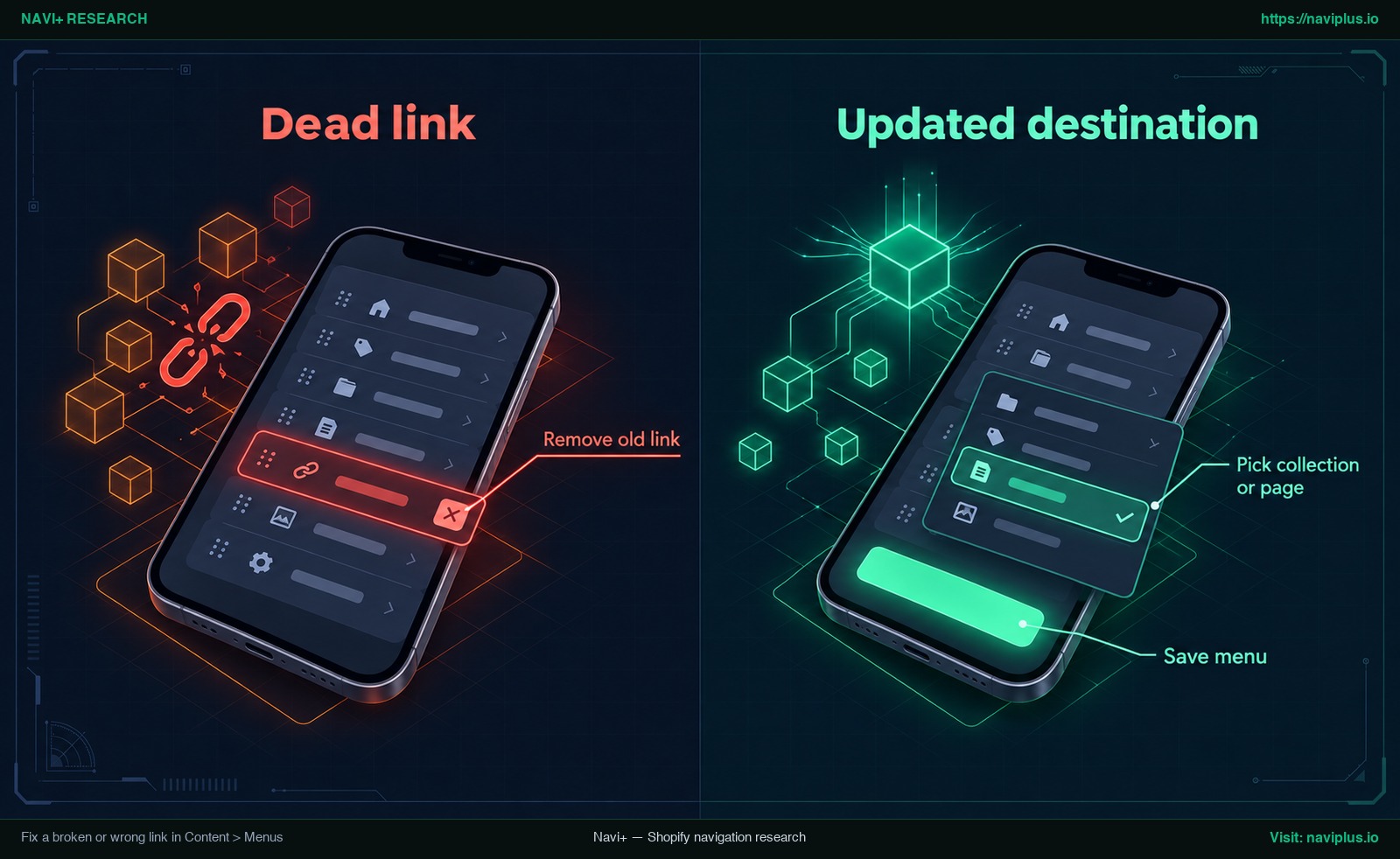
Figure 1: Concept illustration — Fix a broken or wrong link in Content > Menus
To repair the broken item, complete the following three steps:
Remove old link
Navigate to Content > Menus and click the title of the menu containing the faulty item. Click Edit next to the specific menu item row. In the item details modal, you will see the Name field and the Link field. To change the destination of the menu item, click the x next to the link field (Shopify Help Center). Then choose the new destination.
Pick collection or page
With the link field empty, click inside the field to open Shopify’s native resource picker. Shopify lets you link to products, collections, pages, blog posts and policies. As Shopify notes, in most cases, you need to create an item before you can link to it (Shopify Help Center). If you recently planned a new product line or landing page, ensure that resource is already published in your admin before attempting to select it here.
Always select your destination directly from this picker menu rather than typing a raw relative URL (such as /collections/apparel) by hand. Picking from the list also avoids typos in the path.
[!NOTE] If a menu item suddenly vanished from your navigation without anyone editing the menu, check your collections and pages. If you delete a resource that you use in your store’s menus, then any associated menu items are also deleted automatically (Shopify Help Center).
Save menu
Once the correct resource appears in the link box, click Apply changes inside the modal, and then click Save menu in the primary admin bar. Your updated destination is now committed to the database.
Redirect old URLs after you change a handle
Store owners frequently encounter broken navigation after restructuring a category. For example, if you change a collection’s URL handle from /collections/summer-gear to /collections/warm-weather-essentials, old links or bookmarks that still use the previous path can end up on a 404 page.
When you change a URL on your Shopify store, you can create a URL redirect to prevent customers and search engines from hitting dead ends (Shopify Help Center).
To successfully Redirect old URLs, keep two vital platform rules in mind:
First, you can redirect only from broken URLs (Shopify Help Center). If the old path was permanently removed or changed, Shopify can seamlessly forward visitors to your new collection.
Second, if the URL still loads a valid webpage, then the URL redirect won’t work (Shopify Help Center). If the previous URL remains tied to an active page, product, or archived collection, the platform will continue serving that live resource instead of triggering your redirect rule.
After creating your redirect, return to Content > Menus and update the link destination directly. Don’t rely on redirects for your main navigation: a redirect is a safety net for old links, and the menu itself should point straight to the live URL.
Why a parent menu item with a dropdown isn’t clickable
One of the most persistent frustrations among Shopify merchants occurs when adding child links beneath a main menu item. A merchant creates a top-level item called “Shop” that links to /collections/all. They then drag subcategories like “Shirts” and “Pants” underneath it. Immediately upon saving, clicking “Shop” on the storefront stops navigating to the all products catalog.
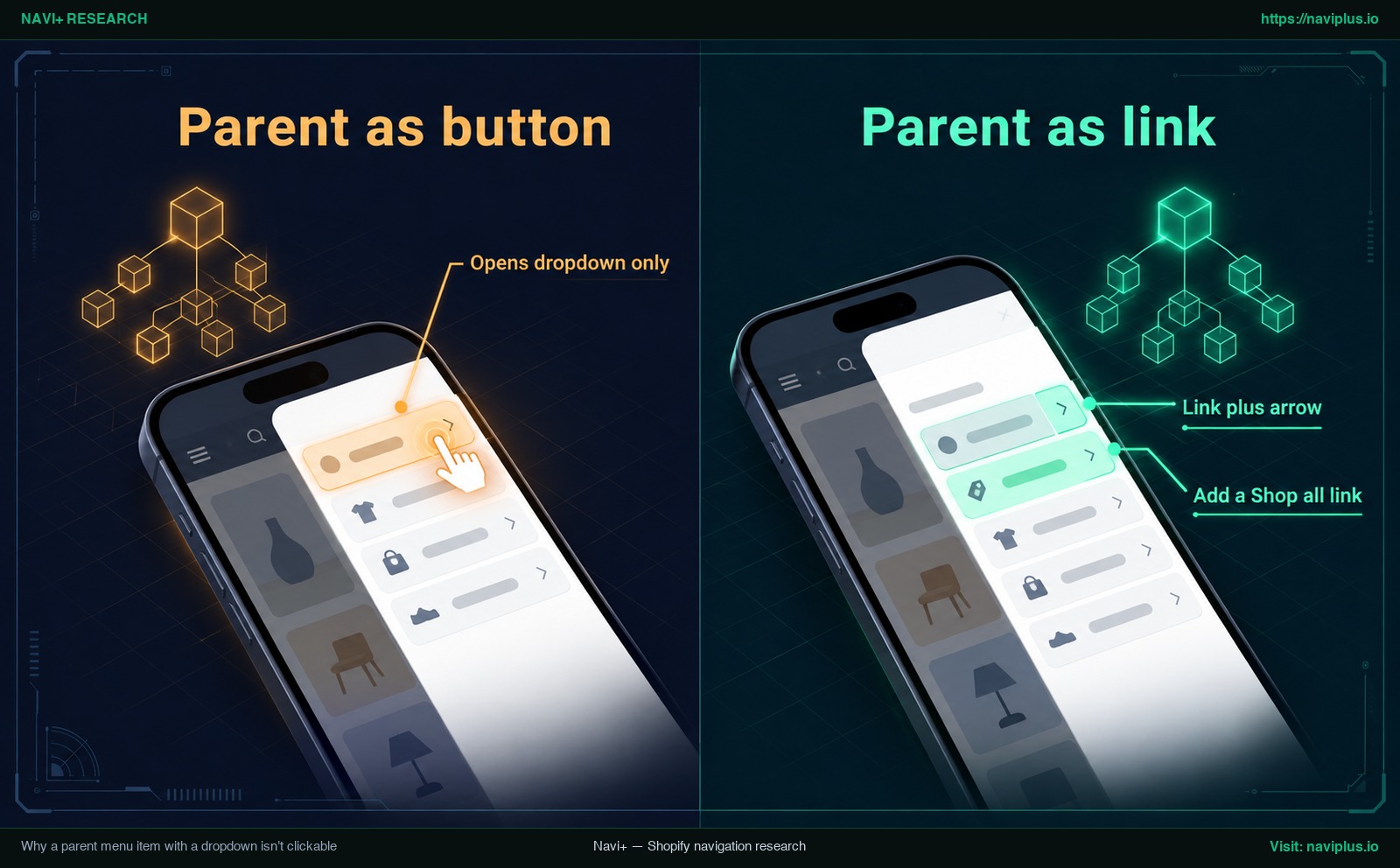
Figure 2: Concept illustration — Why a parent menu item with a dropdown isn’t clickable
This is usually down to theme design, not a bug. According to official Shopify documentation, most themes implement drop-down menu headers as buttons rather than clickable links (Shopify Help Center).
From a technical standpoint, many modern Shopify themes build dropdown containers using native HTML <details> and <summary> elements. As documented in the MDN Web Docs, clicking the <summary> element toggles the state of the parent <details> element open and closed (MDN Web Docs).
Because the browser’s native <summary> control handles disclosure state, clicking or tapping it produces a specific interaction:
- Opens dropdown only: The click event is captured entirely by the browser to reveal or collapse nested child items, preventing navigation to an underlying URL.
Store owners run into this wall. On the Shopify Community, merchants report that parent links in the header stop being clickable after they add a dropdown menu with child links. Another merchant highlighted the exact retail impact: “After making my SHOP navigation a drop down it no longer takes you to the all products page” (Shopify Community).
When organizing complex hierarchies, understanding your Shopify multi-level menu structure helps you organize top-level categories without confusing mobile shoppers.
Make the parent link clickable: theme setting, menu workaround or code
If your storefront requires shoppers to browse the top-level parent category in addition to expanding nested submenus, you have three primary resolution paths, ordered from safest to most complex:
Check the header menu type
Before modifying code, check your theme customizer settings. Some themes offer built-in toggles that dictate how the header navigation bar renders nested links.
For example, in the Trade theme, community troubleshooting revealed that when the header menu type is set to “mega menu”, certain script modifications to make parent items clickable do not take effect, whereas changing the menu type setting to “dropdown” allows parent click behavior to function (Shopify Community). Inspect your theme’s Header section settings in the theme editor to see if alternative menu display layouts are available natively.
Add a Shop all link
A no-code workaround is to restructure the first child link. Instead of forcing the top-level header to act as both a button and a link, you configure the parent strictly as an interactive folder.
In Content > Menus, edit the parent item. If you don’t want the header to link to anything, then enter # into the link field (Shopify Help Center). Then, create a new child item nested at the very top of that dropdown titled “Shop all” or “View all”, pointing directly to the parent collection page.
The strategy to Add a Shop all link delivers three key benefits:
- It requires zero code edits, eliminating the risk of breaking theme files.
- It keeps the parent as a dropdown while still giving shoppers a link to the full collection.
- Shoppers immediately understand that the parent row expands the drawer, while the first child link visits the broader collection.
Edit the theme code (back up first)
If you must have the parent label itself navigate directly to the collection page on desktop hover, you can modify your theme Liquid templates (such as header-dropdown-menu.liquid or header.liquid).
[!WARNING] Before modifying any Liquid files, remember Shopify’s explicit recommendation: it’s a good idea to make a backup copy of your theme before customizing its code (Shopify Help Center). Duplicating your live theme gives you an instant restore point if markup edits break layout responsiveness.
The technical principle of this code modification involves wrapping the text label of the parent element in a genuine HTML <a> anchor tag that retains its href attribute, rather than leaving it as a bare <summary> text node. This structure is also critical for search engine accessibility. According to Google Search Central, generally, Google can only crawl your link if it’s an <a> HTML element (Google Search Central); review our guide on how to make sure Google can crawl your menu for crawl-safe markup.
Under this implementation, desktop navigation often adopts a split control pattern:
- Link plus arrow: The text portion of the category functions as an active link navigating to the collection, while an adjacent chevron icon acts as the toggle button to open the dropdown menu.
However, proceed with caution. Community discussions surrounding Dawn 7.0.1 demonstrate that manual Liquid edits that appear to work on desktop can fail on mobile screens, or stop working on other theme versions because the underlying DOM elements and CSS classes differ (Shopify Community).
| Method | Needs code? | Risk | Best for |
|---|---|---|---|
| Theme setting adjustment | No | Very Low | Themes with built-in dropdown vs mega menu controls |
| Add a “Shop all” child link | No | Very low | All stores seeking a robust, zero-maintenance layout |
| Custom Liquid code edit | Yes | Medium–High | Stores with dedicated developers comfortable maintaining custom themes |
Menu changes not showing on your storefront
Another common navigation breakdown occurs when you carefully edit items in your admin, click save, and discover that your storefront continues displaying the old links.
Check which menu the header uses
In most cases, the discrepancy is caused by editing the wrong menu resource. Your store can have several menu lists in Content > Menus (such as “Main menu”, “Main Navigation 2026”, “Mobile Drawer”, or “Footer menu”).
To verify your live configuration:
- From your Shopify admin, go to Online Store > Themes.
- Click Customize next to your active theme.
- In the left-hand sidebar, click the Header section.
- Review the Menu setting in the right-hand panel.
If the theme Header is assigned to “Main Navigation New” but your edits were made inside “Main menu”, your storefront will never reflect those changes. Update the theme setting to point to your edited menu, or edit the exact menu currently assigned to the header.
The handle re-save workaround
If your theme is assigned to the correct menu list but changes still fail to appear, you may be experiencing storefront caching delay.
In the Shopify Community, merchants experiencing persistent menu sync lags discovered an edge-case administrative workaround: change and save the menu handle, and then resave it again with the original handle (Shopify Community).
[!NOTE] Please note that this handle re-save technique is an unofficial community-reported workaround, not an official Shopify troubleshooting procedure. Before attempting to adjust menu handles, always test your store inside a private browsing window to ensure your local browser cache is not simply displaying an outdated version of the page.
Dropdown closes too early on desktop
A subtle but irritating navigation error occurs when a menu item is technically working, but shoppers cannot reach the child links because the flyout collapses prematurely.
When a Dropdown closes too early, desktop shoppers hover over a top-level category, begin moving their cursor downward toward a subcategory, and watch the dropdown vanish instantly before their click registers.
In community discussions analyzing this issue, community members observed that when menus close too early on desktop, that’s because there is an unnecessary gap caused by the border between the top-level item and the dropdown panel (Shopify Community). When the mouse cursor crosses that gap, the hover state is lost and the menu closes.
Similar hover bridge collapses can be triggered by third-party CSS injected by recently installed app embeds. To diagnose the problem safely without writing unverified CSS overrides, temporarily disable recently added app embeds in your theme editor to identify conflicts, or reach out to your theme developer to adjust the header hover padding cleanly.
Trade-offs: when not to edit theme code
When faced with an unclickable parent link or an awkward dropdown menu, it is tempting to search for a quick Liquid snippet online and paste it directly into your theme. However, manual code modifications introduce real ongoing costs:
- Theme update overwrites: When your theme provider releases a performance or security update, custom modifications in
header.liquidorheader-dropdown-menu.liquidwill not port over automatically. You must manually re-code and re-test those edits on every new version. - Version incompatibilities: Theme architectures evolve rapidly. As demonstrated in community discussions regarding Dawn 7.0.1, a code snippet written for one version may break completely on newer versions that no longer use identical summary tags or class selectors (Shopify Community).
- Mobile layout breakages: Desktop hover scripts frequently fail on mobile devices. Tapping a parent category on a touchscreen may immediately trigger page navigation before the shopper can see or tap any of the nested child items.
For many merchants, implementing the “Shop all” child link workaround delivers an intuitive experience without custom code to maintain. If your catalog requirements demand sophisticated multi-tier layouts, explore the limits of theme menus to determine whether an independent navigation solution is a better long-term fit.
Where Navi+ fits
If your storefront requires deep catalog organization and you prefer not to maintain custom Liquid code in your theme files, Navi+ provides a flexible alternative.
Navi+ operates as a dedicated navigation platform offering Mobile Menu drawers, Desktop and Mobile Mega Menus, and a sticky Mobile Tab Bar supporting up to three nested levels. Rather than altering your theme’s core template files, Navi+ functions independently alongside your theme.
Every item in Navi+ features customizable link behavior:
- Using
#for a parent item ensures that tapping it expands the children without navigating anywhere (Navi+ Documentation). - For stores that require direct parent access, Navi+ section headers can link to a page and expand children at the same time: tapping the row expands nested submenus, while tapping the dedicated arrow navigates directly to the collection page (Navi+ Changelog).
If your theme keeps turning parent items into buttons and you’d rather not maintain custom header code, you can build the menu in Navi+ and decide per item whether it links, expands, or both.
Post-fix checklist
After repairing your navigation links, run through this Post-fix checklist to ensure your entire menu structure functions reliably across all channels:
- Open an incognito or private browsing window on both desktop and mobile to test your live storefront without cached assets.
- Click or tap every top-level, level-two, and level-three menu item to verify that the destination URL loads successfully.
- Check for 404 errors on any collection whose title or handle was recently changed, and confirm URL redirects are configured in your admin (Shopify Help Center).
- In the theme editor, confirm that the Header section is assigned to the exact menu list you edited in Content > Menus.
- Verify that a backup copy of your theme was duplicated before making any manual code edits (Shopify Help Center).
- Audit your navigation lists whenever collections, pages, or products are deleted to ensure no menu items were automatically removed (Shopify Help Center).
- Test dropdown hover behavior on desktop to verify that submenus do not collapse prematurely when the cursor moves between items.
- Review our complete Shopify menu guide to maintain a balanced, accessible navigation structure as your catalog scales.
FAQ
Why can’t I click my main menu item that has a dropdown?
Shopify explains that most themes implement drop-down menu headers as buttons rather than clickable links (Shopify Help Center). You can check your theme’s header menu type setting (Shopify Community) or add a dedicated “Shop all” child link pointing to the parent collection.
Why did a menu item disappear from my menu?
If you delete a resource that you use in your store’s menus, then any associated menu items are also deleted automatically (Shopify Help Center). If a link vanishes unexpectedly, verify whether its underlying collection, product, or page was removed.
Why does my menu link show a 404 after I renamed a collection?
When you change a handle or URL on your store, you can create a URL redirect to preserve traffic (Shopify Help Center). However, redirects only function from broken URLs (Shopify Help Center), so you should always update the destination in Content > Menus directly.
Why isn’t my navigation menu updating on my store?
Verify which menu is actively selected inside your theme editor’s Header section. A community-reported workaround involves changing and saving the menu handle, then saving it back with the original handle (Shopify Community), though you should always test in a private window first.
How many levels can a Shopify drop-down menu have?
The top-level item can have up to two levels of nested drop-down menus below it (Shopify Help Center), creating up to three total tiers of navigation.
Is it safe to edit header code to fix it?
Shopify recommends making a backup copy by duplicating your theme before customizing theme code (Shopify Help Center). Custom Liquid modifications can break responsive behaviors across theme versions and mobile touchscreens.
Sources
- Shopify Help Center: Editing Menus — Managing menu destinations and resource associations.
- Shopify Help Center: Drop-down Menus — Multi-tier dropdown rules and parent button behavior.
- Shopify Help Center: URL Redirects — Rules and limitations for store URL forwarding.
- Shopify Help Center: Duplicating Themes — Theme backup best practices prior to customization.
- Google Search Central: Make Links Crawlable — Crawlability requirements for HTML anchor tags.
- MDN Web Docs: The Summary Element — Technical disclosure mechanics of HTML summary and details.
- Shopify Community: Why Isn’t My Navigation Menu Updating — Merchant discussions on menu handle sync behaviors.
- Shopify Community: Why Aren’t the Main Menu Links Working — Analysis of desktop hover gap and border spacing.
- Shopify Community: Dropdown Menu Clickable - Trade — Header menu type configuration effects in Trade.
- Shopify Community: Dawn Theme 7.0.1 Dropdown Menu Parent Link Not Clickable — Merchant reports on unclickable parent headers.
- Shopify Community: How to Make My Shop Link in the Header Work Again — Observations regarding parent links disabled by dropdowns.
- Navi+ Documentation: Menu Item Link Types — Independent link type configuration and hash link touch behavior.
- Navi+ Changelog: Latest Update — Section header dual link and expand functionality.
Explore the topics
This guide links out to focused articles — dive deeper on each.