How to Make Your Shopify Menu Look Like a Theme Demo (Theme Settings, Apps, or Custom Code)
You preview a polished Shopify theme demo, admire its expansive multi-column navigation with featured imagery, and install the theme on your store. Yet when you open your storefront, your navigation looks entirely different: a plain, narrow text drop-down with empty gaps.
A theme demo menu is not magic. It is the theme’s header setting combined with a three-level menu filled with sample content. You can match that presentation by diagnosing the demo first, configuring your theme settings, using a dedicated navigation app, or writing custom code, while planning your mobile experience separately.
Quick answer: how to make your Shopify menu look like the demo
A theme demo menu usually comes from the theme’s header settings and a nested menu filled with sample content, not from the default menu alone. To match it, identify the menu type, build up to three levels in Content > Menus, enable the matching header option, then add images or use a menu app.
To recreate the look on your store, follow these four foundational steps:
- Identify the menu type: Inspect the demo to see whether it uses a dropdown, a multi-column mega menu, an off-canvas drawer, or a bottom tab bar.
- Build nested menu levels: Create up to three levels of links in Content > Menus in your Shopify admin.
- Turn on matching Header settings: Open the theme editor and configure the header navigation layout blocks.
- Add imagery or use a mega menu app: Upload featured images directly in theme blocks, or install a navigation app if your theme lacks multi-column layouts.
Keep in mind that mobile menus behave differently from desktop displays, so you will need to plan your mobile drawer or tab bar separately.
Why your Shopify menu doesn’t look like the theme demo
When merchants install a new theme, the immediate contrast between the demo showcase and their live store often leads to confusion. Understanding why this happens saves hours of troubleshooting.
Demo sample content
A theme demo is set up to show the theme at its best. A theme demo store contains sample products and content to help you get a feel of how the theme looks and works. Its menu columns are filled with categories, photography, and banners that your own store does not have yet.
When you install or preview a theme in your Shopify admin, you can try it by previewing the theme in your Shopify admin. However, you will need to preview the theme using whatever data is live on your site. If your Shopify admin only has a handful of collections with sparse product counts, or if your menu only contains flat, top-level links, the theme has no data to display. The rich Demo sample content you admired in the showcase does not transfer over automatically. A sparse collection tree tends to produce a sparse, unbalanced menu panel.
The theme’s own menu style
Themes often provide more than one visual navigation format within their template settings. For instance, in one Shopify Community thread about the Prestige theme, a merchant asked why their menu does not look like the demo. Shopify Support replied that the Prestige theme also has two different menu styles, and this is likely why your menu looks different. If you are working with this specific template, consult our guide on how to add a mega menu to Prestige.
Furthermore, Shopify’s official documentation notes that the main menu and drop-down menus display in different locations in your online store depending on your theme. So the same menu can show up in a different place or form from one theme to another.
Another common misconception centers on theme styles or presets. When merchants switch presets, they often expect the navigation structure to adapt automatically. However, presets are about site-wide settings: each theme style is a set of pre-selected theme settings that configure site-wide colors, fonts, product options, and more. Because a preset mainly changes settings like colors and fonts, changing presets is unlikely to turn a simple dropdown into a multi-column menu.
Step 1: Identify the menu type the demo uses
Before adjusting settings in your Shopify admin, open the theme demo in a desktop browser and on a mobile device. Carefully examine how the menu behaves when you hover over or click a top-level link.
In usability research by the Nielsen Norman Group, a mega menu is defined as a type of expandable menu in which many choices are displayed in a two-dimensional dropdown layout. Their findings show that mega menus show everything at a glance, so users can see rather than try to remember.
Use the following breakdown table to determine which navigation layout the theme demo utilizes:
| Menu Type | How to Recognize It in the Demo | Where to Set It |
|---|---|---|
| Dropdown | Opens as a narrow Single column list of text links hanging directly beneath the parent item. | Created in Content > Menus. |
| Mega Menu | Unfolds into a wide, Multi-column panel spanning the width of the header, showing grouped category columns and an optional Featured image tile. | Often built from 3 Nested menu levels in Content > Menus, plus mega menu options in the theme’s Header settings (or a dedicated app). |
| Off-canvas drawer | An off-canvas panel that slides out from the edge of the viewport, typically triggered by a three-line hamburger icon. Most often the mobile menu is by default collapsed and hidden behind a ‘3-bars’ ‘hamburger’ icon. | Configured in theme mobile navigation settings or header drawer settings. |
| Bottom tab bar | A persistent bar fixed to the bottom edge of mobile viewports featuring a few core icons and labels within thumb reach. | Configured through specialized theme mobile settings, custom Liquid development, or a mobile navigation app. |
As you evaluate the demo, take notes: Count how many columns appear in each dropdown, verify whether images are embedded beside link lists, and determine how many tiers deep the category hierarchy extends. An off-canvas drawer handles utility links gracefully, while a mobile bottom bar keeps high-priority destinations reachable on phones. To explore how these formats perform across different catalog sizes, review our comprehensive framework on choosing the right menu type.
Concept illustration: Comparing a dropdown single column list with a multi-column panel mega menu.
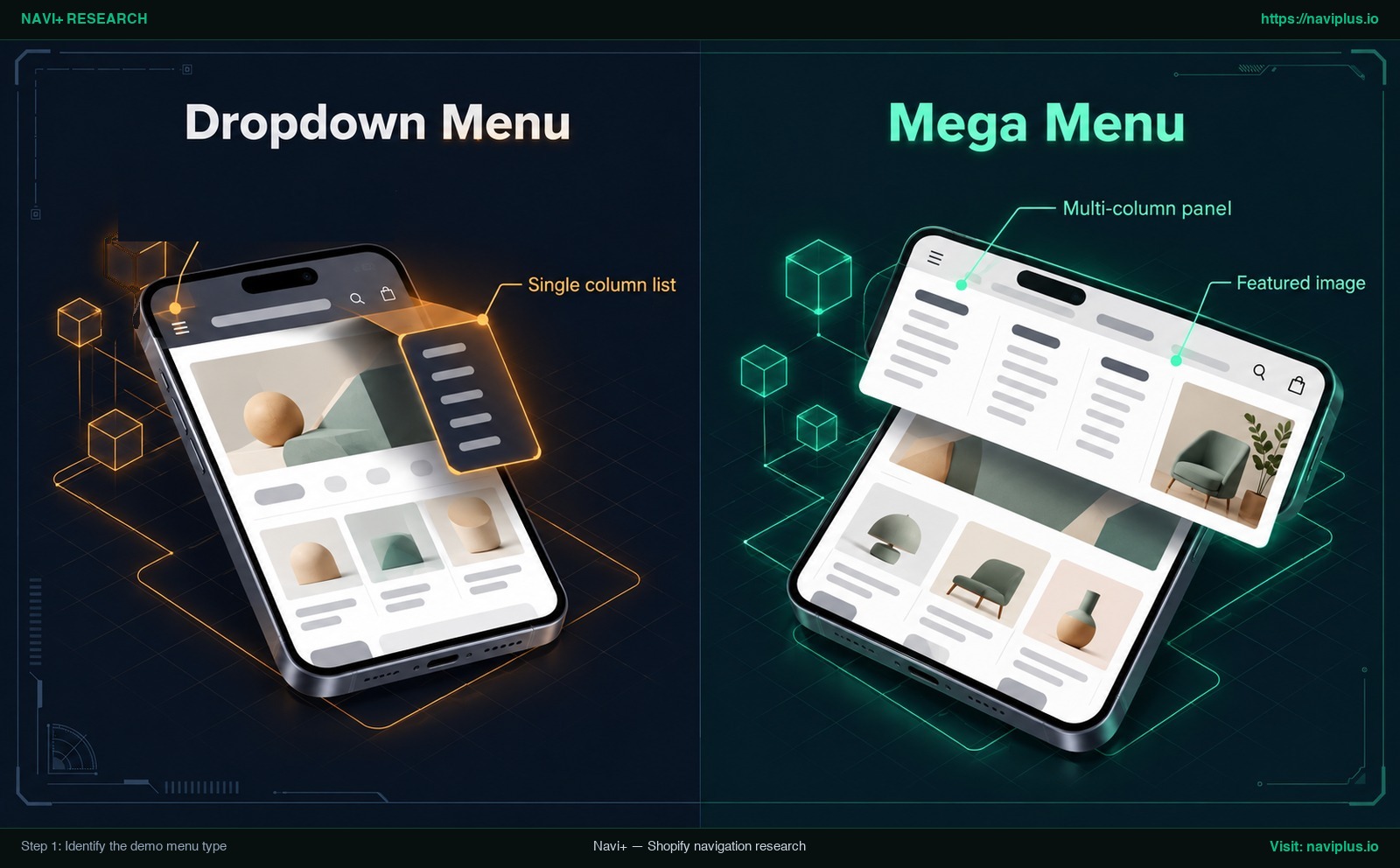
Figure 1: Concept illustration — Single column list dropdown versus a multi-column panel mega menu with a featured image.
Step 2: Check your theme’s header settings and menu structure
If your theme natively supports the layout seen in the demo, you can build it without third-party tools. This process requires two aligned steps: creating the link hierarchy in your admin and activating the corresponding layout in your theme editor.
Build three levels in Content > Menus
All native Shopify menus are managed in your admin dashboard. According to Shopify Help documentation, you can add, remove, change, and view your links and menus from Content > Menus in your Shopify admin (merchants using older admin versions can navigate to Online Store > Navigation).
To support a multi-column layout, you must structure your links into Nested menu levels. Shopify platform rules dictate that the top-level item can have up to two levels of nested drop-down menus. This provides a total depth of three levels:
- Level 1 (Top Level): The primary department visible in the header bar (e.g., “Men”).
- Level 2 (Nested Column Header): The category grouping that serves as a column title (e.g., “Clothing”, “Shoes”, “Accessories”).
- Level 3 (Nested Links): The individual collections or product links beneath each column header (e.g., “T-Shirts”, “Jackets”, “Jeans”).
Some Shopify themes need this third level before they show a mega menu. For instance, theme developer Fluorescent states in their documentation that for the mega navigation, you first need to create a nested menu with 3 levels of links. If you only nest items to Level 2, such a theme may show a basic Single column list rather than a Multi-column panel.
Turn on the mega menu in Header settings
Once your link structure is saved, navigate to Online Store > Themes > Customize to open the theme editor. Click on the Header section in the left sidebar to open your Header settings.
Shopify notes that the sections and blocks that are available in the theme editor depend on your theme and theme version. Because option names vary across themes, look in the Header section for the menu style option and check your theme’s documentation. For stores running the Dawn theme, see our step-by-step tutorial to add a mega menu to Dawn.
In themes that support promotional assets within navigation, you will find settings to add imagery directly inside the menu blocks. In Fluorescent’s Context theme, for example, you can select or upload a Mega nav featured image to display inside the mega navigation menu. Uploading a Featured image completes the polished look seen in the theme demo. If your Header section does not display mega menu options or image upload blocks, check the official documentation from your theme creator or contact their customer support team.
The following official tutorial demonstrates how nested link tiers are assembled in the Shopify admin:
Step 3: Rebuild the demo menu with a mega menu app
When your theme does not provide built-in mega menu settings, or when you want rich promotional cards that your theme’s Liquid schema cannot render, installing a Mega menu app becomes the practical path forward.
Using a dedicated navigation app is particularly beneficial in three scenarios:
- Theme feature limitations: Your theme only supports narrow, single-column dropdowns.
- Visual merchandising needs: You want to feature products, collections, images, or icons inside individual menu columns.
- Future theme portability: You plan to change or upgrade themes later and want your complex navigation design preserved without starting from scratch.
A standard workflow for building a menu with an app follows these steps:
- Select a starting template: Choose a layout preset that mirrors the column distribution of the demo reference.
- Map your columns: Assign your Level 2 categories as column headers and populate each column with Level 3 links.
- Add visual assets: Connect product thumbnails, collection photography, or promotional banners to designated promo slots.
- Preview viewports: Test interactions on both desktop and mobile viewports to ensure clean alignment and readability.
- Publish via theme app extensions: Enable the app embed in your theme editor. Under Shopify’s modern app architecture, merchants won’t need to manually edit their theme code.
When selecting an app, look for clean visual builders that respect Shopify navigation structures without forcing custom code edits into your theme templates. For guidance on spacing, typography, and image allocation across columns, read our comprehensive guide on mega menu best practices.
Step 4: Make the mobile menu match the demo
A common mistake when attempting to copy a theme demo is focusing exclusively on desktop monitors. Navigation behavior on handheld touchscreens is fundamentally different.
Usability research from the Baymard Institute highlights that during usability testing we consistently observe that mobile navigation is particularly difficult for users. On mobile screens, viewport constraints mean that most often the mobile menu is by default collapsed and hidden behind a ‘3-bars’ ‘hamburger’ icon.
Desktop visual elements rarely map directly onto mobile displays. For example, in themes developed by Fluorescent, documentation explicitly cautions that this image is not displayed on mobile. Wide multi-column panels rarely fit across a phone screen without horizontal scrolling or tiny tap targets.
To ensure your mobile navigation matches the usability of the demo:
- Drawer menu: Translate your category hierarchy into a vertical off-canvas Drawer menu. Ensure Level 1 items expand smoothly to reveal Level 2 and Level 3 links with clear visual touch affordances, maintaining the Same structure as your desktop catalog.
- Bottom tab bar: If you want a few key pages always within reach, pair your header drawer with a persistent Bottom tab bar. Docking a few core destinations (Home, Search, Categories, Cart, Account) at the bottom of the screen keeps primary actions within direct reach of the user’s thumb.
For in-depth mobile implementation patterns, consult our technical guides on optimizing the mobile drawer menu and setting up a persistent bottom tab bar for mobile.
Concept illustration: Desktop mega menu structure reused on mobile as a drawer menu and bottom tab bar.
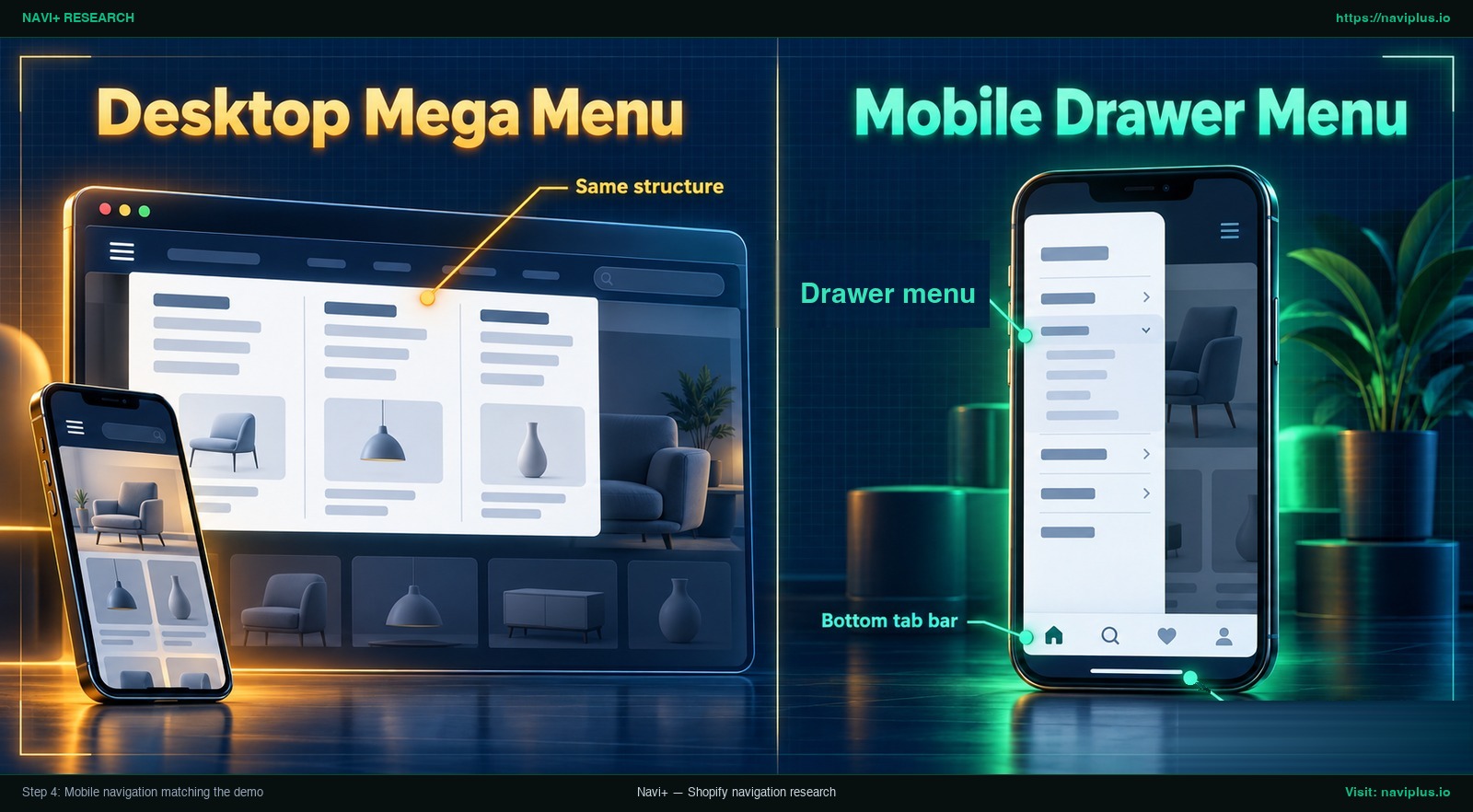
Figure 2: Concept illustration — Desktop mega menu categories maintaining the same structure in a mobile drawer menu and bottom tab bar.
Custom Liquid code vs. an app: trade-offs
When built-in theme settings fall short, merchants typically weigh custom Liquid coding against installing a specialized navigation app. Each approach involves distinct trade-offs regarding development effort, design flexibility, and long-term maintenance.
| Solution | Effort | Design Control | Theme Update Risk | Who It Suits |
|---|---|---|---|---|
| Theme settings | Low (Configure existing blocks in theme editor) | Moderate (Strictly bounded by theme block settings) | Low (Any customizations made to your theme using the theme editor are copied over) | Stores whose theme already contains the required demo layout |
| Mega menu app | Moderate (Select a template and map categories visually) | High (Flexible columns, images, and icons without theme code edits, merchants won’t need to manually edit their theme code) | Low to Moderate (No theme code edits, but verify compatibility with major updates) | Stores lacking native mega menu blocks or wanting portable navigation |
| Custom Liquid code | High (Requires custom HTML, CSS, JavaScript, and Liquid) | Highest (limited mainly by your own code and skills) | High (Must manually re-apply code modifications after theme updates) | Brands with dedicated developers needing bespoke interactions |
Native theme settings represent the cleanest path whenever available. Shopify’s documentation states that any customizations made to your theme using the theme editor are copied over and applied to the updated theme.
Developing custom theme code offers the most visual freedom. As noted in Shopify Community discussions, creating bespoke navigation layouts can be done using custom code on the theme. However, custom code adds ongoing maintenance work. Whenever your theme receives a feature update or bug fix from the developer, custom modifications may not carry over automatically. Shopify warns merchants that you should always save a copy of any customized code before updating your theme, as you may need to re-integrate those code blocks manually.
A Mega menu app operating via theme app extensions offers an appealing middle ground. Because merchants won’t need to manually edit their theme code, installation remains clean and non-destructive. However, apps represent an external dependency, may involve ongoing fees, and Shopify notes that some apps might not be compatible with a new theme.
To understand where native theme capabilities end, review our analysis of the structural limits of theme menus.
Common mistakes when copying a demo menu
When attempting to recreate a theme demo menu, store owners frequently encounter the same five pitfalls:
- Unpopulated collections and missing photography: Demo menus look impressive because every link leads to a populated catalog with striking imagery. If your collections contain only two products or lack collection featured images, your navigation panel will look bare and unfinished.
- Flat link structures in admin: Adding all category links at Level 1 or Level 2 in Content > Menus prevents themes from generating multi-column layouts. Some themes need all three levels before they show mega menu formatting.
- Overlooking mobile behavior: Configuring an elaborate multi-column desktop panel without reviewing mobile displays often leads to broken navigation. Remember that some themes hide mega menu featured images on mobile.
- Copying catalog depth with a small inventory: A demo store is built to show a full catalog. If your store only has a handful of collections, forcing it into a multi-column mega menu can overwhelm shoppers and add unnecessary visual clutter.
- Expecting theme presets to rewrite navigation: Switching theme style presets updates color palettes and typography, but it does not add links or alter header block structures. Menu layout configuration must be handled separately.
Where Navi+ fits
If your theme doesn’t offer the menu style you saw in the demo, you can try rebuilding it in Navi+ from a template, then adjust columns and images to your own catalog.
Navi+ is designed to solve navigation layout gaps without requiring manual theme code editing. The app provides specialized features tailored to ecommerce storefronts:
- Desktop Mega Menu: Build mega menus with products, collections, images, icons, and flexible layouts directly within a visual drag-and-drop editor.
- Mobile Menu & Drawer: Create mobile menus, drawer menus, and hamburger menus for easier store browsing.
- Sticky Bottom Tab Bar: Add sticky bottom tab bars with icons and labels for app-like mobile navigation.
- No-Code Visual Management: Generate menus with AI, templates, drag-and-drop editing, and no coding required.
Inside Navi+, you can select a starter layout from the “Create from a template” screen, adjust columns and images, and connect your live Shopify collections. Furthermore, Navi+’s mobile menu can embed an existing Desktop Mega Menu, allowing both desktop and mobile viewports to share the same underlying structure while preserving up to 3 nested tiers.
It is important to remember that a template is merely a structural starting point. Navi+ does not magically clone a third-party store’s private menu; you will still need to populate columns with your own store’s collections and upload your own promotional images.
To see how Navi+ integrates with popular Shopify templates, browse our showcase of Navi+ menus on Shopify themes.
The teardown video below examines how a Shopify theme menu is constructed, featuring a mega menu, a sticky header, and a tab bar:
Pre-publish checklist
Before publishing your newly configured menu to live shoppers, verify each item on this pre-flight checklist:
- Classify demo layout: Confirm whether your reference demo uses a single-column dropdown, a multi-column mega menu, an off-canvas drawer, or a bottom tab bar.
- Verify three-tier nesting: Ensure your category links in Content > Menus are nested across Level 1, Level 2, and Level 3 where multi-column layouts are expected.
- Audit collection content: Check that all linked collections contain active products and that empty collections are excluded from navigation.
- Add image accessibility: Ensure all featured promo tiles uploaded into navigation panels include descriptive alternative text (alt text).
- Enable header settings: Confirm that the correct menu layout option or app embed is toggled on in your active theme editor.
- Audit mobile navigation: Test the mobile drawer on a physical smartphone, verifying tap targets and checking sticky bottom tab bar alignment.
- Backup theme code: If adding any custom Liquid or CSS modifications, save a full copy of your customized code before making edits.
- Verify update readiness: Document all active menu apps and custom snippets so you can verify compatibility whenever your theme is updated.
FAQ
Why doesn’t my theme’s menu look like the demo?
Demo stores contain sample products and content, and many themes offer more than one menu style. A theme previewed in your own store uses the data that is live on that store, so empty collections produce an empty menu.
How many levels can a Shopify menu have?
A top-level item can have up to two levels of nested drop-down menus, giving three menu levels in total. Some themes need this third level to show a mega menu.
Do I need an app or custom code for a mega menu like the demo?
First check your theme editor options in the Header section, which depend on your theme and version. If the layout is missing, you can use a mega menu app without editing theme code, or add custom Liquid code while keeping a backup copy.
Will my menu break when I update my theme?
Theme editor customizations carry over to updated themes. However, custom Liquid code modifications may need to be re-added, and app compatibility should be verified after major updates.
Can mobile look the same as desktop?
Mobile navigation is usually collapsed behind a hamburger icon, and some themes omit mega menu featured images on mobile screens. Merchants should plan a mobile drawer or bottom tab bar separately.
Sources
- Shopify Help Center — Drop-down menus. help.shopify.com/en/manual/online-store/menus-and-links/drop-down-menus
- Shopify Help Center — Menus and links. help.shopify.com/en/manual/online-store/menus-and-links
- Shopify Help Center — Sections and blocks in the theme editor. help.shopify.com/en/manual/online-store/themes/theme-structure/sections-and-blocks
- Shopify Help Center — Updating themes. help.shopify.com/en/manual/online-store/themes/managing-themes/updating-themes
- Shopify Help Center — Adding, previewing, and buying themes. help.shopify.com/en/manual/online-store/themes/adding-themes
- Out of the Sandbox — What to look for when trying out Shopify theme demos. outofthesandbox.com/blogs/shopify-theme-blog/shopify-theme-buying-tips
- Shopify Community — Trying the Prestige theme but my menu doesn’t look like the one the demo. community.shopify.com/t/trying-the-prestige-theme-but-my-menu-doesn-t-look-like-the-one-the-demo/28768
- Fluorescent Help — Context Mega Navigation. help.fluorescent.co/context/pages/header/mega-navigation
- Fluorescent Help — Style Presets. help.fluorescent.co/ira/theme-styles/style-presets
- Nielsen Norman Group — Mega Menus Work Well for Site Navigation. nngroup.com/articles/mega-menus-work-well/
- Baymard Institute — Mobile Navigation Menu Usability Benchmark. baymard.com/mcommerce-usability/benchmark/mobile-page-types/navigation-menu
- Shopify Dev Docs — Theme App Extensions. shopify.dev/docs/apps/build/online-store/theme-app-extensions
- Shopify Community — How can I set my product collections to a stylish and useful navigation page like this Shopify store. community.shopify.com/t/how-can-i-set-my-product-collections-to-a-stylish-and-useful-navigation-page-like-this-shopify-store/333164
- Shopify App Store — Navi+ Tab Bar & Mega Menu. apps.shopify.com/pronavi-navigation-design
Explore the topics
This guide links out to focused articles — dive deeper on each.