How to Implement a Menu Design From an Image on Shopify (Mega Menu, Drawer, Tab Bar)
You have a screenshot of a menu you want on your Shopify store. It might be an inspiring navigation bar from a favorite brand, a Figma mockup from your designer, or an idea from Pinterest. It has neat columns of links, collection images, promotional banners, and category badges. But when you open your Shopify admin, there is no button to upload a layout and no image box inside your menu items.
A menu image is a spec, not a picture: break it into structure, content blocks, style, and behavior, then build each part with the right tool and design the phone version on purpose. When you break the picture down into pieces, it is much easier to rebuild on Shopify.
Quick answer: how to turn a menu image into a working Shopify menu
Treat the image as a spec, not a picture. Write down its menu type, levels and columns, content blocks (links, images, banners, products), style, and mobile behavior; then build each part with your theme’s header settings, a menu app, or custom code, and design the phone version separately.
Follow these five steps to recreate the design:
- Step 1: Break the image into a menu design spec: Count link levels, columns, image cards, brand colors, and hover or click behaviors.
- Step 2: Choose the build route: theme settings, a menu app, or custom code: Balance setup effort, design control, and future theme update risks.
- Step 3: Map each part of the image to a building block: Match visual areas to link groups, collection tiles, promo banners, or icon lists.
- Step 4: Translate the desktop design for mobile: Turn wide multi-column panels into a mobile drawer, bottom tab bar, or category icon grid.
- Step 5: Match colors, fonts, and spacing to your brand: Use your store’s palette, typography, and accessible contrast rather than copying another brand’s assets.
Shopify menus store links; the look comes from your theme, an app, or code. Because desktop grids do not fit naturally on smaller screens, mobile needs its own deliberate design.
Why a Shopify menu rarely matches a design image out of the box
When store owners first try to implement a design image, they usually open Content > Menus looking for styling controls. Instead, they find a simple list of text links.
In Shopify, menus are structured as nested lists of links. Under official documentation from the Shopify Help Center, the top-level item can have up to two levels of nested drop-down menus, giving you a maximum depth of three tiers. In theme code, Shopify represents each item as a Liquid link object. In the Shopify Liquid documentation, an item is simply “a link in a menu” with a title and a destination URL, but no dedicated image field.
Adding menus to your store helps your customers browse your online store and find important pages (Shopify Help Center). However, the main menu and drop-down menus display in different locations in your online store depending on your theme. Your admin only holds routing data. How those links look on screen—colors, fonts, spacing, and whether dropdowns appear as simple lists or wide multi-column layouts—is decided by your theme, an app, or custom code.
Most reference screenshots come from other stores running different themes, custom code, or third-party apps. If your image happens to be an official demo of your current theme, read our guide to make your menu look like your theme demo. But if the image comes from another store or a custom mockup, you must break it into parts and assemble each component yourself.
Step 1: Break the image into a menu design spec
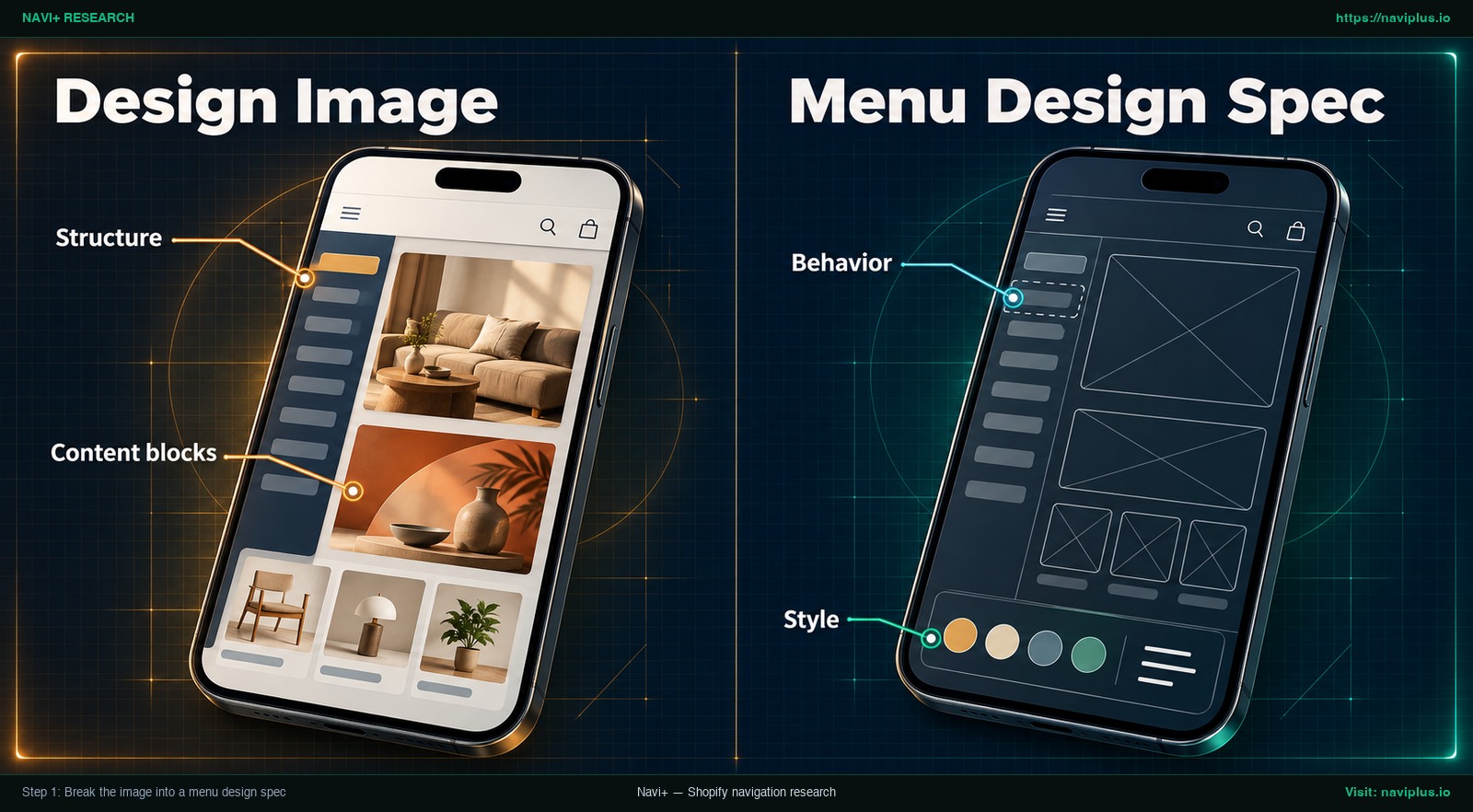
Concept illustration: A design image broken into structure, content blocks, style, and behavior notes.
Before changing settings or writing code, examine your image and write down a clear design spec across four areas: structure, content blocks, style, and behavior.
Structure: levels and columns
- Identify the menu family: Is it a horizontal bar with dropdowns, an expanded mega menu (a wide dropdown panel with multi-column content), an off-canvas drawer (a panel that slides in from the side), or a mobile tab bar (a fixed bar of icons at the screen bottom)? To compare formats, review our guide to choose the right menu type.
- Count top-level items: Note how many primary links sit in the main bar (such as Shop, Collections, About, Sale).
- Count the drop-down tiers: Check whether links are direct children (Level 2) or grouped under bold category headings (Level 2 headings with Level 3 links). Remember Shopify’s ceiling of three tiers (top-level plus two nested levels).
- Count the columns: Count how many vertical columns make up the dropdown grid.
Content blocks: links, images, banners, products
List every distinct element visible across the menu:
- Text link columns: Simple vertical lists of collection or page links.
- Group headings: Bold text labels grouping related links together.
- Collection image tiles: Square or vertical photo thumbnails representing collections with text labels.
- Promotional banners: Wide graphic cards showing seasonal campaigns, discount codes, or lookbooks.
- Featured products: Small product cards showing a thumbnail, product title, and price.
- Icons next to links: Small decorative or informational icons (such as flame or star badges).
- Buttons and CTAs: Pill-shaped buttons or highlighted links (like Shop New Arrivals).
Style: colors, fonts, spacing
Estimate the visual styling qualitatively rather than trying to measure exact pixels:
- Colors: Note the background fill (white, light grey, or dark), default link text color, hover color, and container borders.
- Typography: Note font styles (clean sans-serif or classic serif), capitalization (all caps or title case), and weight differences between headings and links.
- Spacing: Observe whether the menu feels compact or spacious with generous breathing room.
- Borders and shapes: Note whether image tiles have sharp square corners or rounded edges.
Behavior: hover, click, and mobile
- Trigger interaction: Does the dropdown open on hover or require a click?
- Submenu expansion: In drawers, do nested links open downward as accordions or slide in horizontally?
- Mobile presence: Does the mockup include a phone view? If not, you must plan how to present these links on small touchscreens.
The menu spec worksheet
Copy this checklist into your notes before building:
- Menu type: Horizontal navbar / Desktop mega menu / Mobile drawer / Mobile tab bar
- Top-level item count: (e.g., 5 items)
- Nesting depth: Level 1 / Level 2 / Level 3 (Shopify limit: 3 tiers)
- Column count: (e.g., 4 columns in desktop dropdown)
- Content blocks: Link lists / Collection tiles / Promo banners / Products / Icons / Buttons
- Estimated colors: Background, text color, hover accent, divider border
- Font styles: Sans-serif or serif, heading case, font weight
- Desktop behavior: Hover reveal with safe pause / Click toggle
- Mobile layout strategy: Off-canvas drawer / Accordion rows / Sticky bottom tab bar / Category icon strip
Step 2: Choose the build route: theme settings, a menu app, or custom code
With your spec sheet ready, choose how to build the menu. On Shopify, you have three implementation paths: built-in theme settings, a menu app, or custom code.
Evaluate each route across effort, design control, and theme update maintenance risk:
| Build route | Setup effort | Design control | Theme update risk | Best suited for |
|---|---|---|---|---|
| Theme settings | Low (configure in theme customizer without coding) | Limited (strictly constrained to what your active theme natively supports) | Low: customizations made using the theme editor are preserved across updates | Simple text dropdowns and basic mega menus already supported by your theme |
| Menu app | Moderate (visual editor with drag-and-drop tools) | High (add columns, collection image tiles, banners, products, and mobile tab bars) | Low to Moderate: app embed blocks avoid theme code edits, but app compatibility should be verified after major updates | Stores wanting custom layouts, promo banners, and mobile tab bars without editing code |
| Custom code | High (writing Liquid, CSS, JavaScript, and schema blocks) | Maximum (full control over markup, styling, and custom interactive logic) | High: you should save a copy of customized code before updating, and it may need to be reapplied | Stores with in-house developers or dedicated agency retainers |
Route 1: Built-in theme settings
Start by checking your theme editor (Online Store > Themes > Customize). Open the Header section to see available menu styles. Some themes offer a built-in mega menu setting that turns nested links from Content > Menus into multi-column dropdowns.
The main benefit is stability: any customizations made to your theme using the theme editor are copied over and applied to the updated theme (Shopify Help Center). However, design control is limited. If your theme does not support images or promo banners in its header, theme settings cannot create them. To understand these boundaries, read our guide on the limits of Shopify theme menus.
Route 2: Dedicated menu app
When your reference image includes promotional banners, image cards, product carousels, or sticky mobile tab bars that your theme lacks, a menu app is often the practical solution.
Modern Shopify apps use theme app extensions. When an app uses theme app extensions, merchants do not have to manually edit their theme code (Shopify Developer Documentation). You configure your layout, links, images, and colors inside the app’s visual editor, then toggle the app embed on inside your theme customizer.
The trade-off is an outside dependency. Apps may charge a monthly subscription, and Shopify notes that some apps might not be compatible with a new theme when you switch to a new theme (Shopify Help Center). For non-technical store owners, however, apps provide visual freedom without fragile theme code modifications.
Route 3: Custom code
If you require a specialized layout or behavior that neither your theme nor an app provides, custom code offers full control. A developer modifies your header Liquid templates, adds custom CSS rules, and integrates theme settings or metafields.
Below is an instructional video showing an example of the custom code route, demonstrating how code snippets and collection metafields can be wired into a free theme to display image blocks:
While custom coding provides complete design freedom, it creates ongoing maintenance work. The Shopify Help Center cautions: “You should always save a copy of any customized code before updating your theme” (Shopify Help Center). Because customized code may need to be applied again to an updated theme, keep a saved copy and re-check your menu after every update.
Step 3: Map each part of the image to a building block
Once you pick your build route, map every visual element from your Step 1 spec to a practical navigation block.
The table below shows how seven common menu components translate across theme settings, menu apps, and custom code:
| What you see in the image | What it is | Theme settings | Menu app | Custom code |
|---|---|---|---|---|
| Top-level links | Primary menu bar linking key top categories | Built-in: links added in Content > Menus assigned to theme Header | Depends on the app: may replace or extend the theme header bar | Liquid loop iterating through linklists.main-menu.links |
| Link columns with headings | Grouped sub-links organized under bold category headers | Depends on your theme: supported if theme includes mega menu blocks | Depends on the app: look for a column builder with group titles | Nested Liquid loops (for child in link.links) styled with CSS grid |
| Collection image tiles | Thumbnail cards representing collections with text captions | Depends on your theme: some commercial themes pull collection images | Depends on the app: look for image card blocks linked to collections | Liquid snippet pulling collection.featured_image or custom metafield |
| Promotional banner card | Graphic banner highlighting sales, lookbooks, or discounts | Depends on your theme: some themes include a promo block in the header | Depends on the app: look for promo banner blocks with your own images and button links | Hardcoded section blocks with schema image pickers and text inputs |
| Featured products | Product card displaying product image, title, and price | Depends on your theme | Depends on the app: look for product blocks | Liquid queries fetching specific products via all_products[handle] |
| Icons next to links | Small visual icons placed beside category link labels | Depends on your theme | Depends on the app: look for icon pickers or custom icon uploads | Inline SVG code or CSS background icons mapped to link handles |
| Highlight buttons / CTAs | Button-styled link (such as Sale or Book Appointment) | Depends on your theme: some themes offer button styles for specific links | Depends on the app: look for button styling on individual menu items | Custom CSS class applied to target anchor tags in header Liquid |
Mega menu layout principles
If your reference image is a wide multi-column panel, you are building a mega menu. Usability research from the Nielsen Norman Group explains that mega menus work well because many choices are displayed in a two-dimensional dropdown layout. A two-dimensional grid lets shoppers scan categories at a glance without having to dig through narrow flyout menus.
NN/g also observes that “mega menus make it easy to use pictures and icons when appropriate” (Nielsen Norman Group). Visuals reinforce category recognition. However, images should always serve clarity. Pair each collection tile with a clear text label so customers know where the link leads.
Finally, NN/g recommends that merchants “chunk options into related sets” (Nielsen Norman Group). If you have twenty sub-links, do not show them as one unorganized list. Group them under bold, descriptive column headings—such as Tops, Pants, Outerwear, and Accessories. For layout guidelines, review our guide on mega menu best practices.
Step 4: Translate the desktop design for mobile
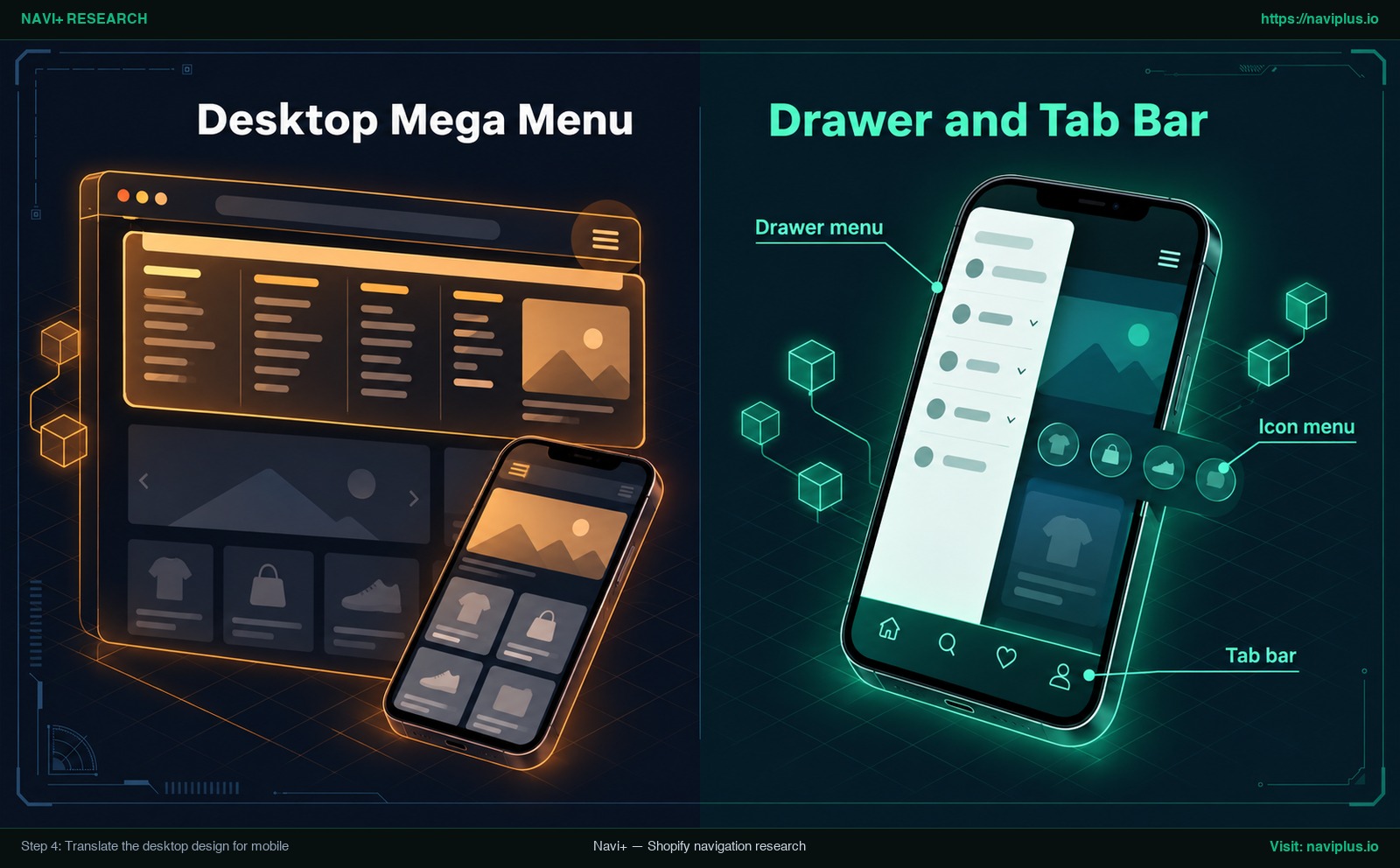
Concept illustration: A desktop mega menu translated into a mobile drawer, icon menu, and bottom tab bar.
A frequent mistake when recreating a menu from a desktop image is ignoring mobile screens. A desktop mega menu spreads across a wide screen, while a phone screen is narrow. You cannot compress a multi-column desktop grid onto a handheld screen.
Research from the Baymard Institute highlights this difficulty: “During usability testing we consistently observe that mobile navigation is particularly difficult for users.” On phones, shoppers deal with limited visible space and small touch targets.
Baymard observes that most often the mobile menu is collapsed by default and hidden behind a hamburger icon (Baymard Institute). While hiding navigation behind an icon saves screen room, it comes with a major cost. Usability testing from the Nielsen Norman Group shows that discoverability is cut almost in half when navigation is hidden behind an off-screen icon.
To counteract this drop in visibility, NN/g advises: “If your site has 4 or fewer top-level navigation links, display them as visible links” (Nielsen Norman Group). For mobile ecommerce, this translates into three practical approaches:
1. The mobile drawer
For medium and large catalogs, the off-canvas drawer is the standard foundation. When a user taps the hamburger icon, a panel slides in. To translate your desktop mega menu into a drawer:
- Convert horizontal columns into vertically stacked accordion lists.
- Use Level 2 column headings as tap-to-expand accordion toggles.
- Keep Level 3 subcategories indented underneath.
- Convert wide desktop banners into compact horizontal promo cards, or exclude them to keep scrolling smooth.
2. The sticky bottom tab bar
To keep your most important destinations visible on mobile, add a sticky bottom tab bar. Pinned to the bottom edge of the screen—directly within easy thumb reach—a tab bar displays three or four primary shortcuts (such as Home, Shop, Search, and Cart). Shoppers can jump between main sections with a single tap without opening the drawer. Learn how to set this up in our guide on mobile navigation beyond the hamburger menu.
3. Category icon menus
If your desktop screenshot featured collection thumbnail cards, adapt them for mobile by adding an icon menu strip at the top of your collection pages or inside the drawer. Small circular or rounded icon cards labeled Dresses, Tops, or Shoes give mobile shoppers an easy, visual way to browse without taking up extensive vertical screen space.
Maintaining distinct layouts across devices gives both desktop and mobile users a smoother shopping experience. For a complete guide to setting this up, see our walkthrough on how to create separate desktop and mobile menus.
Step 5: Match colors, fonts, and spacing to your brand
Recreating a menu design from an image means adopting its structure and layout rhythm—not copying another brand’s proprietary assets. Never copy another business’s logos, copyrighted photos, or commercial web fonts. Instead, adapt the design pattern using your store’s own visual identity.
Use your active theme styles
Apply your store’s typography and color palette to your new navigation:
- Use font families already configured in your theme (Online Store > Themes > Customize > Theme settings > Typography) so the menu looks cohesive with the rest of your site.
- Set dropdown panel backgrounds to match your store’s neutral canvas colors (such as clean white or soft cream).
- Apply your brand accent color to hover highlights, promotional badges, and active links.
For more advice on aligning your navigation with brand guidelines, read our guide on how to make navigation feel like your brand.
Ensure accessible color contrast
Good design must always be readable. Inspiration images on social media often feature light grey lettering on white backgrounds or white text over busy lifestyle photos. In a live store, low-contrast text makes navigation difficult or impossible for many shoppers to read.
Web accessibility guidelines specify clear minimum contrast levels. Under the W3C Web Accessibility Initiative WCAG 2.2 standards, normal body text requires a contrast ratio of at least 4.5:1 against its background, while large text requires at least 3:1.
When styling your menu:
- Test your menu link colors against the dropdown background to ensure they achieve at least a 4.5:1 contrast ratio.
- When adding text or buttons over a promotional banner image, place a dark or solid card behind the text so lettering remains clearly readable regardless of the image background.
- Keep enough vertical spacing between links so mobile shoppers can easily tap individual items without accidentally clicking the wrong link.
Trade-offs: what not to copy pixel for pixel
When working from an image, it is tempting to try to replicate every drop shadow, transition effect, and pixel spacing exactly. However, copying visual ideas without considering technical and usability trade-offs often introduces bugs and maintenance issues.
Here are three things you should avoid copying directly from an image:
1. Overly sensitive hover animations
Static mockups often imply that dropdowns open instantly the moment a cursor touches a link. In real browsing, instant hover triggers cause problems: shoppers moving their mouse toward the search bar or cart accidentally trigger wide dropdown panels that cover the page.
The Nielsen Norman Group recommends a slight delay: “The mouse should remain stationary for 0.5 seconds before you display anything.” This short pause prevents accidental menu openings during normal cursor movement.
Keyboard accessibility is equally important. In the W3C Web Accessibility Initiative tutorials on flyout menus, the standard states: “Submenus should not open when using the tab key to navigate through the menu.” When a customer navigates using the Tab key, submenus should stay closed until the user deliberately activates them. Auto-opening flyouts on Tab disorients keyboard users.
2. Extra columns that outsize your catalog
If your reference image comes from a major retailer with many columns and dozens of subcategories, do not force a small catalog into the same layout. Squeezing a compact catalog into too many columns creates empty white gaps and single-link columns that make your store look unfinished. Structure your menu around the actual depth of your catalog.
3. Complex custom layouts that create update debt
Unusual navigation layouts with asymmetrical panels, diagonal borders, or custom JavaScript animations may look striking in a designer’s portfolio. But building them usually requires custom Liquid and JavaScript code.
As noted in Shopify’s updating themes documentation, you should always save a copy of any customized code before updating your theme. Heavily customized menus may need to be re-checked and reapplied after updates.
No software or theme can guarantee an exact match for every imaginable custom design. Your goal is not to clone an image down to the pixel, but to build a clean, reliable navigation system that helps customers find and buy products.
Where Navi+ fits
If your reference image includes multi-column layouts, collection photo tiles, promo cards, or a mobile tab bar that your native theme settings cannot produce, you do not have to write custom theme code from scratch. This is where Navi+ fits into your store setup.
Navi+ is a navigation app for Shopify that helps merchants build menu layouts visually:
- Desktop Mega Menus: Build multi-column dropdowns featuring products, collections, images, icons, and flexible layouts (Shopify App Store). You can assemble the column groups, image tiles, and promo banners seen in your reference mockup.
- Mobile Menus and Drawers: Create dedicated mobile menus, drawer menus, and hamburger panels (Shopify App Store) that can either reuse your desktop mega menu structure or use a separate mobile-optimized hierarchy.
- Sticky Bottom Tab Bars: Add sticky bottom tab bars with icons and labels for app-like mobile navigation (Shopify App Store), keeping your three or four top pages visible at all times.
- Category Icon Menus: Build visual category icon strips to help mobile shoppers browse collections with quick visual taps.
- No Code Required: Generate and customize menus with AI, pre-designed templates, and drag-and-drop editing without touching code files (Shopify App Store).
- Clean Theme Integration: Installs via Shopify theme app extensions (Shopify Developer Documentation), so you do not have to manually edit theme Liquid files.
- Standard Hierarchy: Supports up to three nested levels, keeping your menu clean and aligned with Shopify’s navigation structure.
Templates provide a fast starting point, but you still supply your own collections, products, photos, and brand colors. Navi+ does not scan an image file to automatically generate a menu. Instead, it provides the visual blocks you need to recreate the design yourself.
If your theme can’t produce the columns, image tiles, or mobile tab bar in your reference image, you can try rebuilding them in Navi+ from a template, then adjust each block to your own catalog and brand.
Pre-publish checklist
Before publishing your new menu to your live store, run through this practical checklist:
- Review against your spec: Compare your live menu against your Step 1 spec sheet to confirm all required links, columns, and content blocks are in place.
- Test every link: Click each menu link, collection card, and promo banner to confirm none lead to 404 pages or broken URLs.
- Optimize images: Verify that all menu photos and banners are your own compressed assets with descriptive alt text.
- Test on desktop and mobile: Preview your menu on a desktop browser and test it on a physical smartphone.
- Check keyboard navigation: Tab through your menu links to verify that submenus do not pop open automatically without user action (W3C Flyout Menus).
- Verify color contrast: Check that all link and banner text meets the 4.5:1 minimum contrast ratio against its background (WCAG 2.2).
- Check mobile screen fit: Make sure your mobile drawer and tab bar fit neatly within the screen without causing horizontal scrolling.
- Back up custom code: If you added custom Liquid or CSS to your theme, save a copy of your customized code (Shopify Help Center).
- Plan for theme updates: Remember to test your menu after updating your theme or installing new apps (Shopify Help Center).
- App preview check: If using Navi+, preview your desktop mega menu and mobile tab bar inside the app editor before activating the live theme embed.
FAQ
Can I add images to a Shopify menu without an app?
Native Shopify menus managed under Content > Menus only store link titles and URLs as Liquid objects (Shopify Developer Documentation). Displaying images inside menu dropdowns depends on whether your theme includes built-in image support (Shopify Help Center); if your theme lacks this capability, you will need a dedicated menu app or custom code.
How many levels can a Shopify menu have?
In Shopify’s navigation structure, a top-level menu item can have up to two levels of nested drop-down menus below it (Shopify Help Center). This allows for a maximum structure of three tiers (Top Level > Subcategory > Child Item).
What should my desktop mega menu become on mobile?
A desktop mega menu usually needs its own mobile layout, such as an off-canvas drawer with expandable rows. Because mobile navigation is difficult for users (Baymard Institute) and hiding links reduces discoverability, sites with four or fewer top links should keep them visible (Nielsen Norman Group), for example with a sticky bottom tab bar.
Will a custom-coded menu survive theme updates?
Any customizations made using the visual theme customizer are saved and copied over when you update your theme (Shopify Help Center). However, for custom code written directly into your theme files, you should always save a copy before updating, and you may need to reapply it to the updated theme.
Should I copy the image exactly?
No. You should use the layout and structural ideas while using your own store’s original photos, logos, and fonts. In addition, ensure your text meets accessible contrast standards of at least 4.5:1 (W3C WCAG 2.2) and organize your links into logical groups that match your catalog size (Nielsen Norman Group).
Sources
- Shopify Help Center — Drop-down menus: https://help.shopify.com/en/manual/online-store/menus-and-links/drop-down-menus
- Shopify Help Center — Menus and links: https://help.shopify.com/en/manual/online-store/menus-and-links
- Shopify Help Center — Updating themes: https://help.shopify.com/en/manual/online-store/themes/managing-themes/updating-themes
- Shopify Developer Documentation — Link Liquid object: https://shopify.dev/docs/api/liquid/objects/link
- Shopify Developer Documentation — Theme app extensions: https://shopify.dev/docs/apps/build/online-store/theme-app-extensions
- Nielsen Norman Group — Mega Menus Work Well: https://www.nngroup.com/articles/mega-menus-work-well/
- Nielsen Norman Group — Hamburger Menus and Hidden Navigation: https://www.nngroup.com/articles/hamburger-menus/
- Baymard Institute — Navigation Menu Usability: https://baymard.com/mcommerce-usability/benchmark/mobile-page-types/navigation-menu
- W3C Web Accessibility Initiative — Contrast Minimum (WCAG 2.2): https://www.w3.org/WAI/WCAG22/Understanding/contrast-minimum.html
- W3C Web Accessibility Initiative — Flyout Menus Tutorial: https://www.w3.org/WAI/tutorials/menus/flyout/
- Shopify App Store — Navi+ Navigation Design: https://apps.shopify.com/pronavi-navigation-design
Explore the topics
This guide links out to focused articles — dive deeper on each.