Quick answer: how to create a menu with the Navi+ app on Shopify
To create a menu with the Navi+ app on Shopify, install Navi+ from the Shopify App Store, click Add menu, pick a menu type, start from a template, a blank menu or AI, then turn on Store Connector in App embeds and publish.
- Install Navi+ from the Shopify App Store and open the app dashboard.
- Click Add menu and choose your preferred kind of navigation menu.
- Start from a ready-made template, a blank canvas, or an AI skeleton.
- Add, arrange, and style your links to collections, products, or store pages.
- Turn on Store Connector in theme App embeds, save, and click Publish to website.
- Check your live store navigation across mobile devices and desktop browsers.
No theme code is needed. Navi+ works through a Shopify theme app embed, so you build and preview the menu in the app instead of editing theme files.
Before you start: which Navi+ menu type do you need?
Choosing the right navigation format before you build helps you avoid rework. Different stores have different catalog sizes, so pick the type that matches how your shoppers browse.
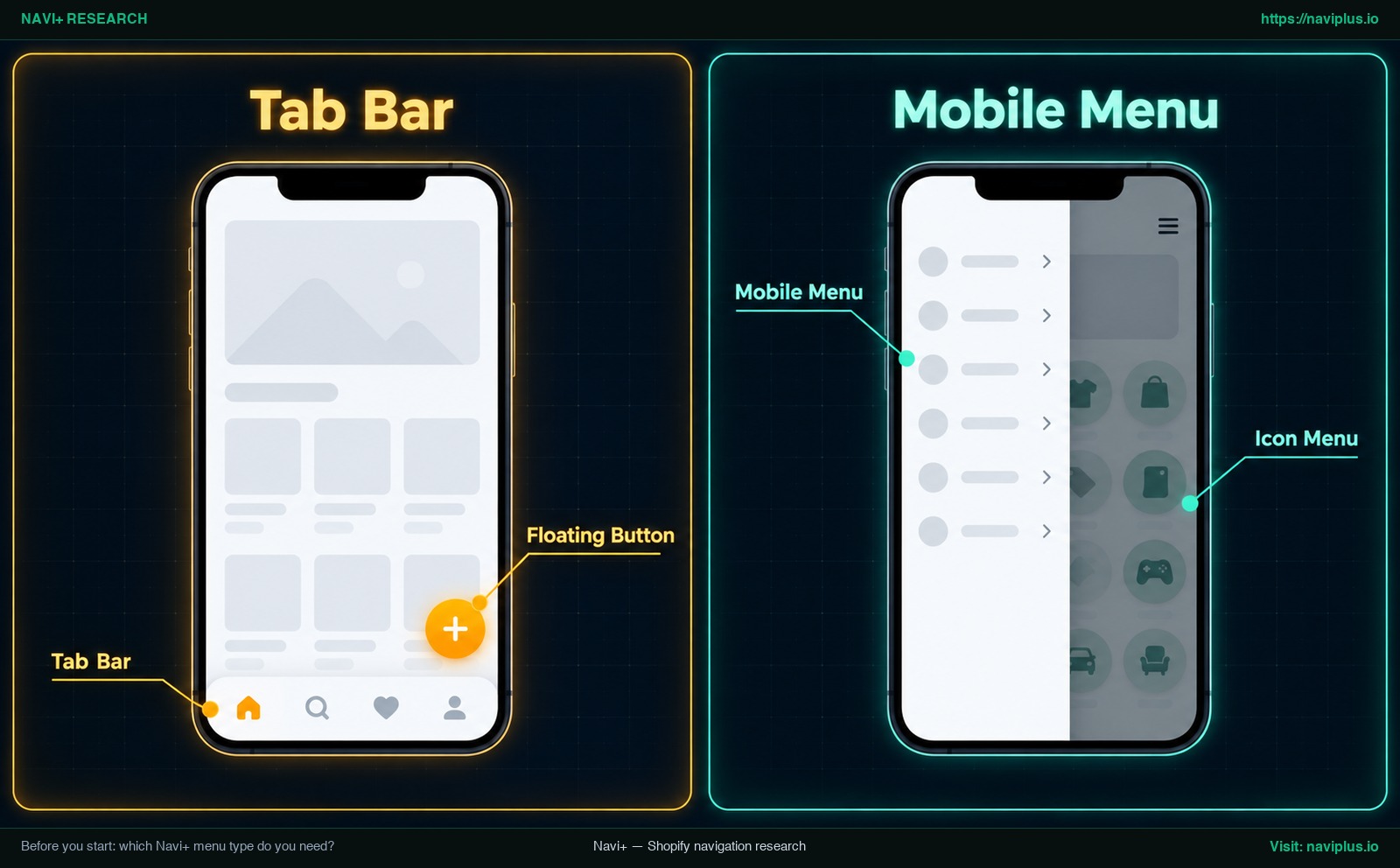
Figure 1: Concept illustration — Before you start: which Navi+ menu type do you need?
| Menu type | What it does | Good first choice when… |
|---|---|---|
| Tab Bar | Adds a sticky bottom navigation bar with icons and labels to mobile screens | Store traffic is primarily mobile and you want quick access to key destinations |
| Mobile Menu | Creates an off-canvas drawer or hamburger menu holding your complete catalog | You need an organized mobile directory that structures broad product categories cleanly |
| Desktop Mega Menu | Builds multi-column dropdown panels featuring products, collections, images, and icons | Desktop shoppers need to scan multiple departments and promotions in one view |
| Mobile Mega Menu | Builds a mega menu layout designed for mobile screens | A multi-tier catalog needs deeper browsing paths without overwhelming a compact screen |
| Icon Menu and Floating Button | Adds icon tiles or a floating button that link to products, collections, or pages | You want quick access to support, the cart, or top promotions without taking over the header |
Stores with mostly mobile visitors can start with a Tab Bar or a Mobile Menu. As noted by the Nielsen Norman Group, hidden navigation is less discoverable than visible navigation. A bottom Tab Bar keeps key destinations visible instead of hiding them behind an unopened drawer.
While you can deploy multiple menus concurrently, the best practice is to test a single menu before adding another. For an in-depth framework on choosing navigation models, consult our comprehensive guide on how to choose the right menu type.
Step 1: Install Navi+ from the Shopify App Store
Navigate to the Navi+ Tab Bar & Mega Menu listing on the Shopify App Store. Installing from the official marketplace takes you through Shopify’s standard install flow.
Click Install to start setup. Shopify shows its standard permission screen. Navi+ shows your menus through a theme app embed, which you turn on in Step 5.
Approve the permissions to complete installation. Once the process finishes, the app opens automatically inside your Shopify admin dashboard. Moving forward, access the builder anytime by selecting Apps in your primary Shopify admin sidebar.
Step 2: Click Add menu and choose a starting point (template, blank, or AI)
In the Navi+ dashboard, click Add menu to open the Choose kind of menu screen showing Tab Bar, Mobile Menu, Desktop Mega Menu, Mobile Mega Menu, Icon Menu, and Floating Button. Pick your menu card, then choose how to start building.
Start from a template
Select Create from a template to browse ready-made layouts. When you find a structure fitting your catalog, click Use this template. The editor populates starter links and styling to customize directly.
Start blank
Select Blank if you already have an exact hierarchy planned on paper. This approach offers complete structural freedom without needing to delete placeholder links. If you haven’t finalized your hierarchy, review our guide to sketch your menu structure first before adding items.
Build the structure with AI
To draft a quick skeleton, use the built-in AI assistant. Describe your store concept and products in plain words. AI generates a menu skeleton in the editor. You retain full control to assign valid URLs, insert brand images, and adjust colors.
Use your existing Shopify menu
Navi+ can also connect with an existing Shopify navigation menu as a starting point. Once it is in the editor, check the nested positions before publishing, and check them again whenever you change the original menu in Shopify.
Step 3: Add and arrange menu items
Adding and reordering items uses drag-and-drop editing. You can add new items, drag them to change their order, and nest them under a parent item.
Link to products, collections, and pages
Every menu item needs a working destination. In Navi+, items can link to products, collections, and pages. Structure categories logically, keep top-level labels concise, and place top-selling collections first. For detailed steps, read how to set up menu links in Shopify.
Nest items up to three levels
When organizing large catalogs, nesting prevents visual clutter. On the Navi+ Business package, you can structure navigation up to three menu levels. By comparison, native Shopify supports a top item with up to two nested drop-down levels, as documented in Shopify drop-down menu guidelines.
Step 4: Customize icons, images, colors, and layout
Once your tree is set, adjust styling to match your brand. For a Tab Bar, choose clear icons and check label legibility on mobile. For Mega Menus, add collection images and choose a layout that fits your catalog.
Adjust text and background colors to match your active Shopify theme. Always check text and icon contrast on a real phone screen to confirm they are readable.
Before going live, open the Publish tab and use Test this menu to preview the menu. To explore advanced visual styling techniques, review our dedicated guide to change the style of your menu.
Step 5: Turn on Store Connector in App embeds, then publish
Showing Navi+ on your storefront does not require writing or editing theme code. Instead, it runs through a Shopify theme app embed.
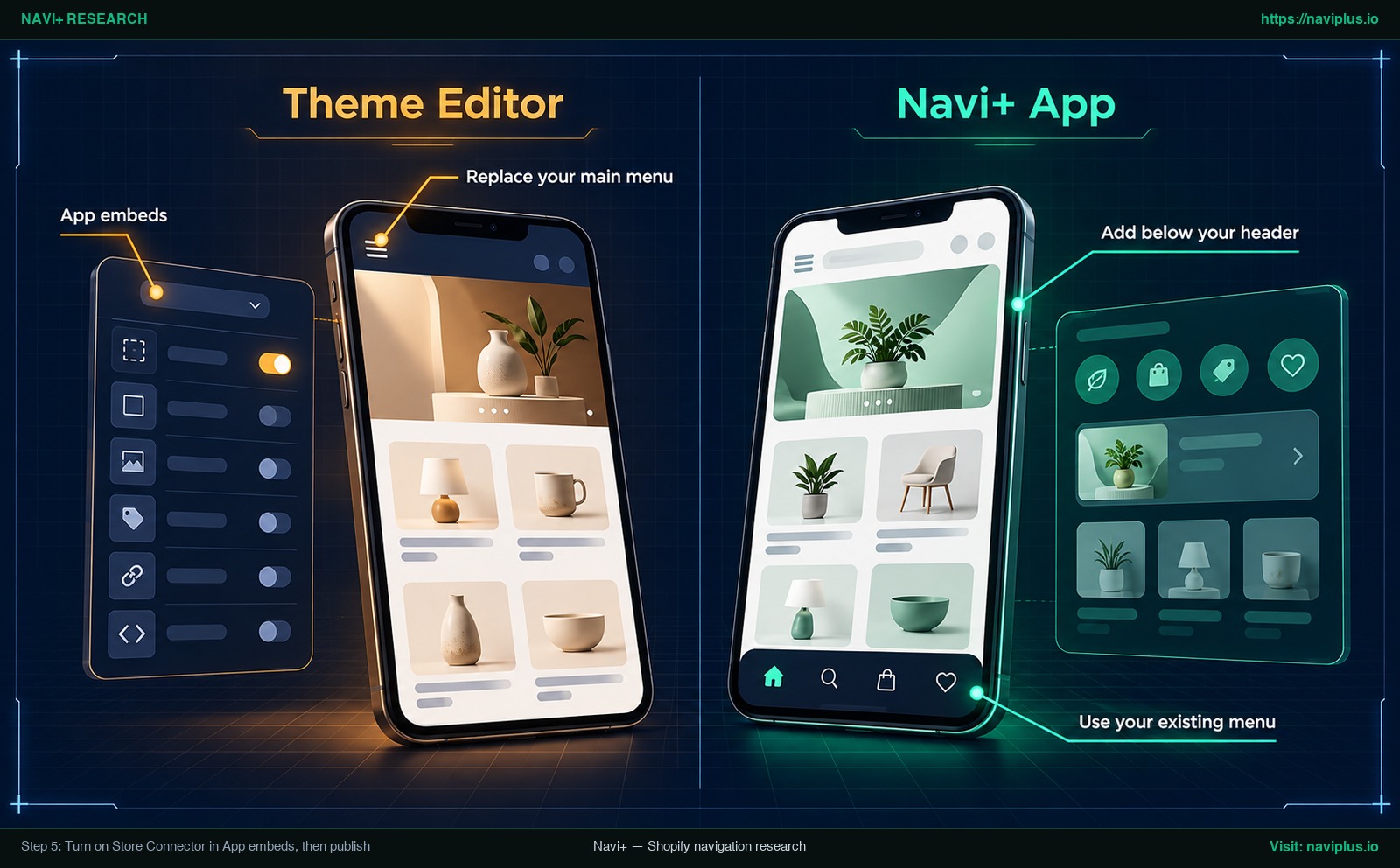
Figure 2: Concept illustration — Step 5: Turn on Store Connector in App embeds, then publish
Test on a duplicate theme first
If your store has active traffic, standard practice is to test new navigation in an isolated staging environment. As highlighted in Shopify theme management guidelines, duplicating your active theme creates a safe backup copy to verify changes before altering your live store.
Turn on Store Connector
In Shopify admin, go to Online Store > Themes and click Customize. In the sidebar, click App embeds, find Store Connector, toggle it on per Shopify app embed instructions, and click Save. This activation is done once per website.
Click Publish to website
Return to the Navi+ dashboard, open your menu, and click Publish to website. The app shows display placements tailored to your menu—such as Replace your main menu, Add below your header, or Use your existing menu icon. Navi+ organizes deployment into three groups, showing the compatible option. Confirm and toggle publish to live.
Step 6: Preview on mobile and desktop and fix common problems
Once published, view your live storefront across real desktop monitors and handheld smartphones. Touch screens reveal practical thumb-reach ergonomics and spacing nuances that desktop simulators can miss.
| Symptom | Likely cause | Fix |
|---|---|---|
| Menu does not appear | Store Connector embed is active on another theme, or changes unsaved | In live theme editor, toggle Store Connector on in App embeds and click Save |
| Two menus show at once | Native theme header menu is still active alongside app menu | In Navi+ publish settings choose Replace your main menu, or hide native theme menu block |
| Menu disappeared after changing theme | App embeds do not automatically carry over to new active themes | Open new theme editor, re-enable Store Connector in App embeds, and click Save |
Menu does not appear
If navigation fails to display after clicking publish, verify that the Store Connector toggle was enabled on the active live theme rather than an unpublished draft, and confirm that the theme editor Save button was pressed.
Two menus show at once
When an app menu displays concurrently with your original header, your theme navigation block is still occupying the header container. Adjust your publish setting to Replace your main menu or disable the default menu block inside your theme customizer header section.
Menu disappeared after changing theme
When you publish a new Shopify theme, active app embeds do not automatically carry over to the new codebase. You must open the theme customizer on the new theme, enable Store Connector in App embeds, and save. For an exhaustive troubleshooting walkthrough, consult our full checklist for an app menu that is not showing.
How to turn off a Navi+ menu or go back to your theme menu
Going back to your default navigation does not require editing theme code, because Navi+ runs through an app embed.
To turn off an individual menu while keeping the app active, open the Navi+ dashboard. Each created menu displays an On / Off status. Switching a menu to Off stops it from showing on your live storefront, so your default theme menu can show again.
To disable all Navi+ menus on a theme, go to Online Store > Themes > Customize, open App embeds, turn Store Connector off, and click Save. If you tested on a duplicated theme, simply discard the draft theme without publishing it.
Trade-offs: when you don’t need Navi+ yet
While specialized navigation apps deliver powerful capabilities, installing a dedicated menu builder is not necessary for every Shopify business:
First, if your store carries a small catalog with few items, Shopify’s built-in navigation—natively supporting up to two nested drop-down levels—paired with a clean theme mobile menu is frequently all you need. Adding an external app to manage five simple links introduces unnecessary administrative complexity.
Second, introducing any app embed requires operational diligence during theme maintenance. When you redesign your storefront or switch to an updated theme release, app embeds do not activate automatically; you must remember to re-enable the Store Connector embed on the new theme files.
Third, while automated AI tools generate a useful structural skeleton, they do not produce a turnkey, finished menu. Store operators still need to allocate dedicated time to audit link targets, assign collections, configure high-contrast color palettes, and upload brand assets manually.
Finally, deploying multiple menu types simultaneously—such as a Tab Bar, a drawer menu, and floating buttons all at once—can easily clutter the mobile viewport and confuse shoppers if your information architecture is not clearly mapped beforehand.
Where Navi+ fits
Once your first menu is live, your next upgrade is usually a complementary menu for a different shopping task. For example, pair a bottom Tab Bar—optimized for quick access to search, cart, and top collections—with a Mobile Menu drawer housing your full catalog. Adding a Floating Button can also offer fast access to support or deals without crowding headers.
All extra menus are managed from the same Add menu button in your dashboard. Furthermore, Navi+ navigation components can also be implemented on websites outside Shopify without writing custom code. To plan a multi-tier navigation layout across device types, explore our guide on how to build a desktop menu and a mobile menu.
If your first menu is live and working, the next step is usually a second menu for a different job — for example a Mobile Menu for your full catalog alongside the Tab Bar. You can add it from the same Add menu button. If you haven’t installed the builder yet, get started by adding Navi+ Tab Bar & Mega Menu on the Shopify App Store.
Action checklist
Follow this step-by-step checklist to configure, publish, and verify your navigation:
- Choose the menu type that fits your immediate store goal
- Click Add menu in the Navi+ dashboard
- Pick a starting method: template, blank canvas, or AI skeleton
- Add destination links for products, collections, and pages to every item
- Keep category depth within three levels
- Use Test this menu in the Publish tab to preview visual styles
- Duplicate your active theme before testing if your store has active traffic
- Turn on Store Connector in App embeds and click Save
- Click Publish to website and select your display placement
- Verify navigation behavior on a physical smartphone and desktop browser
Install Navi+ Tab Bar & Mega Menu on the Shopify App Store to build your navigation without editing theme code.
FAQ
Do I need to edit theme code to show a Navi+ menu?
No. You do not need to edit any theme Liquid code or templates. You simply activate the Store Connector app embed within the Shopify theme editor and publish your menu inside the app dashboard. According to Navi+ documentation, enabling the app embed only needs to be completed once per website.
Can I use my existing Shopify menu with Navi+?
Yes. Navi+ can connect with your existing Shopify menus. After connecting, review each nested level to check that categories and links look the way you want.
Should I start from a template or with AI?
Starting from a template is faster if you prefer an established visual arrangement that you can adapt. The AI tool generates a structural skeleton based on your text description, but you must still manually assign specific links, images, and color styling.
How many levels can a Navi+ menu have?
Currently, with the Business package, you can organize navigation up to three menu levels. By comparison, Shopify’s native menu interface allows a top-level item to contain up to two nested levels of drop-down menus.
How do I turn a Navi+ menu off?
You can turn off an individual menu at any time by toggling its status to Off in the Navi+ dashboard. To disable all Navi+ menus on a theme simultaneously, switch off the Store Connector toggle in the theme editor App embeds tab and click Save.
Why is my Navi+ menu not showing?
The most common cause is that the Store Connector app embed was enabled on a draft theme rather than your published live theme, or the theme editor changes were not saved. If you recently changed your active theme, you must re-enable the embed in the new theme.
Sources
- Shopify App Store: Navi+ Tab Bar & Mega Menu
- Navi+ Help: How to install Navi+
- Navi+ Help: Publishing on Shopify
- Navi+ Help: Menu Depth
- Navi+ Help: Create Menu Structure with AI
- Navi+ Help: Publish Overview
- Shopify Help Center: App embeds
- Shopify Help Center: Duplicating themes
- Shopify Help Center: Drop-down menus
- Shopify Help Center: Menus and links
- Nielsen Norman Group: Hamburger Menus and Hidden Navigation
- Product Hunt: Navi+ Menu Builder
Explore the topics
This guide links out to focused articles — dive deeper on each.