How to Set Up Menu Links in Your Shopify Store (Step-by-Step, Including Mobile)
Setting up menu links in Shopify takes a few clicks in Content > Menus, but the menu is only “done” when the theme shows the right menu and it works on a phone — this guide covers both.
When you launch your online store, linking your collections, products, and contact details to your navigation is one of your first steps. Clear navigation helps shoppers find their way around your store. In Shopify, you manage your links in your central admin, while your active theme decides how those links appear to shoppers on desktop and mobile screens.
- Admin path: Manage all navigation links in Content > Menus in your Shopify admin.
- Theme assignment: An edited menu only appears on your store when selected in your theme's Header or Footer section.
- Mobile verification: Test your menu on a real smartphone to make sure category drawers open smoothly.
Quick answer: how to set up menu links in Shopify
To set up menu links in Shopify, go to Content > Menus in your Shopify admin, open the menu you want (usually the main menu), click Add menu item, give it a name, pick a link, then click Save menu. Drag items under another item to make a drop-down.
Follow these six steps to add any link:
- In your Shopify admin, go to Content > Menus.
- Open the menu you want (usually the main menu).
- Click Add menu item.
- Enter the name and pick your link.
- Click Add.
- Click Save menu.
Drag an item under another item to create a drop-down menu whenever you want to group subcategories under a parent category.
What menus and links are in Shopify (header, footer, theme)
Understanding how Shopify navigation works begins with separating the menu list from the theme display. A menu is an organized list of links built in your Shopify admin. A link is a single clickable item inside that list pointing shoppers to a collection, product, page, or external website.
Every Shopify store includes two default menus that display on every page: the main menu and the footer menu. The main menu usually sits across your desktop header or appears as a side list. The footer menu sits at the bottom of the page, where shoppers look for policies, contact info, and FAQs.
Your theme decides where and how these menus show up. Every theme has a different design, so your menus might display differently on different themes. One theme might display your main menu as a horizontal bar, while another collapses it into a compact sidebar.
Because themes control presentation, you must check your theme settings in Header and Footer sections to confirm the selected menu matches the one you’re editing. If you edit a menu in your admin but see no change on your site, your theme is likely connected to a different menu list. For a broader look at store navigation, read our complete Shopify menu guide.
How to add a menu link step by step in Content > Menus
Shopify handles all navigation menus in one central place. Older tutorials often refer to this screen as “Online Store > Navigation”, but current Shopify stores host these settings under Content > Menus.
Create a new menu
While your store starts with default header and footer lists, you may need a separate menu for a secondary footer column or a sidebar list.
To start a new list, go to Content > Menus and click the option to create a menu. Enter a clear name, such as “Footer Customer Care” or “Sidebar Help”. Once you create it, you can add items and connect the menu inside your theme editor.
Add a menu item
Adding a link to an existing menu takes just a few clicks:
- Go to Content > Menus in your Shopify admin.
- Click the title of the menu you want to edit (such as your Main menu).
- Click Add menu item.
- In the Name field, enter the label you want shoppers to see. This name displays in the menu, and can include special characters or emojis.
- In the Link field, select your destination page or collection, or paste an external URL.
- Click Add.
Save menu
After adding links, check their order before leaving:
- Locate the handle icon (
⠿) beside the menu item you want to move. - Click and hold the handle icon (
⠿) beside the menu item, and then drag the menu item to another position. - Release the item when it sits in the right spot.
- Click Save menu.
Always click Save menu to make sure Shopify records your changes.
Choose the right link type: collection, product, page, blog, external URL
Shopify allows you to link to many different destinations. You can add menus to your online store to display and organize links to products, collections, webpages, blog posts, and more. Choosing the right destination helps shoppers find items with fewer clicks.
| Link type | Use it when |
|---|---|
| Collection | Guiding shoppers to a group of related products (such as “New Arrivals” or “T-Shirts”). |
| Product | Highlighting a single bestseller, limited release, or special promotional item. |
| Page | Sharing static store information like “About Us”, “Contact”, “Size Guide”, or “FAQ”. |
| Blog / Blog post | Directing shoppers to buying guides, recipes, styling articles, or company updates. |
| External URL | Sending shoppers to a partner brand, press article, or external tracking portal. |
Always create your collection, page, or blog post in Shopify before trying to add it to your menu. If the resource does not exist yet, you will have to exit the menu editor, create the item, and return later.
If you want a top-level heading that only opens a drop-down list and does not lead to a page, use a descriptive label, such as “Shop by Category”, for top-level menu items with # links, as Shopify’s drop-down menu guidance suggests. Test the item on your theme to confirm it opens the drop-down without loading a page.
Create a drop-down menu by nesting items
As your product catalog grows, putting every collection on your main header crowds your layout. You can create a drop-down menu by nesting subcategories beneath a parent title.
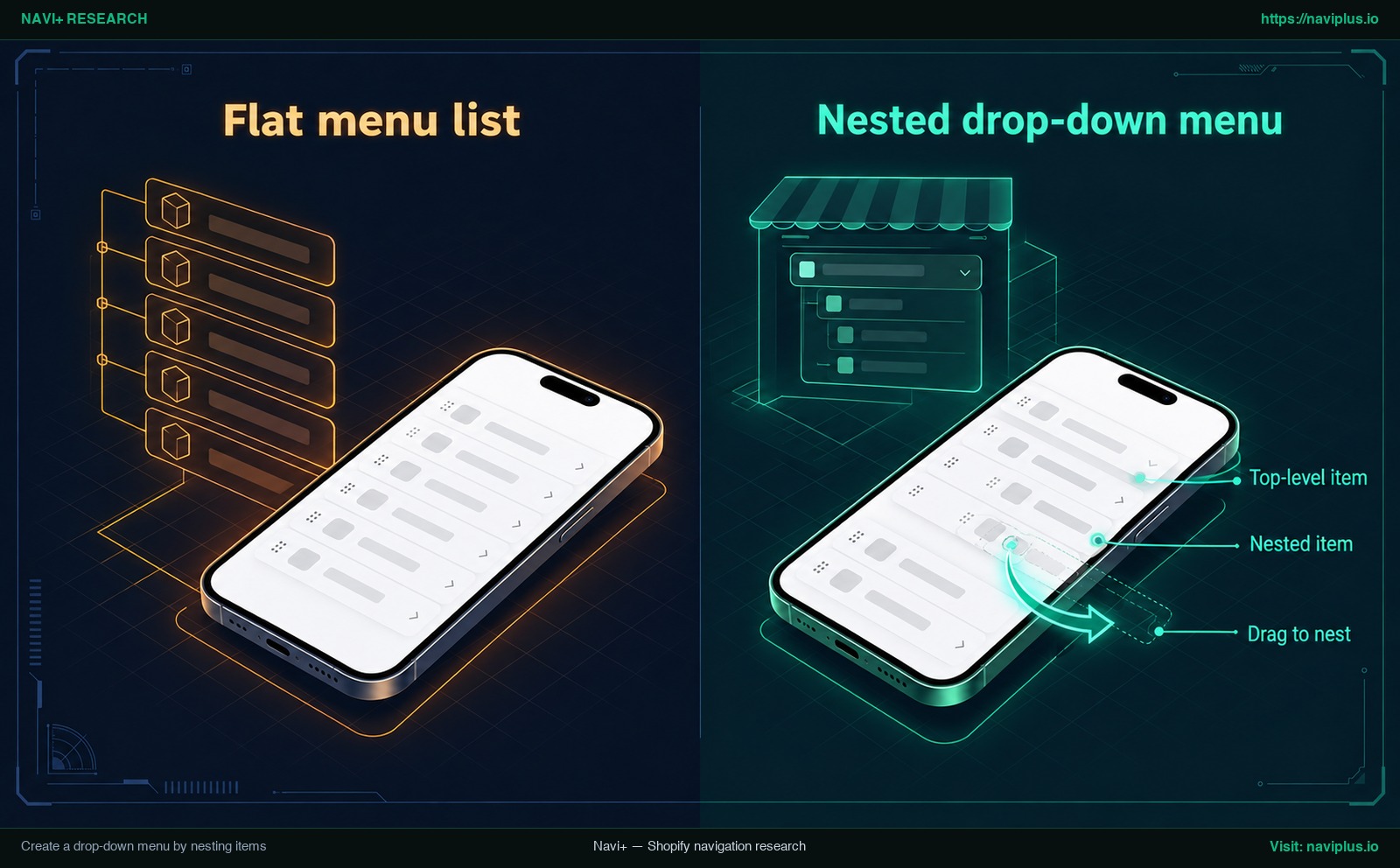
Concept illustration: a flat menu list compared with a nested drop-down menu.
To nest an item, add both your parent and child items to the menu. Click and hold the handle icon (⠿) next to the child item, move it directly below the parent row, and Drag to nest by sliding slightly to the right until the row indents. When indented, release the handle. The indented item becomes a Nested item grouped under your Top-level item.
In your editor, you can compare a Flat menu list where all rows sit against the left edge with a Nested drop-down menu where child links sit indented beneath their parent header.
How deep can you nest?
Shopify sets a specific limit on menu depth: the top-level item can have up to two levels of nested drop-down menus. This allows up to three tiers:
- Top-level item (e.g., “Clothing”)
- First nested item (e.g., “Women”)
- Second nested item (e.g., “Dresses”)
- First nested item (e.g., “Women”)
While the Shopify admin supports two nested levels, storefront display depends on your theme design. Every theme has a different design, so your menus might display differently on different themes, and some themes may not show every nested level. Test your menu on your own theme. To learn more about organizing deep hierarchies, see our guide on how multi-level menus work.
Drop-downs in the footer
Merchants frequently ask if drop-down menus work in the footer. Shopify documentation notes that footer menus can display only top-level items in standard configurations.
Shopify’s own drop-down menu page is not fully consistent about footers, so treat footer drop-downs as unreliable: plan for top-level links only, then check your theme settings and test your store to see how your specific theme handles footer navigation.
This official Shopify video shows how to build drop-down menus:
Order and name menu items so shoppers find things
Organizing your menu is about helping shoppers find what they want. Clear labels and a logical order make your menu easier to scan.
Shopify recommends that you add seven or fewer top-level menu items to avoid overcrowding. A shorter top level is also easier for shoppers to scan.
For link names, use simple, familiar words. Nielsen Norman Group’s menu guidance notes that menus are not the place to get cute with made-up words, internal jargon, or abstract high-level categorization. Use clear terms like “Shop”, “Men”, “Women”, “Sale”, and “Contact” rather than vague brand phrases like “The Edit” or “Our Universe”. If shoppers cannot guess what a link contains, they are less likely to click it.
Place your best-selling or most important collections first in line. Keep label names short so they fit neatly on narrow mobile screens without breaking onto awkward lines.
Check your menu on mobile and fix common problems
Checking your navigation on desktop alone is not enough. Shopify recommends that you verify that it displays correctly on both desktop and mobile devices before publishing your store.
Open your store on a physical smartphone. Check your menu on mobile by tapping the hamburger icon, opening each nested folder, and making sure every link is easy to tap with your thumb.
Usability research from the Nielsen Norman Group highlights that hidden navigation is less discoverable than visible or partially visible navigation. On smartphones, themes place links inside a Theme mobile drawer behind a hamburger icon. Because these links stay hidden until opened, customers must take an extra step to explore your store. If your drawer is unorganized, shoppers can easily miss key products. In addition, some themes might require CSS adjustments to improve mobile usability, particularly if touch padding feels too small.
If your menu does not behave as expected, refer to this troubleshooting table:
| Problem | Likely cause | Fix |
|---|---|---|
| Why doesn’t my menu change show up? | Your theme Header or Footer is set to a different menu list. | Check your theme settings in Header and Footer sections to confirm the selected menu matches the one you’re editing. |
| Sub-links missing | The child item was not dragged far enough to indent, or your theme lacks support for that tier. | In Content > Menus, drag the handle (⠿) right until indented and click Save menu. Check theme support. |
| Menu item disappeared | The linked collection, product, or page was deleted in your admin. | Recreate the missing page or collection, or update the menu item to link to an active resource. |
Why doesn’t my menu change show up?
This is a common issue for new store owners. You edit your links in Content > Menus, click Save menu, refresh your storefront, and see old links.
This occurs because Shopify separates menu lists from theme display settings. Your store can have more than one menu, but your theme only shows the menu selected in your theme editor. Open your theme editor, go to the Header section, and check which menu it uses. If it points to an older list, switch it to your updated menu and save.
Sub-links missing
If you nested items in your admin but they do not drop down on your store, check your indentation. In Content > Menus, a nested item must sit indented beneath its parent row. If it sits flush against the left margin, Shopify treats it as a top-level link. If indentation is correct in the admin but links still do not drop down, your theme may only support single-level menus.
Menu item disappeared
Shopify keeps links consistent for you: deleting the linked resource also removes the menu item. If you delete a seasonal collection or draft page in your admin, the menu item that pointed to it is removed too. If an item disappears, check your collections or pages list to confirm whether the resource was deleted.
If relying entirely on a mobile drawer makes key categories hard for shoppers to discover, consider adding a persistent bottom tab bar on mobile to keep core links visible on every screen.
Trade-offs: when the default Shopify menu is enough
Not every store needs extra navigation apps or custom code. For many merchants, Shopify’s built-in navigation is sufficient.
The default Shopify menu works well when:
- Your store sells a small catalog with a few key collections.
- Your header has seven or fewer top-level items.
- Your theme displays a clean, responsive mobile drawer out of the box.
- You do not need product badges, banner images, or multi-column layouts inside your menus.
Using the default menus requires no extra app.
However, standard menus have clear boundaries:
- Nesting limits: The top-level item can have up to two levels of nested drop-down menus, so three tiers in total.
- Theme design dependence: Every theme has a different design, so your menus might display differently on different themes, leaving you dependent on theme code for layout and mobile touch spacing.
- Hidden mobile links: Standard mobile navigation hides everything behind a hamburger button. Because hidden navigation is less discoverable than visible navigation, phone shoppers must actively hunt for your collections.
To understand when a theme menu reaches its boundaries, see our breakdown of the limits of theme menus.
When you need more: Mobile Menu, Mega Menu, Tab Bar with Navi+
When your catalog expands or your mobile traffic grows, simple text lists inside a plain drawer may limit your storefront experience. This is where dedicated navigation layouts help.
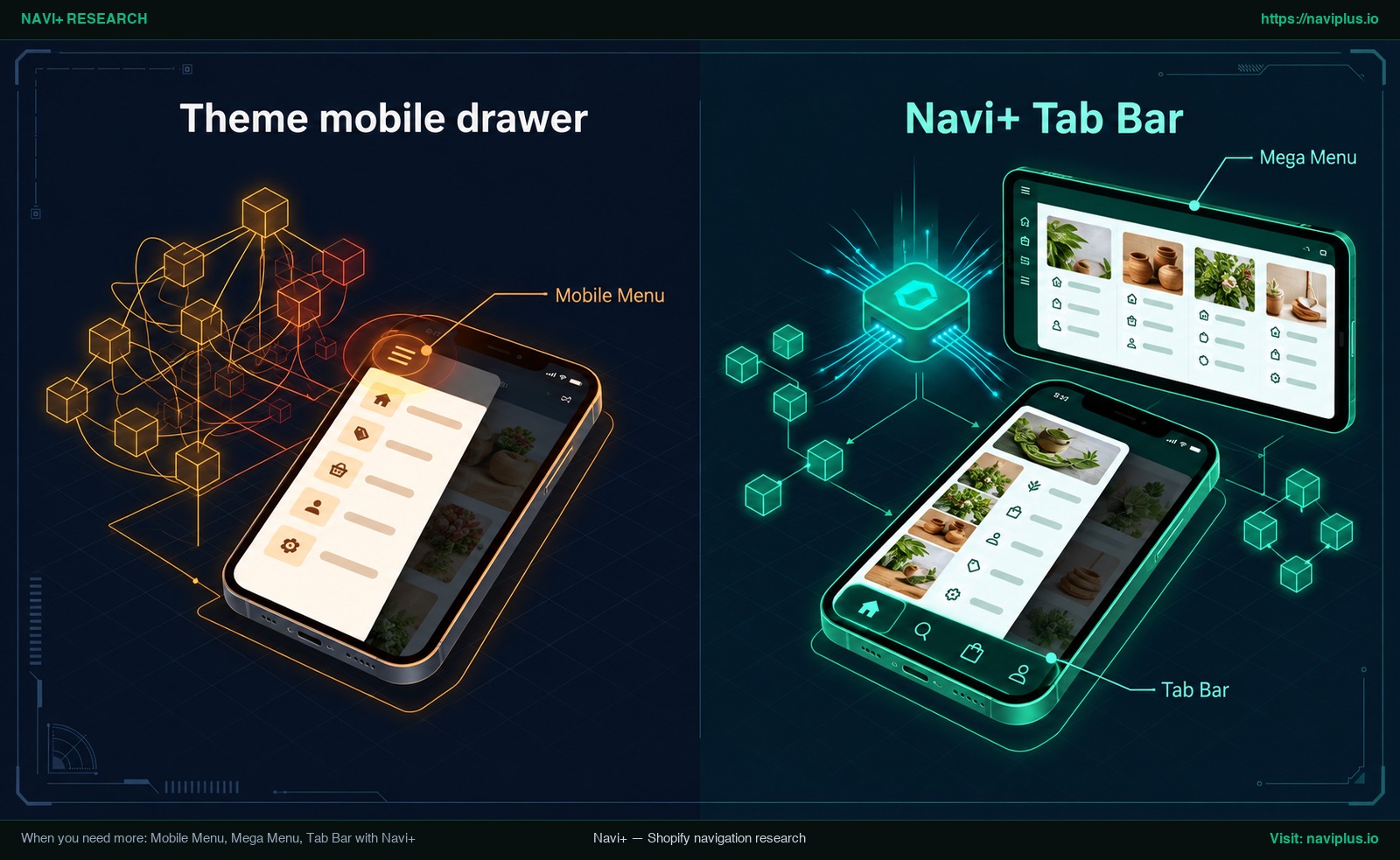
Concept illustration: a default theme mobile drawer compared with a mobile menu plus bottom tab bar.
With Navi+ Tab Bar & Mega Menu, you can build sticky bottom tab bars, mega menus, mobile drawer menus, icon menus, and floating buttons with drag-and-drop editing.
For merchants who want an improved mobile drawer while keeping their existing admin setup, Navi+ can reuse your existing Shopify menus. The Mobile Menu can embed an existing Shopify menu and refresh its copy with a one-click “Sync now” button. You can continue managing your links in Content > Menus, and simply click “Sync now” in Navi+ whenever you want to update your mobile drawer. Sync is manual: Navi+ does not update on its own, and it does not change the menus in Content > Menus.
Navi+ menus also support up to three nesting levels, the same depth as Shopify’s own menu, so the benefit is in how the menu looks and where it sits (drawer, tab bar, mega panel) rather than in extra depth. To compare menu formats for your store, read our guide on how to choose the right menu type for your store.
Whether you need a Tab Bar to keep top collections visible on phones, a desktop Mega Menu, or an upgraded Mobile Menu drawer, pick what matches your catalog. If your theme’s menu covers what you need, keep it. If you want a richer mobile drawer, a bottom tab bar, or a mega menu without editing theme code, you can try Navi+ Tab Bar & Mega Menu from the Shopify App Store.
Action checklist before you publish
Before sharing your store or launching ad campaigns, run through this pre-publish checklist:
- Verify every link: Click each link to confirm it opens an active, published collection, product, or page.
- Keep to seven or fewer items: Add seven or fewer top-level menu items to prevent header clutter.
- Use familiar labels: Replace internal jargon with simple words that shoppers recognize instantly.
- Check theme assignments: Check your theme settings in Header and Footer sections to confirm the selected menu matches the one you’re editing.
- Test on a physical phone: Verify that it displays correctly on both desktop and mobile devices by tapping links on a smartphone.
- Create URL redirects: If you changed any page or collection handle, remember that URL redirects can be used to redirect traffic from one web page to another, preventing broken links.
- Save your work: Confirm you clicked Save menu in Content > Menus before exiting your admin.
FAQ
Where are menus in the Shopify admin?
You can add, remove, change, and view your links and menus from Content > Menus in your Shopify admin. Older guides call this Online Store > Navigation, but current stores organize menus under Content.
How many levels can a Shopify drop-down have?
The top-level item can have up to two levels of nested drop-down menus below it. This allows up to three tiers, though how they display depends on your theme design.
Why doesn’t my menu change show up on my store?
Your theme may have a different menu selected in its Header or Footer sections. Check your theme settings in Header and Footer sections to confirm the selected menu matches the one you’re editing.
How many top-level items should my menu have?
Shopify recommends that you add seven or fewer top-level menu items to avoid overcrowding your navigation bar.
Can I add drop-downs to the footer?
Shopify notes that footer menus can display only top-level items in standard configurations. Check your theme settings to confirm how your specific theme handles footer navigation.
Why did a menu item disappear?
Deleting the linked resource also removes the menu item. If you delete a product, page, or collection in your Shopify admin, Shopify automatically deletes the corresponding menu item.
Sources
- Shopify Help Center: Menus and links — Managing menus and links in Content > Menus.
- Shopify Help Center: Editing menus — Adding menu items, reordering with drag handles, and emoji support.
- Shopify Help Center: Understanding navigation — Default main and footer menus and theme assignment settings.
- Shopify Help Center: Drop-down menus — Nesting limits, footer behavior, resource deletion rules, and mobile testing.
- Shopify Help Center: URL redirects — Using URL redirects to route traffic when page URLs change.
- Nielsen Norman Group: Hamburger Menus and Hidden Navigation — Research on the discoverability of hidden mobile navigation.
- Nielsen Norman Group: Menu Design — Guidelines for clear category labels and avoiding internal jargon.
- Shopify App Store: Navi+ Tab Bar & Mega Menu — Navigation app for sticky tab bars, mega menus, and mobile drawers.
- Navi+ Blog: Shopify Menu Guide — Navigation architecture and Mobile Menu sync documentation.
Explore the topics
This guide links out to focused articles — dive deeper on each.