How to Add a New Item to Your Shopify Navigation Menu (Any Link, Any Menu, Mobile Included)
Adding a menu item in Shopify takes a minute; the real job is choosing the right link type, putting the item in the right place, and checking that it actually shows on every surface where shoppers navigate (desktop header, mobile drawer, footer, and any app-built menu).
While adding an item in admin takes seconds, links need proper placement so they display cleanly across every device.
Here is how to add any link type to your Shopify menu, position it correctly, and verify visibility across all screens.
Quick answer: add a new item to your navigation menu
To add a new item to your Shopify navigation menu, go to Content > Menus in your Shopify admin, open the menu your theme shows, click Add menu item, enter a name, pick a link from the list, then click Add and save the menu.
Follow these 6 steps in your Shopify admin:
- In your Shopify admin, go to Content > Menus (Shopify Help Center).
- Click the menu your theme displays, typically Main menu (Shopify Help Center).
- Click Add menu item (Shopify Help Center).
- In Name, enter the storefront label.
- In Link, select a destination directly from the list instead of pasting a URL (Shopify Help Center).
- Click Add, then click Save menu (Shopify Help Center; Fudge.ai).
Older tutorials may cite “Online Store > Navigation”, but Content > Menus is the current admin path.
Before you add the item: create the destination first
Always create and publish your destination first. Whether linking to a page, collection, product, blog post, or policy, the resource must exist before creating the link.
Select destinations from Shopify’s list rather than typing a URL: linking to a raw URL can disrupt connections and trigger a 404 error (Shopify Help Center).
Keep the Name short and familiar. Clear labels like “Running Shoes” or “Track Order” help shoppers navigate quickly.
Pick the link type for your new item
Clicking Link displays Shopify’s fixed list of link types (Shopify Help Center). Choosing the right type ensures shoppers reach the destination reliably.
| Link type | Use it for | Example |
|---|---|---|
| Home page | Returns shoppers to your main landing page | “Home” button or logo fallback |
| Search | Opens storefront search | “Search Catalog” text link in utility menus |
| Collections | Curated product groupings or departments | “Women’s Denim”, “Summer Sale”, or “New Arrivals” |
| Products | Direct link to a specific product page | Highlighting a new release or flagship item |
| Pages | Standalone informational and support content | “About Us”, “Size Guide”, or “FAQ” |
| Blogs | Landing feed for a blog channel | “Our Journal” or “Style Guides” |
| Blog posts | A specific published article | Spotlighting a buying guide or gift list |
| Policies | Store legal terms and customer compliance | “Refund Policy” or “Privacy Policy” |
| Customer accounts | Direct access to login or order history | “My Account” or “Sign In” |
| External page | Webpages hosted outside your Shopify domain | Wholesale portal, partner brand, or booking tool |
| Email link | A mailto link to your support or sales address | “Email Support” customer service link |
Link to an external site or an email address
To link externally, paste the full URL into Link, wait for the destination to display, and select it (Shopify Help Center).
For email links, enter mailto:[email protected] in the Link field (Shopify Help Center).
For internal pages, always select from the dropdown to avoid 404 errors (Shopify Help Center).
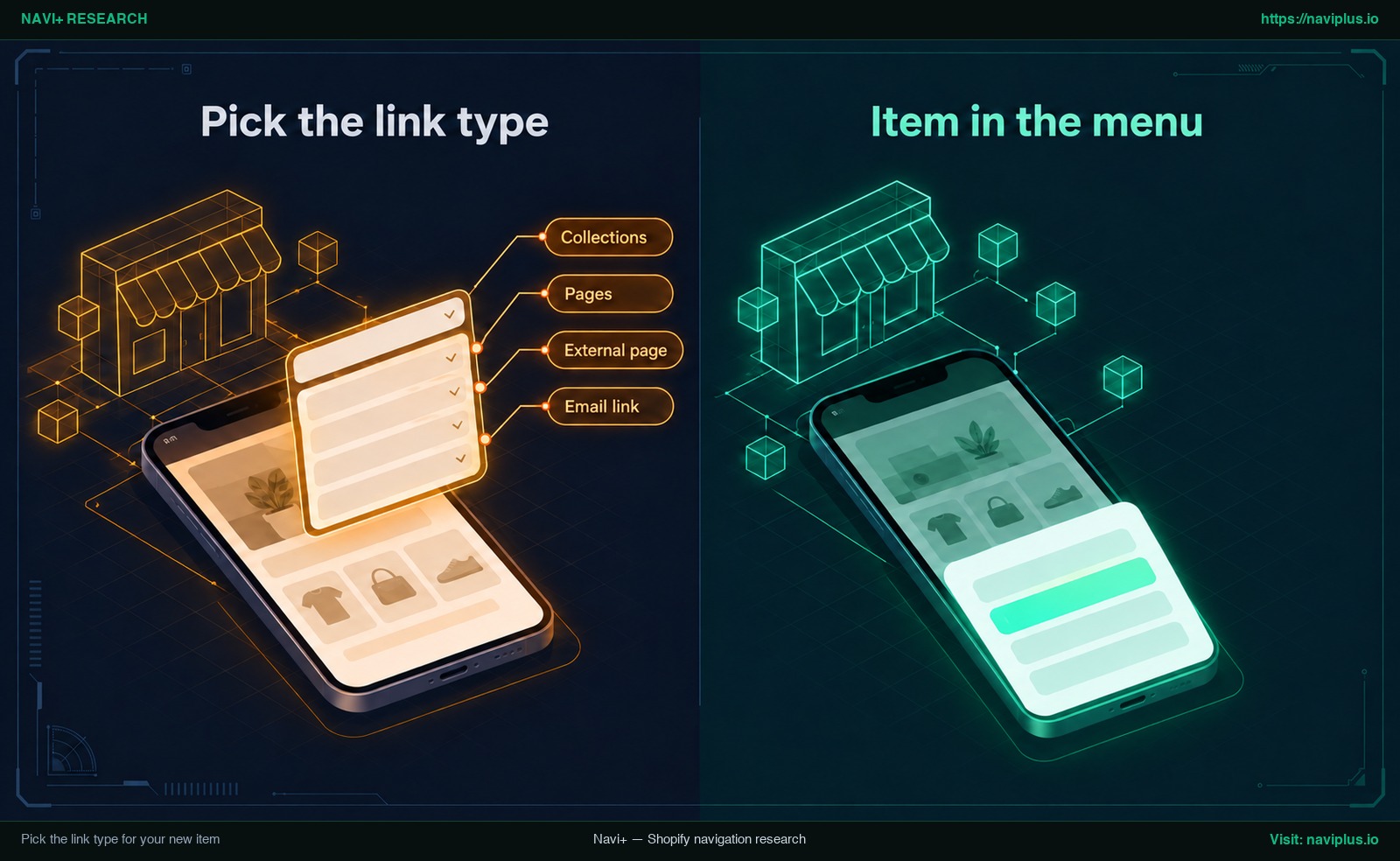 Concept illustration: choosing a link type for a new menu item and seeing it appear in the store menu.
Decide where the item goes: top level, inside a dropdown or the footer
Menu items display on your storefront in the exact order listed in admin (Shopify Help Center).
Move the item and change its order
To reorder items:
- Click and hold the handle icon (
⠿) beside the item (Shopify Help Center). - Drag the item to your chosen position.
- Release the handle icon and click Save menu.
Put the item inside a dropdown
To create a dropdown, drag the item beneath a parent link and slide it right until indented.
Shopify allows up to two levels of nested dropdowns under a top-level item (Shopify Help Center). Enter # in the Link field if the parent should not navigate anywhere.
Most themes treat dropdown headers as buttons rather than clickable links (Shopify Help Center). When catalogs grow, plan a multi-level menu structure early.
Add the item to the footer menu
Secondary utility links fit best in your footer menu rather than crowding the header.
In Content > Menus, select Footer menu, click Add menu item, and choose your link. Footers display only top-level items (Shopify Help Center); nested dropdowns are not supported.
Shopify recommends seven or fewer top-level items to prevent overcrowding (Shopify Help Center).
One item, every surface: where your new item shows up
A newly added menu item displays differently depending on the storefront surface and your theme setup.
Shopify includes default main and footer menus on every page (Shopify Help Center). However, menu and dropdown locations vary by theme (Shopify Help Center).
On mobile, many themes collapse the main menu into an off-canvas drawer behind a hamburger icon.
Nielsen Norman Group research notes that hamburger menus are not universal, and hiding global navigation degrades the user experience both on desktop and mobile (NN/g). For key links, explore mobile navigation beyond the hamburger or an icon menu of visual categories.
Navigation apps create menus inside the app rather than reading admin settings (Shopify Help Center); add the item inside the app.
| Surface | Does the new item appear by itself? | What to do |
|---|---|---|
| Desktop header | Usually yes (theme-dependent) | Check Header section menu assignment; verify formatting. |
| Mobile drawer | Theme-dependent | Test on a physical phone; verify tap targets and indentation. |
| Footer menu | Only top-level items appear | Add directly to Footer menu; footers do not support dropdowns. |
| App-built menu | No | App menus are managed separately; add the item inside the app. |
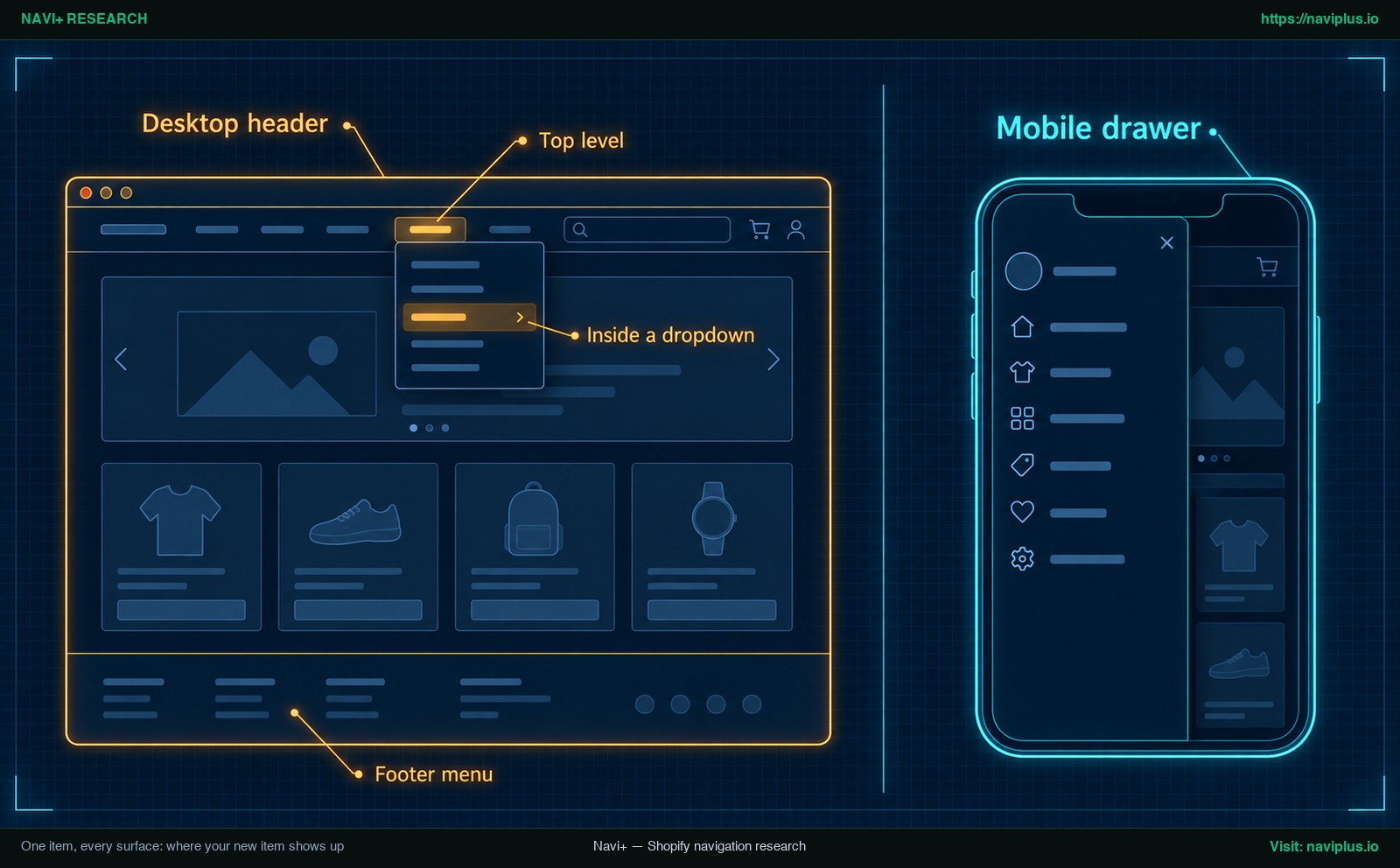 Concept illustration: where a new menu item can appear on a desktop header and in a mobile drawer.
New item not showing? Five quick checks
If a new item does not appear on your storefront, verify these five checks:
- Did you save the menu? Changes apply only after clicking Save menu (Shopify Help Center; Fudge.ai).
- Does your theme use the right menu? In your theme editor, confirm Header and Footer sections point to the edited menu (Shopify Help Center).
- Is the child item indented? Confirm dropdown items are dragged fully under the parent and indented (Shopify Help Center).
- Is your theme older? Some older theme versions don’t support dropdowns of three or more levels (Shopify Help Center).
- Is navigation app-controlled? Navigation apps create menus inside the app rather than reading admin settings (Shopify Help Center).
If an item triggers a 404 error, confirm you selected the destination from the dropdown list rather than typing a URL (Shopify Help Center).
Trade-offs: when not to add another item
Every additional menu item adds visual clutter, making navigation harder for shoppers to scan.
Shopify recommends seven or fewer top-level items to avoid overcrowding (Shopify Help Center). Group related categories into a logical dropdown instead of expanding top tabs.
However, dropdowns have trade-offs: most themes turn dropdown headers into buttons rather than clickable links (Shopify Help Center), preventing direct navigation to the parent collection.
On mobile, hiding global navigation degrades the user experience (NN/g), making deeply nested items easy to overlook.
Before adding an item, consider whether it belongs elsewhere. Secondary utility links sit best in the footer, which displays top-level items only (Shopify Help Center). Product attributes may suit page filters better. Review the limits of the default theme menu when constraints arise.
Adding the same item to a Navi+ menu
Shopify notes that navigation apps create menus within the app instead of using your admin menu settings (Shopify Help Center). Navi+ Tab Bar, Mobile Menu, and Mega Menu work this way, so adding links in Content > Menus will not update your Navi+ tree.
To add an item inside Navi+:
- Open the Navi+ dashboard in Shopify and select your menu.
- Click + Add item; new items appear at the bottom (Navi+ Documentation).
- Drag vertically to reorder the item.
- Drag right to make it a child of the item above (Navi+ Documentation).
- Click Save; changes appear to customers only after saving (Navi+ Documentation).
- For Tab Bar, publish the menu to show it live (Navi+ Documentation).
Menu depth limits depend on menu type, not plan (Navi+ Documentation); Tab Bar supports 3 levels (Navi+ Documentation). See how to build a desktop menu in a menu app.
If you want the same new item to sit in a bottom tab bar or a mega menu on top of your theme menu, Navi+ Tab Bar & Mega Menu lets you add it in the app’s menu tree, drag it into place, save and publish.
Action checklist
Use this checklist before publishing your new menu item:
- Destination exists: Target page, collection, product, or policy is published.
- Internal link selected: Chosen from the dropdown list rather than typed as a URL.
- Correct link type: Link type matches the target resource.
- Proper position: Placed intentionally: seven or fewer top items, indented dropdown, or footer.
- Menu saved: Saved in the Shopify Content > Menus editor.
- Theme settings verified: Header and Footer sections point to the edited menu.
- Mobile checked: Verified on a phone that the item displays and taps cleanly.
- App menu updated: If using a navigation app, added inside the app dashboard.
FAQ
Where do I add a new menu item in Shopify?
In your Shopify admin, go to Content > Menus, select your active menu (typically Main menu), and click Add menu item (Shopify Help Center).
Can a new menu item link to an external site or an email?
Yes. For external sites, paste the full URL into the Link field, wait for the destination to display, and select it (Shopify Help Center). For emails, enter mailto:[email protected] in the Link field.
How many levels can I nest a new item?
A top-level item supports up to two nested dropdown levels (Shopify Help Center). Some older theme versions do not support three or more levels (Shopify Help Center).
Why doesn’t my new item show up on my store?
Missing items usually result from unsaved changes, mismatched theme Header/Footer assignments, or app-managed navigation (Shopify Help Center; Fudge.ai). Also verify that nested items are indented (Shopify Help Center).
Can I put a new item in the footer with a dropdown?
No. Shopify footer menus display only top-level items and do not support nested dropdown menus (Shopify Help Center).
Will my new item appear on mobile?
Your main menu displays on mobile, but presentation depends on your theme, which often collapses links into a drawer (Shopify Help Center). If using a menu app, add the item inside that app (Shopify Help Center).
Sources
- Shopify Help Center: Add, remove, or edit menu items in your online store
- Shopify Help Center: Set up drop-down menus in your online store
- Shopify Help Center: Understanding navigation
- Nielsen Norman Group: Mobile Navigation: Hamburger or Not?
- Navi+ Documentation: Item Create & Manage
- Navi+ Documentation: Tab Bar & Bottom Navigation
- Navi+ Documentation: Multi-level Structure
- Fudge.ai: How to Add a New Menu Item in Shopify
Explore the topics
This guide links out to focused articles — dive deeper on each.