

The Problem
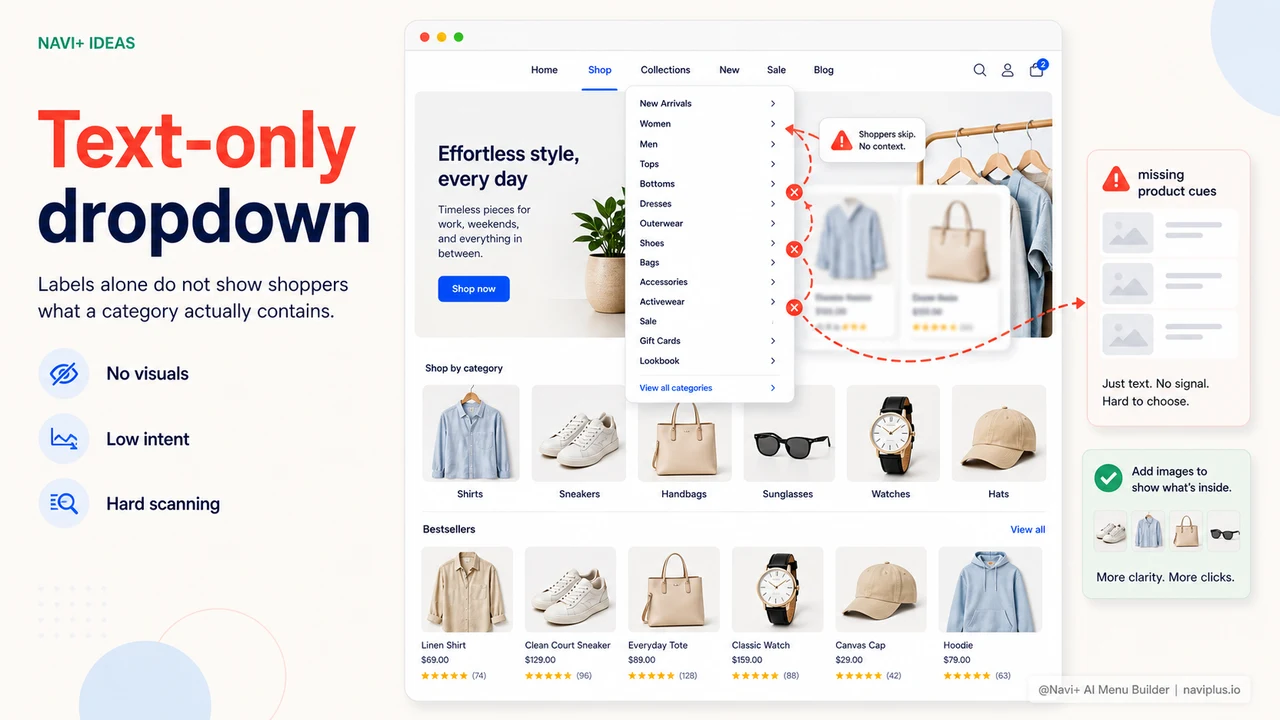
The default dropdown menu displays only text — category names, links, nothing more. You can't add thumbnail images to items, you can't place a promotional banner inside the dropdown, and you can't highlight a featured product at the very first navigation point customers touch.
For industries that rely heavily on visuals — fashion, furniture, beauty, home goods — a text-only menu is a real competitive disadvantage compared to competitors already using visual navigation.
"Customers open my competitor's menu and immediately see beautiful product images and a sale banner. They open mine and see a list of words. I knew I was losing, but I had no idea how to fix it."
— A Navi+ customer
Visual menus matter more than you think
A menu isn't just a navigation tool — it's the first point of contact between a customer and your products. When the menu is text only:
- Customers have to read and remember — instead of recognizing categories at a glance. For busy online shoppers, by the time they've finished reading they've already lost interest
- You waste prime advertising real estate — the dropdown is a space customers are guaranteed to look at, and you're leaving it blank
- No impulse buying trigger — a great product image or a "30% off today" banner inside the menu can pull customers in immediately. Plain text can't do that
- Looks less professional than competitors — when larger stores all use visual menus, a text-only menu makes your store look like a website from a previous decade
How Navi+ AI Menu Builder solves this
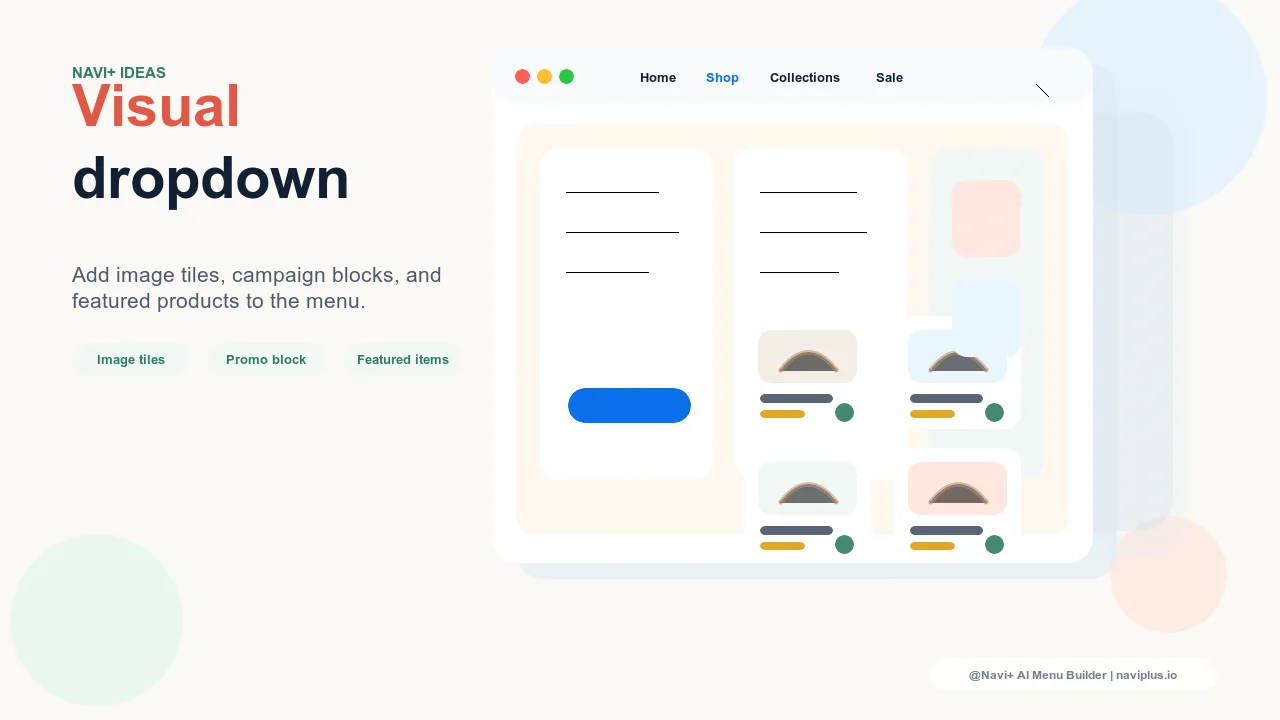
Navi+ supports a fully visual mega menu — you can add thumbnail images for each category, place a promotional banner in a dedicated column inside the dropdown, or showcase featured products right in the menu before customers even reach a product page.
Everything is set up via drag and drop — upload an image, drag it into position, adjust the size. No code required, no HTML or CSS knowledge needed.
| Visual feature | Default menu | Navi+ Mega Menu |
|---|---|---|
| Thumbnail images for categories | ✗ | ✓ |
| Promotional banner in dropdown | ✗ | ✓ placed in a dedicated column |
| Featured product in menu | ✗ | ✓ drag in from your catalog |
| Icons for menu items | ✗ | ✓ |
| Flexible column layout (1–4 columns) | ✗ | ✓ |
| Update images without a developer | Requires code edits | ✓ upload and swap yourself |
Getting started
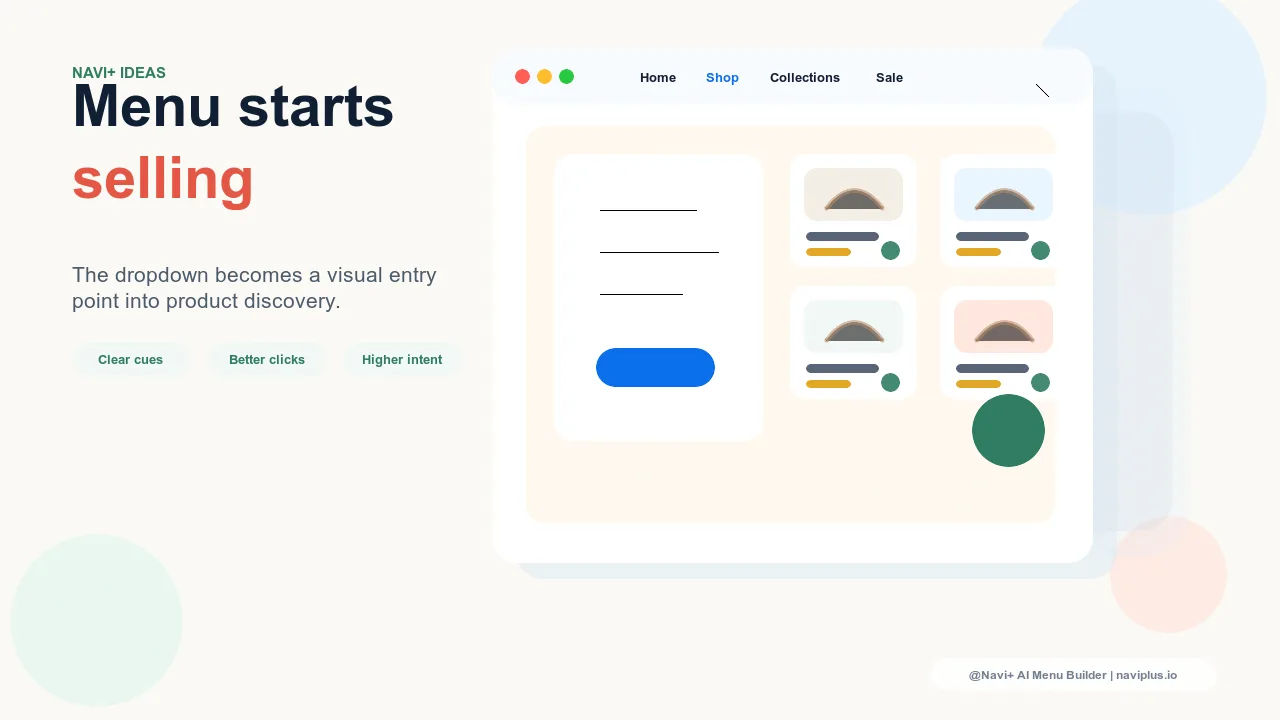
After installing Navi+, go to your dashboard → Create new menu → Mega Menu. In the editor, drag an "Image" or "Featured Product" block into your layout. Upload a category image, set the link, adjust the display ratio. You see the result in the preview immediately — no need to publish first to see how it looks.
Particularly useful around sales events: prepare your banner in advance, turn it on when the sale starts, turn it off when it ends. Everything is self-serve — no waiting on anyone.
Try it free — no code, no developer needed
Install in minutes on Shopify, WordPress, or any website.