You browse an online store, open their navigation, and see an impressive menu. Multiple columns organize categories neatly, promotional images highlight key collections, and the layout looks clean on both desktop and mobile.
Naturally, you want something similar for your own Shopify store.
You do not need to copy their code, download their images, or replace your current theme. By breaking down the menu into five parts, you can rebuild its link structure in Shopify and reproduce its layout and style using your own brand assets, without writing a single line of code.
Quick answer: how to build a menu that looks like a site you liked
To rebuild a menu you liked on another store, don’t copy its code. Break it into five parts (levels, columns, images, icons, mobile behavior), recreate the link structure in Shopify menus, then rebuild the layout and style with your theme or a menu app.
- Note where the menu came from: Identify whether the layout comes from your own theme’s settings or a custom-built store.
- Break it into five parts: Deconstruct the menu into levels, columns, images, icons, and mobile behavior.
- Sketch the structure: Map your own catalog into a clear hierarchy on paper or in a spreadsheet before opening any tool.
- Rebuild links in Shopify menus: Create top-level and nested drop-down items in Content > Menus within your Shopify admin.
- Rebuild layout, mobile, and style: Configure multi-column panels, responsive mobile navigation, and matching colors using your theme or a menu app.
Theme demo or another store? Start with where the menu came from
Before adjusting settings, note where you found the menu. That starting point determines how you rebuild it.
If the menu you admired comes from the official demo of the theme you already purchased, you might not need extra tools. As Fudge notes, with some themes you configure the mega menu directly in the Theme Editor without requiring code (Fudge). In that case, check your theme’s header settings and documentation first.
However, if you saw the menu on another brand’s storefront, you usually cannot simply buy their theme. In one Shopify Community thread, a merchant who wanted a header and mega menu like another brand’s site was told that the theme is not available on the Shopify Theme Store (Shopify Community). A store like that may be running a custom theme.
Searching theme marketplaces for that exact design is usually fruitless. Switching your entire theme just for a header can also disrupt your current product pages and apps.
Furthermore, the main menu and drop-down menus display in different locations in your online store depending on your theme (Shopify Help Center). Rebuilding the menu’s layout within your current theme lets you achieve a similar look while keeping your store intact.
Break the menu you like into five parts
To recreate an attractive navigation menu, separate its visual presentation from its core architecture. Break the menu into five structural parts:
Levels
Count the depth of the navigation hierarchy. How many steps does a visitor take from the main bar to the final link?
In Shopify’s navigation system, the top-level item can have up to two levels of nested drop-down menus (Shopify Help Center). This creates up to three total tiers (for example: Men → Shoes → Sneakers). Check whether the reference site stays within this three-tier limit.
Columns and groups
A mega menu is an expandable menu in which many choices are displayed in a two-dimensional dropdown layout (Nielsen Norman Group).
Notice how the reference menu organizes options across the screen. User experience research from the Nielsen Norman Group advises designers to chunk options into related sets (Nielsen Norman Group). Count the number of vertical columns and see how subheadings group related collections together so shoppers can scan them effortlessly.
Images and banners
Observe how visual elements are used. Mega menus make it easy to use pictures and icons when appropriate (Nielsen Norman Group). Look for featured collection thumbnails, promotional banners, or product cards placed alongside link columns. Note where they sit and what role they play in the layout.
Icons
Check whether top-level links or category rows display small icons or emojis. Visual markers beside labels help draw the eye to high-priority categories like New Arrivals or Sale.
Mobile behavior
Open the reference store on a smartphone. A horizontal desktop mega menu cannot fit onto a narrow mobile screen. See how their menu adapts: does it slide out in a drawer, rest in a bottom tab bar, or display a visual category grid?
| Part | What to look for | Where you rebuild it |
|---|---|---|
| Levels | Number of tiers (top-level, sub-categories, nested items; up to 2 nested levels in Shopify) | Shopify Admin (Content > Menus) |
| Columns and groups | Number of vertical columns, heading titles, related sets of links chunked together | Theme Editor Header settings or Menu App |
| Images and banners | Promotional cards, collection cards, aspect ratios, featured product tiles | Theme blocks or Menu App layout editor |
| Icons | Visual glyphs, category badges, emoji or SVG symbols beside menu labels | Shopify Menu label (emojis) or Menu App icon library |
| Mobile behavior | Slide-out drawer, nested accordion chevrons, bottom tab bar, visual category grid | Theme mobile header or Menu App mobile settings |
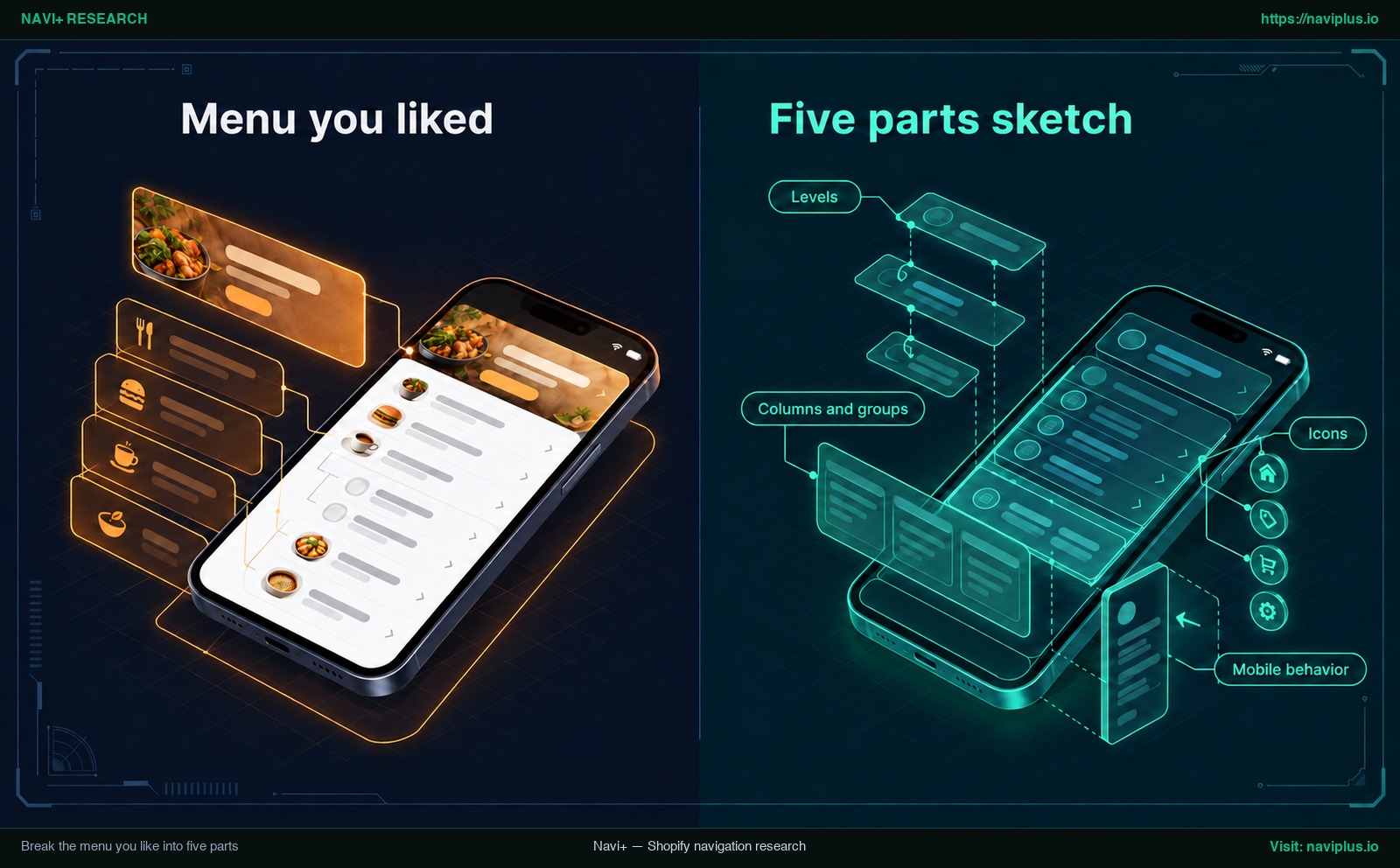
Figure 1: Concept illustration — Break the menu you like into five parts
Sketch the structure before you open any app
Before opening your theme editor or installing a menu app, plan your navigation structure on paper or in a spreadsheet.
Write down your menu tree using your own catalog data. Do not copy category names from the store you liked. Their product taxonomy reflects their specific inventory and customers; your menu must match your own business.
Keep these principles in mind while sketching:
- Use your own collections and product categories.
- Chunk options into related sets (Nielsen Norman Group) so visitors can easily predict where products are located.
- Maintain a manageable structure that respects Shopify’s maximum of two nested drop-down levels below top items.
- Mark which sections will be text columns and where a featured image or banner card will appear.
Taking a little time to sketch your structure first saves you from rearranging menus repeatedly inside the admin.
Rebuild the structure in Shopify menus
Once your blueprint is ready, configure your link hierarchy directly inside your Shopify admin.
You can view and change your online store menus from Content > Menus in your Shopify admin (Shopify Help Center).
Follow these steps to set up your links:
- In your Shopify admin, go to Content > Menus and select your primary menu (typically Main menu).
- Click Add menu item to create your top-level links (such as Shop, Collections, or About).
- Enter a label in the Name field. This name displays in the menu, and can include special characters or emojis (Shopify Help Center). If you want simple icon cues without code, adding an emoji here works cleanly.
- Select the destination collection or page in the Link field.
- Create nested drop-downs: you can build drop-down menus by creating or moving menu items so that they’re nested below a top-level item (Shopify Help Center). Drag an item slightly to the right under its parent item until it indents.
- Remember the platform nesting rule: the top-level item can have up to two levels of nested drop-down menus (Shopify Help Center).
Setting up your structure in Shopify first is essential. Some menu apps, such as Meteor from Helium, allow you to import a menu you’ve already created from your store’s navigation settings (Helium Help Center), so your structural groundwork remains reusable.
Rebuild the desktop mega menu layout
With your links organized, the next step is shaping them into the multi-column layout you admired.
Start by checking your current theme capabilities. In your Shopify admin, go to Online Store > Themes > Customize. Open the Header section in the left panel and look for mega menu block settings. With some themes, you configure the mega menu directly in the Theme Editor without requiring code (Fudge). Fudge describes the usual pattern: set up the menu structure in navigation as normal, then use the Theme Editor settings to assign images, columns, and featured content to each dropdown.
If your theme only supports basic single-column dropdowns, use a dedicated menu app from the Shopify App Store to build the layout.
When constructing the desktop panel:
- Arrange your subcategories into clear columns.
- Group related links under bold subheadings to preserve scannability.
- Add visual interest: mega menus make it easy to use pictures and icons when appropriate (Nielsen Norman Group). Reserve one column for a featured collection card or promotional banner.
- Always use your own product photography and custom graphics.
For a detailed review of column limits, whitespace balance, and image dimensions, see our guide to mega menu best practices for layout and images.
Match the mobile version, not just desktop
A common oversight is focusing entirely on the desktop mega menu while neglecting the mobile shopping experience.
Desktop mega panels rely on wide screens and mouse cursors. On a mobile phone, that same layout would be unreadable. Furthermore, research from the Nielsen Norman Group shows that both on mobile and desktop, content discoverability was significantly lower when navigation was hidden (Nielsen Norman Group). Hiding your entire catalog behind a small hamburger icon makes it harder for shoppers to discover your content.
Look at how the reference store handled mobile, and consider these three primary mobile navigation patterns:
Drawer
A slide-out drawer menu opens from the side of the screen when tapped. Good mobile drawers use clean accordions or multi-level slide panels with clear back buttons, allowing shoppers to explore nested collections without endless scrolling.
Tab Bar
A sticky bottom tab bar stays anchored to the bottom edge of the smartphone screen. Located within easy reach of the shopper’s thumb, a tab bar typically highlights a few vital destinations, such as Home, Catalog, Search, and Cart.
Icon Menu
An icon menu displays a visual row or grid of category images on mobile screens. If the store you liked used visual thumbnails to guide shoppers, an icon menu with visual categories lets mobile visitors browse collections with a single tap.
Evaluate your catalog structure to choose the right menu type for your store, and explore mobile navigation beyond the hamburger menu to keep your key collections visible on touchscreens.
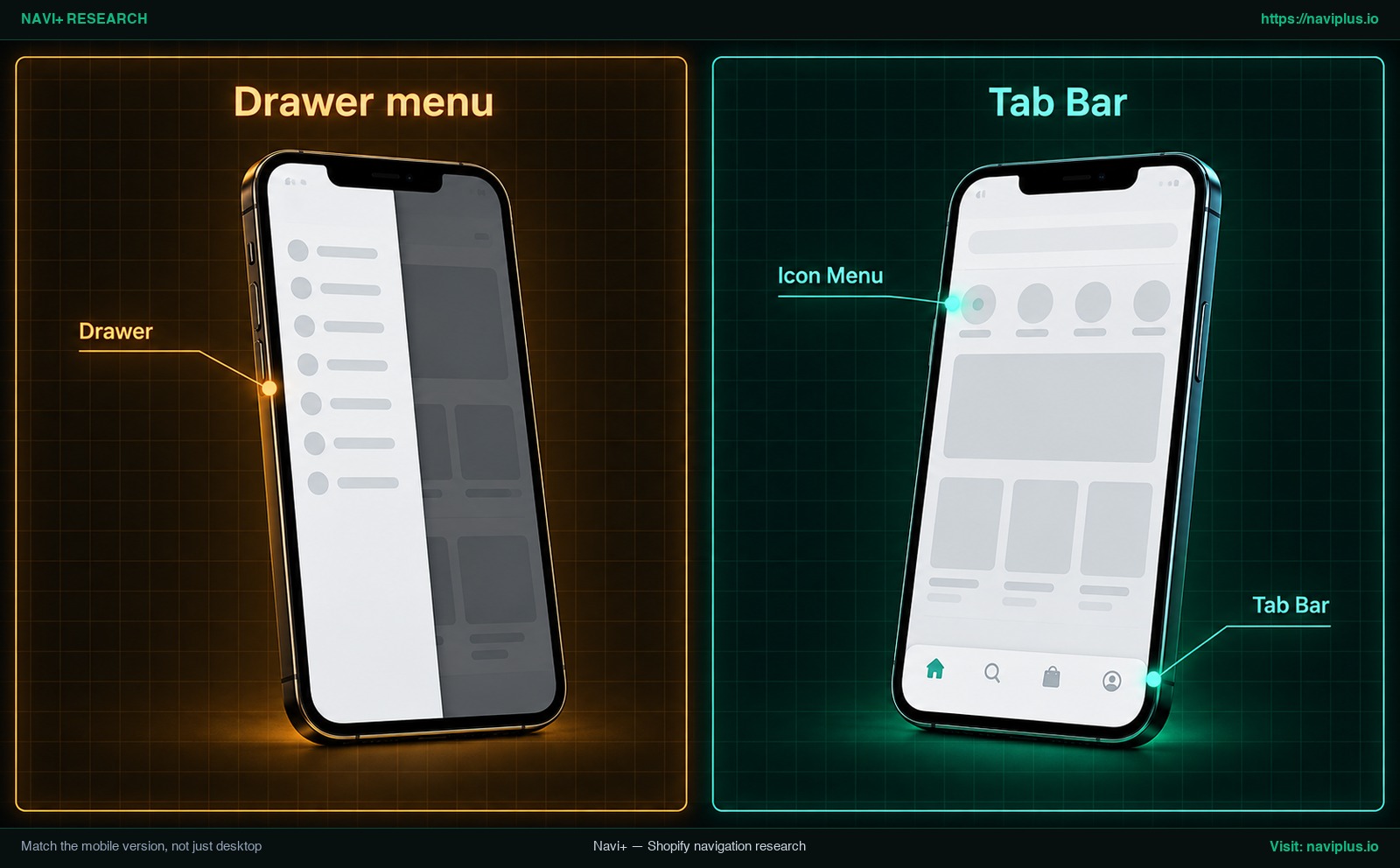
Figure 2: Concept illustration — Match the mobile version, not just desktop
Match colors, fonts, spacing and hover
The refined feel of an impressive menu usually comes from subtle styling: font sizing, margins, padding, and hover timing. You can analyze these elements on the reference store using standard browser developer tools.
To inspect how the reference menu was styled:
- Open the reference website in Google Chrome or any modern browser.
- Hover over the menu to open the panel.
- Right-click on a heading, link, or background element and choose Inspect (Chrome DevTools Documentation).
- In DevTools, look at the Styles panel. The Styles tab lists the CSS rules being applied to whatever element is selected in the DOM Tree (Chrome DevTools Documentation).
Examine the styling values:
- Typography: Check font sizes, font weights, and line heights.
- Spacing: Note padding around links and margins between columns.
- Colors: Observe background contrast and text shades.
Use these numbers as design reference points. Do not copy their CSS code into your store, as foreign stylesheets can conflict with your theme and cause formatting errors. Instead, configure similar typography, spacing, and colors within your Theme Editor or menu app settings.
Also pay attention to hover timing on desktop. Menus that open instantly when a cursor glides past can accidentally block content. As the Nielsen Norman Group highlights, the mouse should remain stationary for 0.5 seconds before you display anything that’s hover-dependent (Nielsen Norman Group). Make sure your theme or menu tool includes an intentional hover delay so panels open smoothly.
What to copy and what not to copy
Studying other stores for navigation ideas is common, but you should respect intellectual property boundaries.
Under U.S. copyright law, copyright does not protect ideas, concepts, systems, or methods of doing something (U.S. Copyright Office).
This means structural ideas are something you can learn from. Using a multi-column mega menu, organizing items by product type, or placing a promotional image on the right are layout ideas, not someone’s specific creative work.
However, copyright protects specific creative expressions. Downloading another store’s photos, using their banner artwork, copying their written descriptions, or copying their theme source code can infringe their rights, so don’t do it.
Additionally, copyright does not protect names, titles, slogans, or short phrases, though these may be protected under trademark law (U.S. Copyright Office). Never copy proprietary collection titles, brand slogans, or trademarked logos.
| Copy (Safe UX Emulation) | Don’t Copy (Infringement & Brand Risk) |
|---|---|
| Information architecture & structure (number of tiers, column counts) | Source code and stylesheets (raw CSS, JavaScript, or theme Liquid) |
| UX layout patterns (multi-column grids, bottom tab bars, icon cards) | Images and graphics (promotional banners, lifestyle photos, product tiles) |
| General content grouping principles (chunking collections into related sets) | Original copywriting and slogans (proprietary taglines, unique product titles) |
| Color harmony and typography scale concepts (contrast, whitespace balance) | Brand logos, watermarks, or trademarked brand assets |
After setting up your layout, customize styling and photography to make the menu feel like your own brand. If you are ever unsure whether an element infringes on another brand’s rights, consult an intellectual property attorney.
Trade-offs: when recreating a menu is the wrong move
Replicating a menu from a large brand is not always the best choice for every Shopify store. Consider these trade-offs before rebuilding:
- Catalog scale mismatch: The store you liked may offer far more products and categories than you do. If your store has only a few products in a couple of collections, a broad multi-column mega menu will look empty and unnecessarily complex.
- Mobile user experience compromises: An elaborate desktop panel with large graphics often turns into a lengthy, cumbersome drawer on mobile screens. Never compromise mobile usability just to duplicate a desktop design.
- Hover interaction issues: Hover-activated panels can feel clunky if not properly tuned. Without NN/g’s recommended 0.5-second dwell delay (Nielsen Norman Group), menus can open accidentally and annoy shoppers.
- Unnecessary app overhead: If your existing theme already supports mega menus directly in the Theme Editor (Fudge), adding an external app may create redundant configuration work.
- Accessibility barriers: A good-looking menu can still be hard to use without a mouse. Make sure you keep the rebuilt menu accessible by testing that keyboard tab navigation and visible focus states work smoothly.
Where Navi+ fits
If your current Shopify theme cannot produce the layout or mobile navigation patterns you want, Navi+ provides a code-free solution.
Navi+ lets you build sticky bottom tab bars, mega menus, mobile drawer menus, icon menus, and floating buttons with drag-and-drop editing (Shopify App Store).
Inside its visual editor, you can build mega menus with products, collections, images, icons, and flexible layouts (Shopify App Store), supporting up to 3 logical tiers.
Under the Navi+ Starter plan, no coding is required and ready-made templates are included to help you get started quickly (Shopify App Store).
If your theme can’t show the layout you liked, Navi+ lets you start from a ready-made mega menu or mobile menu template and adjust columns, images, colors and fonts until it feels close to what you saw, then make it your own.
Learn more on the Navi+ Shopify App Store listing.
Action checklist
Follow this eight-step checklist to rebuild your reference navigation menu:
- Step 1: Document the inspiration source: Note whether the menu layout comes from a standard theme setting or a custom store build.
- Step 2: Deconstruct the five parts: Break down the target menu into levels, columns, images, icons, and mobile behavior.
- Step 3: Sketch your unique structure: Map your own catalog categories and products on paper or in a spreadsheet, grouping items into related sets.
- Step 4: Rebuild links in Shopify admin: Configure top-level and nested drop-down items in Content > Menus (up to 2 nested levels below top).
- Step 5: Rebuild the desktop layout: Set up columns and featured image cards using your theme editor’s mega menu blocks or a dedicated menu app.
- Step 6: Configure mobile navigation: Implement a mobile slide-out drawer, bottom tab bar, or category icon grid suited to touch navigation.
- Step 7: Brand styling and hover tuning: Apply your own brand colors, fonts, and imagery, ensuring a proper hover delay (NN/g 0.5s rule) is in place.
- Step 8: Audit on real devices: Test menu interaction, link destinations, and keyboard navigation across both desktop and mobile smartphones.
FAQ
Can I copy another store’s menu exactly?
You can rebuild the structural layout, column arrangement, and navigation style, but you must not copy their source code, images, copywriting, or logos. Copyright law protects creative expression rather than structural concepts or systems (U.S. Copyright Office).
How many levels can a Shopify menu have?
In Shopify’s native navigation, a top-level menu item can have up to two levels of nested drop-down menus below it (Shopify Help Center), creating up to three total tiers of navigation.
Do I need code to rebuild a mega menu?
No. Some Shopify themes provide built-in mega menu configuration directly within the Theme Editor (Fudge). If your theme lacks this feature, no-code menu apps allow you to build multi-column layouts visually.
Can a menu app use the menus I already built in Shopify?
Yes, some menu apps, such as Meteor from Helium, allow you to import menus you have already created from your store’s navigation settings (Helium Help Center). Always verify compatibility before configuring your layout.
The store I like uses a theme I can’t buy — what now?
A store may run a custom theme that is not available on the Shopify Theme Store (Shopify Community). Rather than attempting to acquire their theme, recreate their column layout and aesthetic on your existing theme using native menus or a menu app.
Sources
- Shopify Help Center: Drop-down Menus — Rules regarding drop-down nesting and theme display locations.
- Shopify Help Center: Editing Menus — Documentation on viewing, editing, and naming menus in Content > Menus.
- U.S. Copyright Office: FAQ on Protected Works — Clarification on the non-protection of ideas, systems, methods, names, and titles.
- Nielsen Norman Group: Mega Menus Work Well Anywhere — UX research on chunking options into related sets, using pictures and icons, and the 0.5-second hover dwell rule.
- Nielsen Norman Group: Hamburger Menus and Hidden Navigation Hurt UX Metrics — Usability findings on navigation discoverability when menus are hidden.
- Chrome DevTools Documentation: View and Change CSS — Guidance on inspecting elements and viewing applied CSS rules in the Styles tab.
- Fudge: How to Create a Mega Menu in Shopify — Overview of configuring mega menus directly in the Theme Editor without code.
- Shopify Community: Mega-menu drop-down design — Discussion on store headers built on themes unavailable in the Theme Store.
- Helium Help Center: General FAQs — Importing existing Shopify navigation menus into third-party menu apps.
- Shopify App Store: Navi+ Navigation Design — Feature specifications for drag-and-drop mega menus, tab bars, drawer menus, and icon menus.
Explore the topics
This guide links out to focused articles — dive deeper on each.