How to Replicate the Look and Animation of Another Website’s Menu on Shopify (Without Copying Code)
You visit an online store, hover over a category link, and the navigation glides open with effortless grace. Naturally, you want that same premium atmosphere on your Shopify storefront.
Many merchants start by copying lines of CSS from community forums or attempting to scrape scripts from the site they admire. Inevitably, the pasted snippet breaks: the menu snaps open instantly, flashes once on page reload, or refuses to close when the mouse leaves.
You cannot—and should not—copy another site’s private code. However, you can rebuild a similar feel on your own store. Once you learn how to identify the movement, measure its timing in your browser, and understand how Shopify themes handle interactive states, recreating that polished experience becomes a systematic process.
- Measure, do not scrape: Use browser developer tools to inspect duration and easing curves instead of attempting to copy raw stylesheets.
- Why CSS transitions fail: Many themes control menus with JavaScript and hide panels with discrete
displayproperties, which do not transition the wayopacitydoes. - Keep movement swift: Most interface animations should last roughly 100 to 500 milliseconds, and animations are far more often too long than too short.
Quick answer: how to replicate another website’s menu animation
To replicate another website’s menu animation on Shopify, don’t copy its code. Name the menu type and the motion, watch it in your browser’s DevTools to note the duration, easing and trigger, then rebuild that feel with your theme settings, a developer, or a menu app.
- Name the menu type: Determine if you are observing a multi-column mega menu, a single-column dropdown, an off-canvas drawer, or a mobile tab bar.
- Name the motion and trigger: Clarify whether the panel fades, slides, or expands, and whether opening happens on cursor hover or on click.
- Record duration and easing in DevTools: Open your browser’s Animations panel to capture the timing and transition curve (Chrome DevTools).
- Choose your implementation path: Decide whether to edit theme template code, hire a developer, or configure prebuilt effects inside a dedicated Shopify menu app.
- Test on mobile and check reduced motion: Confirm smooth touch interactions on physical devices and verify that non-essential movement can be disabled (MDN prefers-reduced-motion).
Always aim for the same feel, not identical code.
Step 1: Name the menu type and the motion
Before searching for settings or briefing a developer, you need precise vocabulary. Describing an effect as “that smooth thing” leads to mismatched code and confusing forum searches. Break what you see into two distinct parts: the structural container and the movement pattern.
Menu type
First, identify the layout pattern. In default Shopify navigation, a top-level item can have up to two levels of nested drop-down menus, while the exact placement and layout depend entirely on your active theme (Shopify Help Center). Common patterns include:
- Dropdown menu: A compact, single-column vertical list that drops down directly underneath a parent link.
- Mega menu: An expansive horizontal panel displaying multiple category columns, collection thumbnails, and promotional banners across the width of the screen. If your goal is matching a full layout from an inspiration site, see our guide to make your menu look like a theme demo.
- Drawer menu (Mobile menu): A panel that glides in from the left or right side of the screen, commonly triggered by a hamburger icon.
- Tab Bar: A persistent bottom navigation bar anchored to the bottom edge of mobile screens for quick category access.
- Icon Menu: A visual navigation row featuring circular or square icons paired with short category titles.
Motion type
Next, observe how the panel transitions into view. Is it triggered when your mouse moves over the parent link (hover), or does it require an active selection (click)? Once triggered, which visual transition occurs?
| Motion | What It Looks Like | What to Ask For / Search |
|---|---|---|
| Fade | Appears smoothly as opacity changes from completely transparent to fully opaque | Fade-in dropdown transition |
| Slide | Glides into position from the top edge, bottom edge, or side margin | Slide-in drawer or drop-down slide |
| Expand | Grows downward as its height smoothly unrolls from zero to full size | Accordion or vertical expansion |
| Hover underline | A colored accent line sweeps horizontally beneath the text | Animated link underline on hover |
| Hover background | A soft background pill or rectangular highlight fades in behind the hovered item | Background highlight hover effect |
Note whether the motion combines two actions. Some menus pair a slight downward slide with a simultaneous opacity fade. Identifying these two traits gives you a clear blueprint for reconstruction.
Step 2: Watch the animation in DevTools
Instead of inspecting minified JavaScript or guessing milliseconds by eye, you can inspect the animation directly using your web browser. Built-in developer tools provide a frame-by-frame view of every animated element on the page.
Slow down and replay the movement
In Google Chrome, right-click any element on your inspiration website and select Inspect. Press Escape to reveal the bottom drawer panel, click the three-dot menu icon on the left of the drawer, select More tools, and choose Animations.
The Chrome DevTools Animations panel is designed specifically to slow down, replay, or inspect the source code for an animation group (Chrome DevTools Documentation). Use its speed control to slow playback. Now, hover over or click the menu item on the site. DevTools captures the interaction and plots the animation timeline as a visual block.
Write down duration, easing, and trigger
Within the Animations panel, you can inspect and modify the timing, delay, duration, or keyframe offsets of an animation group (Chrome DevTools Animations). Click the captured timeline strip to review the exact CSS parameters.
According to official CSS specifications, transitions only animate properties explicitly declared, and each transition consists of four distinct components: the property name, duration, timing-function, and delay (MDN CSS Transitions).
Take simple notes on three specific details:
- Duration: The elapsed time of the opening motion, in milliseconds or seconds.
- Easing (timing function): The curve governing acceleration. Standard options include
ease-out(starts fast, settles gently into place),ease-in-out(smooth start and soft finish), or a custom cubic-bezier curve. - Properties in motion: The specific CSS properties changing over time—typically
opacity,transform(such astranslateY), ormax-height.
Keep these three lines in your notepad. Your goal is taking architectural notes to recreate the sensation on your Shopify store, not copying third-party code.
Why pasted CSS transitions often don’t work on Shopify themes
A common frustration among Shopify merchants is finding a snippet of CSS transition code in an online forum, adding it to their theme’s stylesheet, and discovering that it does not work. In one community thread, a merchant reports that the suggested CSS did not work and asks for other ideas (Shopify Community Thread 383898).
Understanding why this happens saves hours of wasted effort.
/* Illustrative panel transition (selectors vary by theme) */
.site-nav__dropdown { opacity: 0; transition: opacity var(--speed) ease; }
.site-nav__dropdown.is-open { opacity: 1; }
display and visibility don’t fade naturally
To animate an element, a browser interpolates intermediate values between a starting state and an ending state. For example, opacity can smoothly shift from 0.0 to 0.5 to 1.0.
However, traditional menu markups hide submenus using display: none; and reveal them with display: block;. As developers note in technical forums, visibility and display properties typically cannot be transitioned smoothly because they are discrete on/off states (Shopify Dev Community). When you change display from none to block, the browser renders the container instantly, completely ignoring any accompanying opacity transition.
While modern web standards have introduced transition-behavior: allow-discrete to permit transitions on discrete properties like display (MDN Web Docs), this is a newer feature, so check browser support before relying on it.
The theme’s JavaScript controls open and close states
Many themes do not rely on plain CSS hover alone: JavaScript can decide when a menu opens and closes, which is why a transition added only in the stylesheet may have no effect.
For instance, a community thread about a smooth slide-in mega menu on the Dawn theme notes that it needs additional JavaScript to handle clicks alongside CSS, and a responder suggests hiring a developer (Shopify Community Thread 223448). If theme JavaScript controls the open state, a plain CSS hover transition may not override that logic.
Selectors change between theme versions
Even when a forum snippet worked on an older store, themes change over time. In a community thread about dropdown animation on the Dawn theme, a merchant reports that the animation only happens once, and a note says newer Dawn versions need changes in different files (Shopify Community Thread 237349).
If a snippet targets class names or files from one theme version, it may do nothing on a newer version or on a theme that uses different selectors.
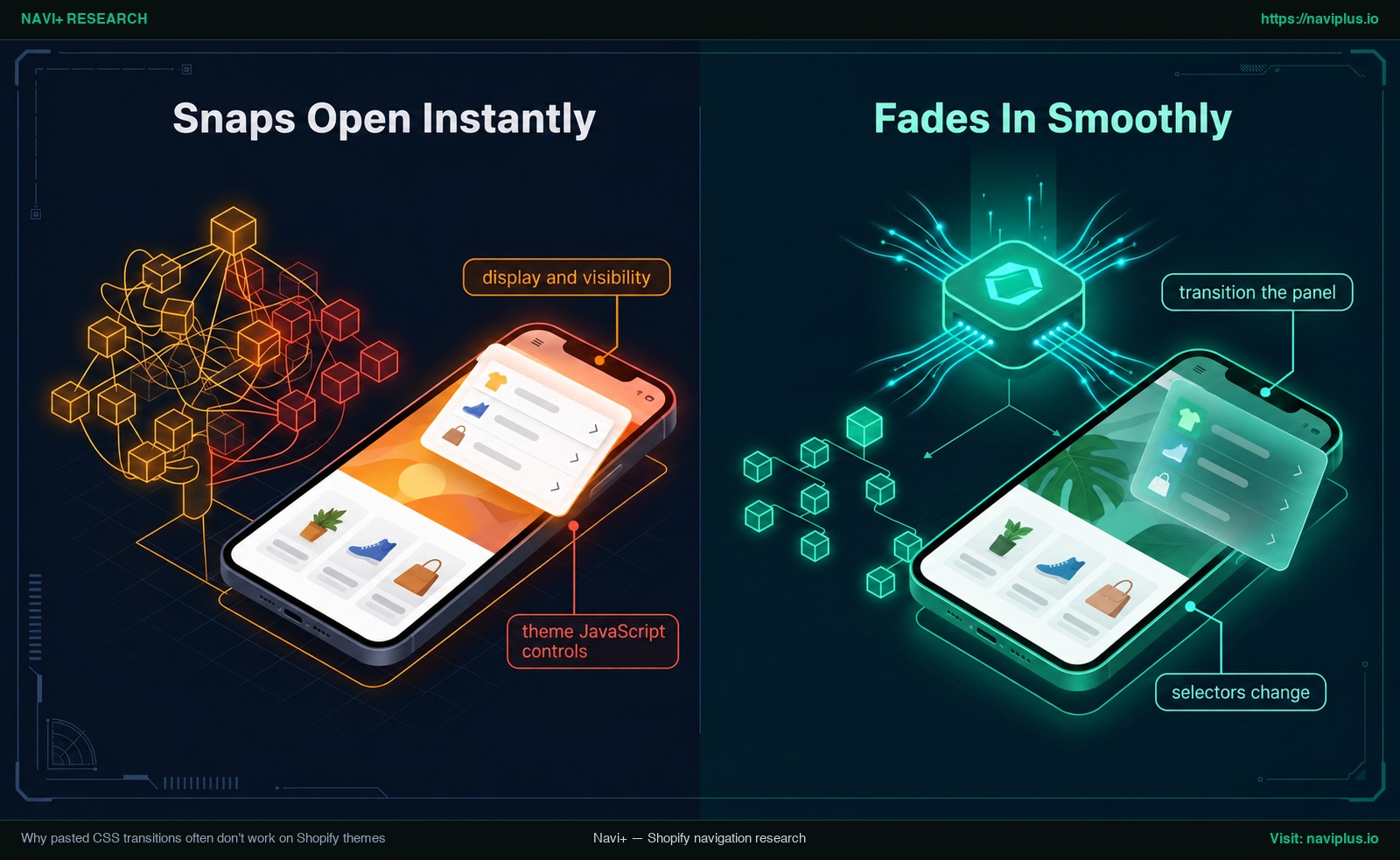
Figure 1: Concept illustration — A menu popping open instantly with display none versus fading in smoothly with opacity transitions.
Three ways to rebuild the motion: theme code, a developer, or a menu app
Once you have recorded the motion characteristics from your inspiration site, you have three paths to bring that movement to your Shopify storefront.
| Path | What You Control | Main Risk | Best For |
|---|---|---|---|
| Theme Code Edits | Full control over stylesheets and Liquid templates | Future theme updates can overwrite your edits or break selectors | Store owners with CSS experience making minor transition tweaks |
| Custom Developer | Bespoke JavaScript triggers and tailor-made motion sequences | Higher financial investment and ongoing maintenance fees | Complex or unique choreographies that standard themes cannot deliver |
| Dedicated Menu App | Prebuilt animation styles and hover effects via a visual dashboard | Bounded by the built-in animation presets provided by the app | Merchants seeking polished motion without touching Liquid files |
Path 1: Theme code edits
If you understand CSS transitions and your theme uses semantic class names, you can add custom rules to your theme assets. Whenever you modify Liquid files or stylesheets directly, Shopify explicitly advises you to duplicate your theme to create a backup copy first (Shopify Help Center). This ensures you can immediately roll back if navigation links stop responding.
Path 2: Hiring a custom developer
When an animation requires coordinated DOM state changes—such as staggered column fades or complex drawer sliding—custom development provides precise execution. In the Shopify Community thread about a Dawn slide-in mega menu, a responder suggests hiring a developer (Shopify Community Thread 223448). Ask about maintenance whenever you upgrade your theme.
Path 3: Dedicated menu apps
For non-technical merchants, a dedicated navigation app allows you to select animation styles through visual controls. However, app capabilities vary widely. For example, the MegaShelf app listing mentions animation style and hover effect controls (Shopify App Store). Because app listings give a short summary rather than detailed specs, always preview the app’s motion presets before installing to ensure the styles align with your target look.
If your navigation project also involves restructuring complex product categories, review our companion guide on mega menu best practices to ensure your layout supports effortless scanning.
Tune the feel: timing, easing, hover and mobile
Replicating a menu’s feel is not about copying code line by line; it is about matching rhythm, visual responsiveness, and ergonomics.
Timing and duration
Animation speed defines how responsive your store feels. According to the Nielsen Norman Group, the duration of most animations should be in the range of 100–500 ms, depending on complexity and how far the element is traveling, and it is far more common for animations to be too long than too short (Nielsen Norman Group).
- 100 to 500 ms: The general range given for most interface animations, depending on complexity and how far the element travels.
- 200 to 300 ms: NN/g says this can be appropriate when an animation involves substantial screen changes, such as a modal window moving into view.
- Longer: Animations are far more often too long than too short, so look for the shortest time that is not jarring.
Set your animation timing, open your store alongside your DevTools notes, and compare them side by side.
Hover effects
Micro-interactions on navigation links signal that the interface is interactive. Whether you choose a subtle bottom underline that glides in from the left margin or a soft background pill that fades behind the text, consistency across all header links is vital. To explore how movement reinforces store aesthetics, read our detailed analysis on how menu motion signals your brand.
Mobile and reduced motion
Desktop hover effects do not translate to smartphones because touchscreens lack a mouse cursor. Mobile visitors interact through taps and swipes. Ensure your mobile drawer slides in swiftly without stuttering, as outlined in our guide on mobile drawer menu mechanics.
Critically, web accessibility standards require careful handling of motion. Under WCAG 2.3.3 (Level AAA), motion animation triggered by user interaction can be disabled unless the animation is essential to functionality (W3C WCAG 2.1 Guidelines).
Modern browsers support CSS media queries using @media (prefers-reduced-motion) to detect if a shopper has enabled an operating system setting to minimize non-essential movement (MDN Web Docs). When this flag is active, your stylesheets or app should replace sliding sweeps with instantaneous displays or gentle, brief fades.
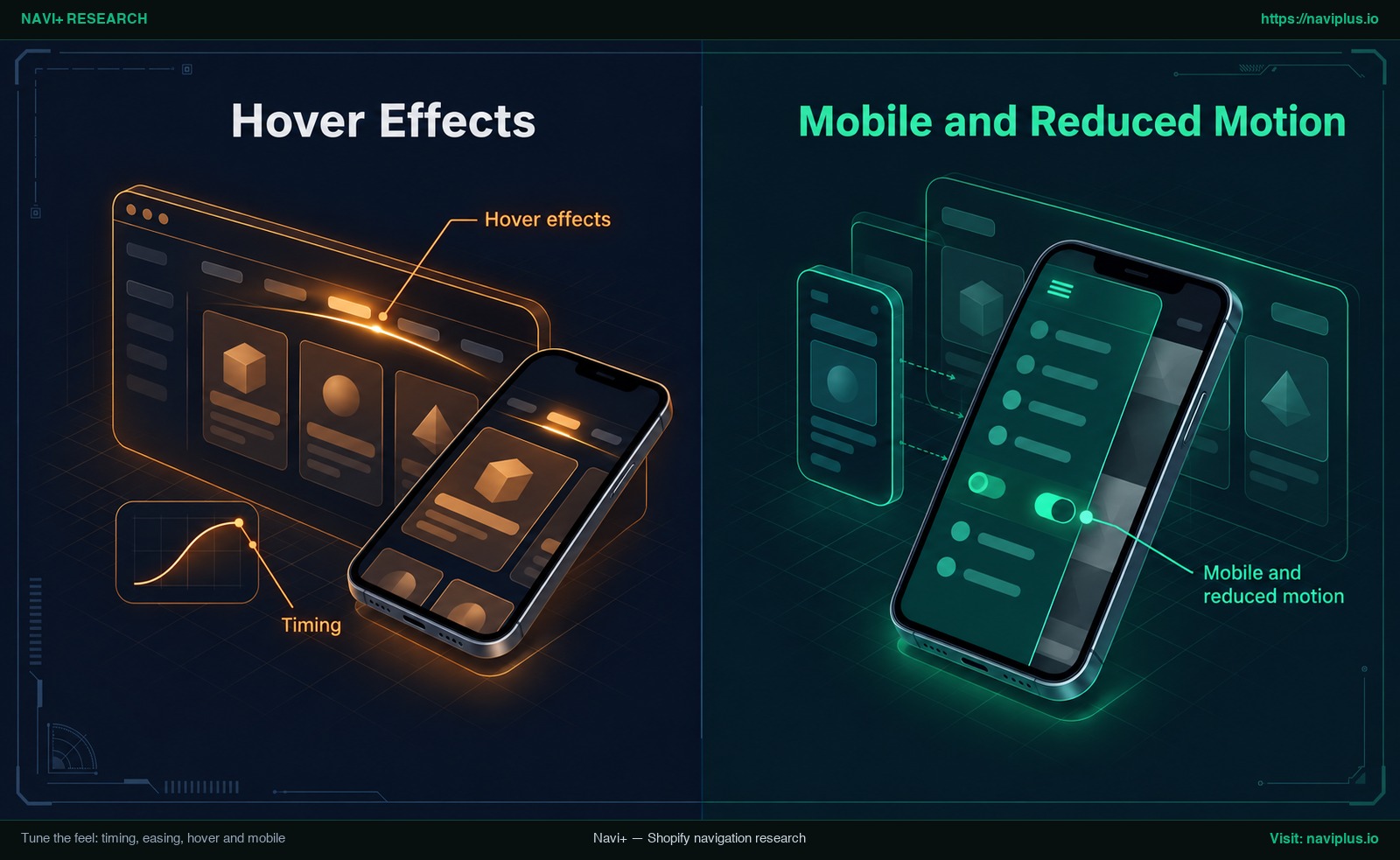
Figure 2: Concept illustration — Tuning menu animation timing and hover effects while respecting reduced motion preferences.
Copy the idea, not the code
When you see a striking menu on another store, what can you ethically and legally reproduce?
According to guidance published by the U.S. Copyright Office, copyright law does not protect facts, ideas, systems, or methods of operation; rather, it protects original works of authorship such as proprietary text, artwork, and unique source code (U.S. Copyright Office FAQ).
- What you can adopt: The conceptual motion design. Observing that a navigation panel slides down slightly while fading in with an ease-out curve is an idea. Rebuilding a similar interaction with your own code and assets is the point of this guide.
- What you must never take: Never scrape another company’s compiled JavaScript libraries, proprietary stylesheets, brand logos, custom icons, or copyrighted category photography.
Build your menu using your own brand color palette, original typography, and licensed imagery. Please note: this discussion reflects standard web industry design principles and does not constitute formal legal advice.
Trade-offs: when matching another menu’s motion is the wrong move
Before implementing an elaborate animation, evaluate whether it actually serves your customers. Adapting another site’s navigation comes with clear trade-offs:
- Brand misalignment: An animation that feels appropriate for a high-end luxury boutique might feel sluggish or theatrical on a fast-paced grocery or hardware supply store where shoppers want instant catalog access.
- Perceived performance drag: Prolonged opening animations can make navigation feel laggy, and NN/g notes that animations are far more often too long than too short. For more on menu speed, read our article on mobile menu performance.
- Theme maintenance overhead: Directly altering your theme code to inject animations creates technical debt. After theme updates, your custom modifications may need to be checked and re-applied (Shopify Help Center).
- App setting limitations: While menu apps eliminate the need to write code, they operate within defined presets. Highly complex, multi-stage keyframe choreographies may still require bespoke CSS.
- Accessibility friction: Heavy or unexpected interface motion can trigger discomfort for visitors with vestibular motion disorders, making adherence to reduced-motion preferences important (MDN Web Docs).
Where Navi+ fits
If your current Shopify theme lacks smooth animation controls and you prefer not to modify core theme files, Navi+ Tab Bar & Mega Menu offers a clean, visual alternative.
Navi+ offers these motion settings in its menu editor, so you do not edit Liquid files to get them:
- Configurable submenu opening styles: Choose between slide, fade, expand, or none, and set your preferred speed on a streamlined scale without writing complex CSS transitions or overriding theme JavaScript.
- Flexible interaction triggers: Set desktop submenus to open via hover or click, complete with customizable hover sensitivity to prevent accidental triggers when cursors sweep across the page.
- Level 1 hover styling: Select from animated underline styles (left-to-right sweep, fade, or center expand) or soft background highlights with text motion.
- Isolated Custom CSS: When you need a specific timing tweak or custom easing curve, apply CSS scoped specifically to that menu without polluting your global theme stylesheet.
- Independent mobile controls: Manage your desktop mega menus and mobile drawer or bottom tab bar separately.
Because you set these options in the app rather than in your theme files, there is no custom transition code in your theme to re-apply after a theme update. Aim for a similar feel, not an identical copy: some effects still need Custom CSS or a developer.
If your theme doesn’t offer the motion you want and you’d rather not edit theme files, Navi+ Tab Bar & Mega Menu lets you choose how submenus open, how fast, and how items react on hover — then fine-tune with CSS scoped to that one menu. Try it on a duplicate of your idea, compare with your DevTools notes, and keep what feels right.
Action checklist
Follow this step-by-step checklist to rebuild and audit your menu animation:
- Name the menu type: Confirm whether you are building a mega menu, dropdown, drawer, or tab bar.
- Define the motion and trigger: Establish whether the panel fades, slides, or expands, and whether it opens on hover or click.
- Record DevTools metrics: Note the duration, easing curve, and animated properties from your reference site.
- Duplicate your theme: Always create a backup duplicate in Shopify admin before editing any code files.
- Select your implementation path: Choose between editing theme code, engaging a developer, or installing a menu app.
- Test mobile and accessibility: Verify touch responses on physical phones and test your menu with reduced-motion settings enabled.
- Use original assets: Ensure all colors, fonts, icons, and photography belong to your brand.
FAQ
Why doesn’t my CSS transition work on my Shopify menu?
Pasted CSS transitions often fail because many menus are shown and hidden with display or visibility, which typically cannot be transitioned. Standard transitions cannot smoothly animate these discrete on/off properties without transition-behavior: allow-discrete, a newer CSS feature, so check browser support. Additionally, many themes rely on JavaScript to manage open and close states, which can override plain CSS hover rules.
How can I tell how fast another site’s menu animates?
Open Google Chrome Developer Tools by right-clicking the page and selecting Inspect. Press Escape, open the Animations panel under More tools, use its speed control to slow playback, and trigger the menu. The Animations panel lets you slow down, replay, and inspect the animation group, including its timing, delay, and duration.
Is it legal to copy another website’s menu?
The U.S. Copyright Office says copyright does not protect facts, ideas, systems, or methods of operation, but it does protect original works such as code, text, and artwork. So take inspiration from another site’s motion idea and rebuild a similar feel yourself, and never copy proprietary code, scripts, graphics, brand icons, or photography. This is not legal advice.
How long should a menu animation be?
According to the Nielsen Norman Group, the duration of most animations should be in the range of 100–500 ms, and 200–300 ms can be appropriate when an animation involves substantial screen changes. It is far more common for animations to be too long than too short, so aim for the shortest time that does not feel jarring.
Can I add smooth menu animation without hiring a developer?
Yes, in some cases. If your active Shopify theme includes built-in transition settings, you can adjust them in the theme editor. Alternatively, you can install a dedicated Shopify navigation app like Navi+ Tab Bar & Mega Menu, which lets you configure opening styles, speeds, and hover effects without editing theme code. If you do edit theme code yourself, duplicate your theme first.
Sources
- Chrome DevTools Documentation: Inspect CSS animations — Official guide to inspecting, replaying, and modifying CSS animation groups and timing curves.
- MDN Web Docs: Using CSS transitions — Reference for CSS transition properties, duration, timing-function, and delay components.
- MDN Web Docs: transition-behavior — Specifications for applying transitions to discrete animated properties such as display.
- MDN Web Docs: @media (prefers-reduced-motion) — Standards for detecting user system preferences for reduced motion.
- Nielsen Norman Group: Animation Duration and Timing — Research by Page Laubheimer on optimal user interface animation lengths (100–500 ms).
- Shopify Help Center: Drop-down menus — Documentation on Shopify menu nesting rules and theme-dependent display locations.
- Shopify Help Center: Editing theme code — Official recommendations for duplicating themes to create backups before modifying code.
- U.S. Copyright Office: FAQ on Copyright Protection — Clarification that copyright does not protect ideas, methods of operation, or systems.
- W3C Web Accessibility Initiative: WCAG 2.1 Understanding Success Criterion 2.3.3 — Accessibility standards for disabling non-essential interaction-triggered animations.
- Shopify Community: How do you give a mega menu dropdown animation? — Merchant discussion illustrating issues with suggested CSS snippets.
- Shopify Community: How to enable smooth mega menu slide in effect on Dawn theme? — Technical discussion regarding JavaScript click handling and developer recommendations.
- Shopify Dev Community: Fade in/Fade out of header menu — Exploration of transition limits with visibility and display properties.
- Shopify Community: Menu dropdown animation - Dawn 7.0.1 Theme — Forum thread detailing selector changes across Dawn versions and one-time animation bugs.
- Shopify App Store: MegaShelf, Visual Mega Menu — App store listing mentioning animation style and hover effect controls.
Explore the topics
This guide links out to focused articles — dive deeper on each.