

You built a beautiful website on Wix, chose a great template, dragged every block to perfection — but when it comes to navigation, you're stuck with what Wix provides: a horizontal menu bar at the top, fine on desktop, but on phone it collapses into a hamburger. Customers tap to open, scroll a long list, tap again to see anything. Every tap is another chance they leave.
Navi+ is a complete navigation system, installed directly into your Wix site via the Wix App Market. Instead of one fixed menu style, you get an entire system: tab bar fixed at the bottom for mobile, mega menu with multiple columns for desktop, mobile menu for depth when you need it, Floating Button for promotions, and icon menu for multi-category sites. All managed from a single dashboard. No code, no theme editing, no developers needed.
This guide covers everything Navi+ does on Wix — what it replaces, how to install it, and especially installation steps and how to upgrade plans right in your Wix dashboard.
Why Wix's default menu costs you visitors
Wix's built-in menu was designed with desktop-first thinking. But most visitors today use phones — and there the default menu shows its limits:
- No bottom navigation bar. Every app you use daily — Shopee, Lazada, Instagram — anchors core actions to a fixed bottom bar, where thumbs reach easiest. Wix's menu still hangs at the top.
- Mobile-only hamburger. Tap to open, scroll a long list, tap again. Three or four taps before they see what they want.
- Hard to customize. Want custom icons, bigger touch targets, multi-column layouts, or images in the menu? Wix's default barely supports any of that.
- No room for promotions. A flash sale goes live but the menu can't show it; a category needs visual prominence but the menu doesn't support images.
Navi+ menu system for Wix
Navi+ overlays your Wix site with a complete navigation system. Each component runs independently — and they work together.
Tab Bar — bottom navigation for mobile
A fixed bottom bar with up to five destinations: Home, Shop, Search, Cart, Account — or whatever you choose. Custom icons, active state highlighting, and a library of over 4,000 Google Material Symbols icons. For most Wix sites on mobile, this is the biggest single improvement.
Mega Menu — multi-column dropdown for desktop
Multi-column dropdown packed with images for sites with many categories. Add section headers, sub-links, promo banners, and CTAs. Replace a flat "Products" link with a table showing what's inside.
Slide / Hamburger Menu
When mobile needs depth — nested categories, language selection, account links — a slide-in panel, smooth animation, from left or right edge, full or partial screen.
FAB — Floating Action Button
A floating button anchored to the corner of the screen. Perfect for promotions ("Flash Sale →"), priority actions ("Order via WhatsApp"), or a quick menu trigger. Customize color, icon, label, and action.
Grid Menu
Grid-style menu for multi-category sites. One screen with 9 or 12 large tiles instead of a long scrolling list — the style you see in food delivery, fashion, and electronics.
Mobile and desktop, separate config
One detail often missed: each menu configures separately for mobile and desktop. Show Tab Bar on mobile and Mega Menu on desktop — completely independent, no media queries to write.
Built for Wix sites, not a temporary add-on
- Theme-independent. Menu lives outside Wix's theme markup — so you can change your template or adjust the design without touching your menu.
- No theme editing. Install via Wix App Market, Navi+ embeds itself into your site. Uninstall with one click if you ever want to.
- Pure HTML5 + CSS3, no external libraries. No script conflicts, no breaking updates when Wix changes.
- Mobile-first. Every template optimizes spacing, font size, and touch targets for phones first, then scales to desktop.
- Editor outside Wix dashboard. Full control panel runs on its own app at
dash.naviplus.app— fast, accessible from any device.
Install Navi+ on Wix — step by step
On Wix, everything starts with the Wix App Market. After you add the app, Navi+ embeds itself — you don't paste code manually.
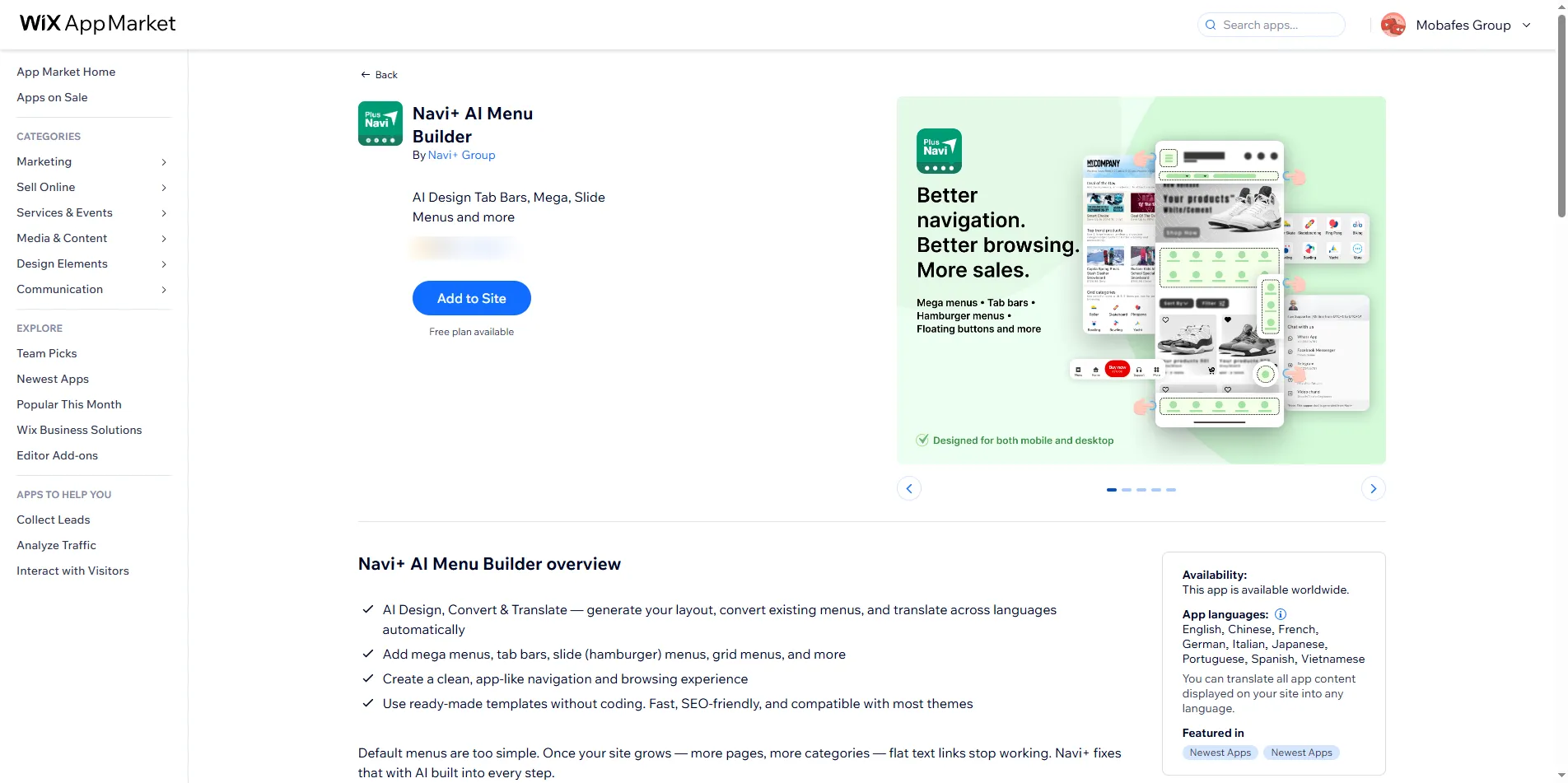
Visit Navi+ on Wix App Market (or search "Navi+" in your Wix dashboard's App Market), click Add to Site.
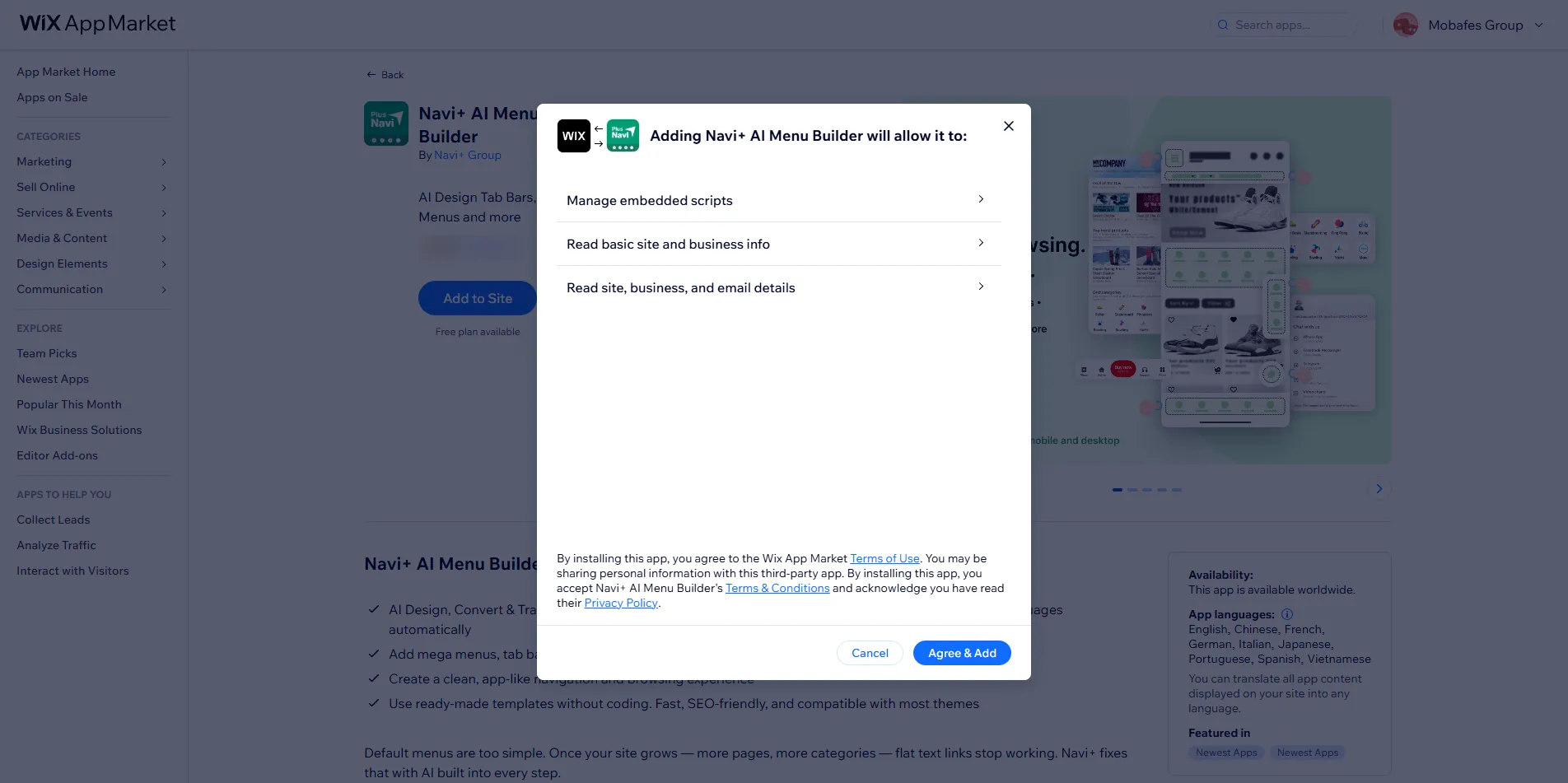
Select your Wix site and confirm permissions. No charges at this step — Starter is free forever.
After install, open Navi+ right in your Wix dashboard. Choose a template, select menu type (Tab Bar, Mega, Slide, FAB, Grid), customize icons and links, then click Publish.
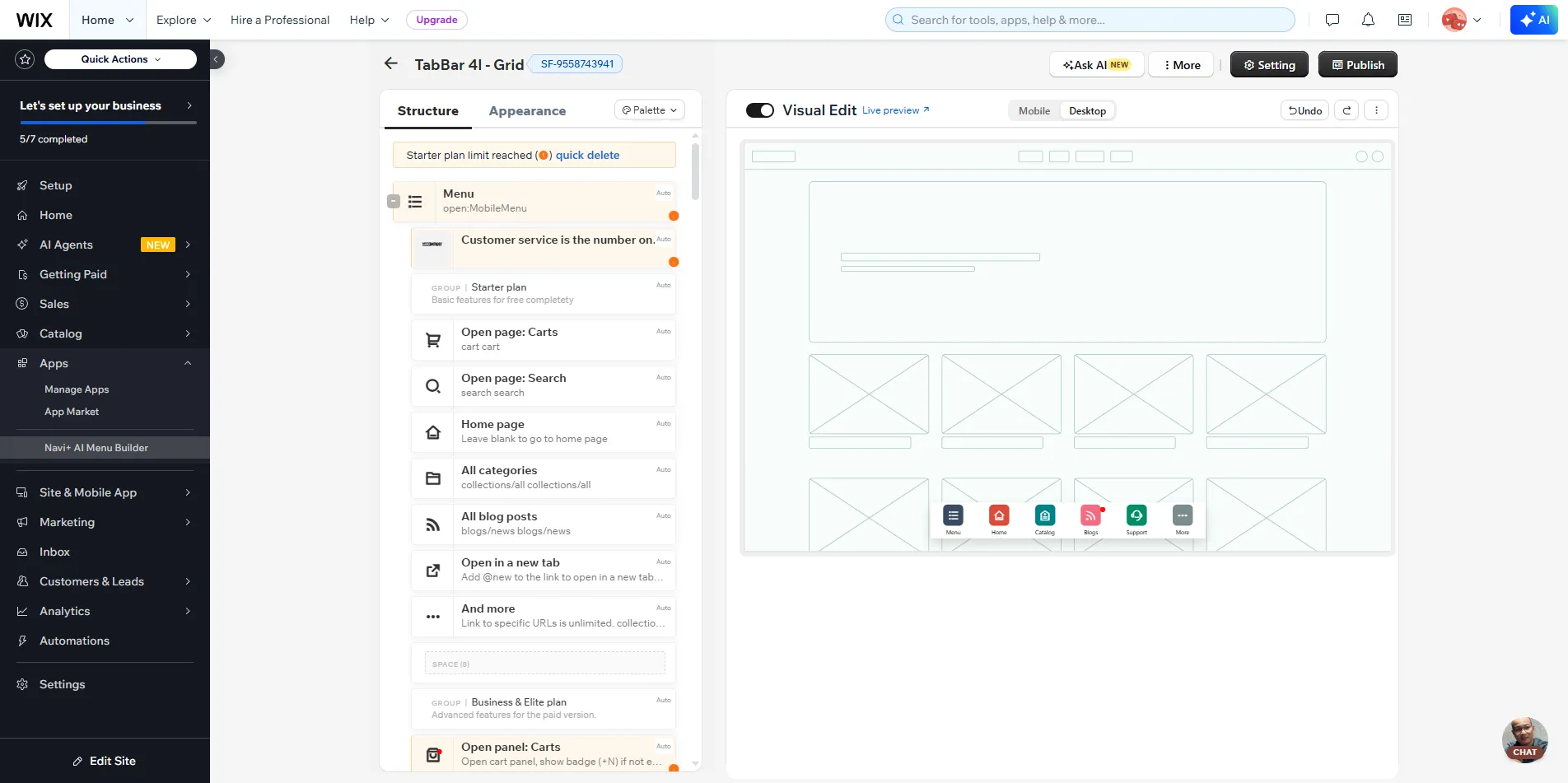
Your Wix site updates right away — no need to republish your theme, no cache to clear.
Most sites go from install to live menu in under five minutes. See more detailed guides at Navi+ Help Center.
Upgrade plans on Wix
On Wix, billing and upgrades happen right in your Wix dashboard — because Wix manages payments for apps (Wix Apps Premium). You don't need an account on another platform, and you can't upgrade from our external website either: open Navi+ from your Wix dashboard for your site and follow the steps below.
Go to your Wix dashboard → Apps section → open Navi+.
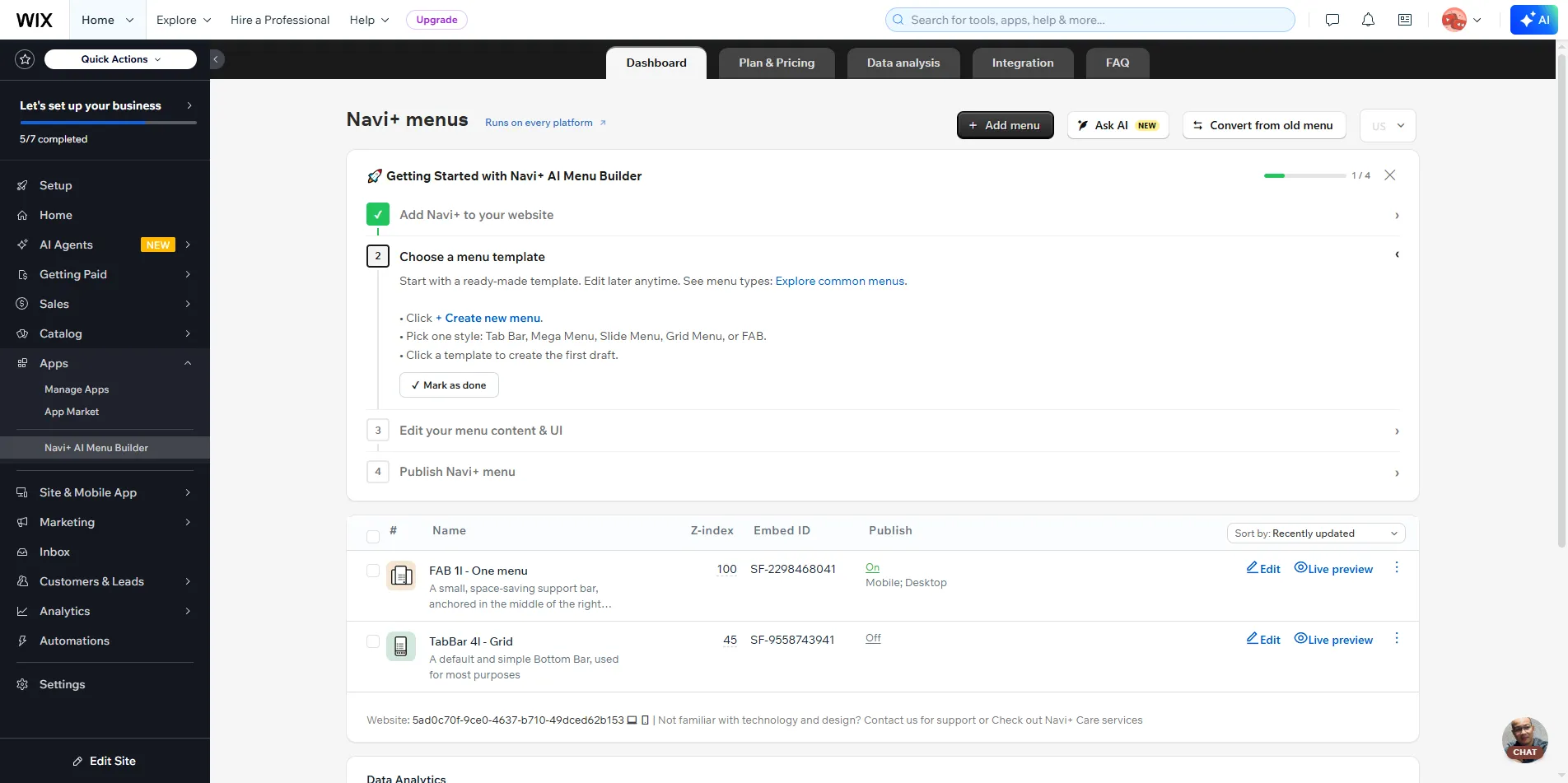
Inside Navi+, open the Plan & Pricing tab. You'll see your current plan and available upgrades (Business, Elite).
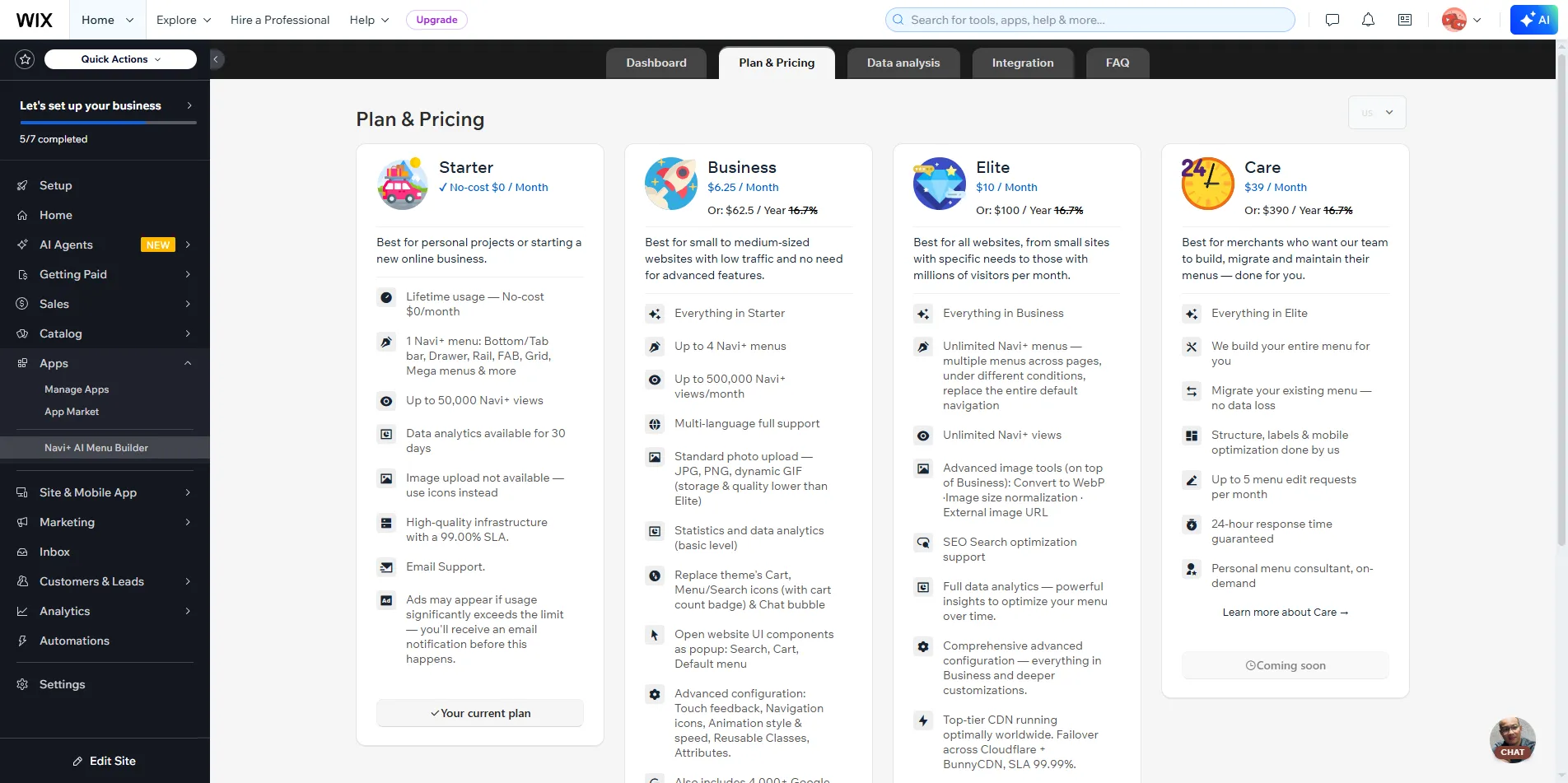
Click Upgrade on your desired plan. Navi+ directs you to Wix's checkout — choose monthly or yearly and complete payment. Wix handles the charge, never touches your card details.
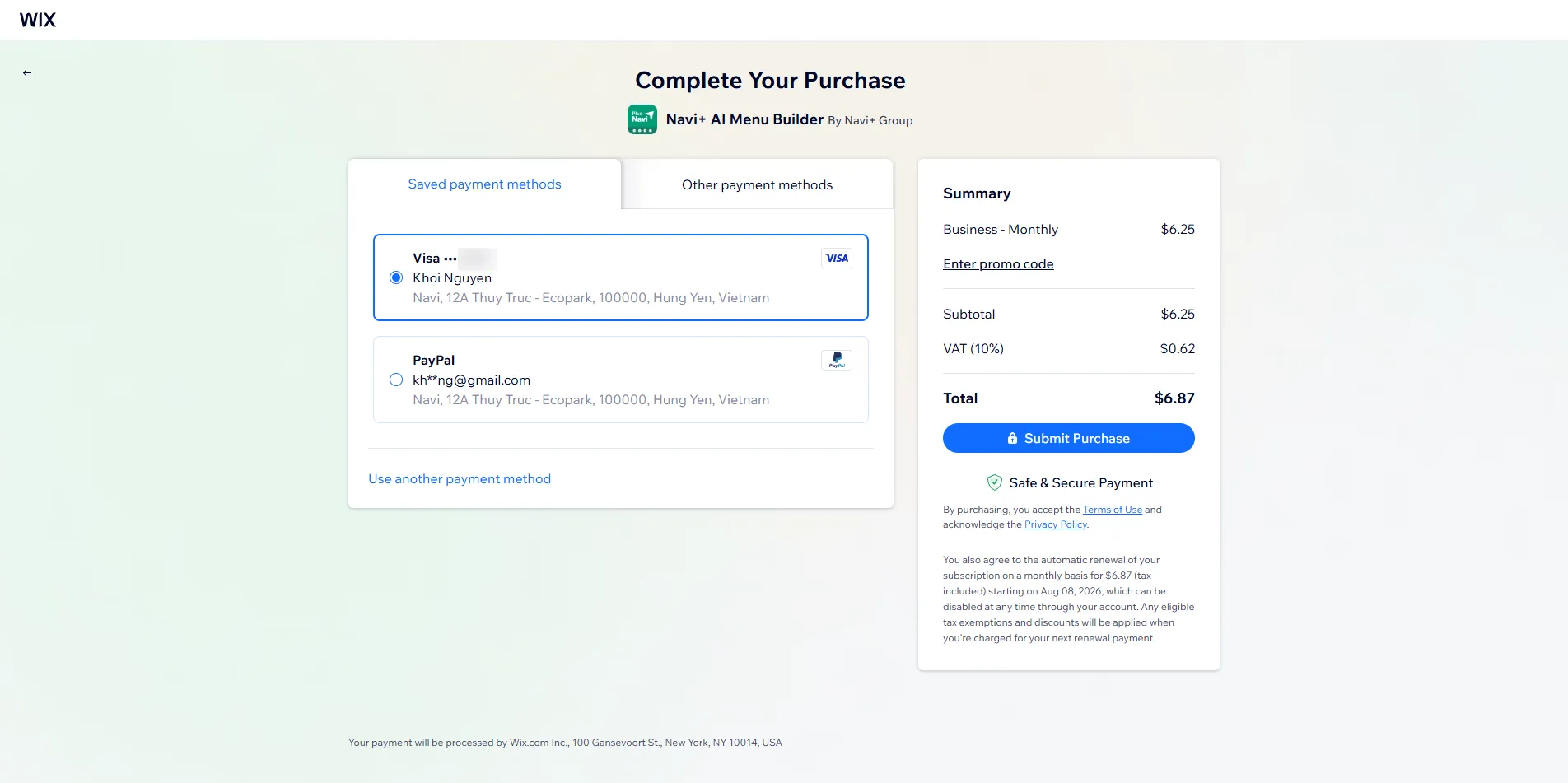
Payment complete, your new plan's features (multiple menus, multi-language, image uploads, analytics…) unlock instantly in Navi+.
Plans on Wix
Same plan lineup as all platforms — same features.
| Plan | Price | Best for |
|---|---|---|
| Starter | Free forever | One menu, small site, testing Navi+ |
| Business | from $6.25 / month | Growing site, multiple menus, multi-language, image uploads, analytics |
| Elite | from $10 / month | Large catalog, unlimited menus, full SEO, premium CDN, hands-on support |
Frequently asked questions
Does installing Navi+ slow down my Wix site?
No. Navi+ prioritizes mobile performance, uses no external JavaScript libraries, defers loading after initial render, and serves via global CDN. No render-blocking scripts.
Do I need to know code?
No. The entire dashboard is drag-and-drop with ready-made templates. Custom CSS/HTML/JavaScript is available if you want to go deeper, but most sites don't need to touch it.
Can I upgrade from the naviplus.io website?
No for Wix — payments are managed by Wix (Wix Apps Premium). Upgrades must happen in your Wix dashboard's Navi+ app. Open Navi+ from your Wix dashboard and go to Plan & Pricing to upgrade.
If I uninstall the app, do I lose my menu?
No. When you uninstall, your menu data is preserved; reinstalling brings it right back.
Get started on Wix
Free to install — no card required. Live in minutes. Same plan lineup as all platforms.
Install on Wix — free