You clicked Save menu in your Shopify admin, refreshed your storefront, and old links remained.
When saved menu changes fail to appear, Shopify is not ignoring you. Navigation relies on five layers: browser cache, the live theme, header assignment, app rendering, or theme conflicts. Checking these in order identifies the cause quickly.
Quick answer: why your menu changes don’t show
Most of the time the change is saved but you are looking at a cached page, a theme that isn’t the published one, or a header that points to a different menu. If an app draws your menu, the edit must be made in that app, not in Content > Menus.
Match what you see on screen to the diagnostic table below:
| Symptom | Likely layer | Where to check |
|---|---|---|
| Only your device shows old menu | Browser cache | Private window or second device |
| Preview shows new menu, live shows old | Draft theme | Check Current theme in Themes |
| Desktop updated, mobile did not | Menu assignment | Header in live theme editor |
| Edited admin, app menu unchanged | App-drawn menu | Edit inside your menu app |
| Menu vanished after theme switch | App embed off | Enable app in App embeds |
Native Shopify menu vs a menu drawn by an app
Before troubleshooting, identify which system renders your navigation.
A native Shopify menu is managed under Content > Menus in admin. Your theme processes this list, and link display depends on your theme. The main menu displays on every page of your store.
An app-drawn menu is rendered by an app (such as a tab bar, drawer, or mega menu) using data from its own dashboard. Editing Shopify’s built-in Navigation will not change an app menu.
| Characteristic | Native Shopify menu | App-drawn menu |
|---|---|---|
| Where edited | Admin: Content > Menus | In app dashboard |
| Where assigned | Theme editor: Header | Theme editor: App embeds |
| How it updates | Saved in admin; drawn by Liquid | Saved in app; drawn by script |
If your store uses a native desktop header and mobile app drawer, you use separate desktop and mobile menus. Editing desktop menus leaves mobile links unchanged.
Start here: hard refresh, private window, another device
Rule out browser cache in two minutes. Local caching stores webpage copies, which can show outdated links after edits.
First, hard refresh to bypass cache:
- Windows / Chrome / Edge: Press
Ctrl + Shift + RorCtrl + F5. - Mac / Safari / Chrome: Press
Cmd + Shift + R.
If old links remain, open a private window to bypass local cache and cookies.
Next, test on a phone using cellular data or the Shopify app. Testing on another device isolates issues to your computer.
As Shopify notes in its theme troubleshooting guide, testing in incognito mode, on another device, or in the Shopify app isolates device issues. If the new menu appears there, clear your local browser cache and cookies.
If all devices still show the old menu, proceed to the next layer.
Are you editing the live theme?
When private browsing still shows old links, you may be editing a draft theme instead of the live one.
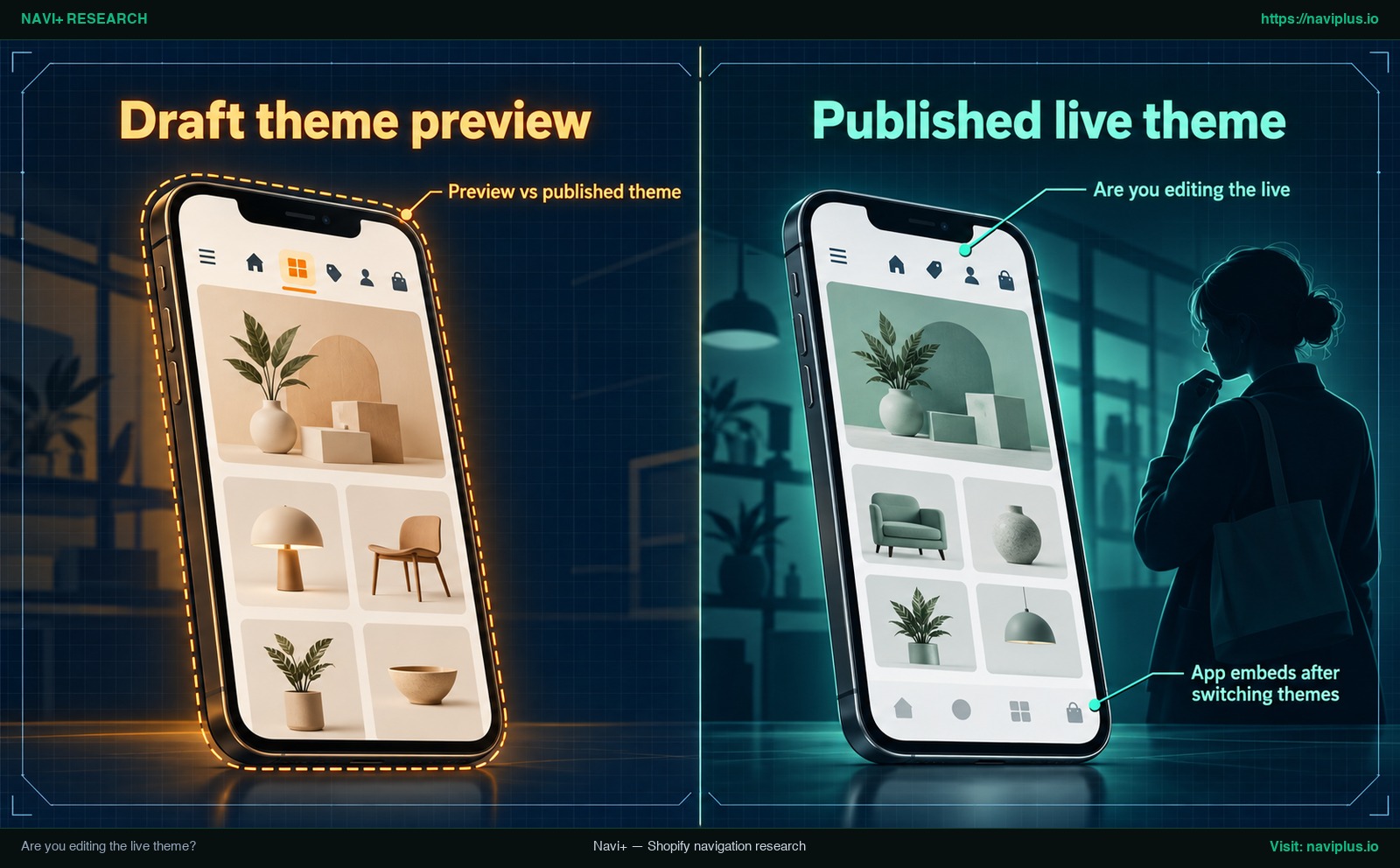
Figure 1: Concept illustration — Are you editing the live theme?
Preview vs published theme
In Shopify’s guide on publishing themes, a published theme is what visitors view, and only one theme is published at a time.
Customizing a draft theme updates only admin preview. Your live store serves the published theme, leaving customer links unchanged.
To confirm your active theme:
- Go to Online Store > Themes.
- Locate the top card labeled Current theme.
- Click Customize on that card rather than draft themes below.
App embeds after switching themes
If you recently published a new theme, your navigation app may seem missing.
Under Shopify’s guide on theme structure and app embeds, app embeds can be activated or customized in the theme editor. Embeds attach to specific themes, so switching themes requires you to re-activate them.
To restore an app menu, open your live theme editor, select App embeds in the left sidebar, and turn the app toggle on.
Is the right menu selected in the Header?
Your edits may have saved, but your theme header might reference another menu list.
Stores often carry multiple lists under Content > Menus (like “Main menu” and “Footer menu”). Editing “Main menu” will not update your storefront if your header points to another list.
To verify menu assignment:
- In Online Store > Themes, click Customize on Current theme.
- Select Header in the section tree.
- Locate Menu in the settings sidebar.
- Select the menu you edited and click Save.
Desktop header vs mobile drawer
Because menus display differently on different themes, setups vary. Some themes share menus across devices, while others use separate settings for desktop headers and mobile drawers.
If your menu updated on desktop but not mobile, check your Header settings for a mobile menu field. Assign your updated list there, or learn how to make the menu open on mobile if the drawer fails to expand.
Check each menu item’s link
If a link fails to appear or opens an error page, check its destination. Items pointing to deleted or draft pages send shoppers to missing URLs. Verify links in admin or see how to fix broken links in a navigation menu to confirm destinations are published.
Did the edit actually save?
Shopify navigation uses a two-step save process:
- Go to Content > Menus (where store menus are edited).
- Click your menu title to open its items.
- After editing an item, click Apply changes.
- Click Save or Save menu at the top right.
Closing the tab after clicking “Apply changes” without clicking “Save menu” loses edits.
Refresh your admin tab under Content > Menus. If items remain listed, your edit saved. If they disappear, watch the tutorial below and see how to set up menu links in your Shopify store:
Server and CDN cache: how long should you wait?
Shopify does not publish an official timeframe for CDN cache updates. Third-party blogs offer conflicting estimates from minutes to hours, which are not official rules.
If private windows and second devices still show old links after checking your theme and header, check app layers instead of waiting.
Renaming handles or adding timestamps into theme.liquid are unverified workarounds that risk breaking layouts. Focus on theme assignments and app settings instead.
When an app draws the menu (tab bar, drawer, mega menu)
If native settings are correct but your storefront remains outdated, an external app is likely rendering navigation.
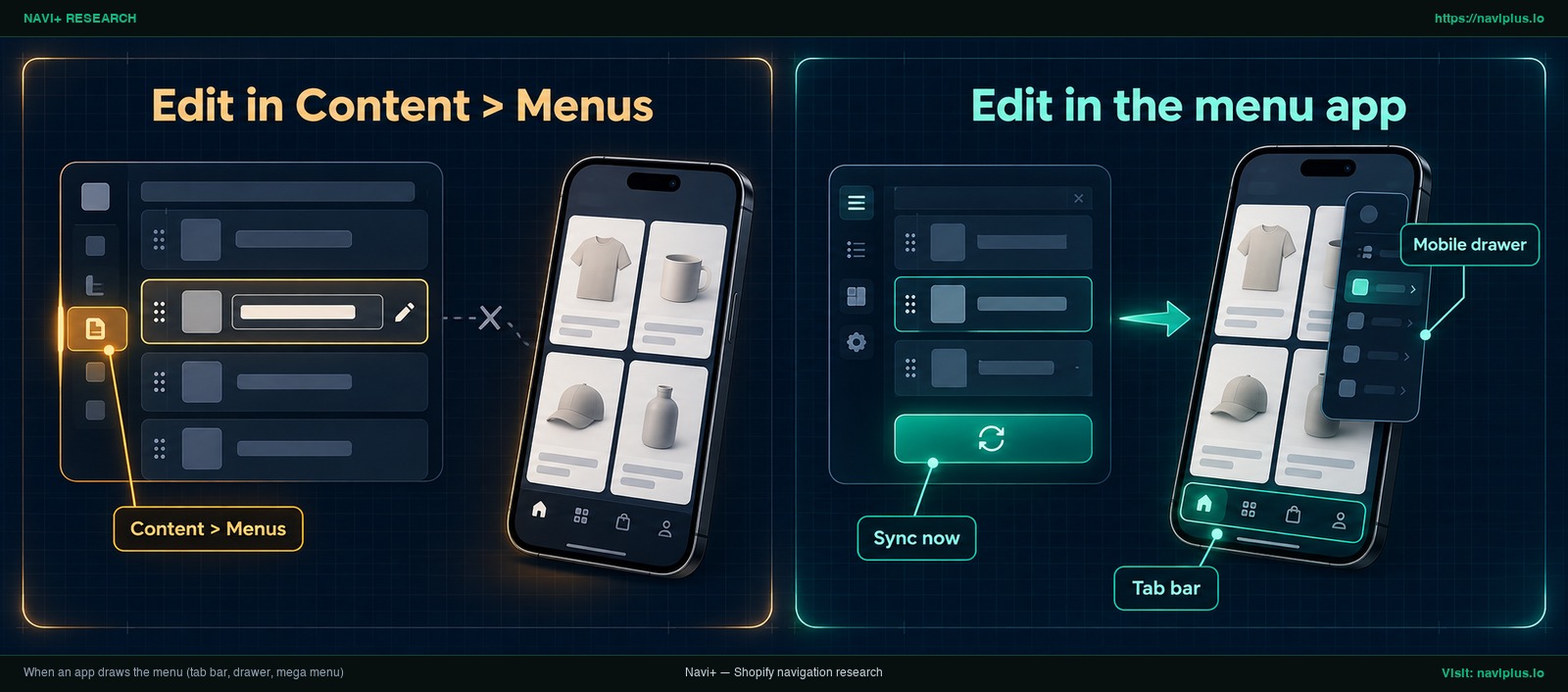
Figure 2: Concept illustration — When an app draws the menu (tab bar, drawer, mega menu)
App navigation, such as tab bars, drawers, and mega menus, is drawn by the app’s script. Helium’s Meteor documentation notes that changes made to Shopify’s Navigation settings will not be reflected in the app and must be edited in the app itself. Check your app’s documentation, as designs differ.
Keep three rules in mind:
- Edit inside the app: App menus manage links in their dashboard, not Content > Menus.
- Verify live app embeds: Menus cannot render if embed toggles are off in your live theme.
- Check for manual sync: If an app mirrors your Shopify menu, it may require manual syncing. For example, Navi+ Mobile Menu embeds your Shopify menu, but updates apply only when you click Sync now in the app.
Isolate the cause: disable the app, test a free theme
If you cannot tell whether an issue stems from theme code or an app conflict, isolate the cause:
- Duplicate your theme: In Online Store > Themes, click
...by Current theme and choose Duplicate. - Disable app embeds: In the duplicate theme, turn off the menu app under App embeds and preview. If the native menu updates, the issue is in the app. Shopify notes you can temporarily uninstall apps to test for conflicts.
- Preview a free theme: If problems persist, install a free Shopify theme and click Preview. If links display correctly, the conflict is in your theme rather than Shopify.
Trade-offs and when not to use these fixes
Troubleshooting storefront navigation carries practical trade-offs:
- Clearing cache and cookies: May sign you out of active sites; test in private browsing first.
- Temporarily uninstalling apps: Depending on the app, removing it may also remove its saved settings; prefer disabling app embeds on a duplicate theme instead.
- Modifying theme code: Never edit
theme.liquidon a live theme to force cache clearing, as syntax errors break headers. - Never publish test themes: When testing with a clean theme, always use draft Preview without publishing.
Where Navi+ fits
If managing native and app menus across themes is a chore, Navi+ offers one option for storefront navigation.
Navi+ renders its Tab Bar, Mobile Menu (drawer), and Desktop Mega Menu through a theme app embed. You configure items in the Navi+ app, and the script draws the saved menu in the browser. After saving, verify the result in a private window.
If you prefer native navigation, Navi+ Mobile Menu can embed your existing Shopify menu. Its copy refreshes only when you click Sync now in the app, giving you control over when changes take effect. For broader background, see our Shopify menu guide.
If you’d rather manage your tab bar, drawer and mega menu in one place, Navi+ lets you edit them in the app and keep your existing Shopify menu with Sync now. You can try it on a duplicate theme first.
Action checklist
Follow eight verification checks to resolve menu update issues:
- Private window: Check whether the old menu is cached in your browser.
- Second device: View your store on a phone using cellular data.
- Live theme: Confirm you customized the theme under Current theme.
- Header selection: Ensure your live Header points to the edited menu list.
- Edits saved: Verify items in Content > Menus after clicking Save menu.
- Destination links: Ensure updated links point to active, published pages.
- Live app embeds: Confirm your menu app embed is enabled in the live theme.
- App sync: Edit links inside the app dashboard or click Sync now.
When to contact support and what to send
If your menu remains stuck after the checklist, contact support. Shopify’s troubleshooting guide lists support as the final step after general checks, so you can describe what you already ruled out.
Include these details in your ticket:
- Theme: Current theme under Online Store > Themes.
- Menu list: Edited list under Content > Menus and missing links.
- Screenshots: Admin menu setup alongside the storefront in private browsing.
- Environment: Operating system, browser version, and connection type.
- Apps: Active navigation, tab bar, or mega menu apps installed.
- Test results: Results from toggling app embeds or previewing themes.
For issues within an app-drawn menu, contact that app’s team directly through the Shopify App Store.
FAQ
Do I need to clear my cache to see menu changes?
Try incognito mode or another device first. Shopify suggests clearing browser cache and cookies when the issue only occurs on your local machine.
How long does it take for menu changes to appear?
Shopify does not publish an official timeframe. If changes do not appear in private browsing and on a second device after checking your live theme and header, check menu assignments rather than waiting.
Why did my menu change in the preview but not on the live store?
You may be editing a draft theme. Customers only see your published theme, and only one theme can be published at a time.
I edited Content > Menus but my app’s menu didn’t change. Why?
App-drawn menus fetch data inside the app. Editing Shopify’s built-in Navigation does not modify app menus. In Navi+, an embedded Shopify menu updates only when you click Sync now.
My menu disappeared after I switched themes.
App embeds do not turn on automatically on a new theme. You must re-activate the app embed inside your theme editor.
Sources
- Shopify Help Center: Add, remove, or edit menu items in your online store — editing and saving menus in Content > Menus.
- Shopify Help Center: Understanding navigation — theme menu display and main menu visibility.
- Shopify Help Center: Publishing themes — published theme rules and storefront display.
- Shopify Help Center: Troubleshooting your online store theme — cache clearing, app testing, and theme isolation.
- Shopify Help Center: App embeds and theme structure — activating app embeds across themes.
- Helium Help Center: Common issues & fixes — app navigation settings and theme interactions.
- Shop Theme Detector: How to delete your cache on Shopify — third-party discussion of cache timing variations.
Explore the topics
This guide links out to focused articles — dive deeper on each.